
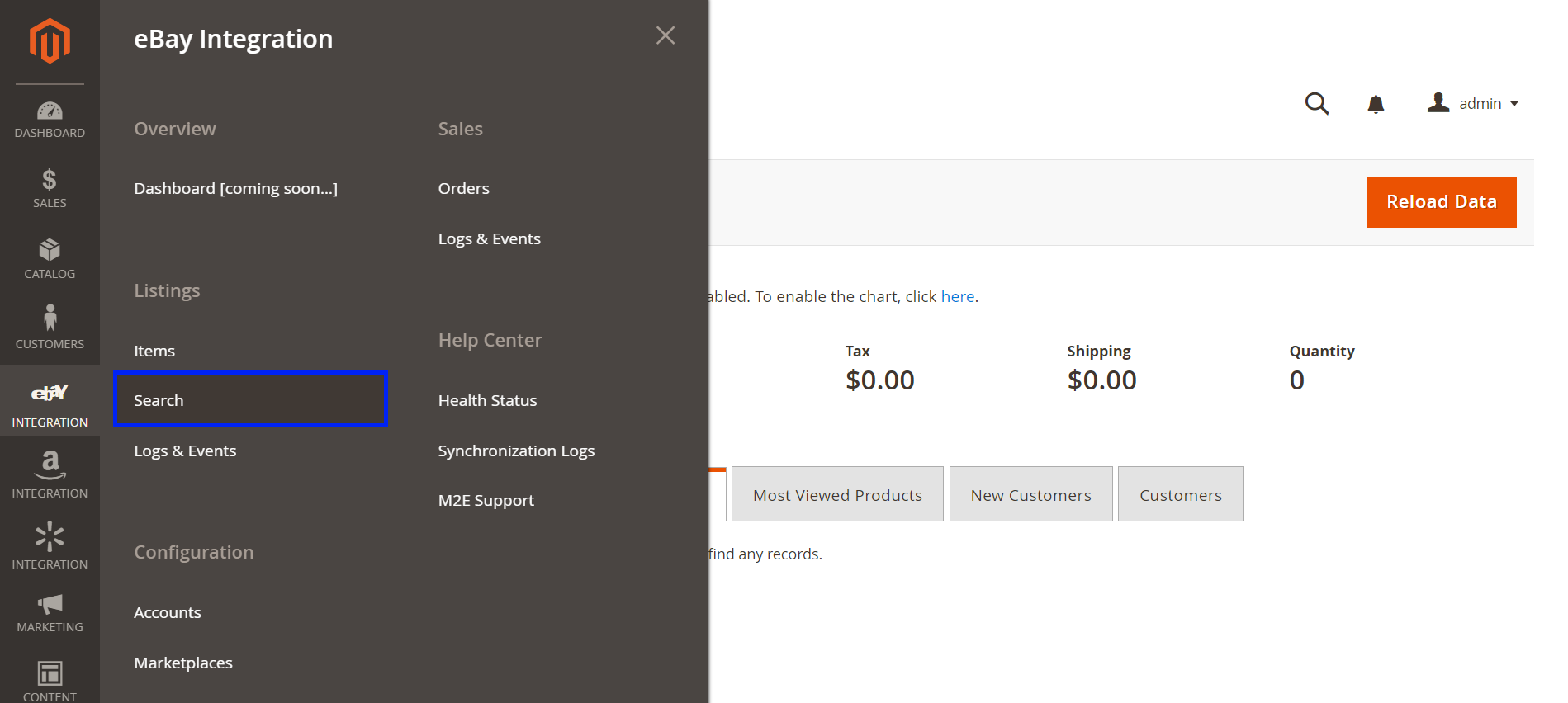
You can observe all Products added to M2E Pro Listings under eBay > Search or eBay > Listings > Items > All Items.
In the All Items grid, you can use the filters to find the product you want to manage. If an eBay Item ID is available, clicking it will take you to the listing on eBay. Clicking the arrow icon in the Manage column will take you to the M2E Pro Listing's products page, where you will be able to manage its settings.
You can apply the following synchronization actions to the items in the grid:
- List Item(s) – lists selected Items on eBay. This action only works with Items that have the Not Listed status.
- Revise Item(s) – revises selected items. The action applies to the items with the Listed status, based on the settings in the Synchronization Policy.
- Relist Item(s) – relists selected items. The action applies to the items with the Sold, Inactive (Stopped), and Finished statuses.
- Stop Item(s) on eBay – stops selected items. These items stay in the M2E Pro listing but are no longer listed on eBay. If this action has been submitted successfully, the item acquires the status "Inactive (Stopped)".
- Stop on eBay / Remove from Listing – stops the eBay Listing for the selected items and removes them from the M2E Pro Listing.
- Change Policies – assign a different Policy to the selected products. M2E Pro applies it as a Policy override in every Listing the products belong to, while other products in those Listings keep their current Policies.
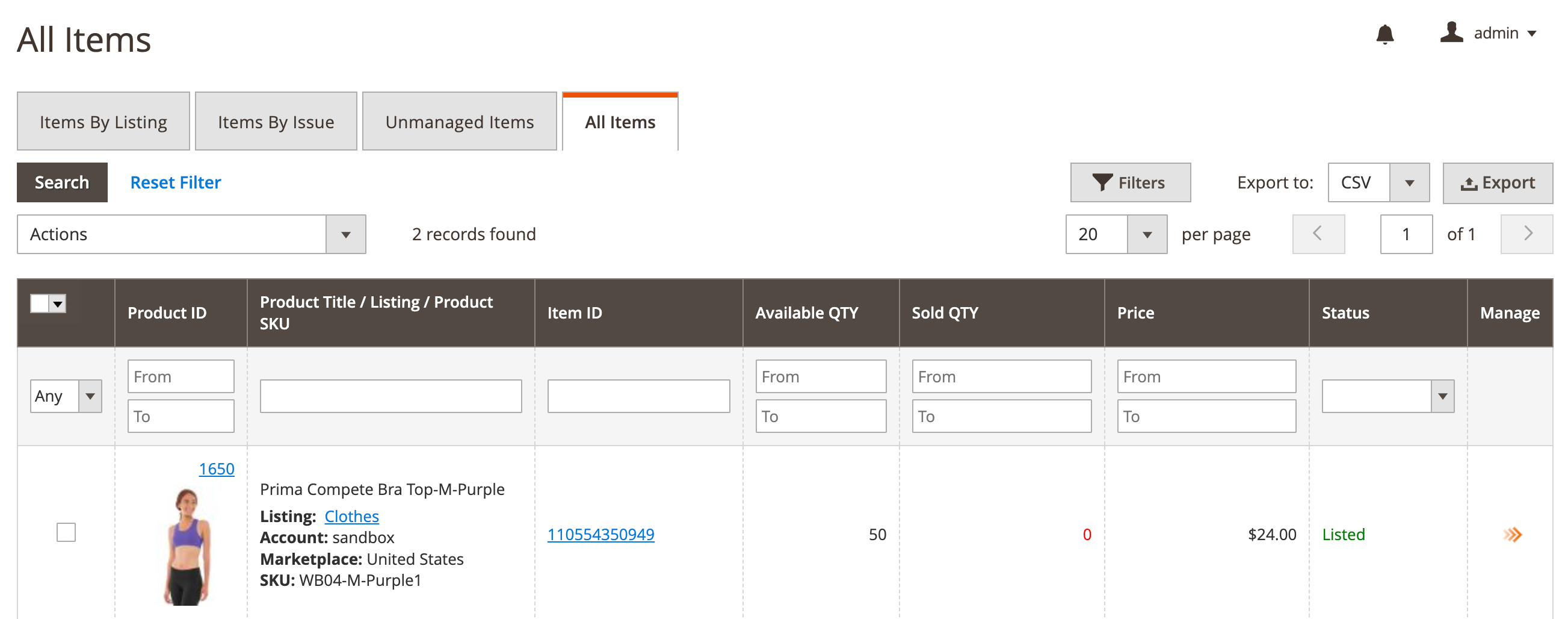
✅ You can export all eBay items managed via M2E Pro and their data to a CSV file. For that, click Export in the top right corner of the grid.


