
ℹ️ There is no way to disable Kaufland order import, but you can disable Magento orders creation in case you do not want Magento orders to be created for the corresponding Kaufland orders.
Product is Listed By M2E Kaufland #
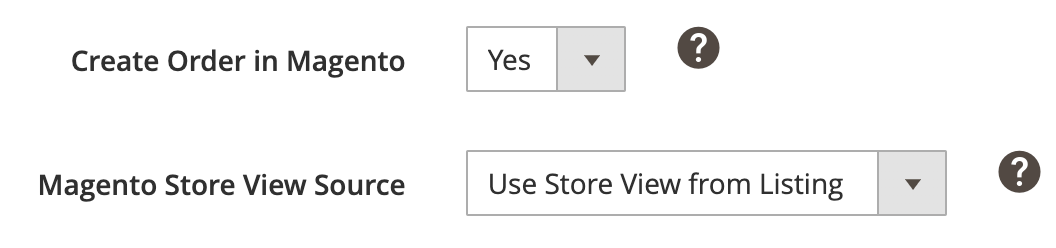
- Create Order in Magento – choose “Yes” if you want the extension to create corresponding Magento orders for Kaufland orders placed for items listed using M2E Connect.
- Magento Store View Source – select from which Store View product data should be taken when Magento order is created.
✅ If the initial attempt to create a Magento order fails, M2E Connect will initiate an automatic retry. Three recurring attempts will be launched at regular intervals.
M2E Connect may try to create Magento order again if the corresponding Kaufland order is updated.
⚠️ The automatic retry mechanism does not cause double orders to be created in Magento for the same Kaufland order imported through M2E Connect.
Product Is Listed By Any Other Software #
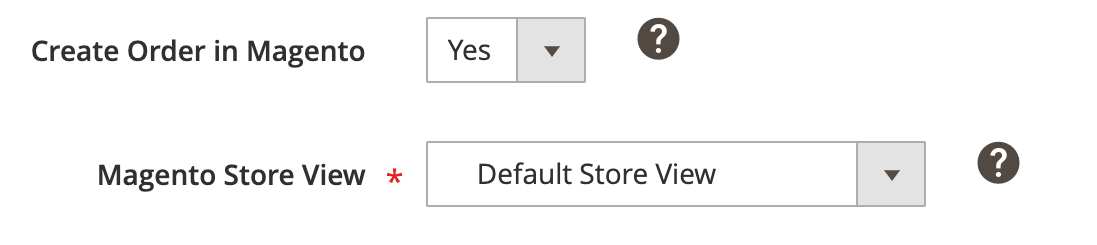
- Create Order in Magento – choose “Yes” if you want the extension to create corresponding Magento orders for Kaufland orders placed for items listed on the Channel directly or using any other tool (not M2E Connect).
- Magento Store View Source – select from which Store View product data should be taken when Magento order is created.
Magento Order Number #

- Source – select whether Magento order number should be generated based on your Magento settings or Kaufland order number.
- General Prefix – specify the prefix you want to add to Magento order number.
Shipping information #
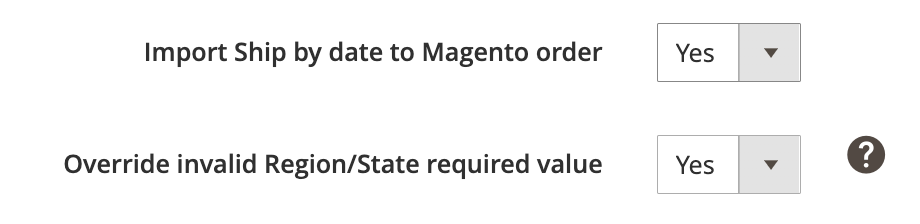
- Import Ship by date to Magento order – decide whether ‘Ship By Date’ info must be imported to the Shipping & Handling information section of the Magento orders.
- Override invalid Region/State required value - set to “Yes” to automatically replace the invalid Region/State value with an alternative one for the specified country.
✅ Keep the option enabled to ensure that Magento Orders are created even if a buyer makes a mistake when entering their shipping information.
Customer Settings #
Specify how M2E Connect should manage Magento customers during Magento order creation:
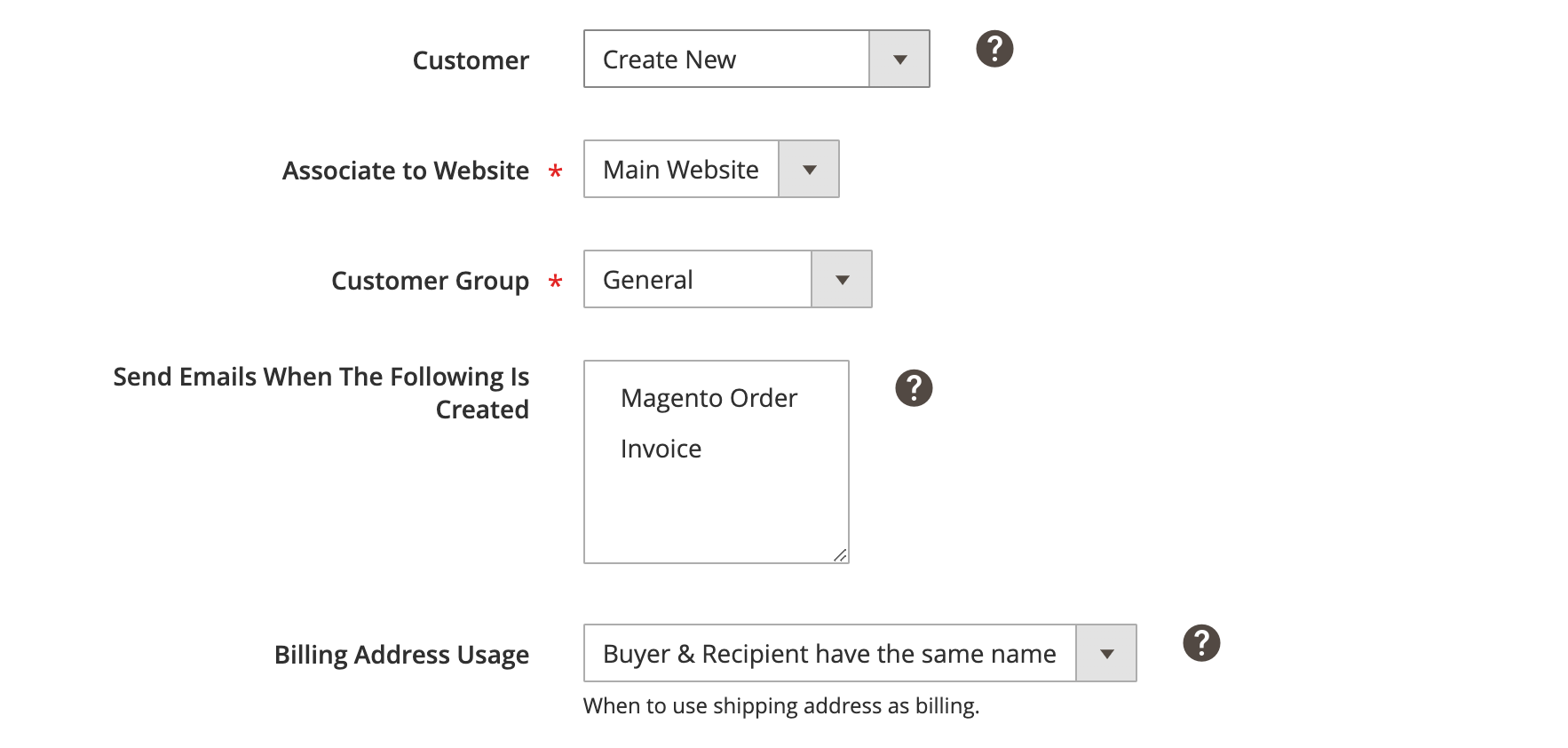
Customer – select a Customer for which Magento order will be created:
- Guest Account – the system does not require creating a Customer account. The default Guest Account will be defined as a Customer. To use this option, Allow Guest Checkout option must be enabled in your Magento: System > Configuration > Sales > Checkout.
- Predefined Customer – the system will use the specified Magento Customer for all Kaufland orders related to this account. Magento Customer IDs can be found under Customers > Manage Customers.
- Create New – a new Customer will be created in Magento based on the buyer information in Kaufland order. The buyer’s email will be used as a unique Customer Identifier. If this email already exists in Magento, the related Magento Customer will be associated with Kaufland order instead of a new Customer creation.
- Associate to Website – select Magento Website where a new Customer should be created.
- Customer Group – select Magento Customer Group where a new Customer should be created.
- Send Emails When The Following Is Created – select certain conditions when the emails should be sent to Customer. You can hold Ctrl to select multiple options. To use this option, the related email type must be enabled in your Magento: System > Configuration > Sales Emails.
Billing Address Usage – select the appropriate option of how to handle the billing address for the imported Customer:
- Always – the shipping address is always used as the billing address.
- Buyer & Recipient have the same name – the shipping address is used as the billing address only when Buyer's name and Recipient's name are the same. Otherwise, billing address fields will be empty and this message will appear in the city field: "Kaufland does not supply complete billing Buyer information".
Order Creation Rules #

Reserve Quantity – choose for how long M2E Connect should reserve Magento Product quantity per Kaufland order until Magento order is created. You can select a reservation period from 1 day to 14 days.
Reserve QTY will be used when a Magento Order is created or released after the term of the QTY Reservation has expired. For example, Magento Product has a QTY of 10. The reservation period is 1 day.
1 item was bought on Kaufland. When the Kaufland order is created, the Magento Product's QTY is 9.
ℹ️ Reservations are required if Magento Order creation is enabled. The 1-day reservation period is provided by default.
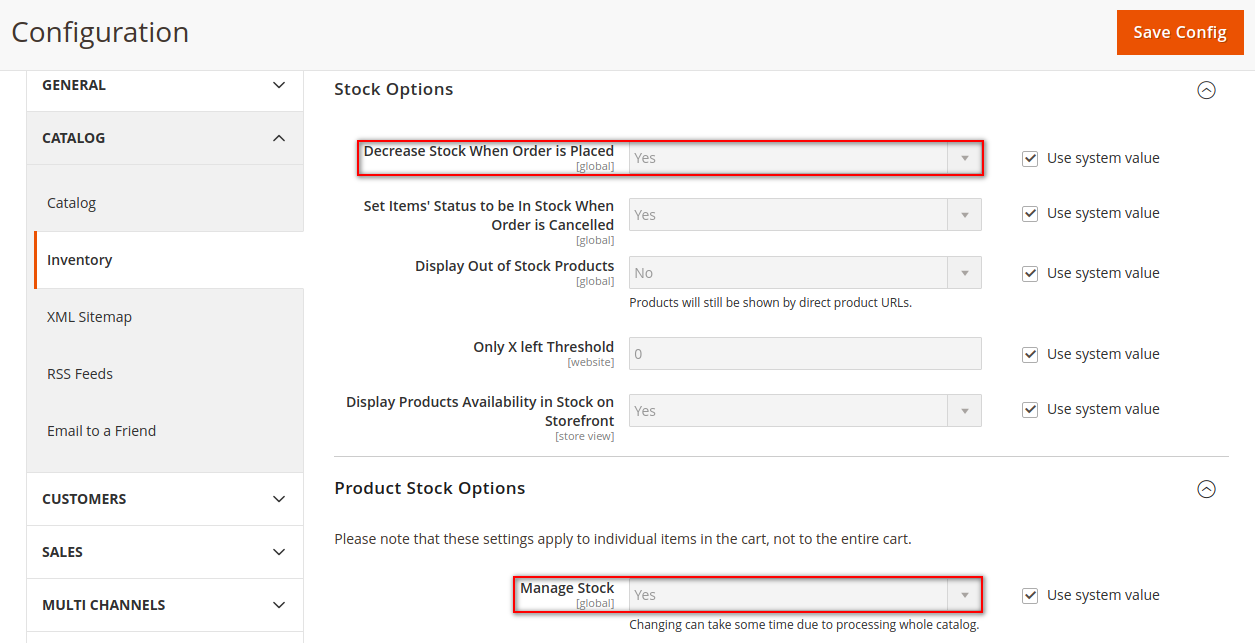
M2E Connect will reserve the Item Quantity only if both Manage Stock and Decrease Stock When Order is Placed options are enabled in your Magento under Stores > Settings > Configuration > Catalog > Inventory:
Cancellation #

- Cancel Kaufland Orders – set to “Yes” to cancel Kaufland orders and automatically update their statuses on the Channel once the Magento Credit Memo is created.
- Default Cancel Reason – select the default reason for Kaufland order cancellation.
Order Tax Settings #

Select which tax settings should be applied to Magento orders.
Tax Source – choose where the tax settings for your Magento orders will be taken from:
- Kaufland – tax settings configured in your Kaufland Seller Portal will be used.
- Magento – tax settings configured in your Magento will be used.
- Kaufland & Magento – Kaufland tax settings will be applied if specified. Otherwise, Magento tax settings will be used.
- None – no taxes will be applied.
Order Status Mapping #
Set the correspondence between Kaufland and Magento order statuses. The status of your Magento order will be updated based on these settings.

You can either use the default order statuses or customize them according to your needs.
If you choose the default option, the Magento order will have a predefined status whenever the order is unshipped/partially or fully shipped on Kaufland. For example, once the order is “Shipped” on Kaufland, its status in Magento will change to “Complete”.

In case you do not want the order statuses on Kaufland and Magento to be fully consistent for some reason, set custom order status mapping. Depending on the status of your Kaufland order, you can match it manually to any of the available Magento order statuses from the drop-down menu.


