
To list your inventory on Temu, you need to add Magento Products to M2E Temu Listing. For that, click Add Products in the top right corner of your Listing page.

You can choose between two ways of adding items – from the Magento Product List or a particular Magento Category.

Add items from Product List #
If you choose this option, you will see a list of products from your Magento catalog. Use filters within the grid to find the necessary products faster, or try the Advanced Filter for more filter options.
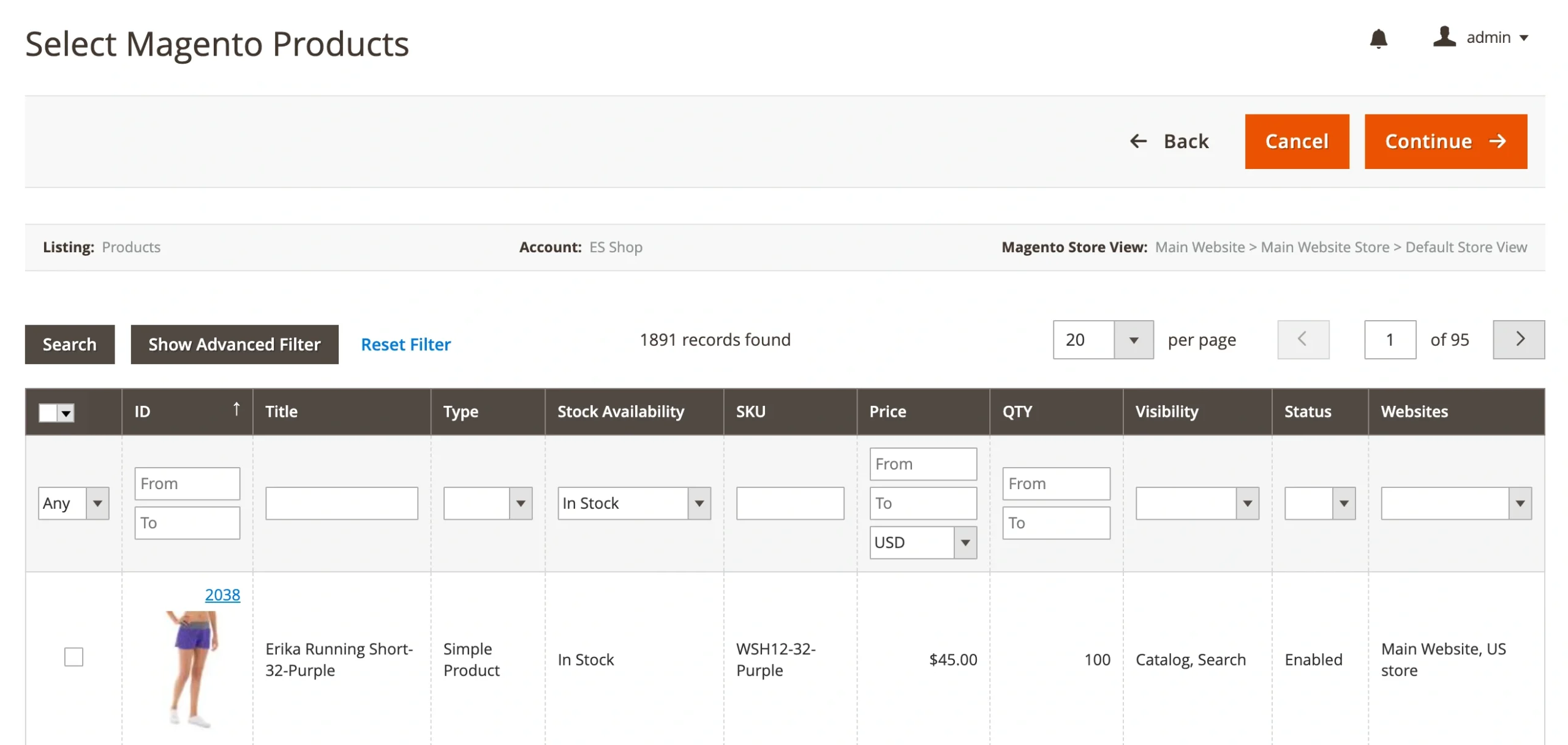
Once you have selected all the Products to be added, click Continue in the top right corner of the page.
Add items from Categories #
If you choose this option, you will see a Magento Category tree. This allows you to find products grouped by their category.
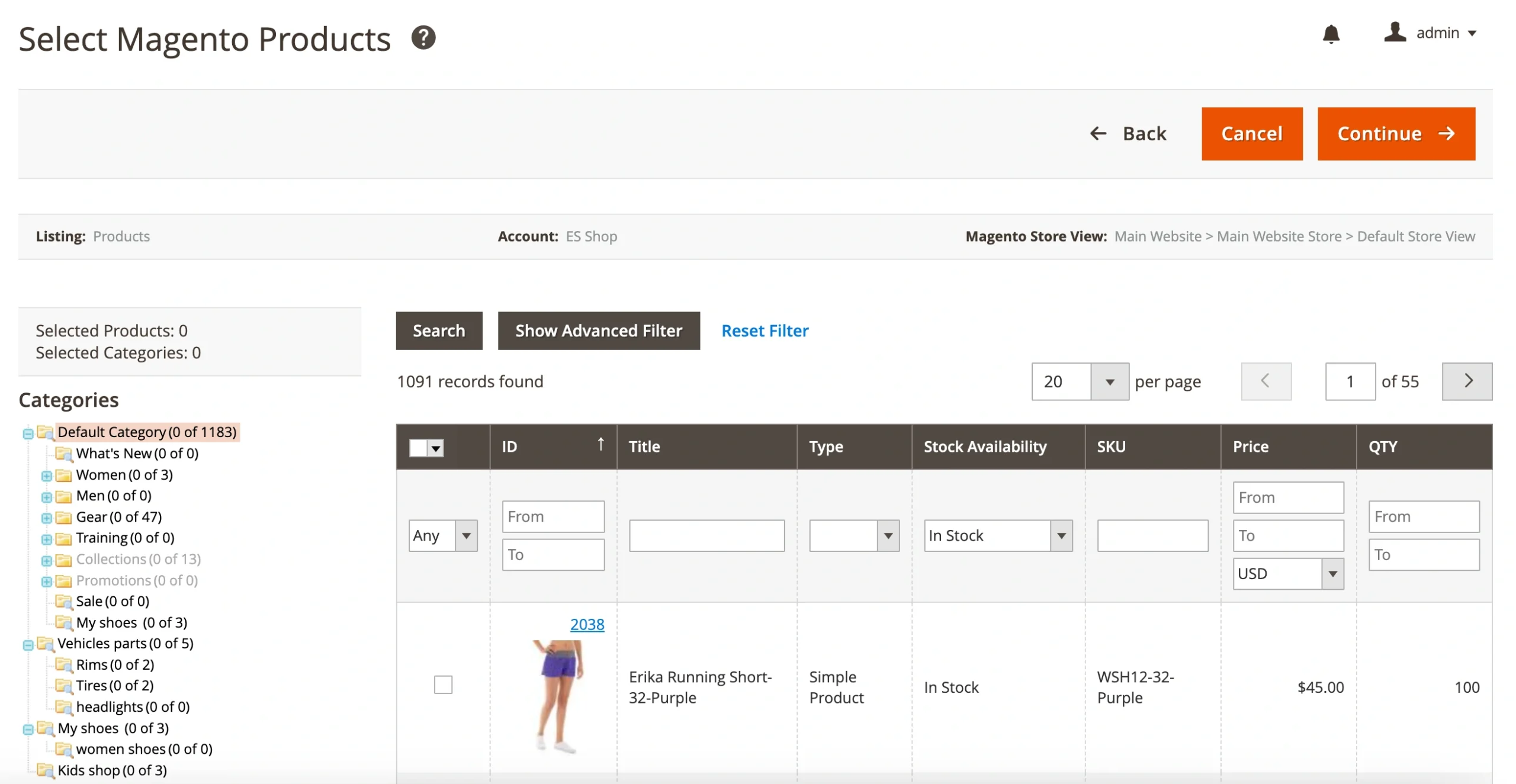
To view products available in a particular category, click on its name in the tree. To expand the category and view its sub-categories, click on the “+” icon.
You can select as many products from the category as you need and safely switch to another category. Your selection will be preserved and added to the running total at the top of the category tree.
The numbers in brackets next to the category name indicate how many products have been selected from the category. For example, Gear (5 of 46) implies that you have selected 5 products from a total of 46 products available in the Gear category.

Once you have selected all the Products to be added, click Continue in the top right corner of the page. In the next step, you will need to set the Temu category for your products.


