
M2E Magento Amazon Repricer (Adobe Commerce) auto-adjusts your product prices on the Amazon marketplace. It monitors competing offers and fine-tunes your pricing to stay ahead of other sellers.
With this app, you can define pricing boundaries, build custom repricing strategies, access detailed analytics, and boost your chances of winning the Featured Offer (Buy Box).
💡 Watch the M2E Amazon Repricer overview on YouTube.
Step 1. Set up #
After signing up, link your Amazon account to the service.

Step 2. Add new listings #
Next, go to the Amazon Items grid, click "Add" > select your marketplace > pick the products you want to reprice.
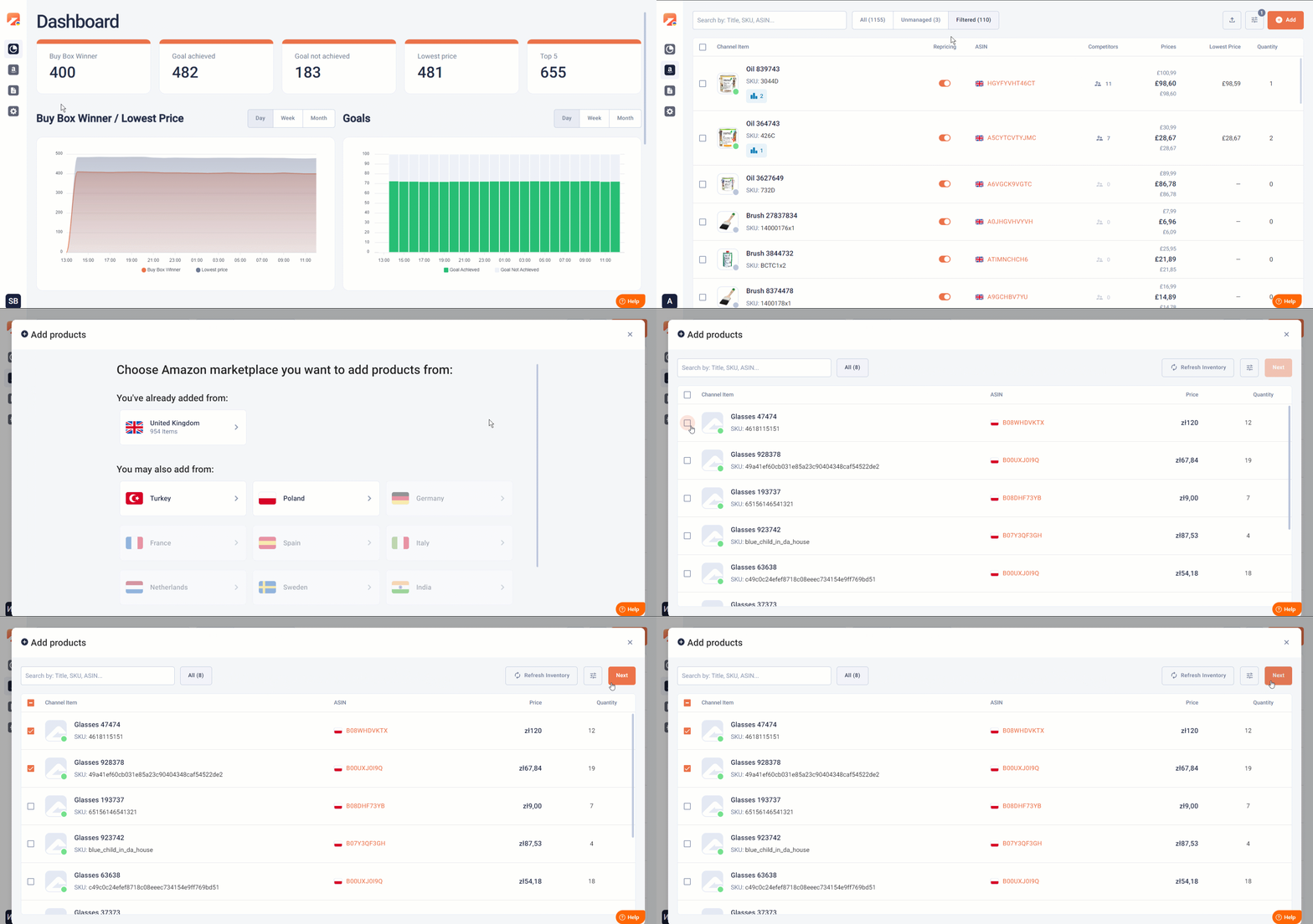
Step 3. Define your prices #
The service automatically updates your prices within the specified range, influenced by competitor pricing. Set your Regular price, then define the Max and Min prices for automatic updates.
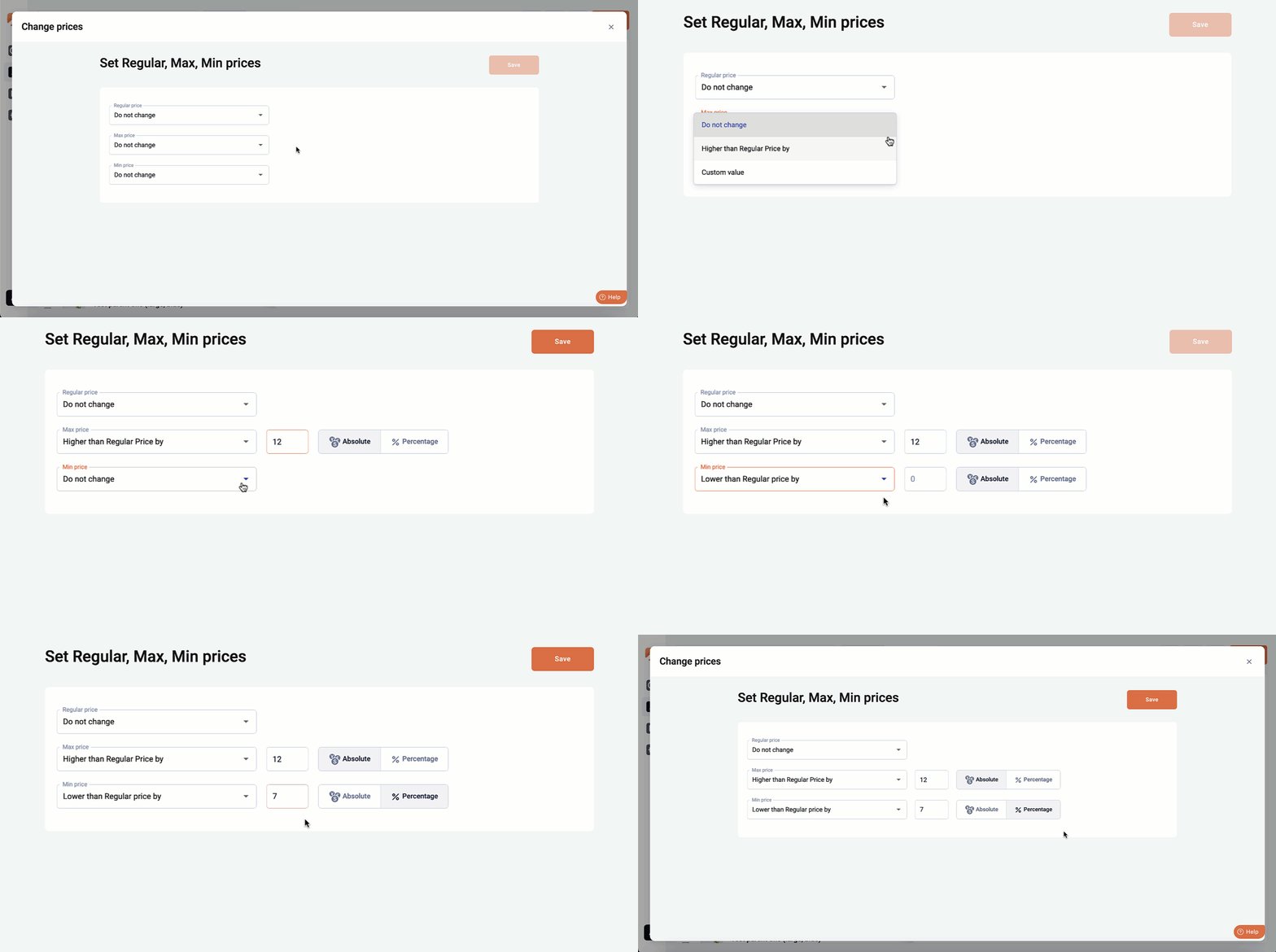
ℹ️ You can define how the Regular, Min, and Max Prices should be updated between the Repricer and Magento in the additional settings of M2E Pro.
Step 4. Set up a policy #
You can create a repricing policy aligned with your sales goals in two ways:
1) Go to the Policies tab and click Add.
2) Open the item card in the Amazon Items tab and click Change under the Policy section for individual items. For multiple items, use the "Change Policy" mass action.
In the policy pop-up:
- Click + Create.
- Select your repricing strategy.
- Add a title for easy identification.
- Set the price adjustment to match or undercut competitors.
- Define rules for scenarios with no Buy Box winners or unattainable goals.
- Click Create to finalize.
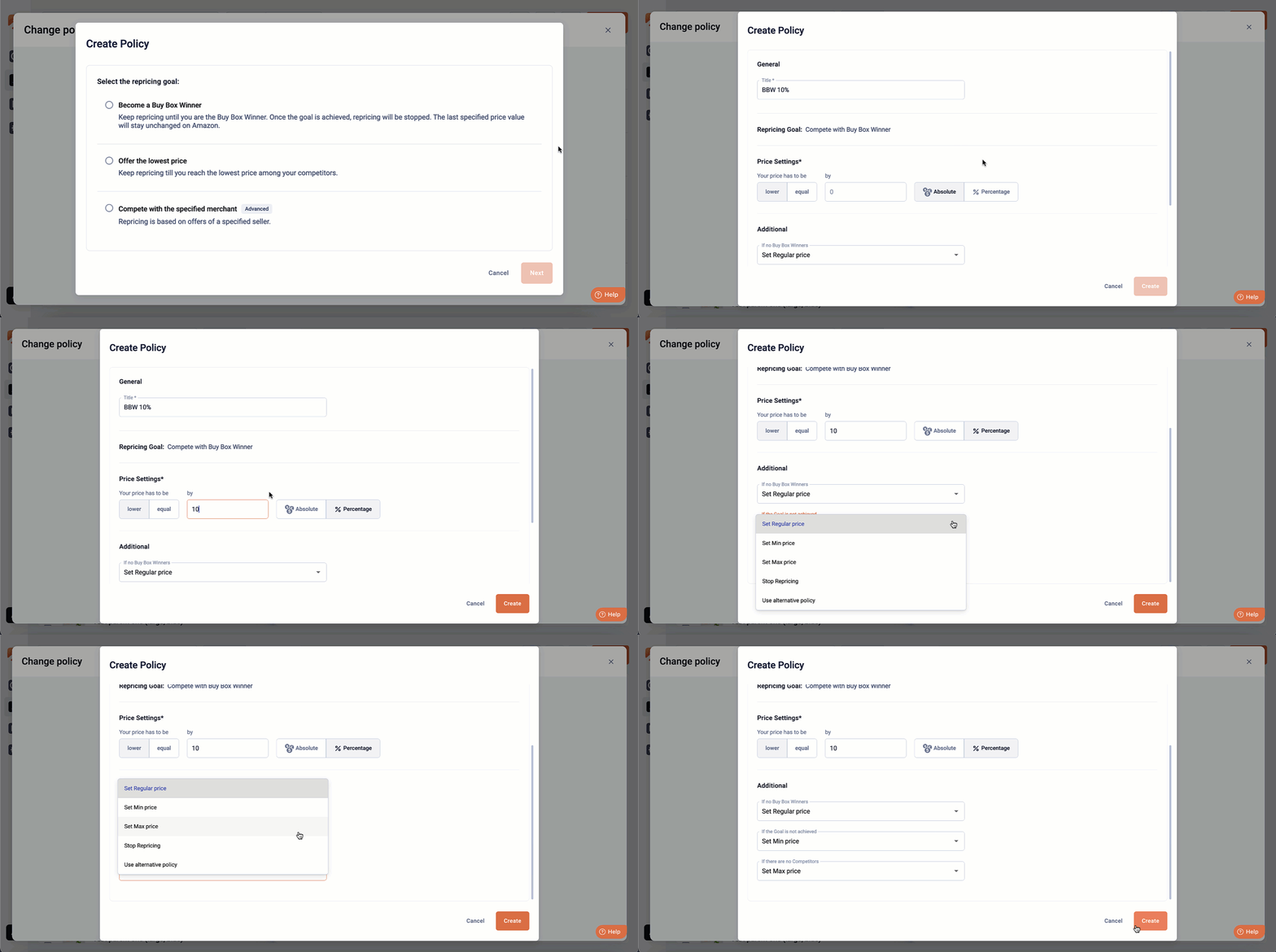
Once the policy is created, it will appear on your list. Select to assign it, and click Save.
ℹ️ If you have created a policy in the Policies tab, you can assign it to your items in the Amazon Items grid.
To assign a policy to an individual item, open the item card and click Change in the Policy section. You can also assign a policy to multiple items at once via the “Change Policy” mass action.
Prices will update automatically. Adjust settings anytime via product cards, mass actions, or the Policies tab.
✅ Using "Compete with Lowest Price" will keep your price competitive if you win the Featured Offer (Buy Box).
Example: If the item is priced at $10, set the range between $7 and $12.

We aim to secure the top spot with the lowest price by using the Buy Box Winner policy.
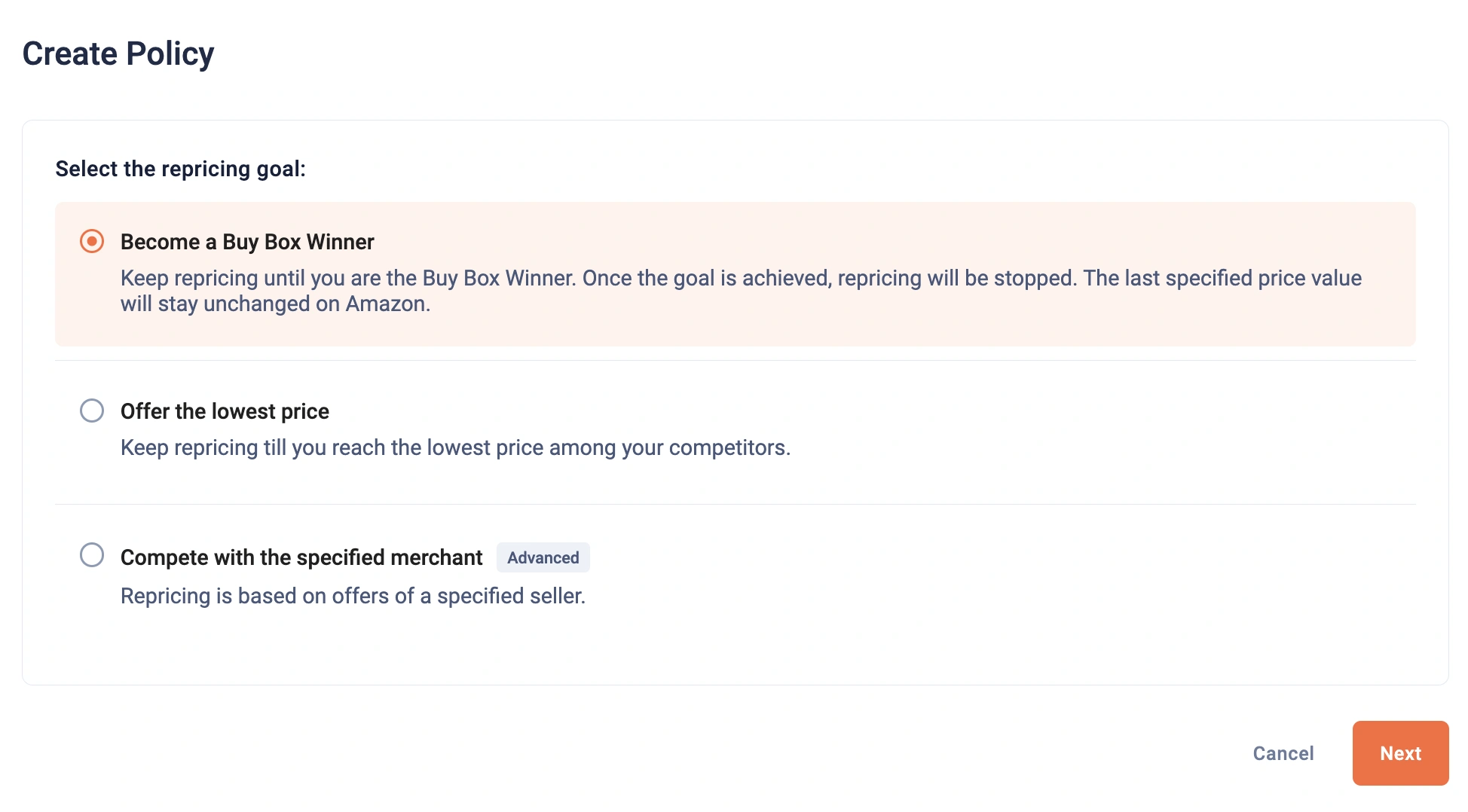
Set up the M2E Magento Amazon Repricer (Adobe Commerce) to price your product $1 lower than competing offers.
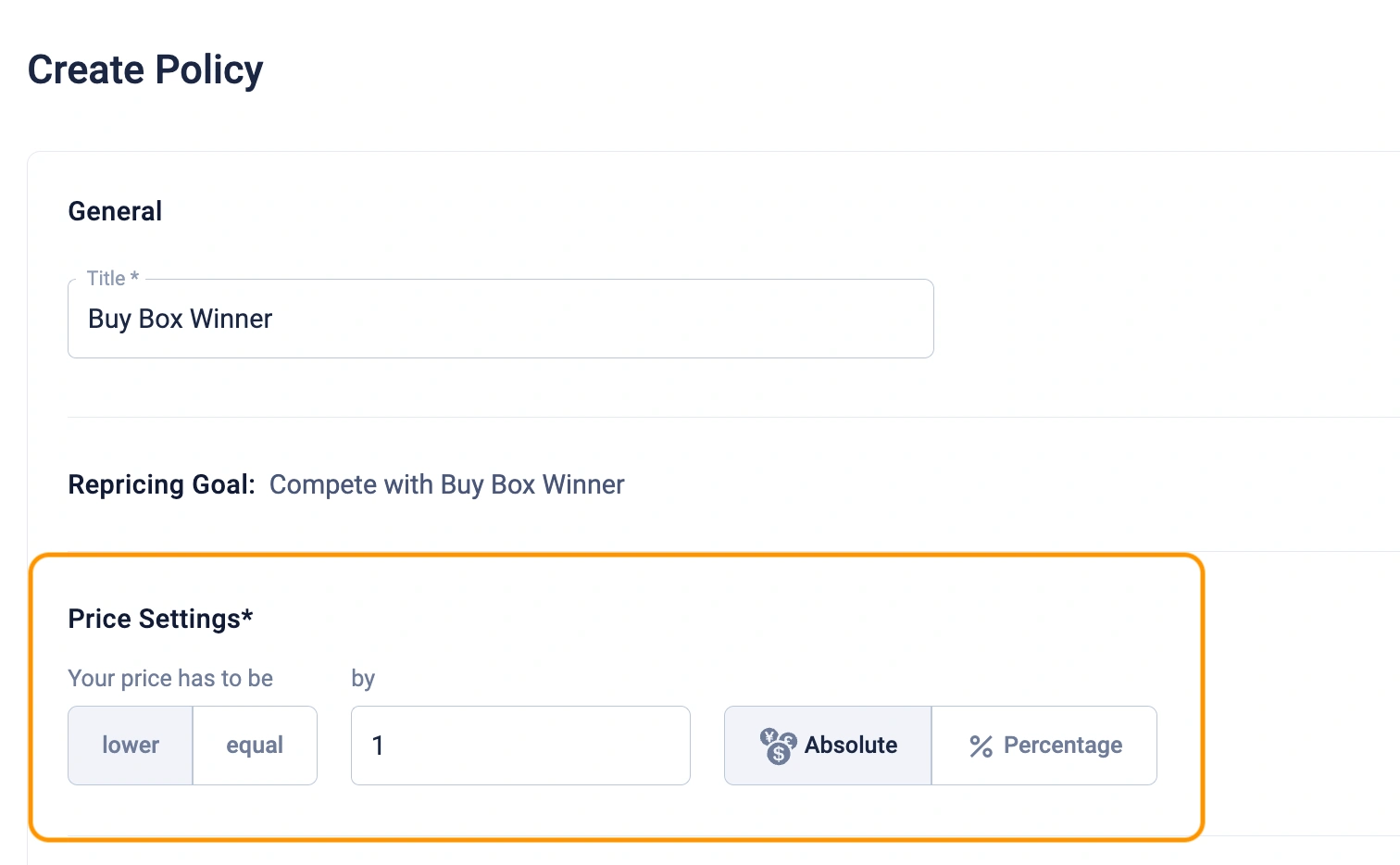
If a competitor’s price is $9, our price will be $8.
If the competitor’s price is $7.99, our price won’t drop below $7 due to the Min price setting.
ℹ️ Repricing continues after winning the Buy Box to keep our price lower than competitors.
Winning the Buy Box isn’t guaranteed; Additional settings help adjust for this.
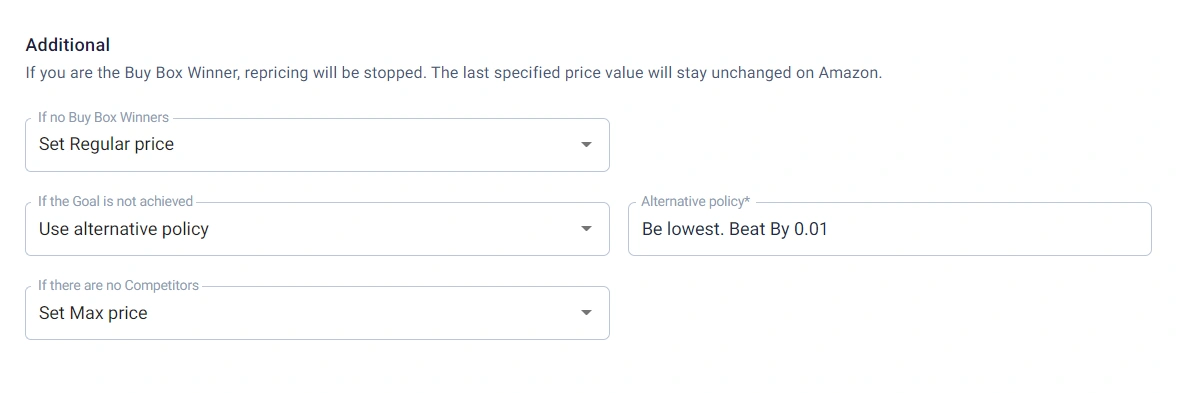
If no Buy Box winners are available, Amazon lists offers by price; set the "If no Buy Box Winners" option to Min price to improve visibility, lowering it to $7.
M2E Magento Amazon Repricer (Adobe Commerce) can switch to a different policy with better settings if the goal isn't achieved. You can create a backup policy with a smaller price adjustment, like reducing the price by $0.01 instead of $1.
If no competitors are available, set the "If no Competitors" option to Max price, increasing it to $12.
Step 5. Control Repricing Rules #
M2E Magento Amazon Repricer has the Policies tab to manage and track repricing policies. View metrics like Buy Box wins and Top 3 rankings, then edit policies by clicking the three dots in the grid.

Find a policy using the Filters in the top right corner, sorting by attributes like policy type and assigned items.
Step 6. Transfer product data #
Export your products and details from M2E Amazon Repricer as a CSV file to update Min/Max prices, track stats, or transfer inventory data. Click the export icon in the Amazon Items grid to download the file.
Export your inventory into M2E Amazon Repricer with a single click using a CSV file.
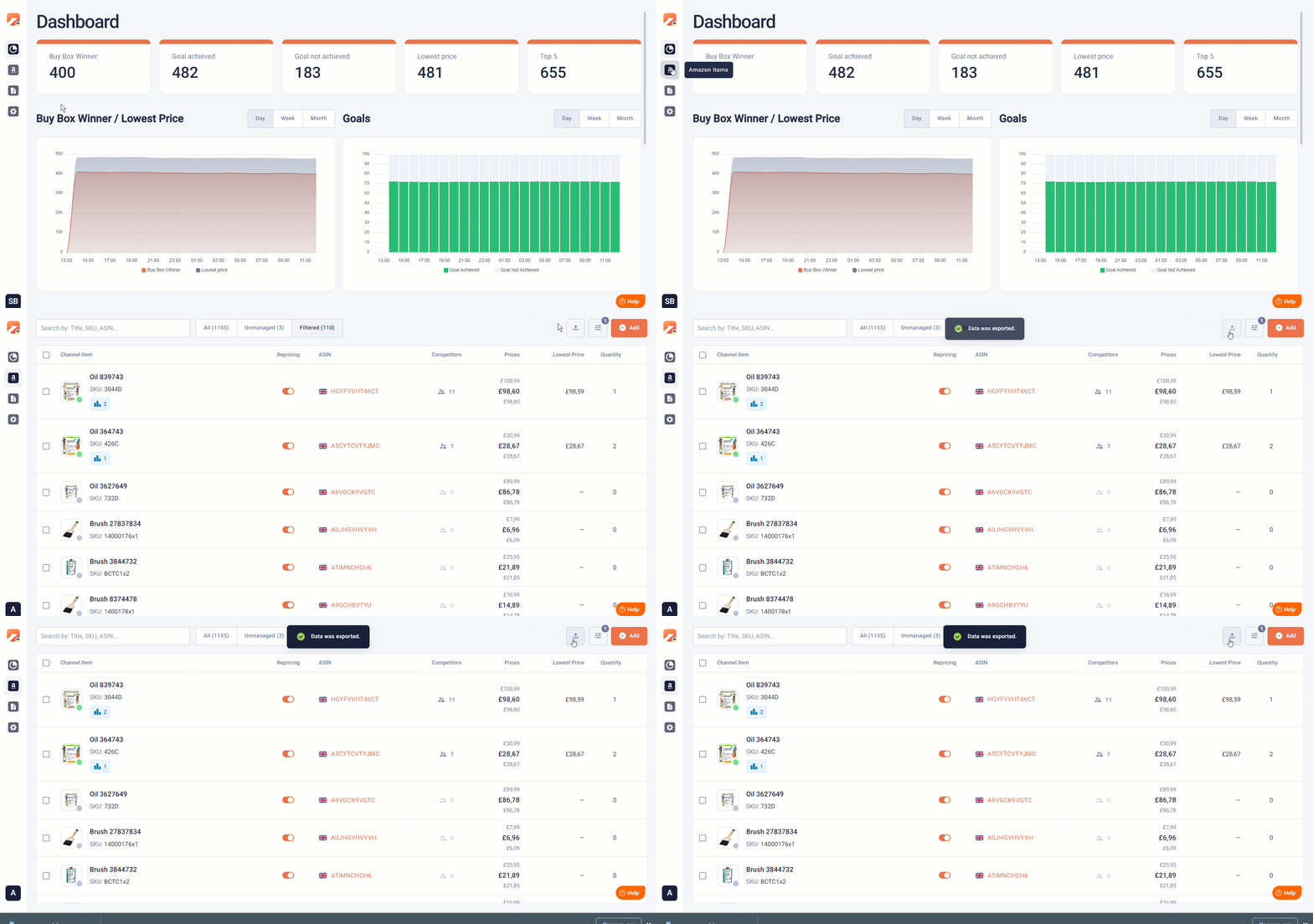
Easily update items, adjust Min and Max prices, or add new products.
✅ For best performance, use Google Chrome when importing and exporting.
Click the import icon in the Amazon Items grid to upload the edited CSV file.
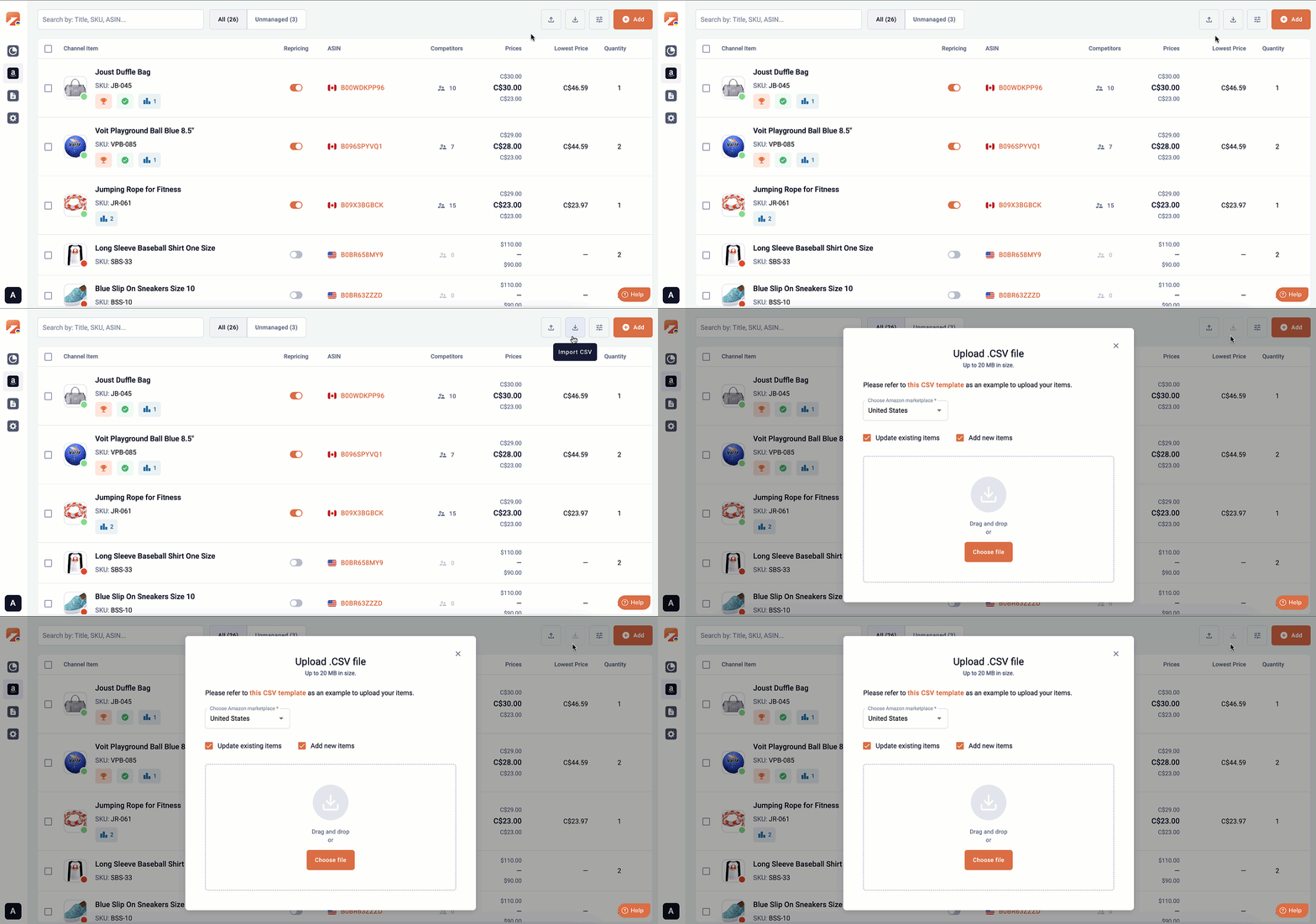
💡 Watch the step-by-step video on exporting and importing your products from M2E Amazon Repricer.
Step 7. Track the Dashboard #
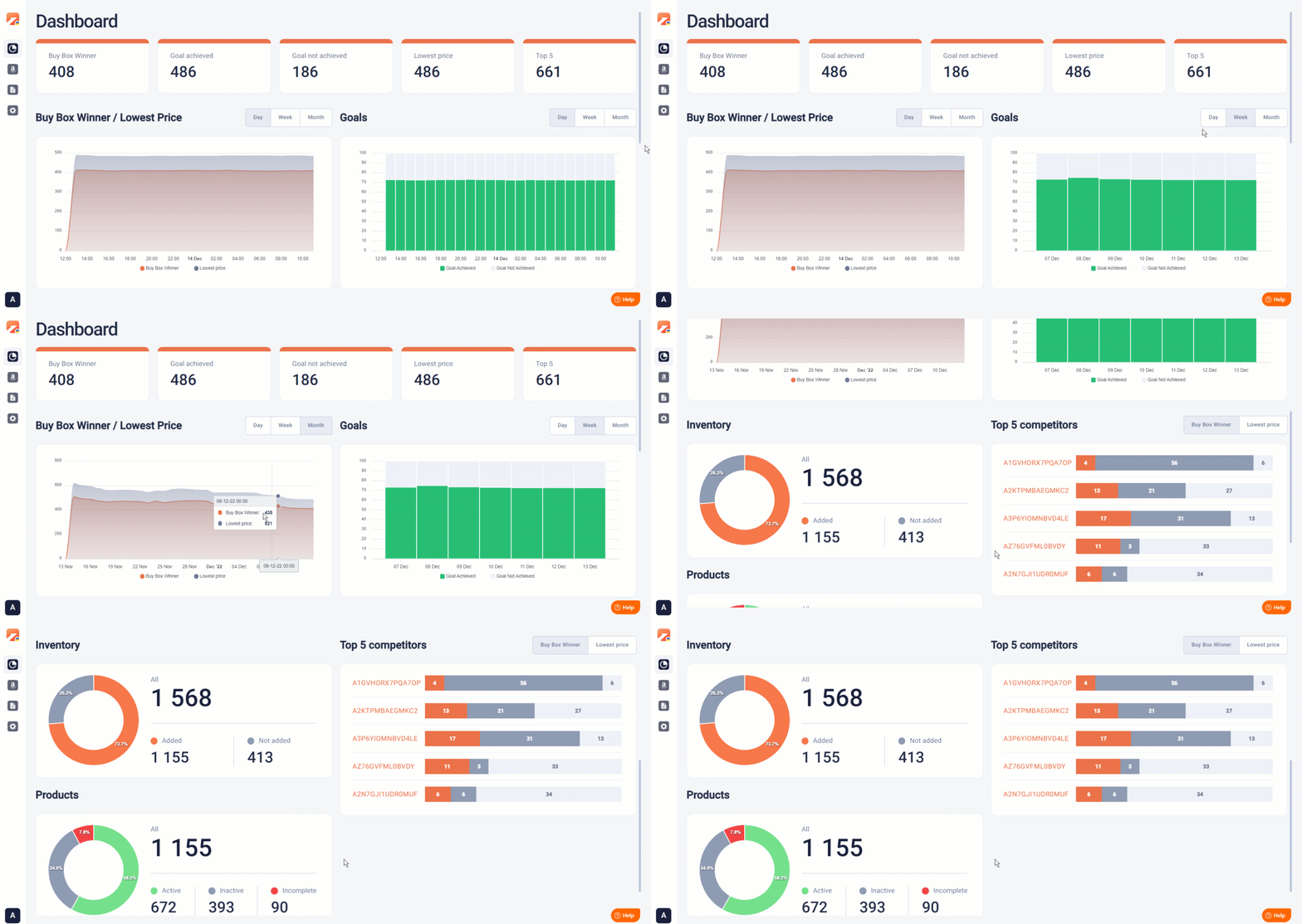
Check the Dashboard to see how you perform compared to competitors and address any repricing issues. Track the Featured Offer (Buy Box) wins, rankings, and pricing, and use interactive charts to analyze data by day, week, or month.
Step 8. Manage inactive products #
At the start of each month, M2E Magento Amazon Repricer (Adobe Commerce) runs a regular cleanup to remove products that are no longer active in your repricing setup.
The following types of items are removed from your repricing strategy:
1) Out-of-stock items that haven’t been repriced within a selected timeframe. You can choose this timeframe under Settings > General. If a product remains inactive beyond your chosen period, the app will automatically delete it. For seasonal products that may be inactive for over 180 days, please reach out to our support team.

2) Items added over 7 days ago that don’t have matching SKUs in your Seller Central account. These are considered invalid and will be removed during the monthly cleanup.
This cleanup process streamlines the interface, removes unnecessary data, and improves repricing efficiency.
ℹ️ If you experience any issues during setup, our support team is here to help.
✅ Several members of your team can use the Repricer. You just need to add them as users in your M2E Accounts. Here is a guide.


