
M2E Mirakl Connect syncs your Adobe Commerce (Magento) store with Mirakl-powered marketplaces and helps you manage your product listings, inventory levels, and order fulfillment across both platforms.
Before you start #
Make sure you have these ready:
- M2E Mirakl Connect extension installed in your Adobe Commerce store.
- An active seller account on a Mirakl marketplace (such as Best Buy, B&Q, AUTODOC, or other Mirakl-powered platforms).
Step 1. Grant extension permissions #
After installing the extension, authorize M2E to access your Magento 2 store. This allows the system to securely sync product data, stock, and order information between your store and the marketplace.
Step 2. Create or access your M2E account #
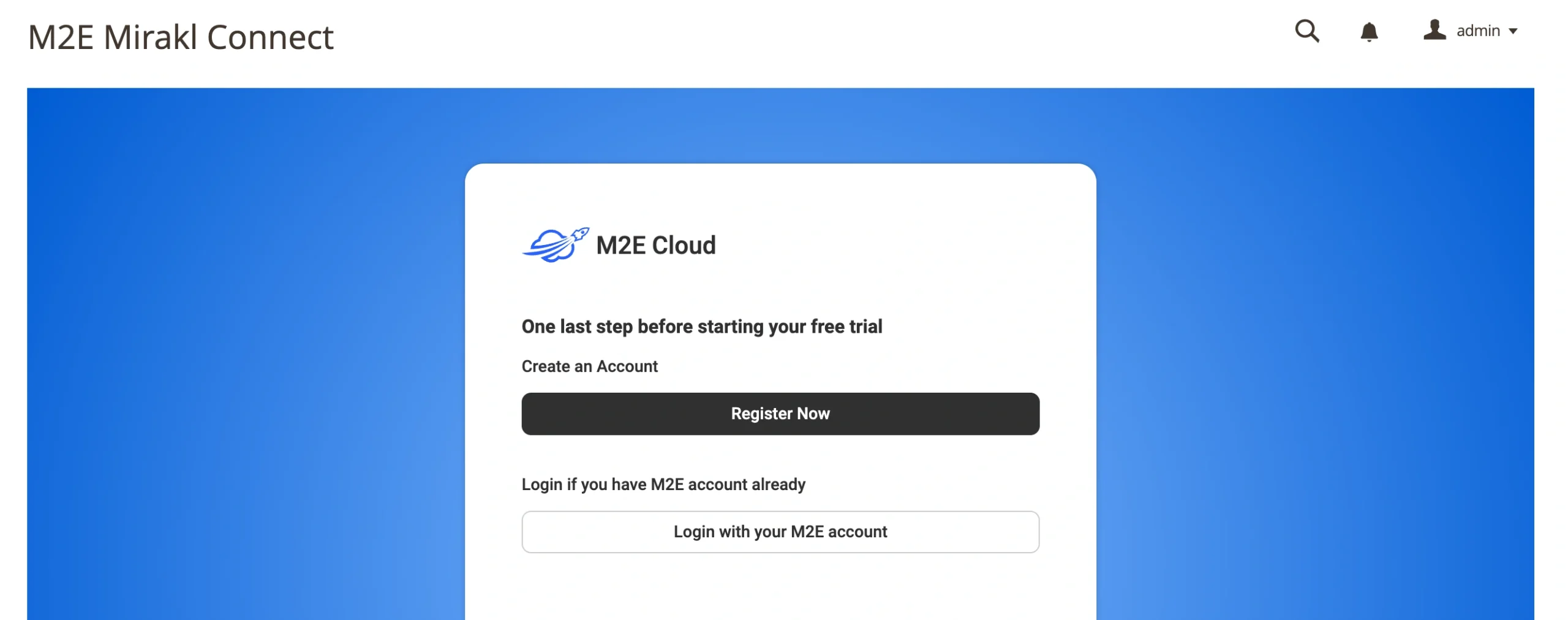
First-time users should register through M2E Accounts using your business contact information.
Existing users can log in with their current credentials.
Step 3. Link your marketplace account #
From the Dashboard, click Connect Marketplace Account.
Select the Mirakl marketplace and enter your Mirakl API credentials, such as the Operator URL and API key.
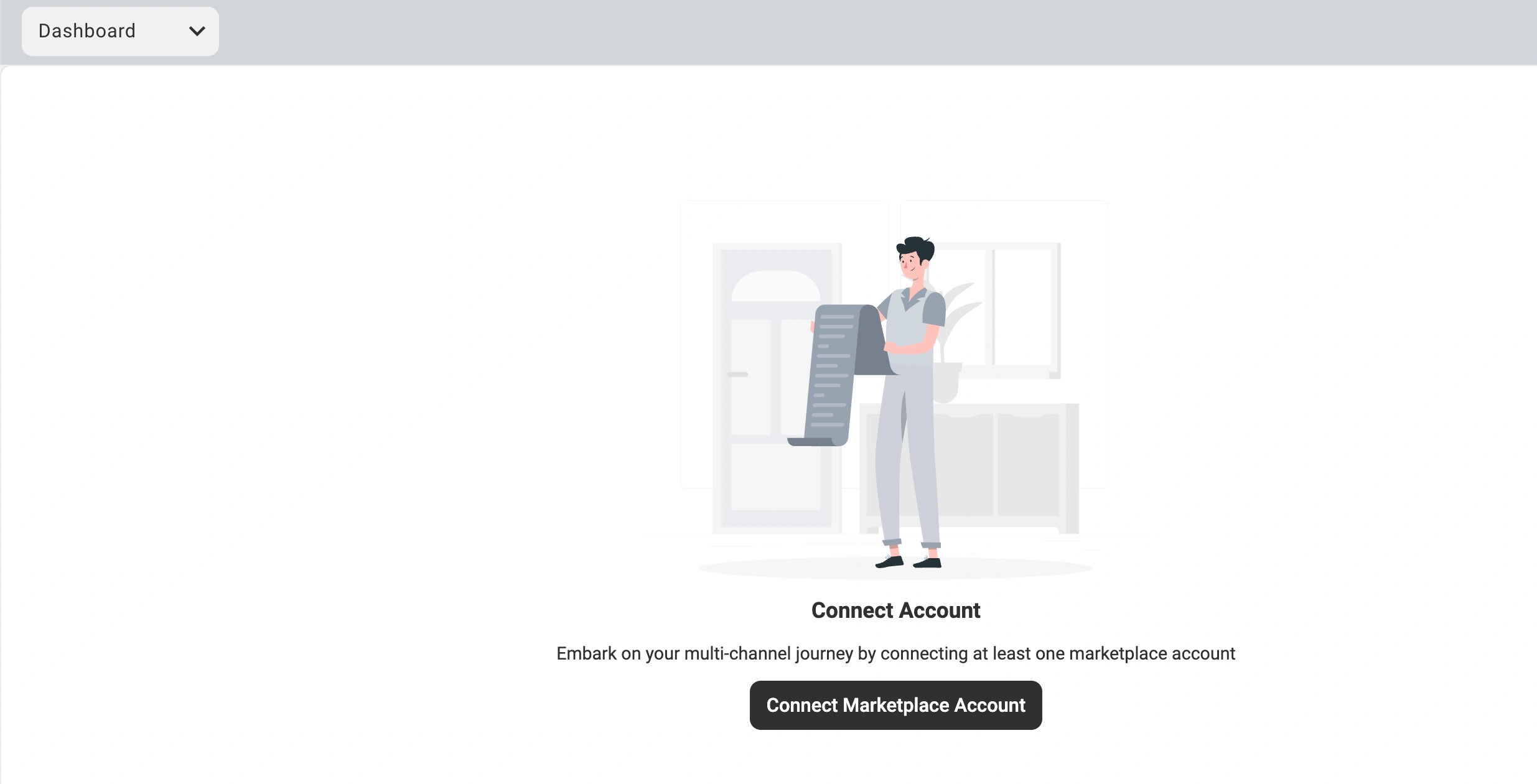
Once connected, the Setup Guide will display with a checklist of configuration steps to complete.
Step 4. Connect your product catalog #
M2E will attempt to automatically match your Magento products with existing marketplace listings based on SKUs or product identifiers.
For products that remain unmatched:
1) Navigate to Link Products > View Not Linked Products.
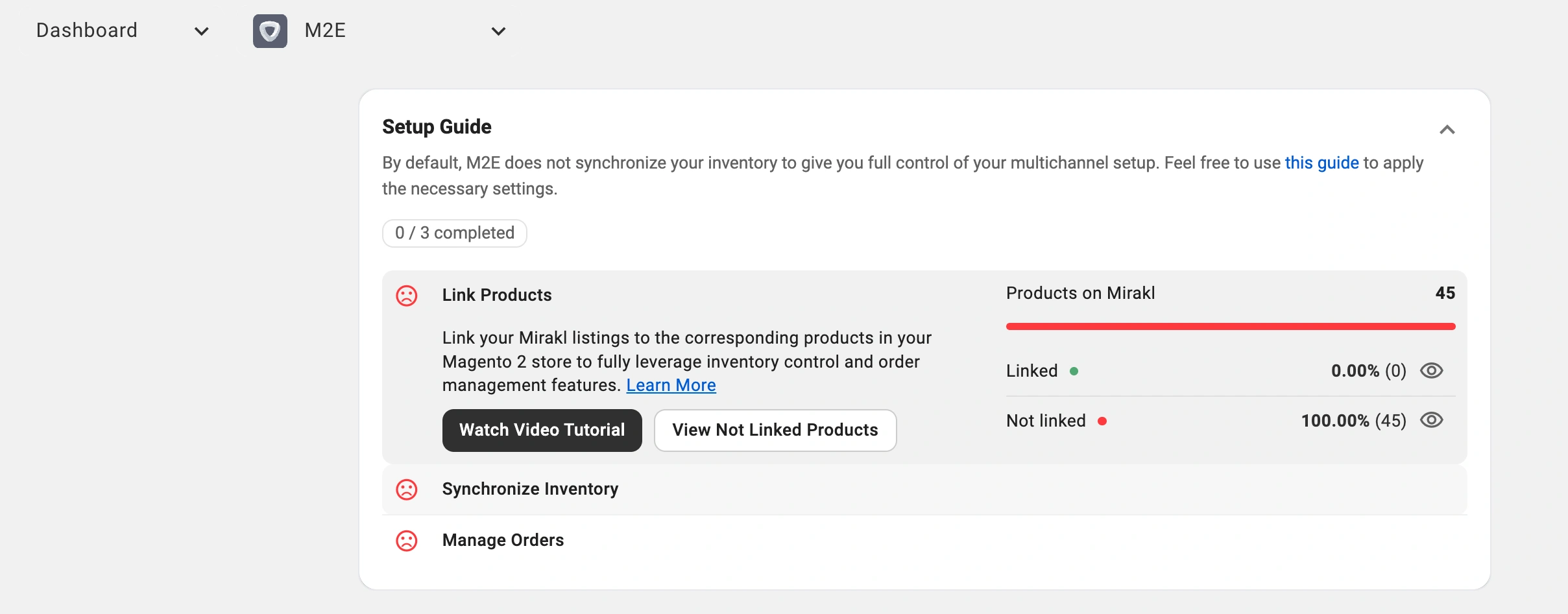
2) You'll land on the Listings page.
3) Link products individually for smaller catalogs, or use the CSV import tool for bulk linking.
ℹ️ Synchronization only works for linked products, so verify that all relevant items are properly linked.
For detailed instructions, see the manual linking guide.
Step 5. Enable inventory synchronization #
With your products linked, activate automatic sync to maintain consistent stock levels and product information across platforms
1) Go to the Synchronize Inventory section in your Setup Guide.
2) Click View Not Synced Products.

3) Select products to sync individually or use bulk actions for larger product catalogs.
ℹ️ For step-by-step instructions, refer to the inventory sync guide.
Step 6. Configure order management #
Set up how marketplace orders are processed in your Magento system.
1) Navigate to Manage Orders > Order Settings.
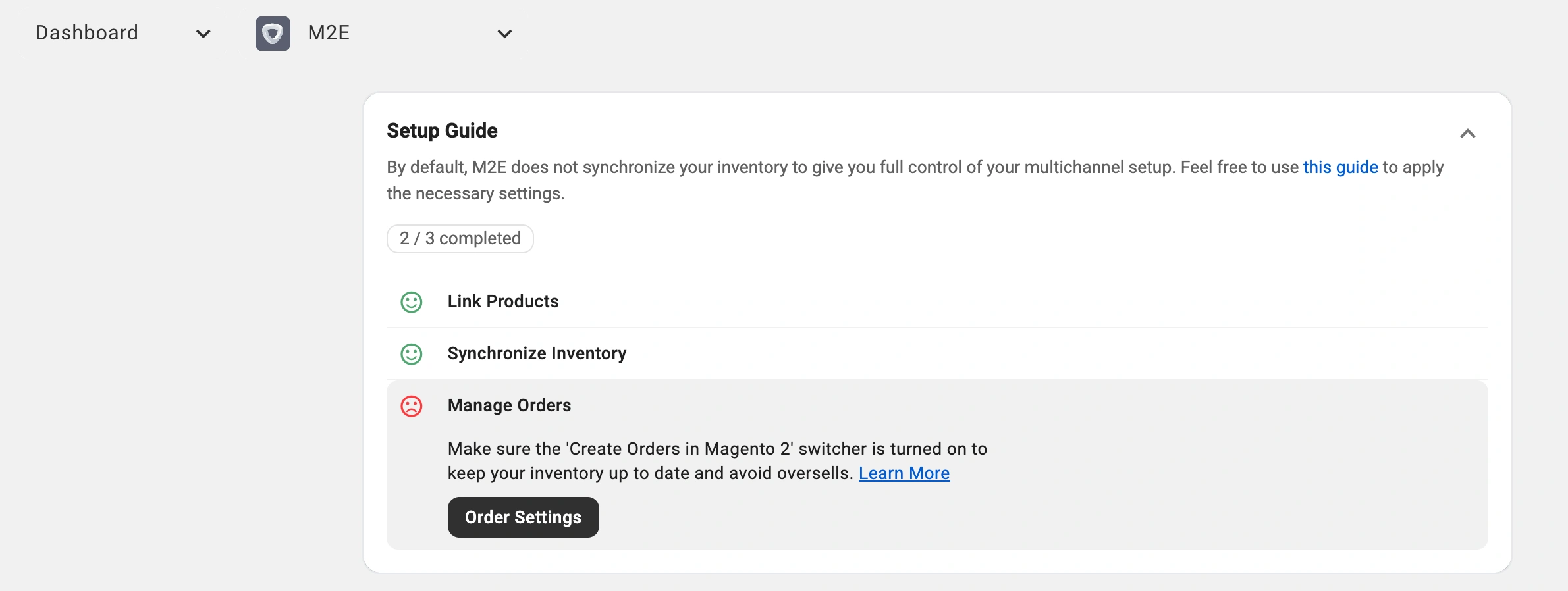
2) Enable the option to Create Mirakl orders only for Linked items in Magento 2.

ℹ️ This configuration imports your marketplace sales into Magento as regular orders, keeping your inventory accurate and consolidating all order processing in your store.
If you leave it disabled, sales from the marketplace won't reduce your Magento stock, which may result in stock inconsistencies and overselling.
Your Adobe Commerce Mirakl integration is complete. You can now sell on Mirakl with automated inventory updates and centralized order processing.


