
Most of October’s updates come from requests from our users. We’ve simplified how you manage policies, orders, and listing rules in M2E Pro. Below, you’ll find what changed and the setup steps for each update.
What’s new in M2E Pro? #
Change eBay Policies in bulk from the All Items page #
In M2E Pro, Policies are assigned at the Listing level. If you wanted to replace a Policy across many Listings, you had to open each Listing and change it there. With dozens of Listings, that takes a lot of time.
Now, you can change the Policies in bulk from the All Items page:
1) Go to eBay > Listings > Items > All Items.
2) Filter the products by the Policy you want to replace. Select the products you’ve filtered.
3) Choose Change Policies from the mass actions menu. Then, click Submit.

4) Set a different Policy and confirm the change.
ℹ️ M2E Pro applies the new Policy as an override to the selected products in every Listing they belong to. Other products in those Listings keep their current Policies.
Identify Amazon Easy Ship orders #
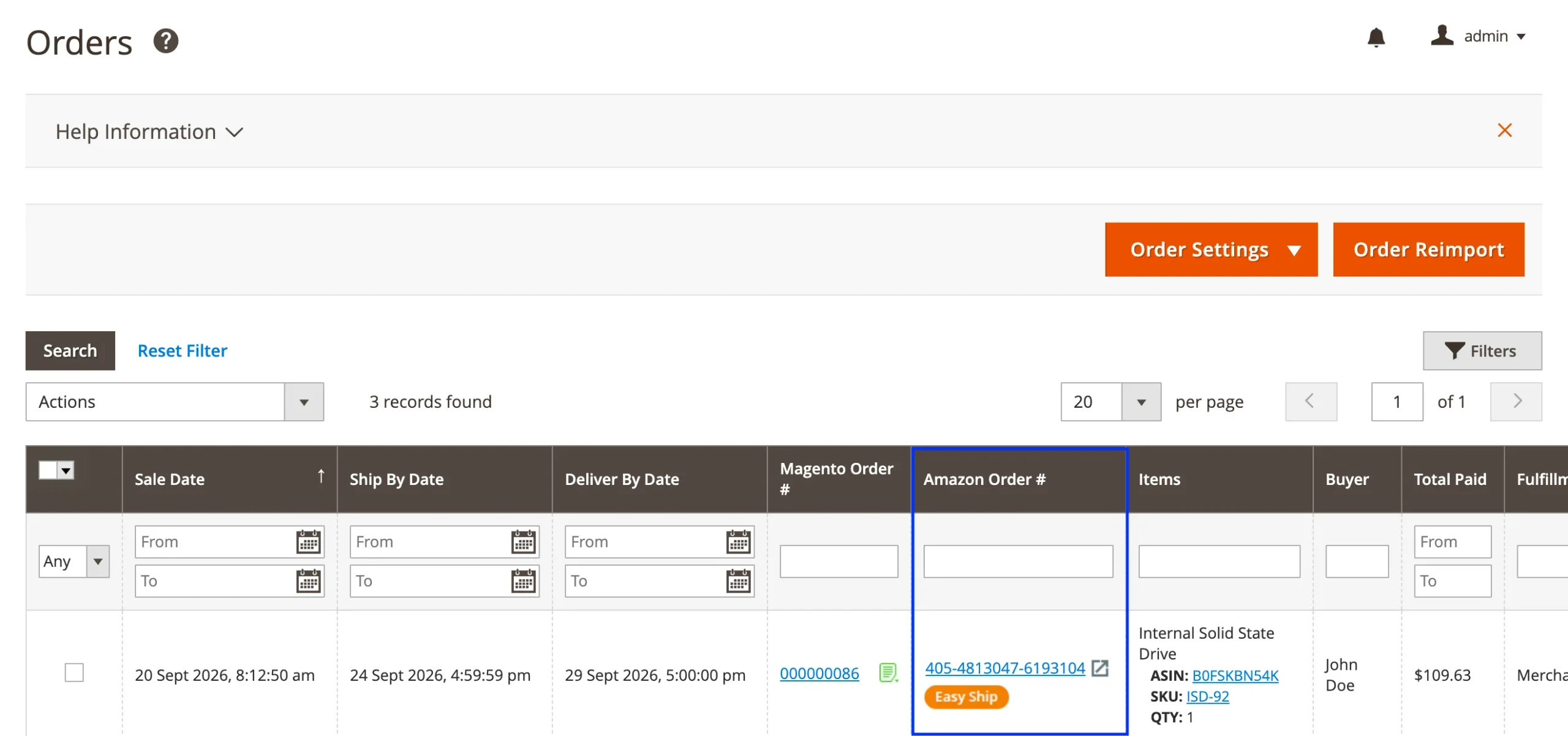
If you use the Amazon Easy Ship program, it’s now easier to find those orders in M2E Pro.
Easy Ship orders are marked with a dedicated label in two places: the Amazon Orders grid and the Order Details page. You can also filter the grid to show only Easy Ship orders, which helps keep them separate from the rest of your seller-fulfilled orders.
Automate Amazon listings with the Advanced Filter option #
Previously, we added the Advanced Filter option to eBay Auto Add/Remove Rules. Now, it’s available for Amazon as well.
Instead of tying automation to your whole catalog, a website, or a category, you can set Advanced Filter conditions based on Magento product attributes. M2E Pro will automatically add or remove matching products to or from your Amazon Listing.
To set up the rules:
1) Go to Amazon > Listings > Items.
2) Next to the Listing, click Actions > Products > Auto Add/Remove Rules.
3) Select Advanced Filter and click Continue.

4) Click Add New Rule.
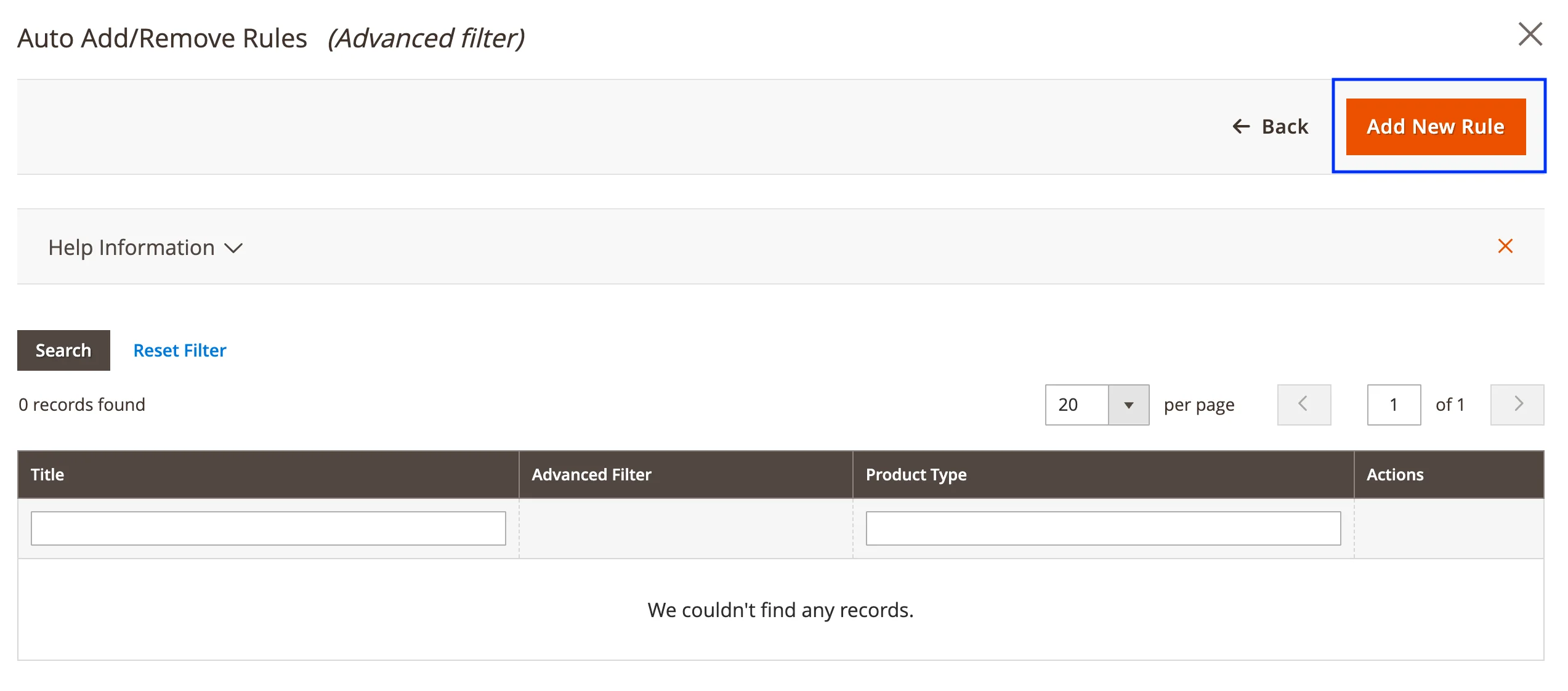
5) Enter a title for the rule. Then, choose what should happen when products meet the conditions and when they no longer do.
6) Once you’ve set up your conditions, click Complete.

When the rule is saved, M2E Pro automatically adds every Magento product that meets your conditions to the Listing. You can also choose what happens to products that no longer match, for example, removing them from the Listing.
We’ll be back next month with more updates. Until then, if any feature in this release needs clarifying, our support team is here to help.


