
M2E Multichannel connects Adobe Commerce Cloud with major marketplaces and allows you to create listings, synchronize inventory, and manage product data from one interface.
The app supports Amazon, eBay, Walmart, TikTok Shop, Temu, SHEIN, OTTO, Kaufland, OnBuy, and Mirakl-based marketplaces.
This guide explains how to get started with M2E Multichannel, including connecting marketplace accounts, linking or creating listings, and configuring synchronization.
Requirements #
Before getting started, make sure you have:
- M2E Multichannel installed in your Adobe Commerce environment.
- Access to your Adobe Commerce Admin.
- Active seller account for each marketplace you want to connect.
ℹ️ If you haven't installed M2E Multichannel yet, follow the installation guide for your Adobe Commerce environment:
Step 1. Access M2E Multichannel #
Open the M2E Multichannel app from your Adobe Commerce Admin.
When you open the app for the first time, you will be prompted to set up your M2E account.
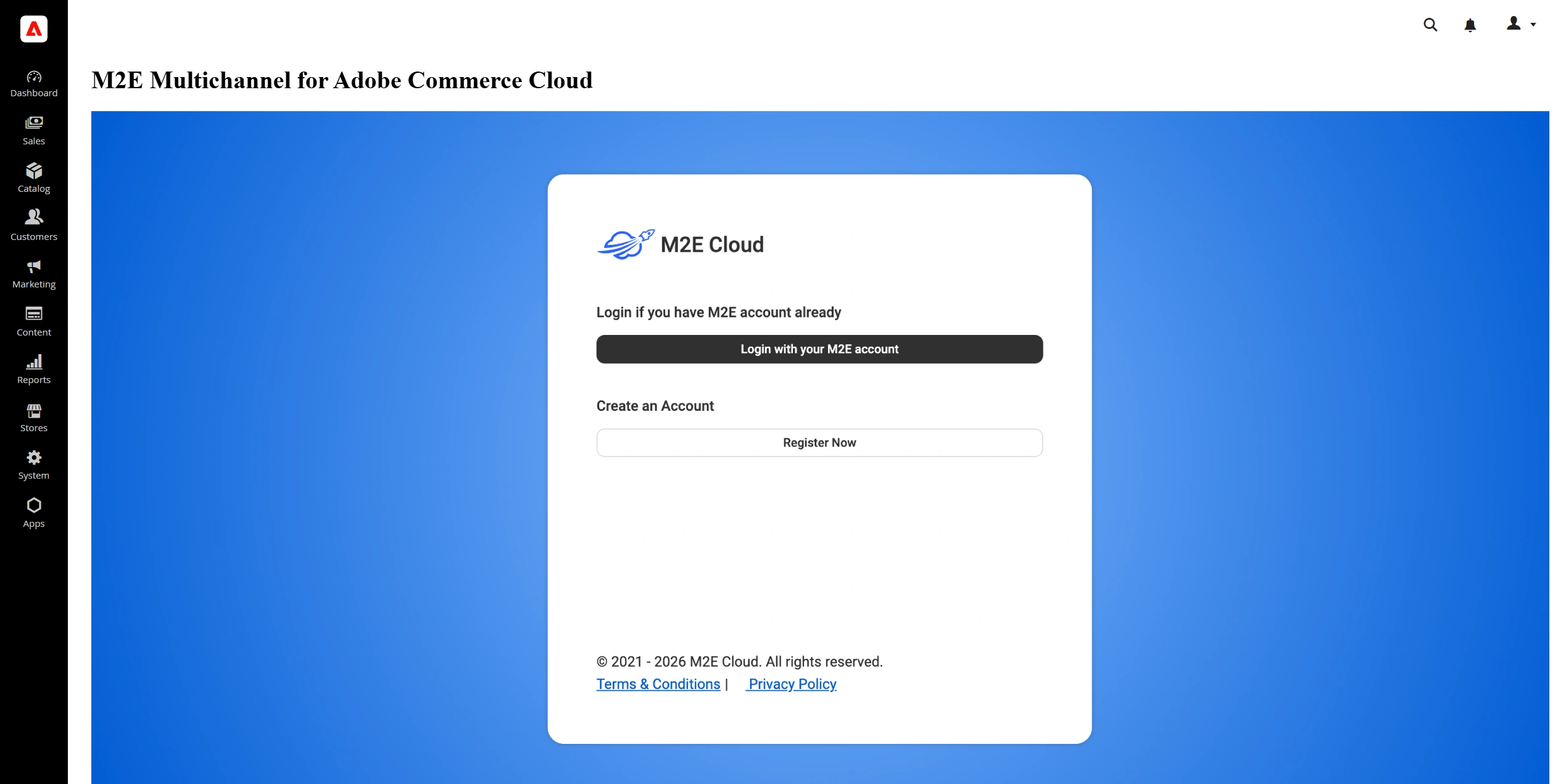
If you already have an M2E account, sign in using your existing credentials.
If you are new to M2E, click Register Now, provide the required details, accept the terms and conditions, and click Create Account.
Step 2. Connect a marketplace account #
To start selling on marketplaces through M2E Multichannel, connect your seller account.
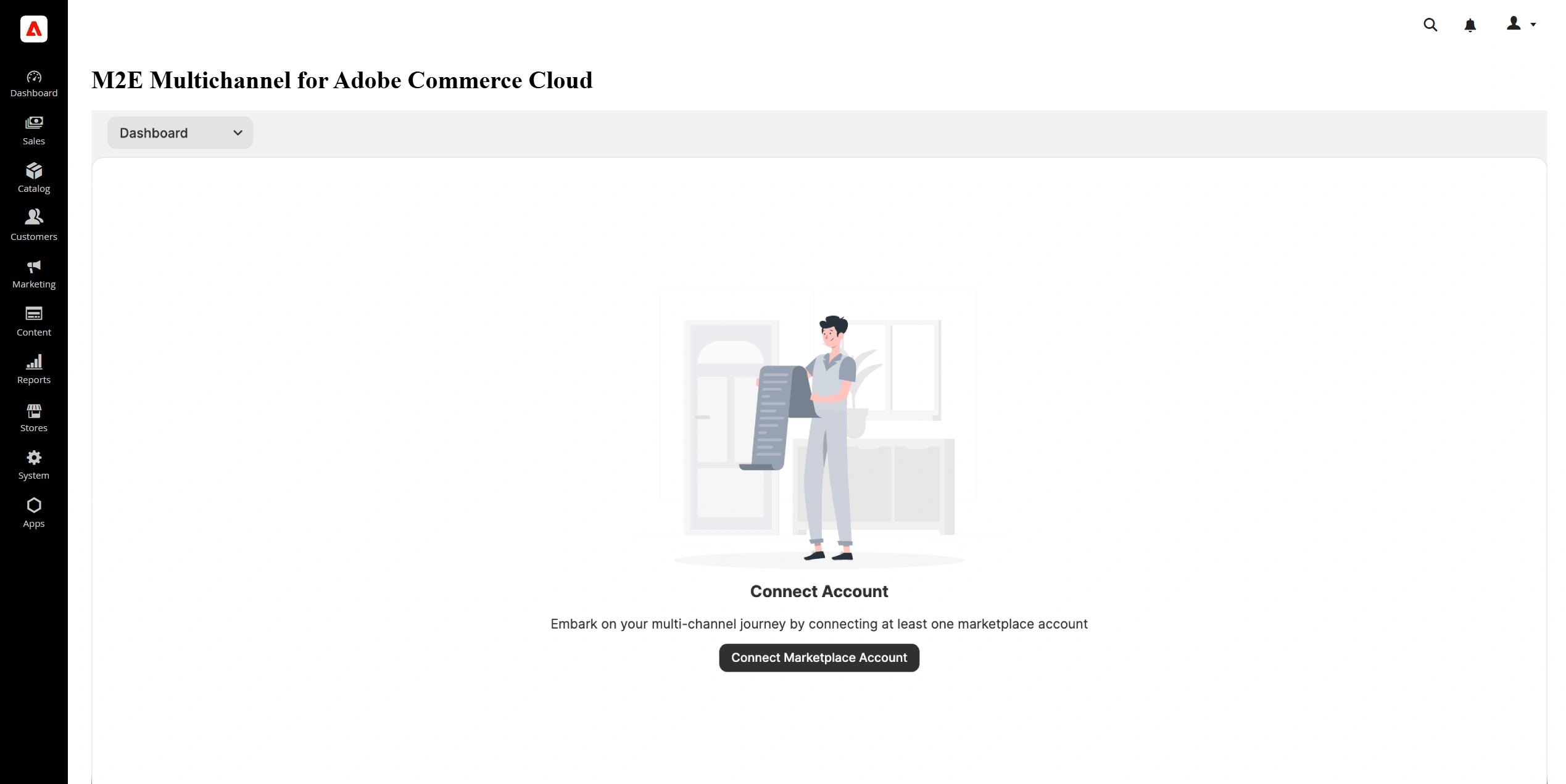
1) From the Dashboard, click Connect Marketplace Account.
2) Select the marketplace you want to connect.
3) Sign in to your seller account.
4) Grant M2E the requested permissions.
Once the account is authorized, it will appear in M2E Multichannel. The Setup Guide will also become available with a checklist of the remaining configuration steps.
ℹ️ You can connect additional marketplace accounts at any time under Settings > Sales Channels.
Step 3. Link products #
M2E Multichannel automatically attempts to match products in your Adobe Commerce catalog with existing marketplace listings based on SKU or other product identifiers.
To link products that were not matched automatically:
1) In the Setup Guide, go to Link Products and click View Not Linked Products.
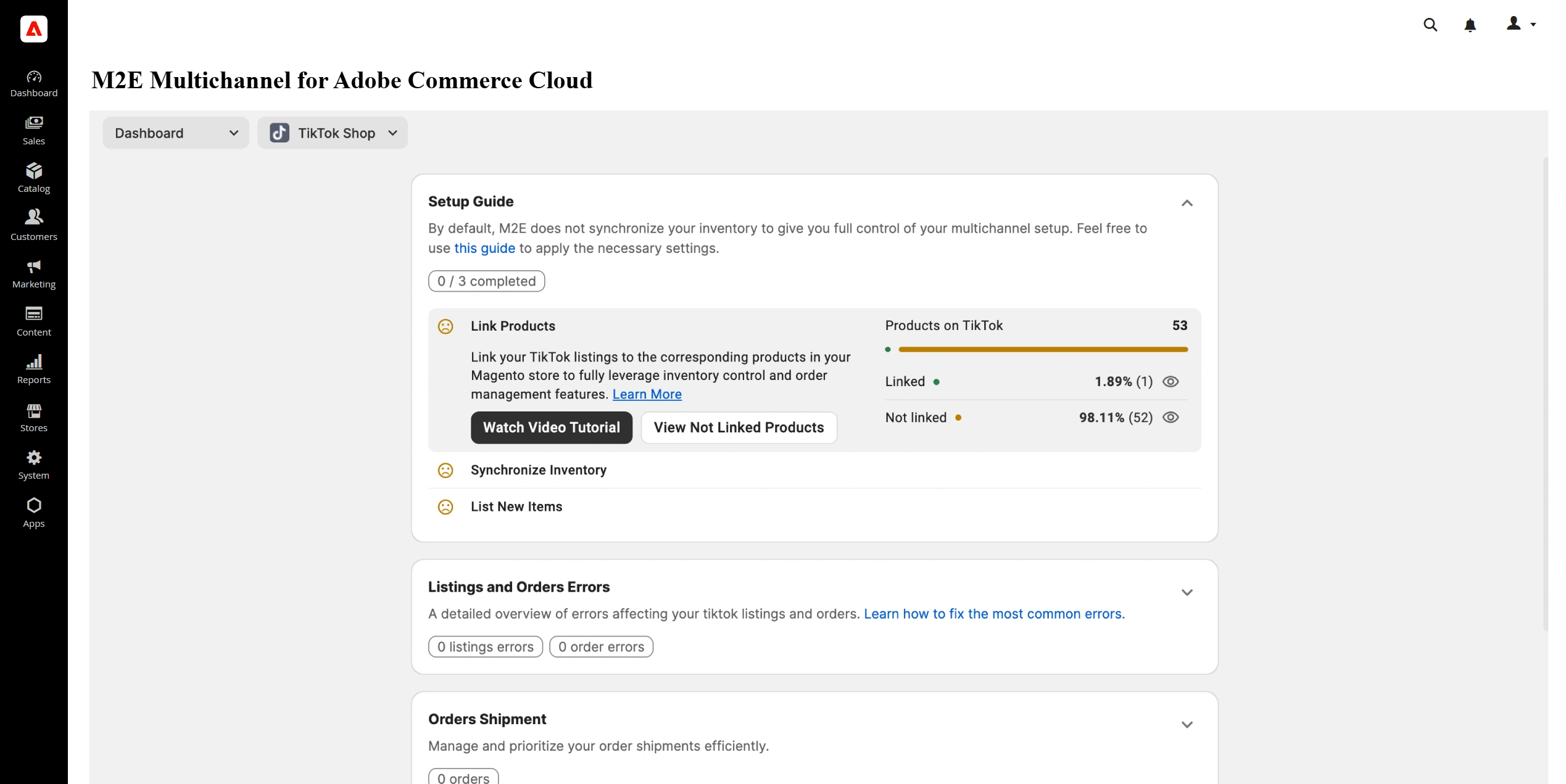
2) You will be redirected to the Listings page.
3) Link products individually, or use CSV import to link multiple products in bulk.
Synchronization is available only for linked products. Make sure all products you want to synchronize are linked to the corresponding marketplace listings.
ℹ️ For detailed instructions, see the Manual Product Linking Guide.
Step 4. Enable inventory synchronization #
After linking your products, enable inventory synchronization to keep marketplace stock levels and other product details aligned with your Adobe Commerce catalog.
1) Go to Synchronize Inventory in the Setup Guide.
2) Click View Not Synced Products.

3) Select the products you want to synchronize. You can enable inventory sync individually or in bulk for larger catalogs.
ℹ️ For detailed instructions, see the Inventory Synchronization Guide.
Step 5. List products on marketplaces #
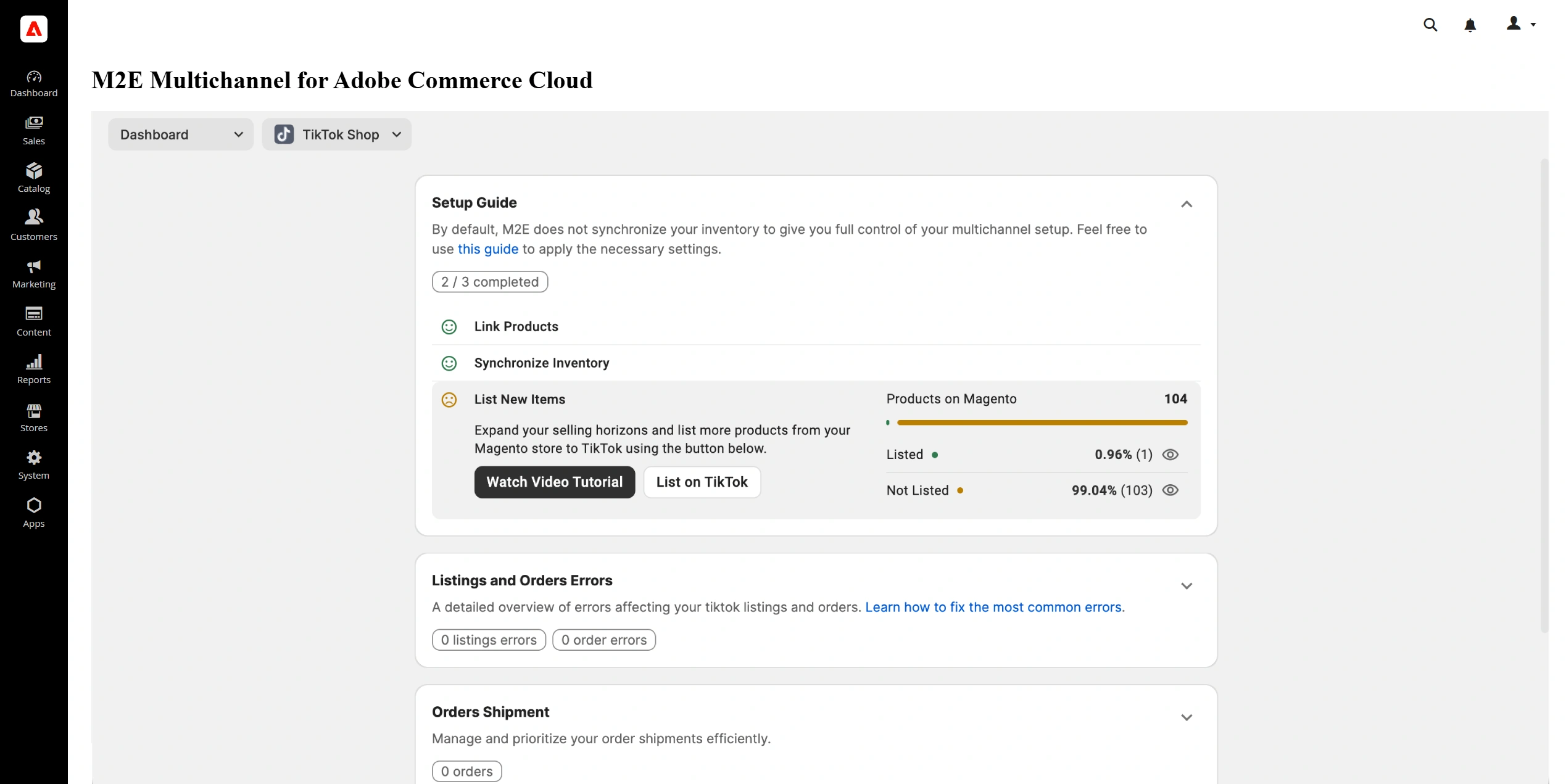
M2E Multichannel lets you create new marketplace listings using products from your Adobe Commerce catalog.
In the Setup Guide, find the List New Items section and click List on Channel. Then follow the on-screen steps to configure and publish your listings.
ℹ️ See marketplace-specific instructions for creating listings:
- eBay – [User Guide] / [Video Tutorial]
- Amazon – [User Guide] / [Video Tutorial]
- Walmart – [User Guide] / [Video Tutorial]
- TikTok Shop – [User Guide] / [Video Tutorial]
- Kaufland – [User Guide] / [Video Tutorial]
- Temu – [User Guide]
- Mirakl – [User Guide]
Need help? #
If you have questions or need assistance with the M2E Multichannel app setup, contact the support team.


