
This guide explains how to acquire, deploy, and install M2E Multichannel for Adobe Commerce as a Cloud Service (SaaS).
M2E Multichannel is distributed as a non-downloadable Adobe App Builder application. The app is deployed through Adobe Exchange and installed in Adobe Commerce using App Management. Local code download or Adobe I/O CLI deployment is not required.
💡 Video tutorial: Watch the M2E Multichannel installation walkthrough for Adobe Commerce SaaS
Requirements #
Before getting started, make sure you have:
- An Adobe Commerce as a Cloud Service instance.
- Access to Adobe Exchange.
- Access to the Adobe account and organization associated with your Adobe Commerce environment.
- Administrator access to Adobe Commerce Admin.
- Permission to acquire, deploy, associate, and install App Builder applications.
ℹ️ M2E Multichannel uses Adobe IMS authentication for Adobe Commerce as a Cloud Service. Commerce Integration (OAuth 1.0a) authentication is not supported.
Step 1. Acquire M2E Multichannel from Adobe Exchange #
1) Sign in to Adobe Exchange.
2) Under Experience Cloud, find M2E Multichannel for Adobe Commerce Cloud.
3) Open the app page and click Acquire.
4) A message will appear indicating that the app requires Adobe App Builder. Click Yes, continue to proceed.
5) Once the app is acquired, click Manage your app.
You will be redirected to the app management page in Adobe Exchange.
Step 2. Create an environment #
Once the application is acquired and approved, create an environment where it will be deployed.
1) On the app management page, click the M2E Multichannel for Commerce Cloud app name.
2) Click + Add Environment.

3) Enter a name for the environment, such as Testing or Production. It must be between 3 and 10 characters long.
4) Click Save environment.
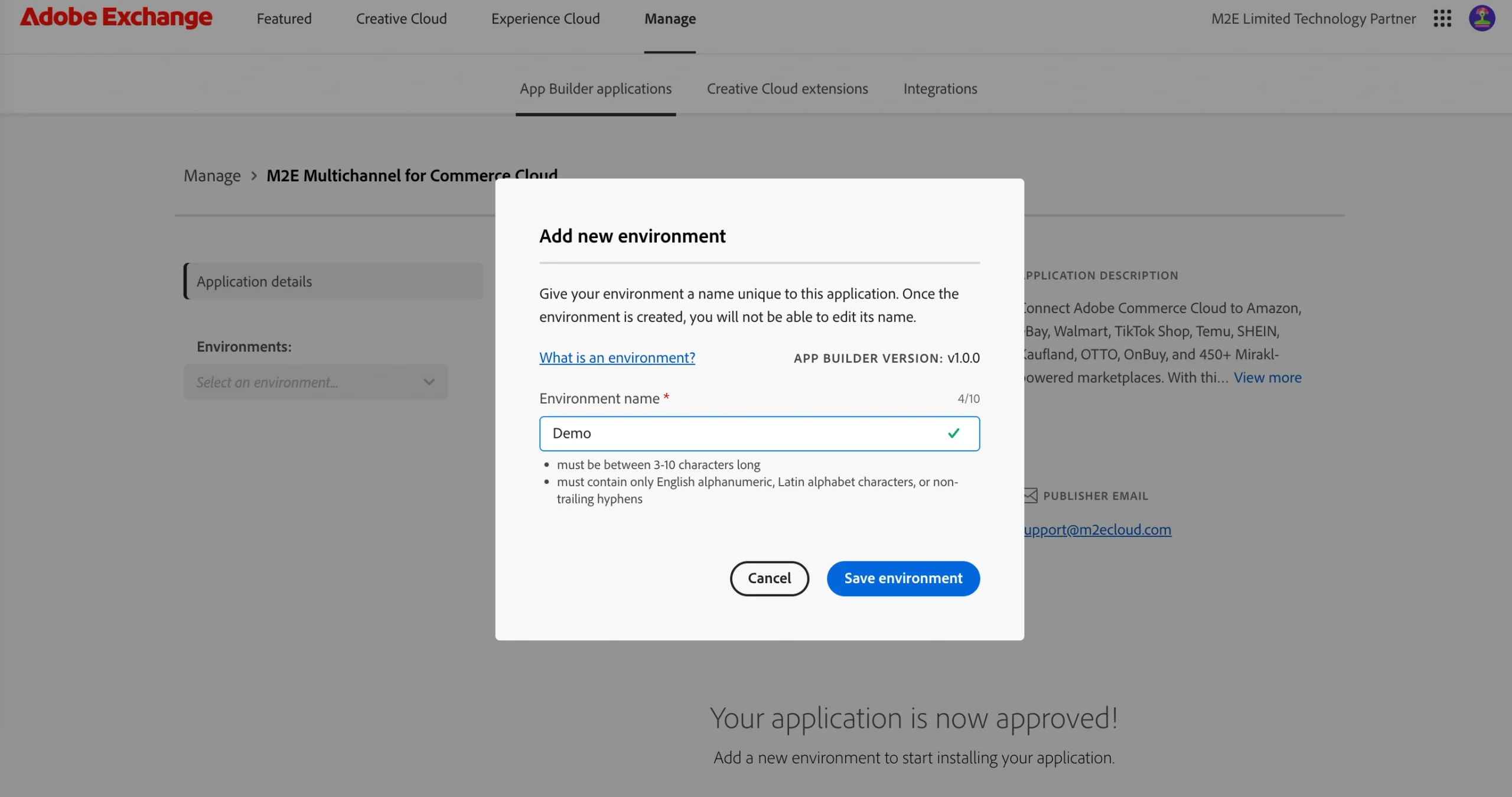
After the environment is saved, Adobe automatically creates the corresponding App Builder project in Adobe Developer Console.
Open the newly created environment to continue.
Step 3. Configure the environment #
A newly created environment has the Draft status and must be configured before deployment.
1) Open Configuration from the environment menu.

2) Under Adobe Commerce as a Cloud Service, select the required Product Profile.
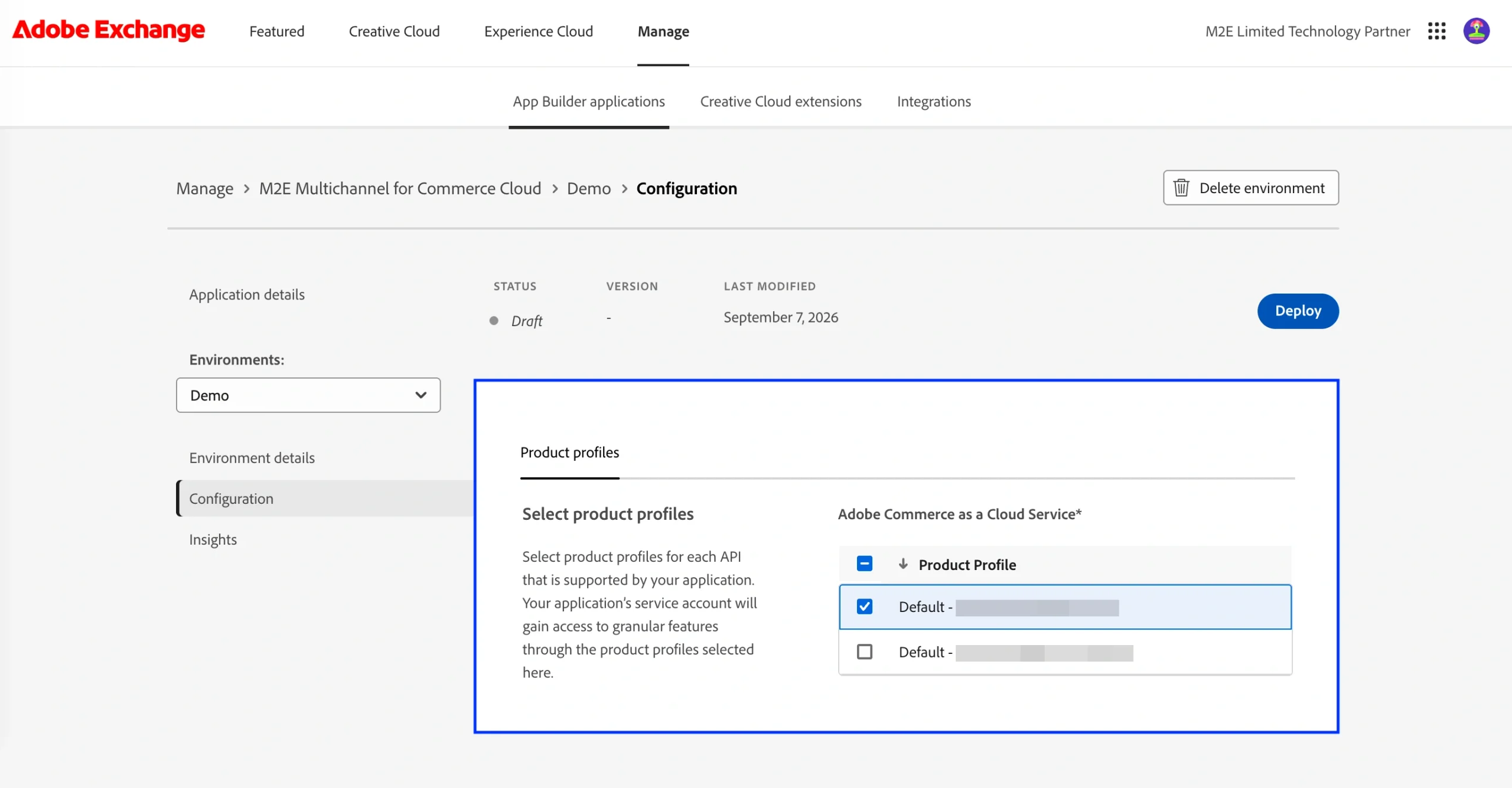
The selected Product Profile determines which Adobe Commerce features the application's service account can access.
Step 4. Deploy the app #
Once the required Product Profile is selected:
1) Click Deploy.
2) Wait for the deployment to complete.
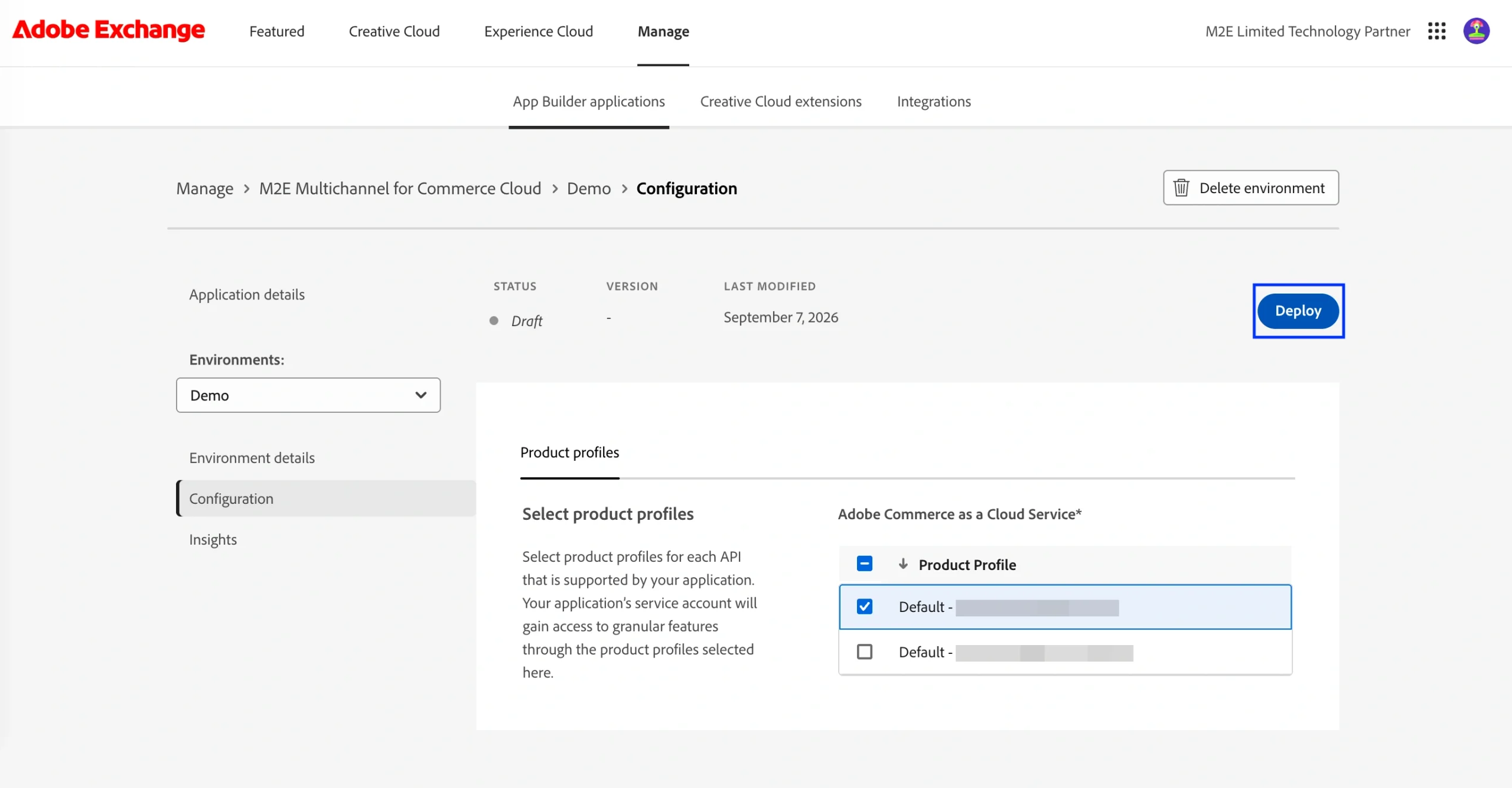
Deployment may take a few minutes. Once done, the environment status changes to Deployed.

During deployment, the required IMS authentication values are configured automatically:
| Variable | Description |
|---|---|
AIO_COMMERCE_AUTH_IMS_ORG_ID | Your Adobe organization ID. |
AIO_COMMERCE_AUTH_IMS_CLIENT_ID | Identifies your OAuth Server-to-Server credential. |
AIO_COMMERCE_AUTH_IMS_CLIENT_SECRETS | The Client Secret from the same OAuth Server-to-Server credential. |
AIO_COMMERCE_AUTH_IMS_TECHNICAL_ACCOUNT_ID | The machine identity the access token is issued for. |
AIO_COMMERCE_AUTH_IMS_SCOPES | Permissions the resulting token is allowed to use. |
💡 For more information about OAuth Server-to-Server credentials, see Adobe’s authentication documentation.
Step 5. Associate the app with Adobe Commerce #
After deployment, associate the App Builder application with your Adobe Commerce instance.
1) Sign in to your Adobe Commerce Admin.
2) Go to Apps > App Management.
3) Click + Associate App.
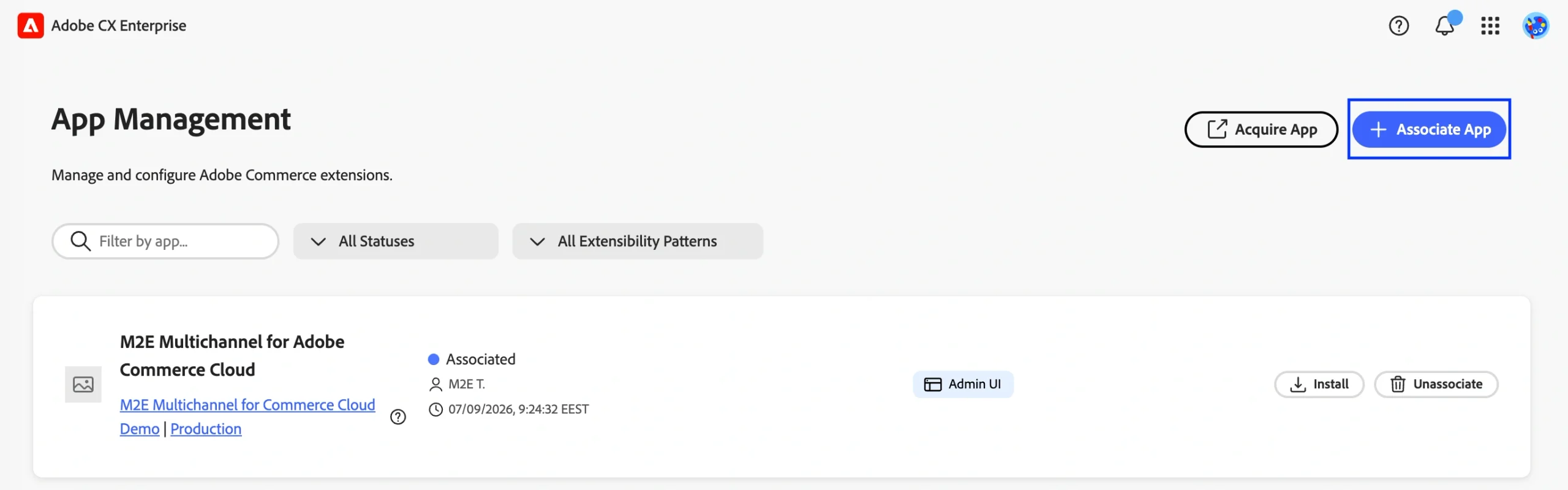
4) Select the required Project.
5) Select the corresponding Workspace.
6) Click Associate.
Once the association is complete, M2E Multichannel will appear in App Management with the Associated status.
Step 6. Install M2E Multichannel #
1) Find M2E Multichannel for Adobe Commerce Cloud in App Management.
2) Click Install.
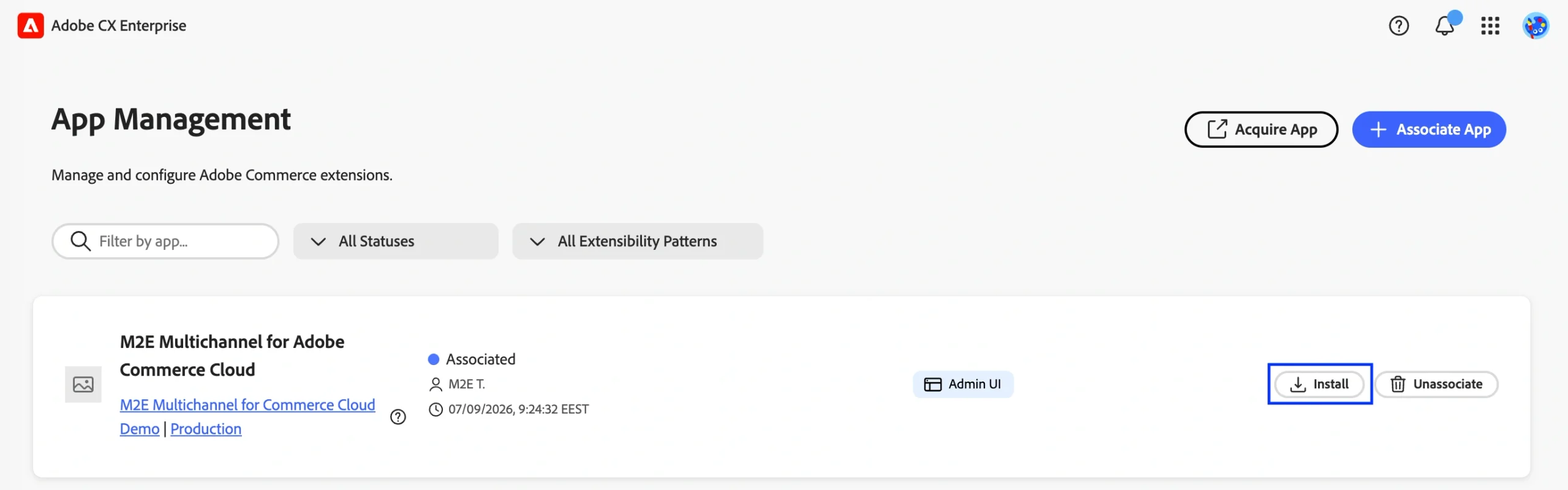
3) Confirm the action by clicking Install again.
4) The installation progress window will open. During installation, App Management:
- enables the Admin UI SDK and registers the extension with Adobe Commerce Admin UI;
- runs the Initialize M2E account custom installation step, which sends the data required to initialize the M2E account.
5) No action is required while these steps are running. Keep the page open until the installation is complete.
Once done, the app will show the Installed status in App Management.
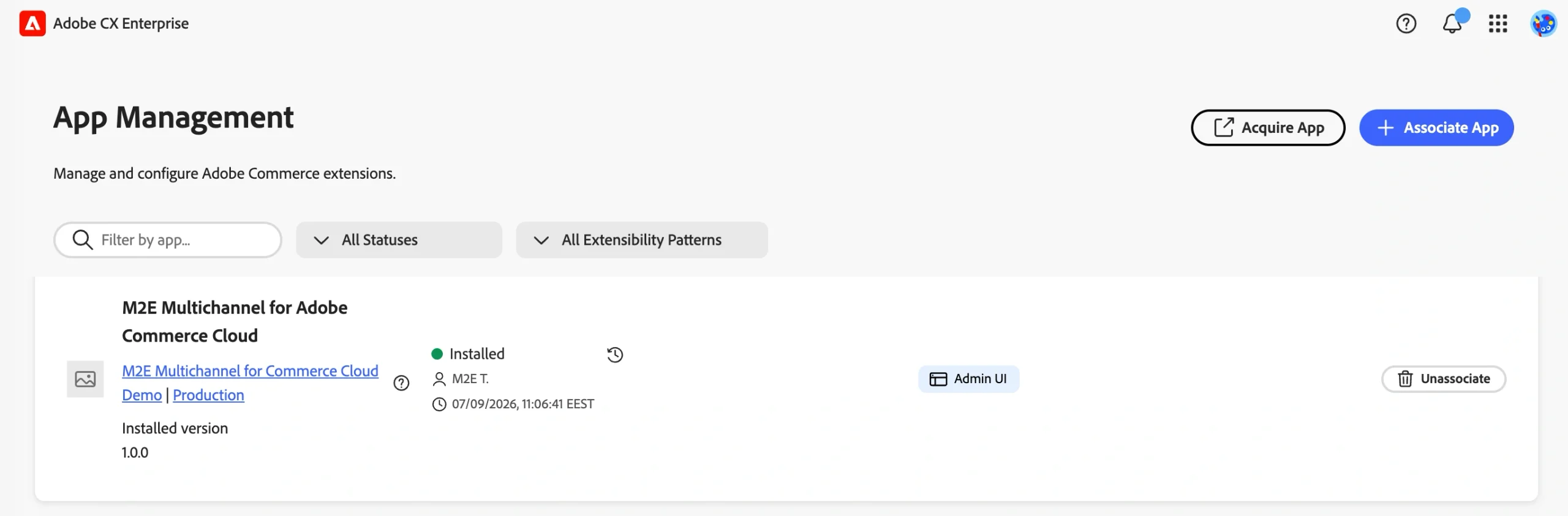
M2E Multichannel will become available under Apps in Adobe Commerce Admin. You can open the app and continue with the initial setup described in the M2E Multichannel User Guide.

Need help? #
If you have questions or need assistance installing M2E Multichannel, contact the support team.


