
This guide covers the main steps for connecting Tesco Marketplace to M2E Mirakl Connect.
Before connecting your account, prepare accurate product content, prices, inventory, and required attributes. Tesco validates listing data, so incomplete product information can prevent an item from being published.
M2E Mirakl Connect helps you manage the main marketplace workflows from your store:
- submit products and offers,
- update Tesco prices and stock,
- receive marketplace orders,
- send fulfillment and tracking information,
- check errors that may block listings.
This keeps your store and Tesco aligned without manually maintaining the same data in both systems.
ℹ️ Tesco follows the standard Mirakl model, so many of these steps are also relevant to other Mirakl marketplaces connected through M2E.
Outside M2E Mirakl Connect #
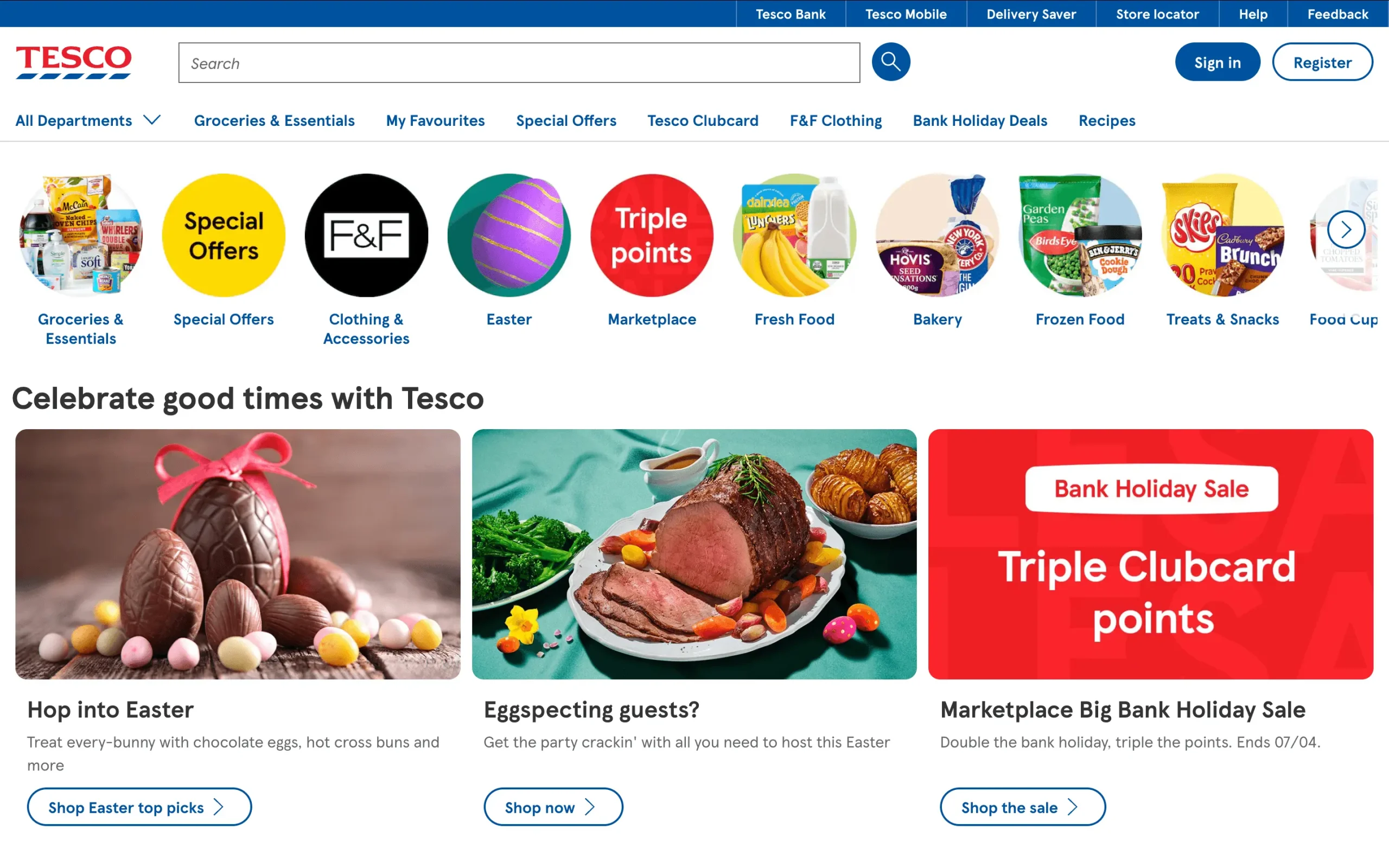
Tesco Marketplace is part of one of the UK's largest retail ecosystems.
Its marketplace targets products suited to everyday shopping, including home goods, health and beauty products, pet supplies, garden items, and seasonal ranges.
Tesco works best for sellers with standard retail catalogs and a reliable UK fulfillment setup.
Products that require unusual delivery arrangements or heavy customization may be harder to fit into the marketplace model.
Costs of selling on Tesco #
Tesco keeps its fixed marketplace costs low.
The commercial model includes:
- no setup fee,
- no monthly marketplace fee,
- commission on completed sales,
- commission rates that vary by category,
- seller payouts twice each month.
Payments are normally issued on the 1st and 15th.
Request seller account & access #
Connecting Tesco to M2E starts with Tesco approval.
You can’t create a Tesco seller account through M2E Mirakl Connect.
To begin, contact Tesco through its official supplier page.
Tesco expects sellers to have:
- a registered UK business,
- a valid UK VAT number,
- the ability to fulfill orders within the UK.
As part of the review, Tesco may also check your catalog, pricing model, fulfillment process, and operational setup.
If Tesco approves your application, it will provide access to its Mirakl seller portal. You can then use that access to connect Tesco to M2E Mirakl Connect.
ℹ️ Tesco decides which sellers and products can appear on the marketplace. Tesco reviews product quality and compliance as part of the process.
Inside M2E Mirakl Connect #
Connect your Tesco seller account to M2E Mirakl Connect to manage listings, prices, inventory, and marketplace orders from Magento or Adobe Commerce.
M2E uses the Mirakl connection to keep your Magento or Adobe Commerce catalog and Tesco marketplace data aligned.
You can manage:
- new and existing Tesco products,
- marketplace categories and attributes,
- stock and pricing,
- imported orders,
- shipment and tracking details,
- listing validation errors.
How to connect Tesco #
Complete Tesco onboarding first and confirm that you can access the Mirakl seller portal.
- Install M2E Mirakl Connect.
- Add your Tesco account and enter the required Mirakl authorization details.
- Configure sync for for prices, inventory, and orders.
✅ Follow the M2E Mirakl Connect setup guide for the complete process.
Day-to-day management #
After the initial setup, M2E helps you manage Tesco as part of your existing Magento or Adobe Commerce operations.
Instead of maintaining separate product, inventory, and order workflows for the marketplace, you can use your store as the main source for supported updates.
M2E connects the two systems by sending catalog and offer data to Tesco and bringing marketplace orders back into Magento or Adobe Commerce.
Product and offer management #
M2E supports both publishing new products and linking offers that already exist on Tesco.
Publish new products
Select the Magento or Adobe Commerce products you want to send to Tesco and assign the correct marketplace category.
You then need to map your Magento product data to the attributes Tesco requires. Depending on the category, this may include:
- GTIN or EAN,
- brand,
- product title,
- product description,
- product images,
- category-specific attributes,
- other required product information.
Before submitting a product, make sure all mandatory fields are available and mapped correctly.
If Tesco rejects a product, M2E displays the marketplace validation message. You can use this information to find the issue, correct the source data in Magento, and submit the product again.
Manage existing Tesco offers
If the product already exists on Tesco, you do not need to recreate the marketplace product page.
Instead, link the existing Tesco offer to the corresponding Magento or Adobe Commerce product. Once linked, M2E can use your store data to manage supported offer updates.
Synchronization policies #
Sync policies control how Magento or Adobe Commerce data is applied to your Tesco offers.
A policy can define settings such as:
- price synchronization,
- price adjustments or markups,
- available quantity,
- stock rules,
- listing status,
- other supported synchronization settings.
You can apply one policy to multiple products, which makes it easier to manage larger catalogs and keep the same rules across a product group.
Order management #
M2E imports Tesco orders into Magento or Adobe Commerce so your team can process them through the existing Magento order workflow.
When an order is received, M2E can:
- create the order in Magento or Adobe Commerce,
- update available stock,
- keep marketplace and store inventory aligned.
After fulfillment, supported shipment confirmation and tracking details can be sent back to Tesco.
On the Tesco marketplace side #
M2E Mirakl Connect sends product, offer, pricing, stock, and order data from Magento.
Tesco supports product content, offers, orders, shipments, returns, carrier mapping, and promotional pricing, including Clubcard offers.
Product content requirements #
Tesco applies strict rules to listing content.
Product titles should:
- stay within 60–70 characters,
- clearly describe the item,
- avoid promotional wording.
Descriptions must:
- use plain text,
- avoid links,
- avoid exaggerated or subjective claims.
Required product data commonly includes:
- Brand
- GTIN / EAN
- VAT rate
- Product dimensions and weight
- Variation attributes where relevant
Image requirements #
Tesco expects high-quality product images.
Main images should:
- be at least 2400 × 2400 px,
- use JPG format,
- have a white background,
- show the product clearly,
- contain no text, logos, or watermarks.
Offer and promotion rules #
Provide all offer prices in GBP.
Discount prices must be lower than the standard price and use valid conditions.
Tesco also supports Clubcard pricing. Make sure the promotion includes valid start and end dates.
Where Omnibus pricing applies, the reference price should reflect the lowest price charged during the previous 30 days.
Shipping and logistics #
Tesco uses logistic classes to define delivery requirements.
Products can be assigned to small, medium, large, or special-delivery classes.
Other offer fields may include lead time to shipment, tax code, and minimum quantity alert.
FAQ #
Why isn’t my Tesco product live? #
The product may have failed marketplace validation.
Common reasons include:
- missing GTIN / EAN,
- incorrect category mapping,
- missing attributes,
- invalid content,
- image errors,
- pricing issues.
Check the marketplace error in M2E and correct the source data before resubmitting the product.
Who can help if something goes wrong? #
For integration, synchronization, or listing errors, contact the M2E support team.
For seller approval, product acceptance, or Tesco marketplace rules, contact Tesco directly.


