
Since 2020, Amazon has been gradually enforcing the requirement to provide Country of Origin (COO) information on listings. It refers to the place where the item was produced or manufactured, or, if multiple regions were involved, the location where the item underwent its last substantial transformation.
As part of the Amazon Country of Origin new update, providing this information is now mandatory for all FBA listings by December 31, 2024. Listings missing COO data by that date will be blocked from cross-border fulfillment to or from the EU and UK.
In response to frequent seller requests, M2E Pro offers a simple way to assign COO directly through Product Type settings. This guide will walk you through the process step-by-step.
Why is the Country of Origin required on Amazon? #
Major marketplaces such as Amazon collect country of origin information for several important reasons:
- Legal requirements. Many regions enforce laws that require origin labeling to comply with customs procedures and trade regulations.
- Consumer transparency. Shoppers often want to know where an item was made. This can impact trust and influence purchase decisions.
- Trade agreements and tariffs. The COO affects how products are taxed and whether they qualify for trade benefits.
- Marketplace standards. Amazon uses origin data to support listing accuracy, quality control, and regulatory compliance.
Set the Country of Origin for listed Amazon products #
You can define the Country of Origin by editing your Product Type settings in M2E Pro. Here’s how:
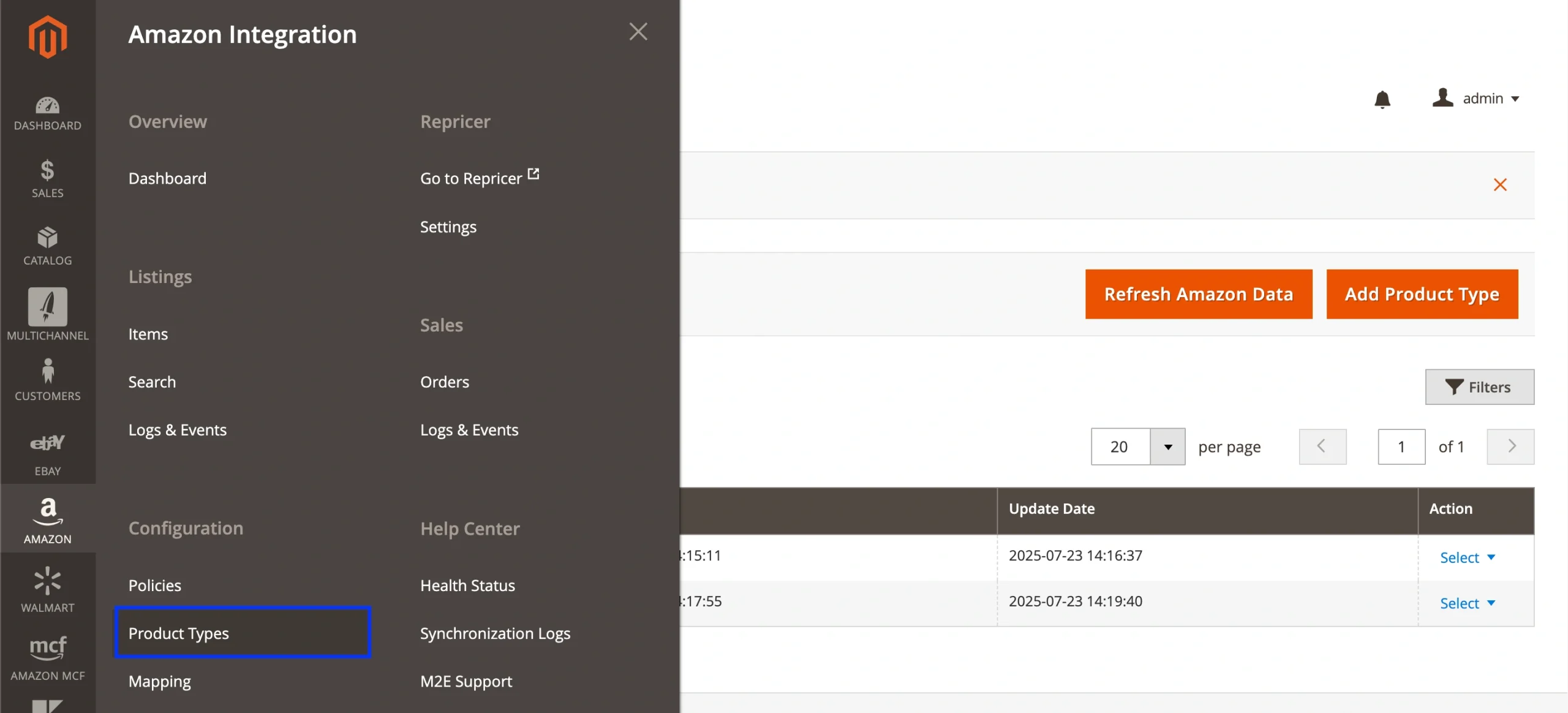
1) Go to Amazon > Configuration > Product Types.
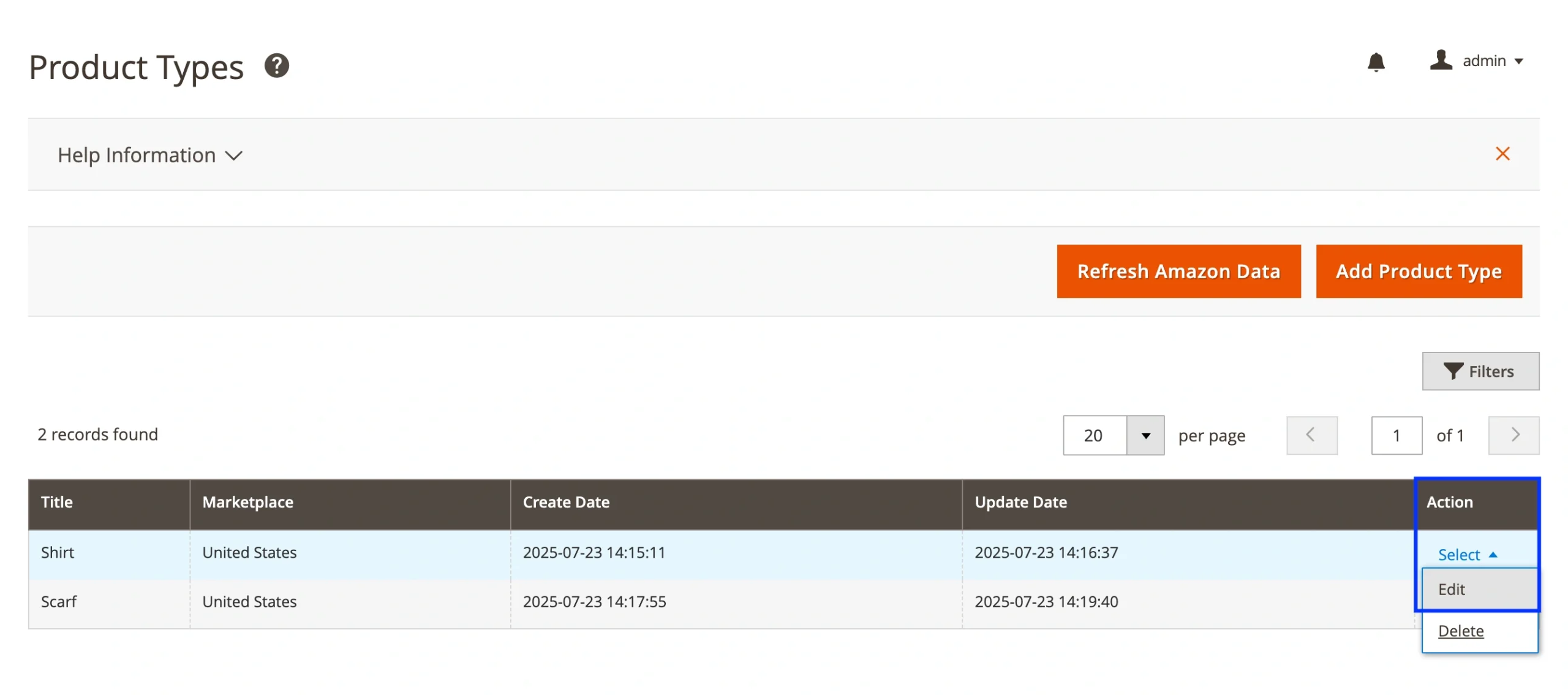
2) Click Select > Edit next to the product type used by your listed items.
3) Scroll to the Safety & Compliance section.
4) Locate the Country of Origin field. You can either link a Magento attribute that stores the origin, or manually enter the country name. This value will apply to all products using the selected Product Type.

💡 Watch the video tutorial for a visual overview of the process.
To ensure M2E Pro syncs the Country of Origin value with Amazon:
1) Go to Amazon > Configuration > Policies.
2) Open your Synchronization Policy.
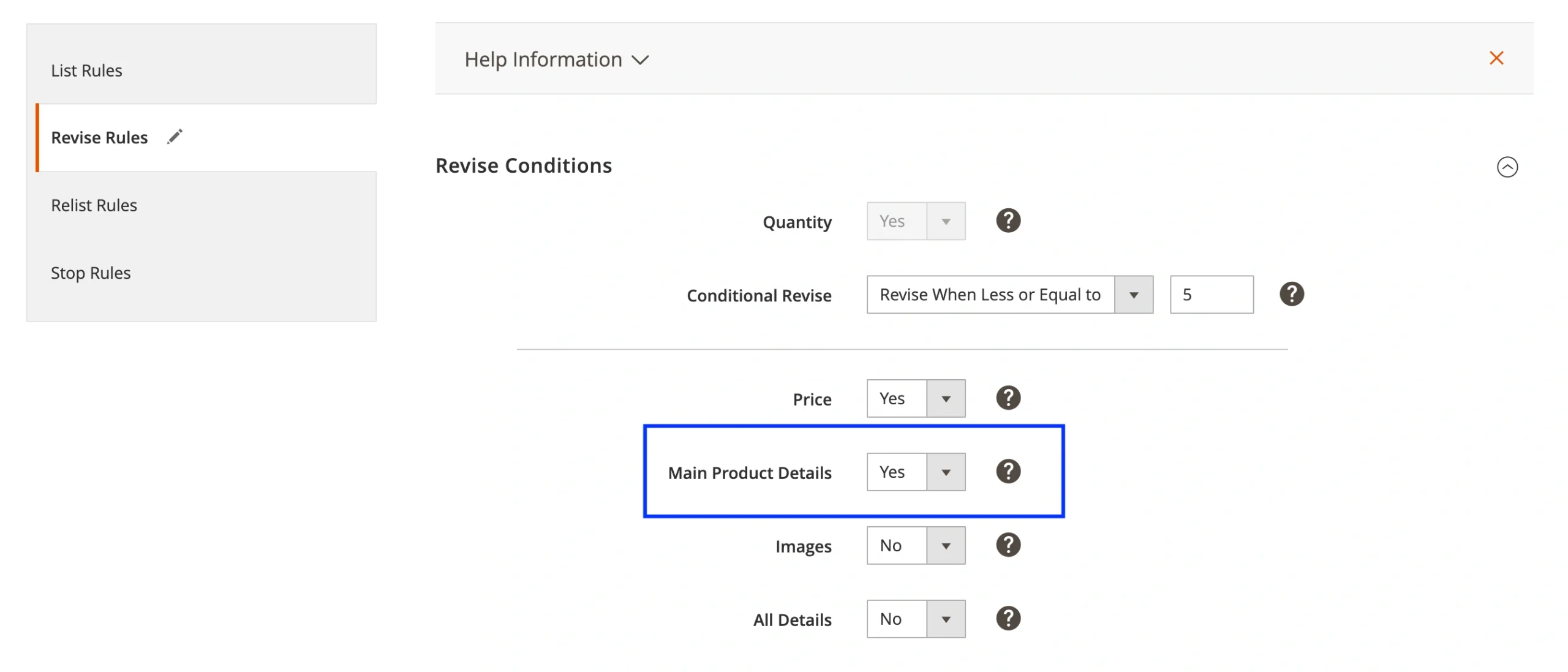
3) Switch to the Revise Rules tab.
4) Set the Main Product Details option to Yes.
Set the Country of Origin for new Amazon listings #
When creating an Amazon listing, assign a Product Type and ensure the Country of Origin field is filled in under the Safety & Compliance section. M2E Pro will include this data when submitting the product to Amazon.
Do other marketplaces require Country of Origin? #
Amazon isn’t the only platform that collects origin data. Here’s how other marketplaces handle it:
- eBay – Mandatory when selling internationally or using the Global Shipping Program (GSP).
- Walmart – Uses origin data for compliance and customer transparency.
- Temu – Requires Country/Region of Origin for nearly all listings.
Providing accurate origin information is a standard practice across e-commerce platforms.
FAQ #
How to change the country of origin on Amazon?
To change the Country of Origin for a listed product in M2E Pro, update the value in the Product Type assigned to that item. You can either enter a new value manually or link a different Magento attribute.
Make sure your Synchronization Policy is set to revise main product details so M2E Pro can submit the update to Amazon during the next sync.


