
M2E Accounts currently supports basic user management, which allows profile owners to share access to account data with multiple users securely.
⚠️ At this time, user management is in its initial stage. Only read-only access is supported. We are actively working on expanding user permission options (e.g., editor) based on customer feedback and will notify you as soon as these features become available.
Inviting read-only users #
If you want to share your M2E Accounts data with someone on your team, you can invite them by following the instructions below.
1) Log in to M2E Accounts under the initially registered email.
2) Navigate to the Users section.
3) Click the Add User button.
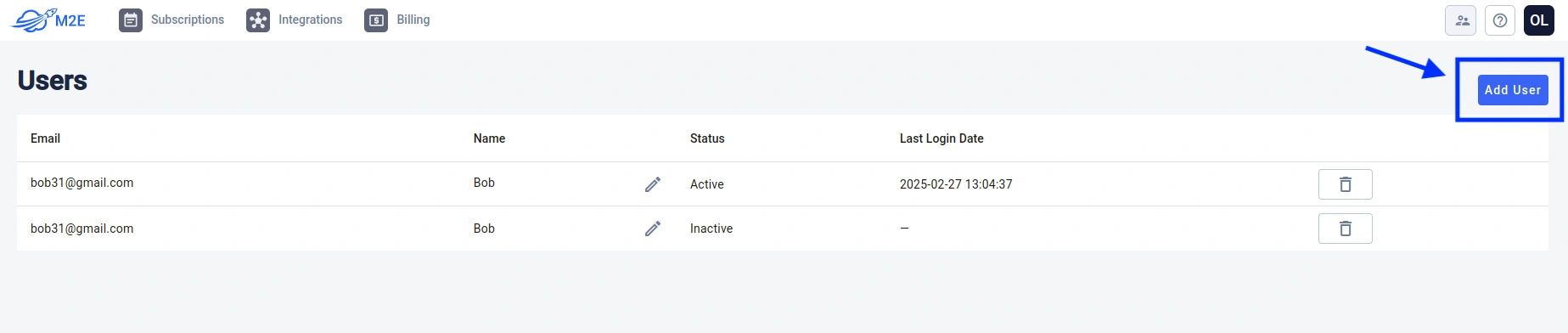
4) In the window that appears, provide the Name and Email under which the User will be registered. Once done, click Save.

The invited user will receive an email with a secure invitation link. By clicking the link, the user is prompted to set a password to complete registration.
5) Once the registration is completed, users can use the specified email and password to log in to M2E Accounts independently.
Roles overview #
Currently, M2E Accounts supports the following roles:
- Admin
The original account creator. Has full access to all settings and user management. Only one admin is allowed per account.
- User
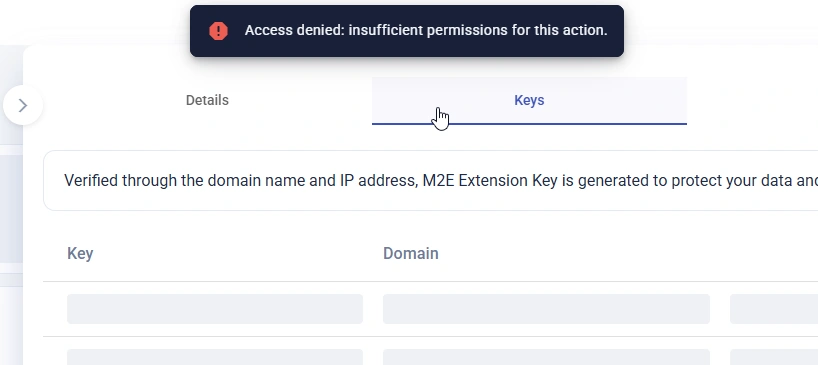
Can view M2E Accounts data related to the registered company. However, they cannot make changes, adjust settings, or perform any actions that impact data or account configuration.
Some tabs aren’t accessible even for observation due to security reasons.
Future plans #
We recognize that many teams require more flexible access roles, such as partial access, edit rights, or dedicated user views. Our team is actively developing extended user permissions and team role management. As soon as these capabilities are available, we’ll make an official announcement in our M2E Monthly Digest.


