
When selling vehicle details on eBay, you can take advantage of the Parts Compatibility feature. It allows listing parts and accessories in relation to compatible vehicles. eBay Parts Compatibility helps drive your sales and simplifies the search process for buyers needing specific parts.
eBay Product ID or ePID is one of the types of vehicle numbers that you can use to specify Parts Compatibility information for your M2E Pro Listings on eBay Motors, United Kingdom, Germany, Italy, and Australia marketplaces.
Follow the instructions below to add ePIDs of compatible vehicles to your Products in M2E Pro.
Step 1. Update the Marketplaces #
Get the most up-to-date Parts Compatibility list by updating eBay Marketplaces. To do it, go to eBay Integration > Configuration > Marketplaces and click Update Now or Update All Now for all marketplaces at once:

Step 2. Set up a Compatibility Attribute #
Go to eBay Integration > Configuration > Settings > Parts Compatibility and set up a Compatibility Attribute. You need to select the Magento Attribute containing compatible vehicles' ePID info.
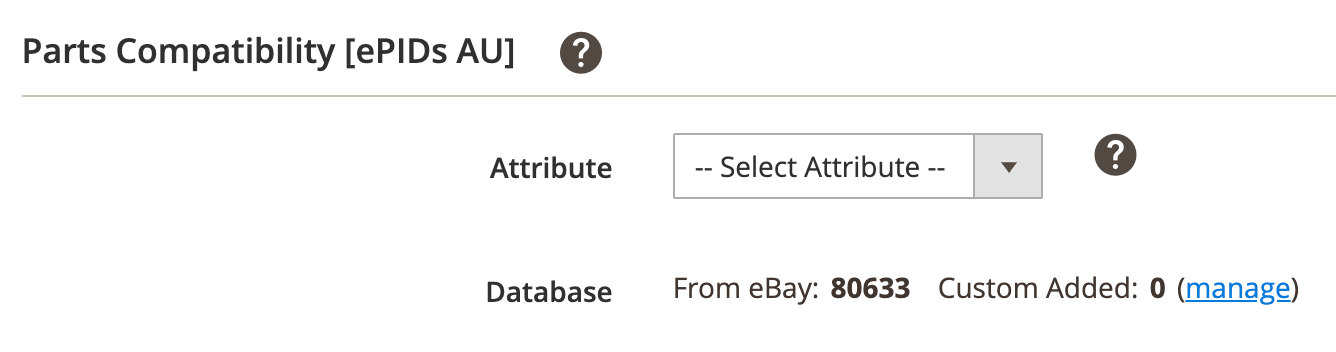
Step 3. Indicate the Parts Compatibility Mode #
Navigate to the M2E Pro Listings grid page (eBay Integration > Listings > Items) and choose the Parts Compatibility Mode via the corresponding action in the individual actions menu:

In the pop-up window, select the mode and click Save. Make sure to do it for each relevant Listing.

⚠️ This is required if you list vehicle details on eBay UK, DE, AU, and IT marketplaces where another type of vehicle number is supported aside from ePIDs.
Step 4. Select compatible vehicles #
Open the necessary M2E Pro Listing and switch to the Settings View Mode on top of the Products grid.
Select the Products that you want to add the compatible vehicles to. Use the individual or mass actions menu and submit the Add Compatible Vehicles action.
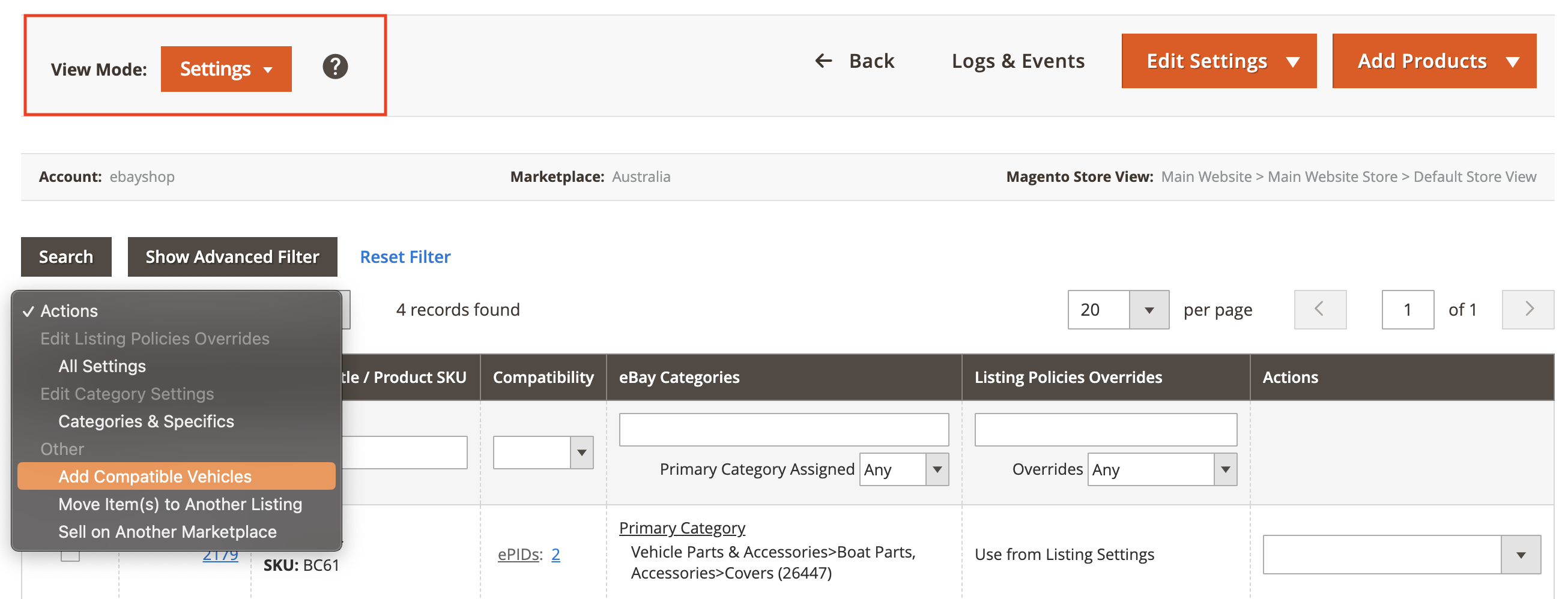
A pop-up will appear where you can select compatible vehicles.
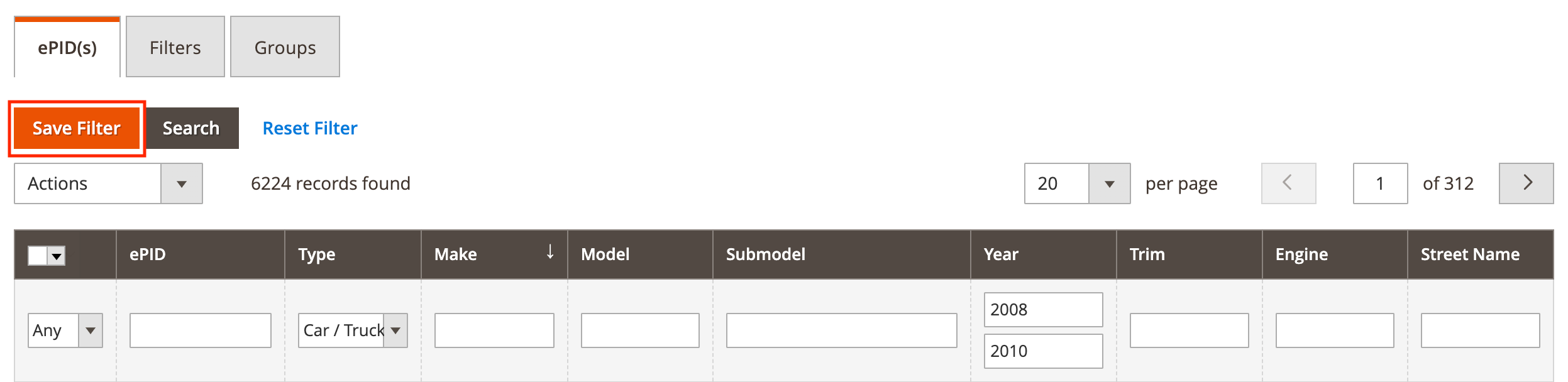
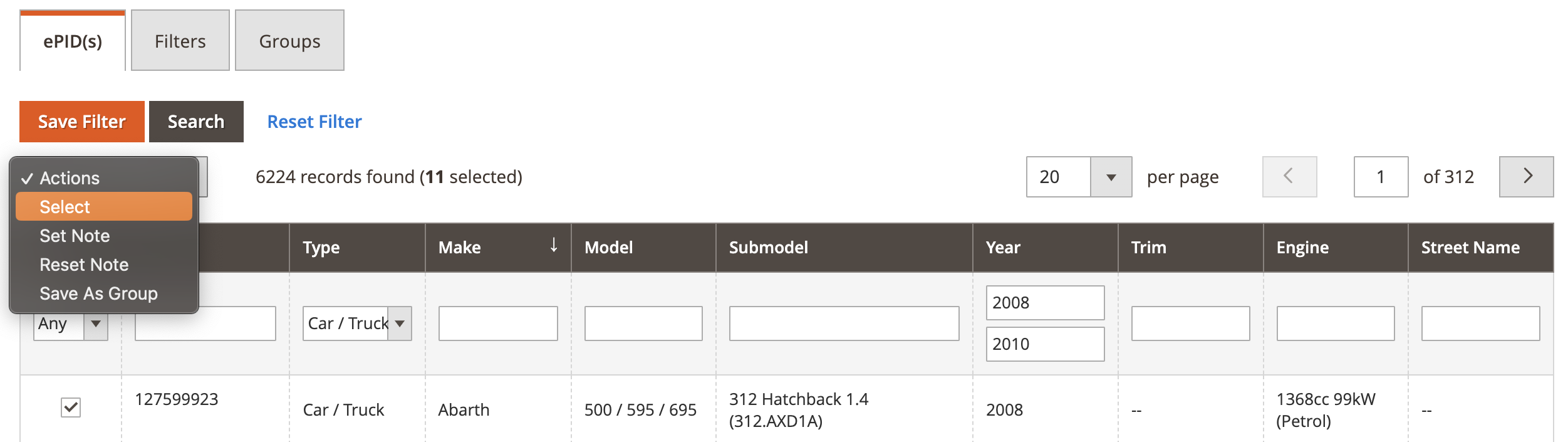
To make searching for compatible vehicles more effective, you can filter them by various parameters (for example, Type, Model, etc.). If you want to use the applied Filters later again, click Save Filter:
Another way to save the selected compatible vehicles for future use is to group them via the Save As Group action:
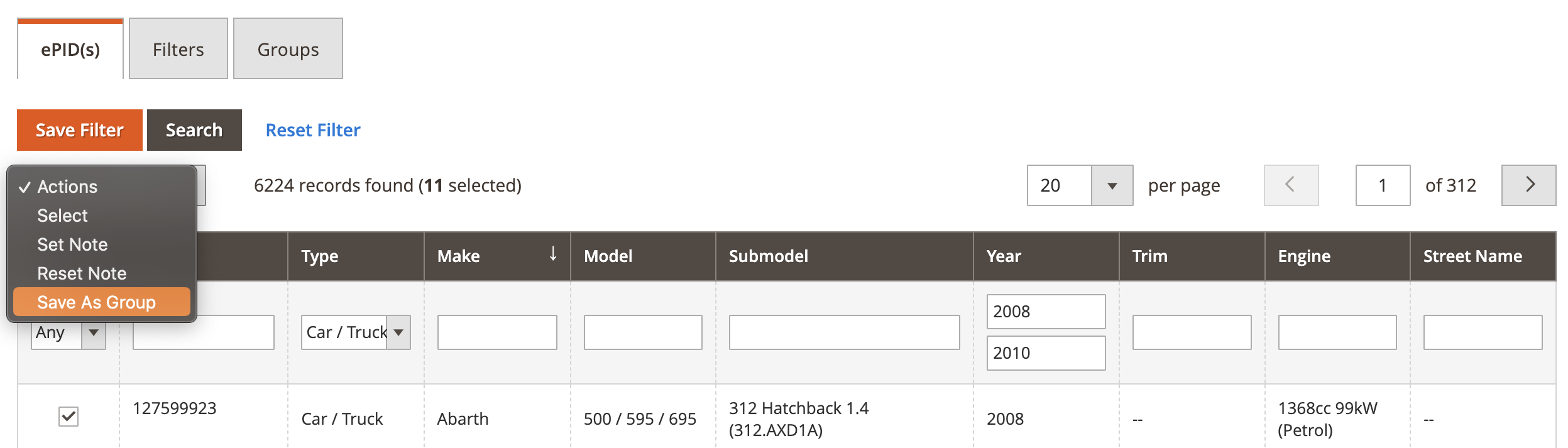
⚠️ Due to technical reasons, you can select only up to 3000 compatible vehicles at once. But let’s say you need to add 4000 compatible vehicles right away. You can create two filters or groups and add 2000 ePIDs per filter or group. All the items belonging to those filters or groups will be added to your product in the Listing in one click.
Once you select the necessary compatible vehicles or previously saved Filters/Groups, submit the Select action:
After that, you will see the number of selected compatible vehicles.
Click Add/Override to add the selected compatible vehicles to your Products in M2E Pro Listing:
- Add - the selected ePIDs will be added to the list of items within the Attribute.
- Override - the selected ePIDs will override the existing ones.

Step 5. View added compatible vehicles #
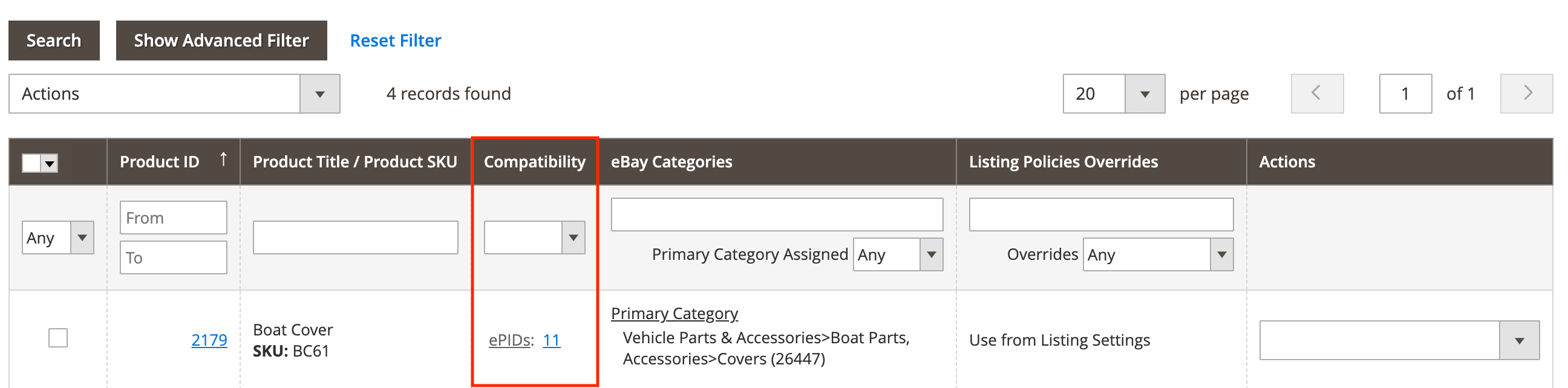
The Parts Compatibility information you’ve indicated will appear in the M2E Pro Listing grid in Settings View Mode. Click on the corresponding number in the Compatibility column to view the list of ePIDs added to that product.
That’s it! Once you list or revise the item, the provided Parts Compatibility information will become available on eBay.
To make sure that M2E Pro automatically updates Parts Compatibility data on eBay whenever you make any changes, enable the corresponding option in your Synchronization Policy (eBay > Configuration > Policies > Synchronization Policy > Revise Rules):



