
M2E OTTO Connect provides full order management, including automatic order import, tracking number synchronization, and order status updates. Let's examine order processing via the extension.
Viewing Order Details #
The primary task of M2E OTTO Connect is to maintain constant order synchronization. Once a customer places an order, it will be imported into the extension.
All imported OTTO orders are found under OTTO > Sales > Orders. The order overview page shows the information about a buyer, purchased items, the total paid amount, current order status, OTTO Order ID, and an ID of the corresponding Magento Order.
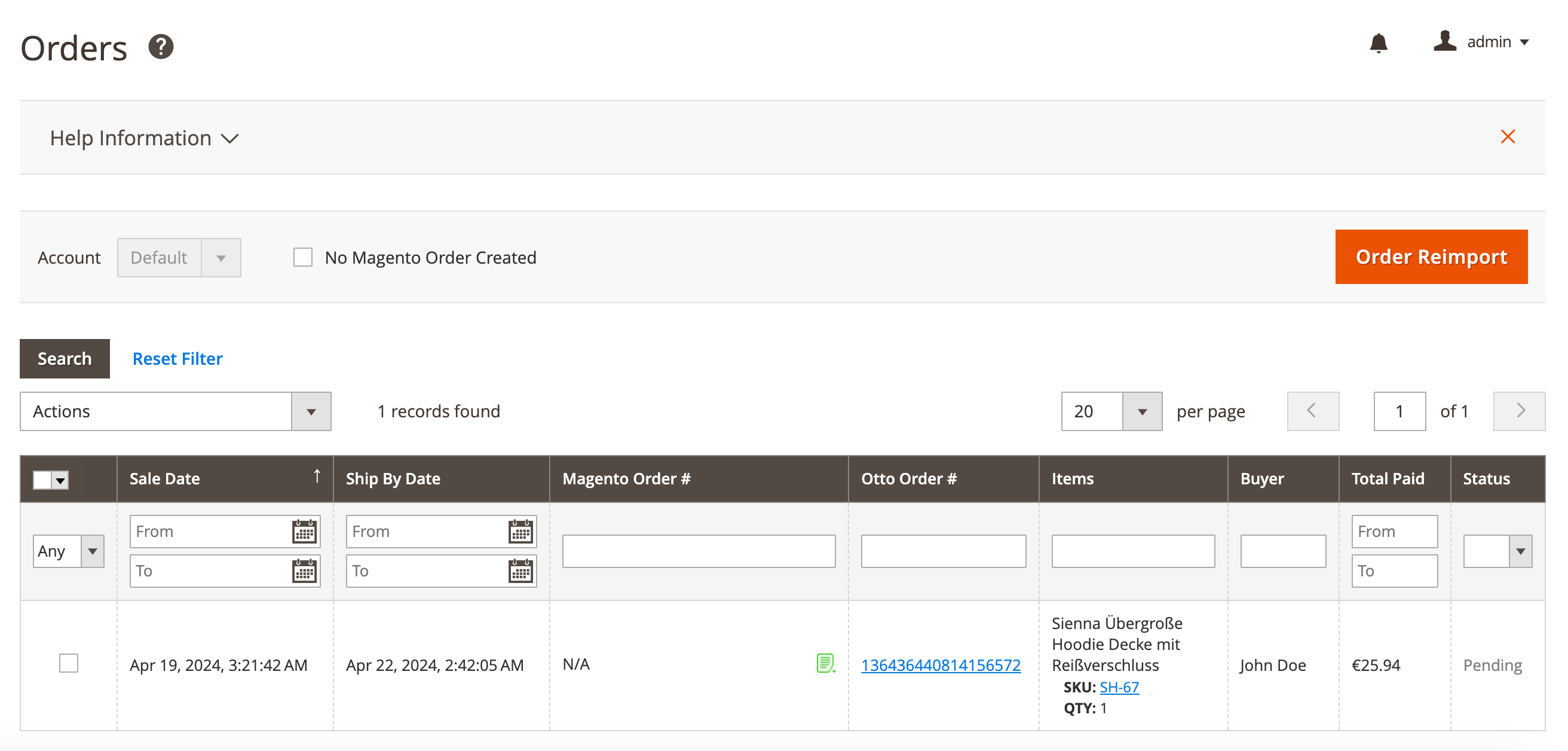
Use Filters to find orders by specific parameters, like order ID or Ship By Date. You can also filter to show orders that do not have corresponding Magento orders created.
⚠️ Only the orders placed past the date you linked your OTTO account will be imported to the extension.
OTTO Order Details #
If you click on the OTTO Order number in a grid, you can view the details of this order.
On the OTTO Order Details page, you can review information about a buyer, purchased items, their price and quantity, payment and shipment details, etc.
The Order Currency will be set automatically based on the OTTO storefront where the product was listed, as determined in the general settings used for the M2E OTTO Listing.
Under the Transaction Item(s) section, you can link or unlink the OTTO Product to the related Magento Product.

ℹ️ To create a Magento order, all products in the order must be linked to a Magento Product.
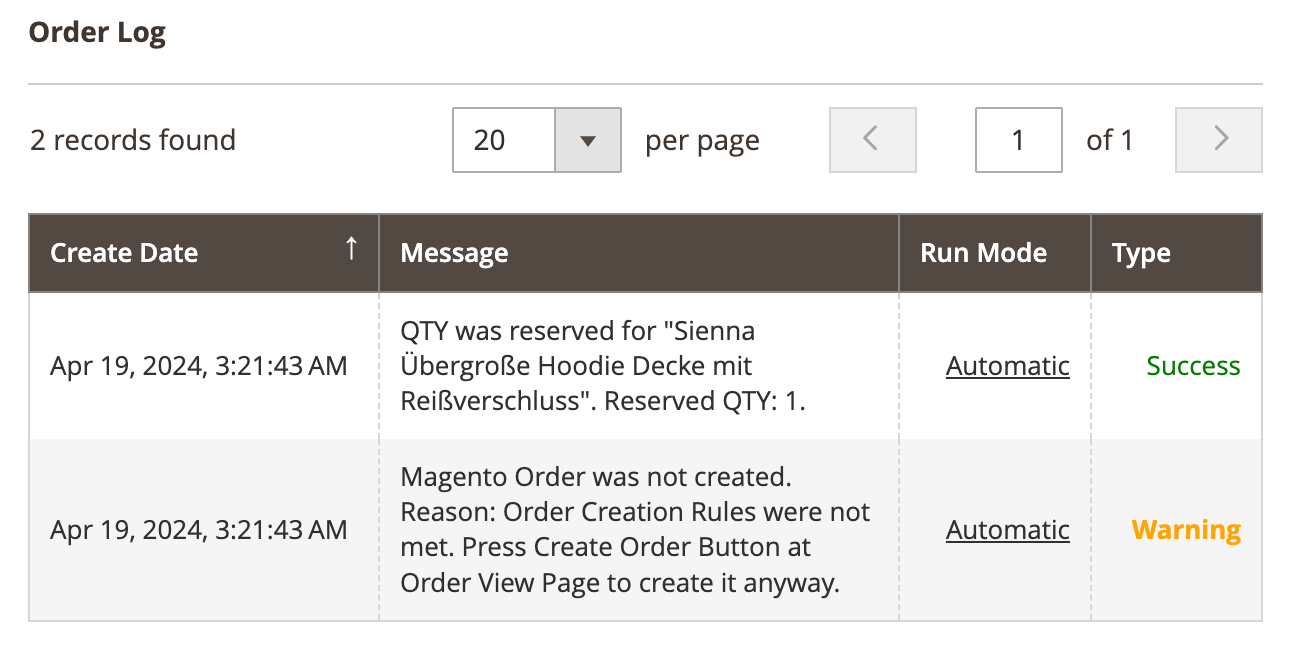
Under the Order Log section, you can track all the actions related to this order.
In the Comments History block, you can add comments to the imported OTTO orders. Click Add Note to leave a comment. Using the Actions menu, edit or delete your notes as necessary:
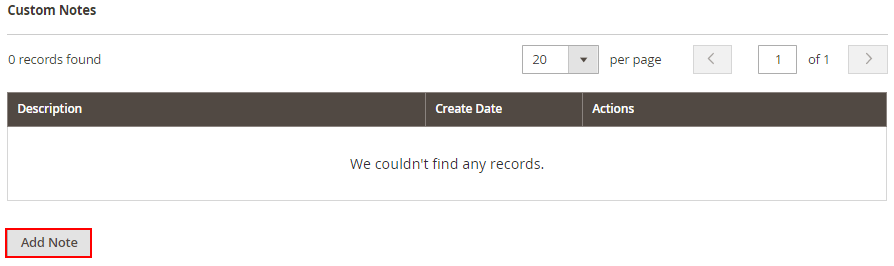
M2E OTTO Connect will transfer all your notes to the corresponding Magento order and update them according to your edits.
Magento Order Details #
If you click on a Magento Order number in a grid, you can view details of the Magento Order created for the selected OTTO Order.
ℹ️ M2E OTTO Connect automatically creates a Magento Order and updates its status based on your settings under Configuration > Accounts > Orders.
To create the Magento Order manually, click Create Order on the top right of the OTTO order page.
On the Magento Order Details page, you can review information about the buyer, billing and shipping addresses, payment, shipping and handling details, purchased items, their price and quantity, orders total, as well as manage comments for the order in the comments history.
Managing Orders #
To manage imported Channel Orders manually, use the Action(s) menu.
Mass actions (applicable to multiple orders at once):

- Reserve QTY - reserves ordered quantity of product.
- Cancel QTY Reserve - cancels quantity reservation.
- Mark Order(s) as Shipped - changes Order(s) status to Shipped.
- Resend Shipping Information - sends shipping information again.
- Create Magento Order - creates Magento order(s) for the selected OTTO order(s).
On the Orders page, you can also:
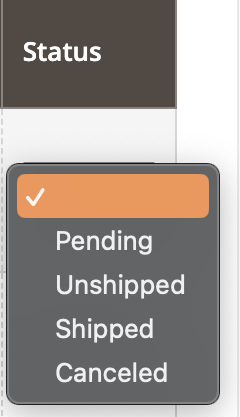
- Filter and sort OTTO Orders, for example, by their Status
Or filter and sort OTTO Orders by the Sale Date or Ship by Date values, specifying From and To dates

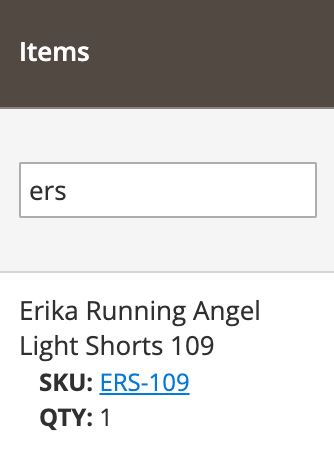
- Search by the particular parameter
For example, by OTTO product’s SKU
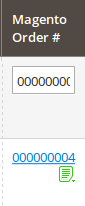
or by Magento order number
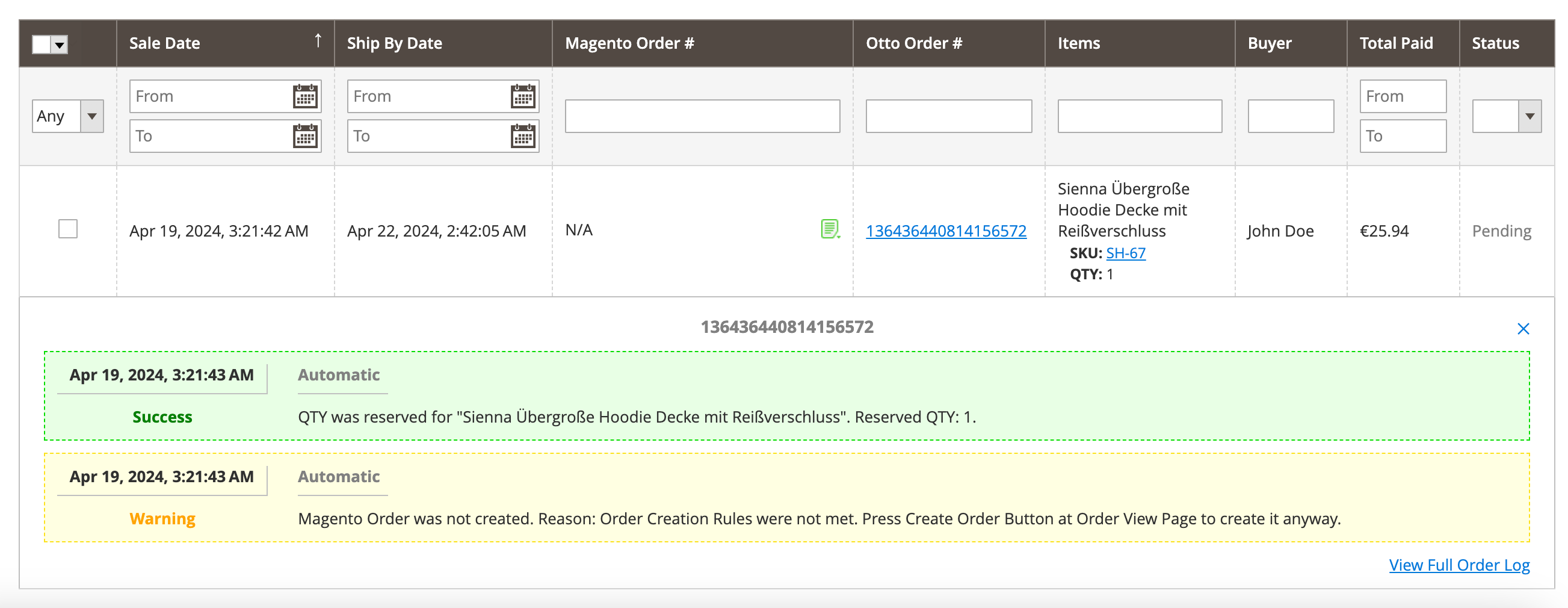
- View log records for a particular Order
To view logs, click on an icon in the Magento Order number column. The icon varies depending on the success of the action.
✅ M2E OTTO Connect provides automatic order synchronization. However, there are cases when you may need to import your sales into the extension manually. To do so, click Order Reimport. In the pop-up window, select the time frame to be processed. Confirm the action by clicking Reimport.


