
This guide explains how to connect Boulanger Marketplace to M2E Mirakl Connect and prepare your account for marketplace operations.
Once connected, M2E Mirakl Connect allows you to manage key Boulanger processes through the Mirakl API, including:
- exporting products and offers,
- keeping inventory and prices up to date,
- importing marketplace orders,
- updating shipping status and tracking details,
- checking product and offer validation results.
ℹ️ Boulanger manages its marketplace through Mirakl. If you're already selling through another Mirakl-powered marketplace, you'll find that many of the integration steps are familiar.
Outside M2E Mirakl Connect #
Before connecting Boulanger to M2E, you must register as an approved marketplace seller.
Boulanger is a French marketplace that also collaborates with third-party vendors via its online marketplace. Mirakl provides the infrastructure for its marketplace operations, and vendors must ask Boulanger for permission before they can start selling products through its platform.
Here’s what to know before starting the process:
- Sales market: France
- Product language: French
- Currency: EUR
- Marketplace platform: Mirakl
- Fulfillment: Managed by the seller

Check if Boulanger fits your catalog #
Boulanger offers more than consumer electronics. Its marketplace covers a wide range of products, including:
- household appliances and cooking equipment,
- computers and accessories,
- smartphones and telecommunications,
- electronics and multimedia,
- gaming and cameras,
- DIY and gardening products,
- office supplies,
- refurbished products.
Your catalog must meet Boulanger's category and attribute requirements. Remember that selling on Boulanger involves more than translating product listings.
- Provide details in French: Make sure you translate descriptions into French for your complete catalog.
- Be prepared to respond to French customers: Be ready to answer questions regarding purchases and delivery of orders.
- Review your product catalog and order fulfillment process: If you expect to sell large volumes of goods, make sure you meet all requirements for your product catalog and shipping procedures before you start selling.
Apply for a Boulanger seller account #
You need an approved seller account to use Boulanger with M2E Mirakl Connect.
Visit the official Boulanger seller registration page to submit your application.
Boulanger expects sellers to meet several conditions:
- operate a business based in the EU;
- ship products from within the EU;
- provide customer service in French;
- offer products in accepted categories;
- registration details for the supply company along with VAT details;
- keeping reliable shipping and delivery methods.
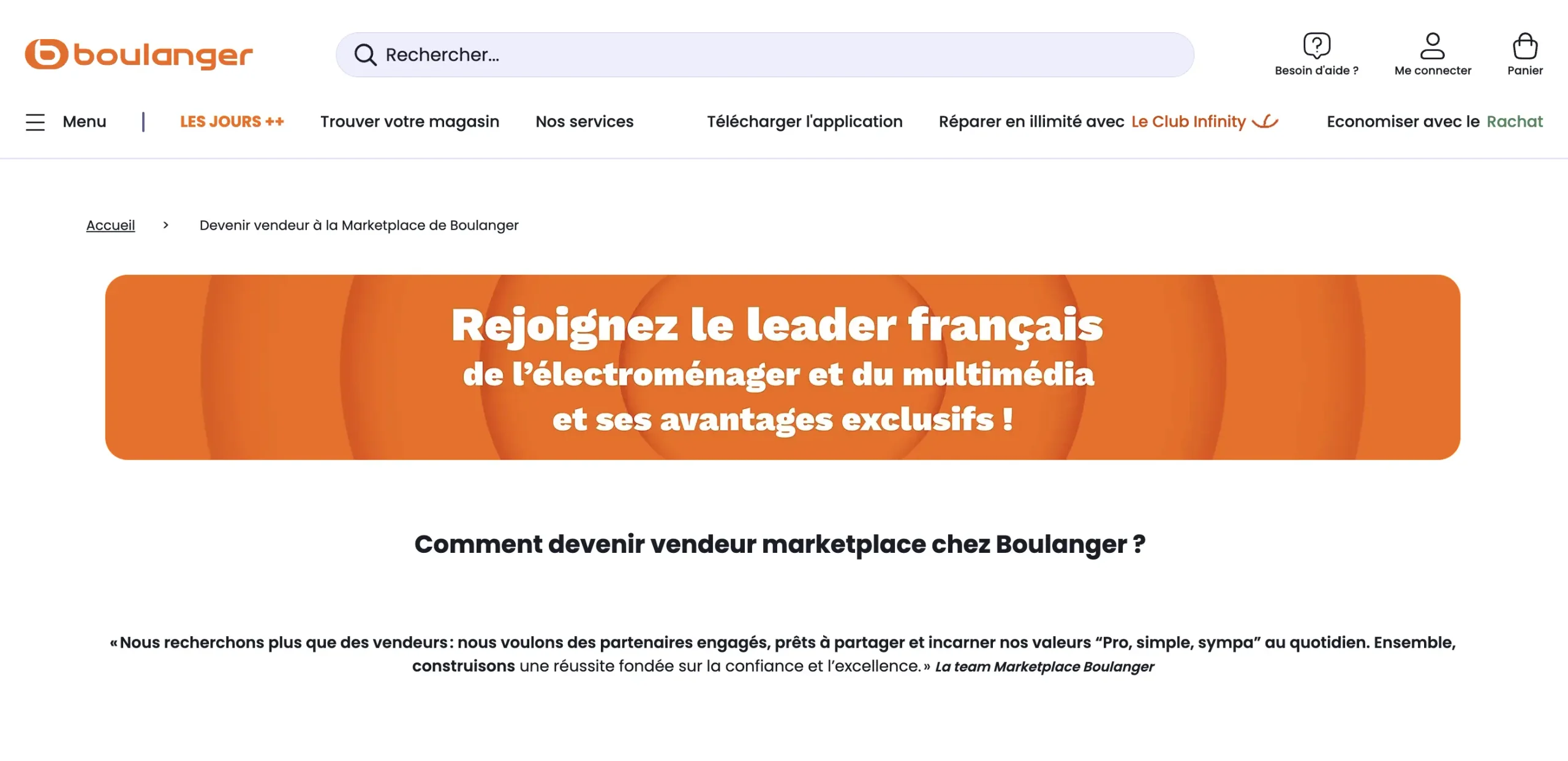
During registration, you may also need to include information about your legal representative, customer service contacts, catalog size, and preferred integration method.
Once approved, you'll need to maintain these performance standards:
- Customer rating higher than 4 stars.
- Refund rate below 5%.
- Responses to customer requests within 24 hours.
- Reliable delivery performance.
After approval, Boulanger gives you access to its Mirakl seller back-end. You'll use this account to establish the connection in M2E Mirakl Connect.
Understand Boulanger marketplace fees #
When evaluating Boulanger selling expenses, remember these facts:
- Payment made per sale: Commission depends on the category of your product.
- Payment periodicity: On the 1st, 11th, and 21st of each month.
- Subscription schedule: It is applicable only in months where you have made sales.
Commission and subscription charges aren’t the only costs you need to consider. Don’t forget to add shipping charges, return costs, and customer service while calculating your budget.
Inside M2E Mirakl Connect #
Managing the Boulanger marketplace and Magento separately can lead to duplicate work.
The M2E Mirakl Connect integrates Adobe Commerce (Magento) with the Boulanger marketplace by means of the Mirakl API.
So, how do you get the most out of the M2E Mirakl Integration? You need to focus on three main parts:
- Linking: Connect your Magento store with the Boulanger Marketplace.
- Synchronizing: Coordinate all the info between your Magento store and the marketplace.
- Managing: Manage orders and product listings from the same interface.
Supported operations include:
- exporting product data and offers,
- updating prices and stock availability,
- importing Boulanger orders,
- synchronizing order statuses,
- submitting shipping and tracking updates.
How to link the Boulanger marketplace #
You'll need an approved Boulanger seller account, access to its Mirakl back-end, and valid API credentials.
To connect your account:
- Install the M2E Mirakl Connect extension in Magento.
- Sign in to M2E or create an account.
- Choose Boulanger from the list of Mirakl marketplaces.
- Enter the details – API endpoint URL and API key.
- Match existing marketplace offers with Magento SKUs.
- Configure sync settings for stock, prices, and orders.
Once the configuration is completed, M2E will be able to perform automatic transfer of information from your store to Boulanger.
✅ We’ve covered the detailed instructions in the M2E Mirakl Connect User Guide.
Day-to-day management #
Magento remains the main source of product and stock data. M2E synchronizes your listings with Boulanger and imports orders into Magento in real time.
Synchronize your product catalog #
Connect existing listings
Connect your active Boulanger offers to the matching products in Magento. SKU matching allows M2E to identify each product and keep its marketplace information current.
This connection supports:
- quantity synchronization,
- price updates,
- offer status management,
- correct product identification when importing orders.
Add new listings
M2E permits you to regulate your product listings on Boulanger from your Magento or Adobe Commerce store.
- Make use of your catalog: Create marketplace product listings using existing product information.
- Manage your offers: Control offer details after publication.
- Update key information: Manage prices and available stock through M2E.
Configure product-specific policies #
M2E policies let you define synchronization rules for selected products without changing each listing individually.
You can create different configurations for:
- brands and product categories,
- low-stock inventory,
- premium product ranges,
- refurbished electronics,
- different pricing models.
Assign the appropriate policy to each product group. Changes to a shared policy are then applied to all products using that configuration.
Map store categories to Boulanger categories #
Every item must be assigned to the correct Boulanger category.
Categories determine the attributes needed to list a product in the marketplace. The integrity of listing may be compromised in case of incorrect mapping or missing characteristics.
Review your category settings when:
- creating listings,
- linking marketplace offers,
- introducing new product groups,
- fixing validation issues.
Make sure the required attributes are complete and product information is provided in French.
Import and fulfill orders #
M2E facilitates automatic integration of sales made on Boulanger, allowing orders to be created in your Magento. Once the automatic creation of orders is enabled, all future orders from the marketplace will be processed in your Magento account.
After processing an order, M2E can send Boulanger the shipment status and tracking number.
On the Boulanger marketplace side #
Boulanger has its own validation for product details, offers, and shipping parameters. Therefore, kindly ensure that the details you input into the Magento system align with Boulanger’s validation requirements in your submission through Mirakl.
Required product fields #
For new catalog entries, Boulanger expects:
- Marque = Accepted brand
- Référence commerciale = Unique reference, maximum 40 characters
- Référence universelle = EAN
- Type = Product type
Boulanger creates product titles automatically from these values. Custom titles cannot be submitted through a separate field.
Content specifications:
- Short description: Up to 95 characters
- Long description: Up to 5,000 characters, including HTML
- Main image: JPEG or PDF, white background, 1,000-4,000 px per side
- Additional attributes: Category-specific color, usage, and technical details
Some products require environmental attributes. Use the relevant category template to identify them.
Offer and pricing rules #
Mandatory offer data:
- Selling price in EUR
- Warranty period in months
Other available fields:
- Promotional prices and dates
- Product condition
- Shipping lead time
- Low-stock thresholds
- Tax codes
ECO contribution amounts, EPR category codes, and producer IDs may be required for certain categories.
Logistics classes #
Boulanger assigns a shipping class to each product, ranging from XXS to XXXXXL.
Selected classes:
- XS: 0-0.25 kg
- M: 0.5-0.75 kg
- L: 0.75-2 kg
- XL: 2-5 kg
- XXL: 5-15 kg
- XXXL: Over 15 kg
XL is the default. Review this setting before exporting your offers.
Carrier mapping is optional. Using a carrier from Boulanger's list helps maintain working tracking links.
FAQ #
How do I check the required category attributes? #
Open My Inventory > Import from file in Mirakl.
Download the category template in CSV or XLSX format to see mandatory, recommended, and optional fields.
How can I troubleshoot rejected products? #
First, check for:
- Missing EAN or commercial reference
- Unsupported brand
- Missing French-language content
- Invalid product image
- Incorrect price or warranty
- Missing category attributes
Review the listing errors in M2E Mirakl Connect.
For detailed import feedback, go to Mirakl > Catalog > Product imports. Open the latest report and download Non-integrated products, if available.
Products undergoing manual validation may take longer to appear online.
✅ For help with M2E synchronization, contact our support team.


