
To create a new Listing, navigate to Walmart > Listings > Items, click Add Listing and complete the following steps:
Step 1. Specify a Listing title #
Enter a meaningful title for your internal use:

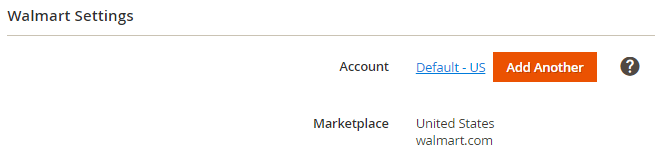
Step 2. Select Walmart account #
If you have granted M2E Pro access to more than one Walmart account, select a certain account/marketplace under which you want to sell the products from this Listing.
If the Walmart account you want to use is not listed as an option, click Add Another.
Step 3. Select Magento Product data source #
Select the Magento Store View that will be used as a source of product data:

Step 4. Define the Listing Product settings #
In this step, you need to define the selling, description, and synchronization settings for the products inside this Listing.
Click Add New to create M2E Pro Policy on the fly. The newly created Policy will be selected for the Listing automatically.
M2E Pro Policies that you have already configured under Walmart > Configuration > Policies will be available for selection in the drop-down.

✅ Please read more about M2E Pro Policies here.
Step 5. Define the product condition #
Select the condition of the item(s) you are going to list on Walmart through this Listing. You have two options:

- Recommended Value – a list of predefined values for item condition.
- Magento Attribute – an attribute that contains an item condition value.
Congratulations! You have just created your first M2E Pro Listing. Now you can add Magento Products.


