
To create an M2E TikTok Shop (TTS) Listing, go to TikTok Shop > Listings > Items and click Add Listing.

Listing creation takes only two steps.
Step 1: General Settings #
General #

Enter a descriptive and meaningful title for your M2E TTS Listing.
ℹ️ This title will be used only for your convenience in M2E TTS and won’t appear in your TikTok Shop products.
TikTok Shop Settings #
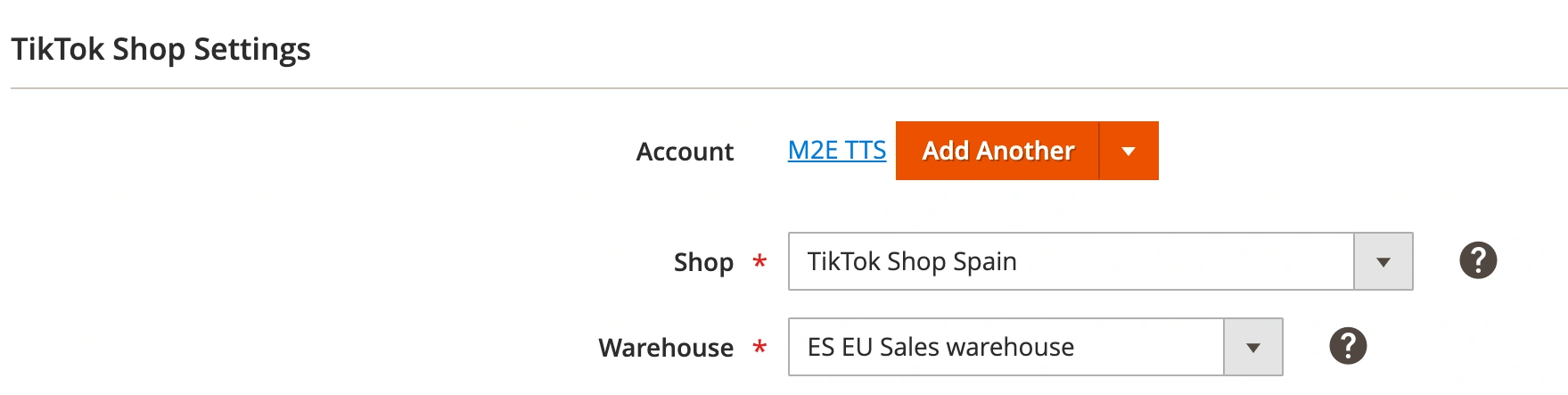
Account
If you’ve added multiple TikTok Shop accounts, choose the one you’re going to use for this M2E TTS Listing.
Shop
Select the TikTok Shop where you want to sell your Listing Products. Currency is set automatically based on the Shop you choose.
Warehouse
Select the warehouse where the TikTok Shop products are stored, so your listings reflect the correct stock location.
Magento Settings #

Magento Store View
Choose the Magento Store View you want to use for this M2E TTS Listing. Please remember that Attribute values from the selected Store View will be used in the Listing.
ℹ️ You can easily switch the Magento Store View for your products in M2E TTS Listing. Navigate to Listings > Items, open the mass actions menu next to the needed Listing and click Edit Settings > Store View. Then save the changes.
⚠️ Switching the Store View may initiate an update of products on TikTok Shop.
When you switch a Store View for the Listing, an automatic update of product parameters may be triggered. If product values in the new Store View are different from the current ones (e.g., price, description), these changes will be synchronized to TikTok Shop based on the rules set in the Synchronization Policy.
Step 2: Policies #
In the second step, you need to specify Policies for the M2E TTS Listings.
ℹ️ Policy is a combination of settings that can be used in different M2E TTS Listings.
Choose the right listing format, provide a competitive price for your items, and set a detailed description for products to attract more buyers. For that, select Selling and Description Policies for the Listing.
You can set the preferences on how to synchronize your items with Magento Catalog data. The rules can be defined in the Synchronization Policy.
After you set all the policies, click Save.
✅ All saved Policies can be edited later in the Configuration section.
Once your M2E TikTok Shop Listing is created, you need to add your Magento products to it.


