When you receive orders from TikTok Shop in your Adobe Commerce (Magento) store through M2E Connect, the tax amount shown in the order depends on three main settings:
- Adobe Commerce (Magento) Tax Settings
- TikTok Shop Tax Settings
- M2E Connect Tax Settings
Let’s go through each one so you understand how taxes are calculated and displayed in your Magento orders.
Adobe Commerce (Magento) Tax Settings #
Magento uses Tax Classes, Tax Zones & Rates, and Tax Rules to determine the tax amount to be applied to your products.
Tax Classes #
Magento has three types of tax classes:
- Product Tax Class – applies to your products.
- Customer Tax Class – applies to customer groups.
- Shipping Tax Class – applies to shipping costs.
You can view and edit these under Stores > Settings > Configuration > Sales > Tax.
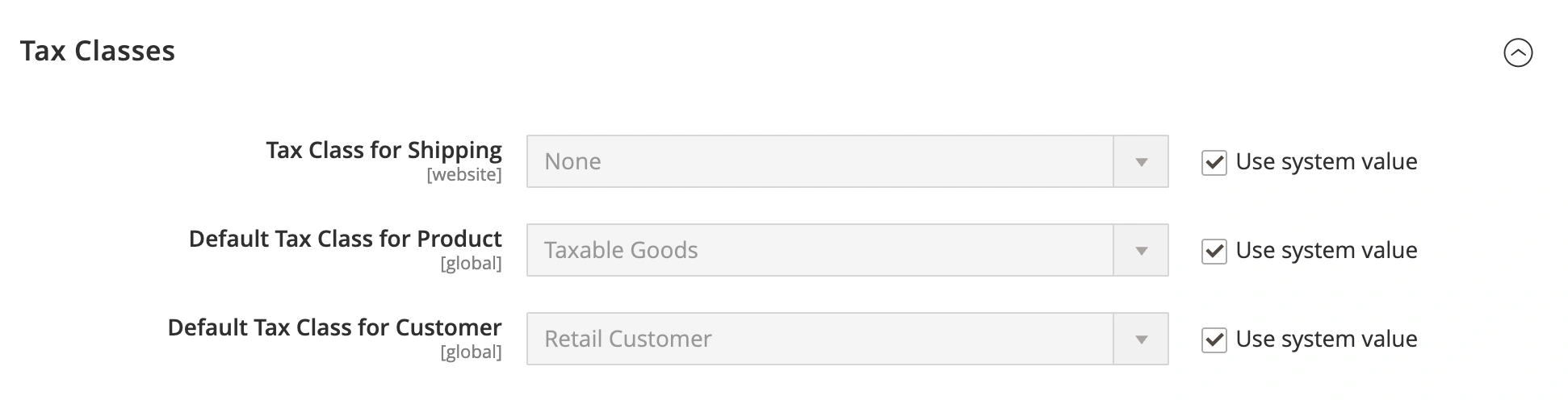
Each product and customer group is assigned a default tax class, but you can change it manually if needed.
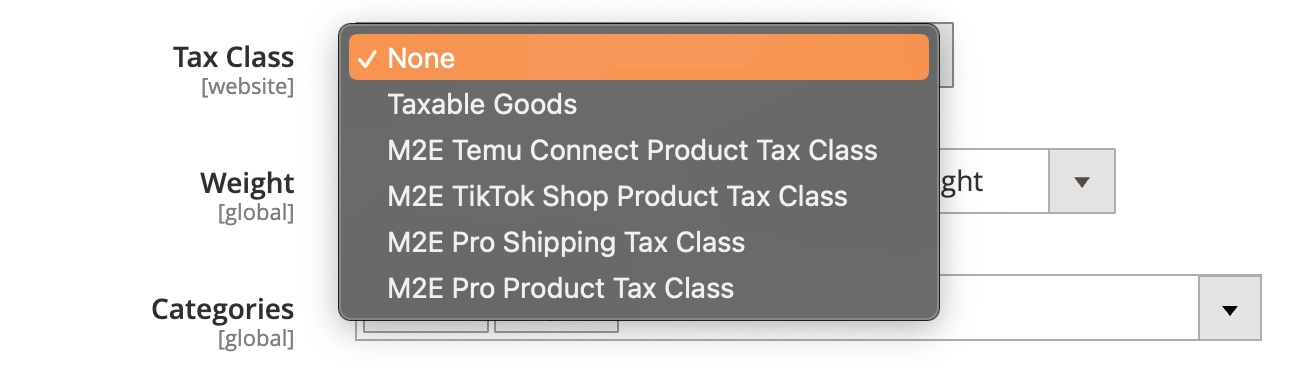
To change the Product Tax Class of a Magento Product, use the Tax Class option in Magento Product settings:
To change the Customer Tax Class of a Customer Group, go to Customers > Customer Groups > Tax Class:

Tax Zones & Rates #
Tax zones and rates determine the tax percentage that should be applied based on the customer’s location, such as their country, state, or postal code. You can set them up or edit existing ones by going to Stores > Taxes > Tax Zones and Rates.

You can adjust the country, state, ZIP/postcode, and tax percentage for each tax zone.
Tax Rules #
A tax rule defines the combination of Product Tax Class, Customer Tax Class, and Tax Zone. It determines when tax should be applied and calculates the exact rate based on the customer’s location and group.
If no Tax Rule is configured, Magento will not apply any tax to orders, even if other tax settings are in place. To set up a new rule or adjust existing ones, go to Stores > Taxes > Tax Rules.
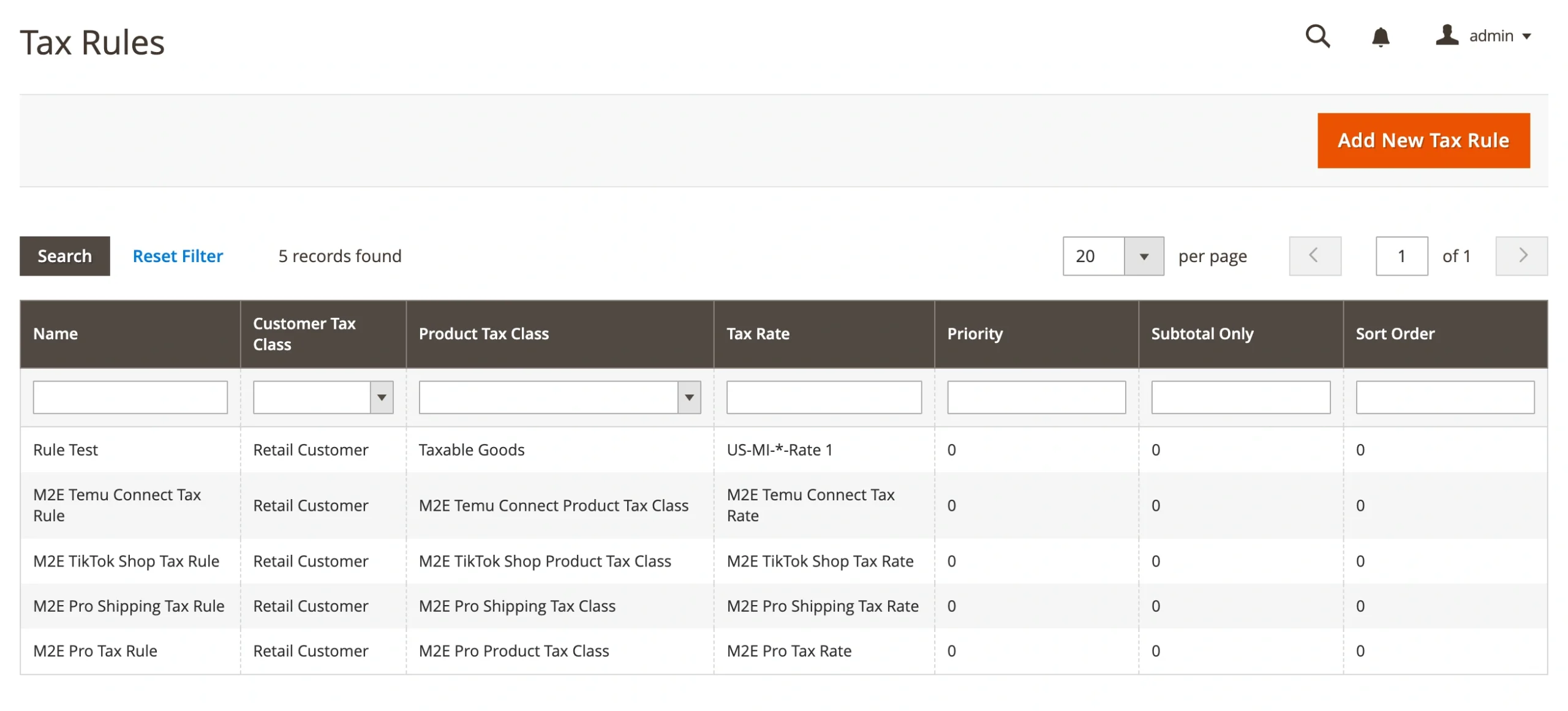
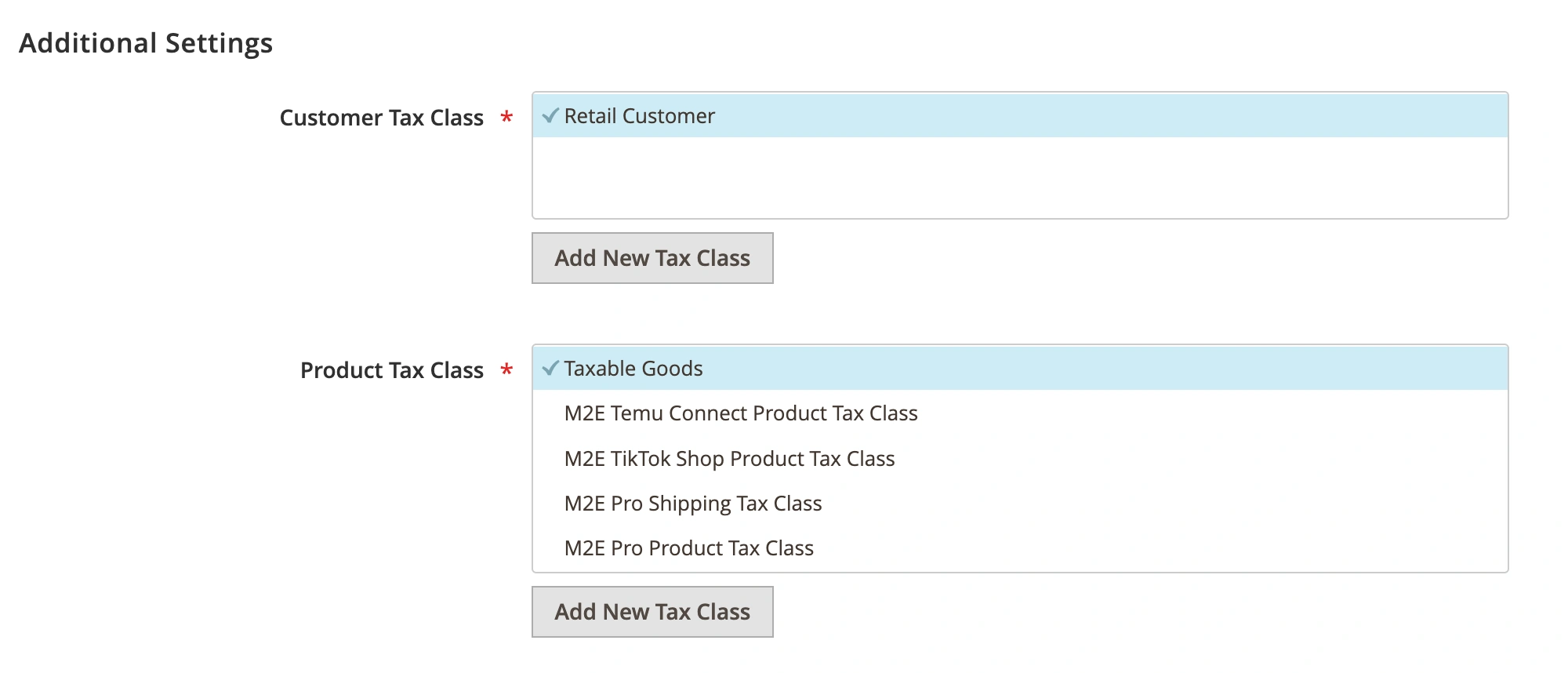
When configuring a new Tax Rule, Magento will automatically use the default Product and Customer Tax Classes set under Stores > Settings > Configuration > Sales > Tax for the selected Website or Store View.
You can override the defaults by choosing a different Product or Customer Tax Class in the Additional Settings section of the rule.
Tax Calculation Example #
Take a look at the example of how Magento calculates tax based on a configured Tax Rule:
- The product is assigned to the Taxable Goods Product Tax Class.
- The customer belongs to the General Customer Group.
- The shipping address is located in Germany.
You then create a Tax Rule that applies a 15% tax rate when all three conditions, such as product class, customer group, and location, are met. In this case, Magento will apply 15% tax to the order.
If any of these elements do not match the Tax Rule (e.g., the customer is in a different group or the shipping address is outside Germany), the tax will not be applied.
Additional Magento Tax Settings #
Magento provides system-wide tax settings that control how taxes are calculated and displayed in your store. You can manage these settings under Stores > Settings > Configuration > Sales > Tax.
Here are the key options:
1. Catalog Prices
Choose whether product prices in your catalog include or exclude tax.
2. Shipping Prices
Define whether shipping costs should be shown with or without tax.

3. Orders, Invoices, Credit Memos Display Settings
Decide whether the Product Prices, Shipping Amount, Subtotal, and Grand Total shown in orders and related documents should include or exclude tax.
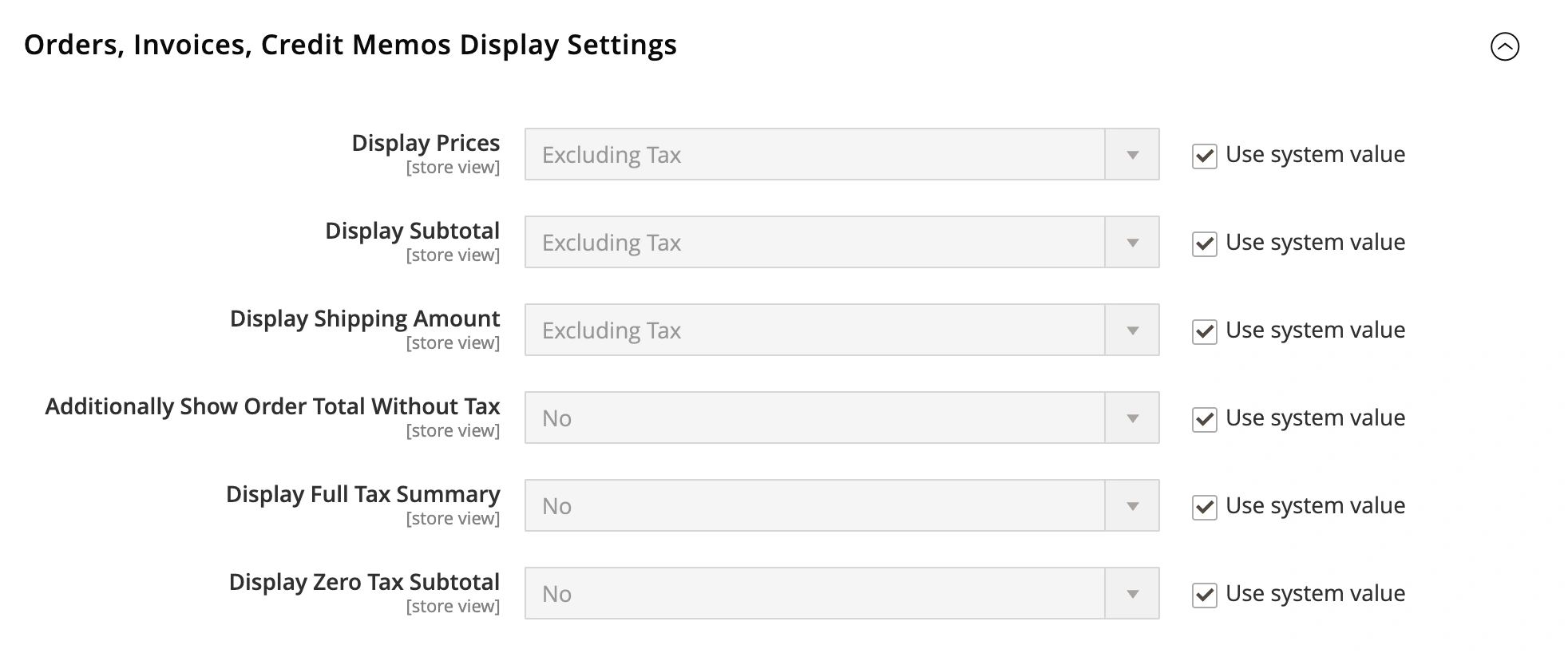
These settings help you display prices in a way that fits your business model and local tax regulations. You can configure them per Website or Store View if you need different tax behavior for each storefront.
TikTok Shop Tax Settings #
To keep your store compliant with local tax laws, you need to provide accurate tax and business information in your TikTok Shop Seller Center. You can review and update your tax details under My Account > Account Settings > Taxes.
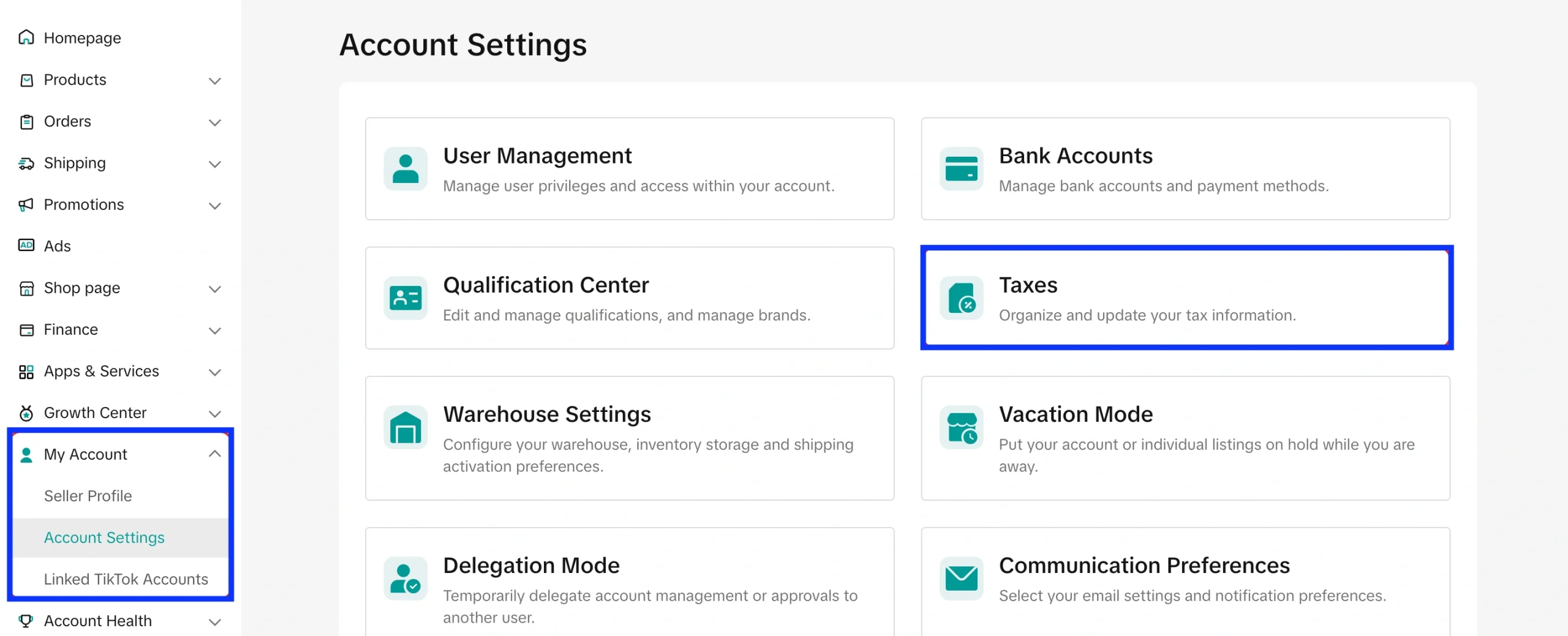
Depending on where your business is based, different rules apply for tax calculation and reporting. Here's a breakdown by region:
For US Sellers #
TikTok Shop operates as a Marketplace Facilitator in the United States. This means:
- TikTok Shop automatically calculates, collects, and remits sales tax on your behalf.
- You do not need to collect or pay sales tax manually for TikTok Shop sales.
- You are responsible for keeping your business and tax information accurate and up-to-date in the Seller Center.
For EU Sellers #
If you’re selling in the European Union, you must meet the following VAT rules:
- VAT is calculated based on the customer’s delivery country, not your location.
- If your annual sales to a specific EU country exceed its VAT threshold (e.g., €35,000 in Germany, France, Spain, or €85,000 in Italy), you must register for VAT in that country.
- Use the One-Stop Shop (OSS) system to simplify VAT reporting across EU member states.
- If your total cross-border EU sales to individuals exceed €10,000/year, you are required to charge VAT based on the buyer’s country and report it via OSS.
For UK Sellers #
If your business is based in the United Kingdom and your annual turnover exceeds £90,000, you must register for VAT. Once registered, you are required to:
- Charge 20% VAT on most goods
- File quarterly VAT returns
- Keep digital records for Making Tax Digital (MTD) compliance
When selling to EU customers from the UK:
- Orders under €150: Use the Import One-Stop Shop (IOSS) to collect VAT at checkout and report it accordingly.
- Orders over €150: VAT and customs duties apply at import. You may also need to register for VAT in the buyer’s country.
If you're unsure about your tax obligations, please consult a tax advisor, especially for cross-border or high-volume sales.
M2E Connect Tax Settings #
M2E Connect allows you to control how tax is applied to Magento orders imported from TikTok Shop. You can decide which system, Magento or TikTok Shop, should be the source of tax information during order creation.
Order Tax Source Options #
In M2E Connect, go to TikTok Shop > Configuration > Accounts > Orders > Order Tax Settings and choose one of the following options:

- None – No tax will be applied to the Magento order.
- TikTok Shop – Tax values will be taken from the TikTok Shop order.
- Magento – Magento will calculate tax based on its tax rules and configurations.
- TikTok Shop & Magento – M2E Connect will use the tax from the TikTok Shop order. If no tax is provided, Magento’s tax settings will be used.
M2E Connect Tax Rate #
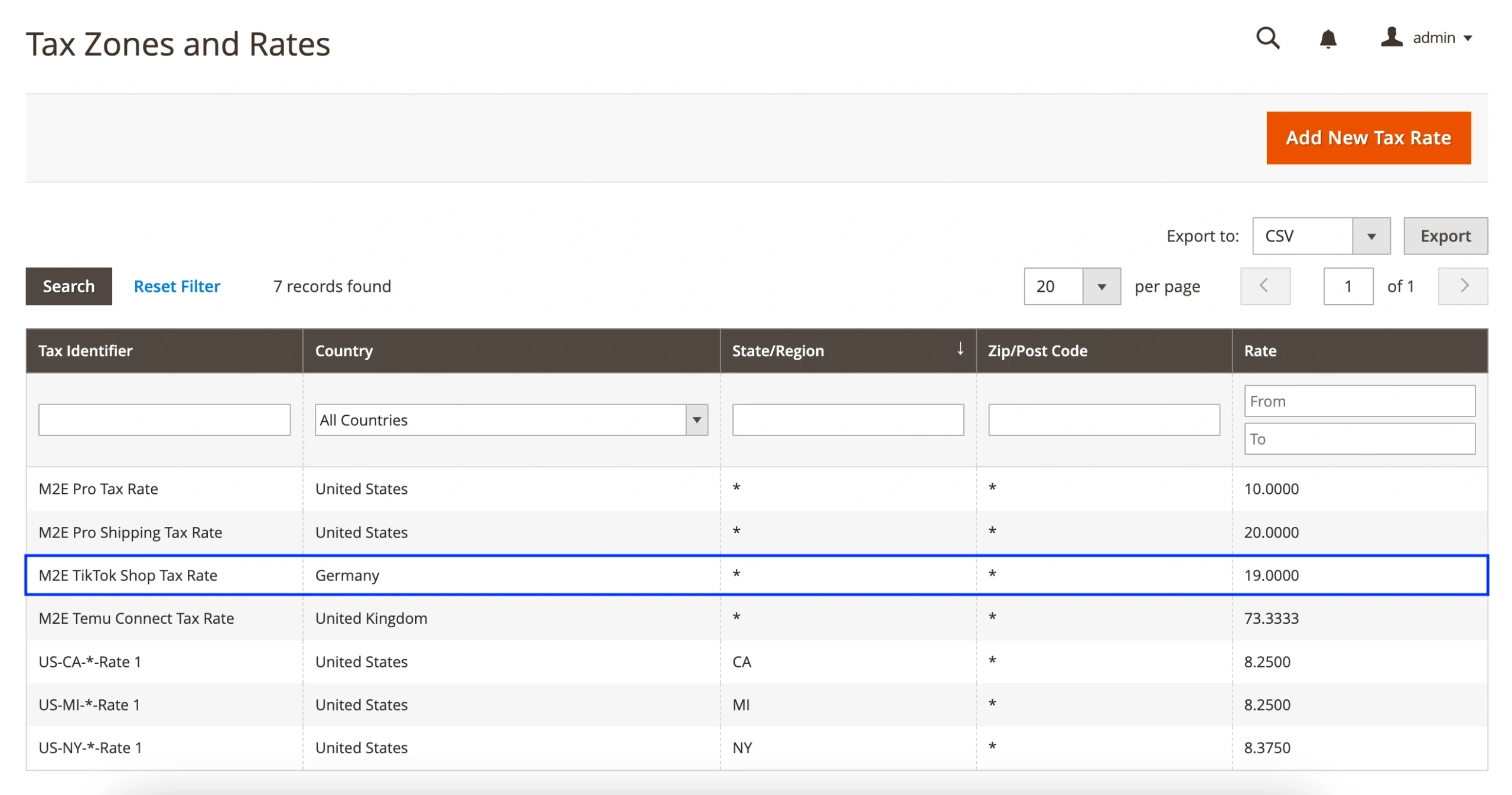
If you select TikTok Shop or TikTok Shop & Magento as the tax source, M2E Connect will automatically create a special tax rate inside Magento’s Tax Zones and Rates.
This way, the tax amount imported from TikTok Shop is properly recognized and shown in the Magento order summary.