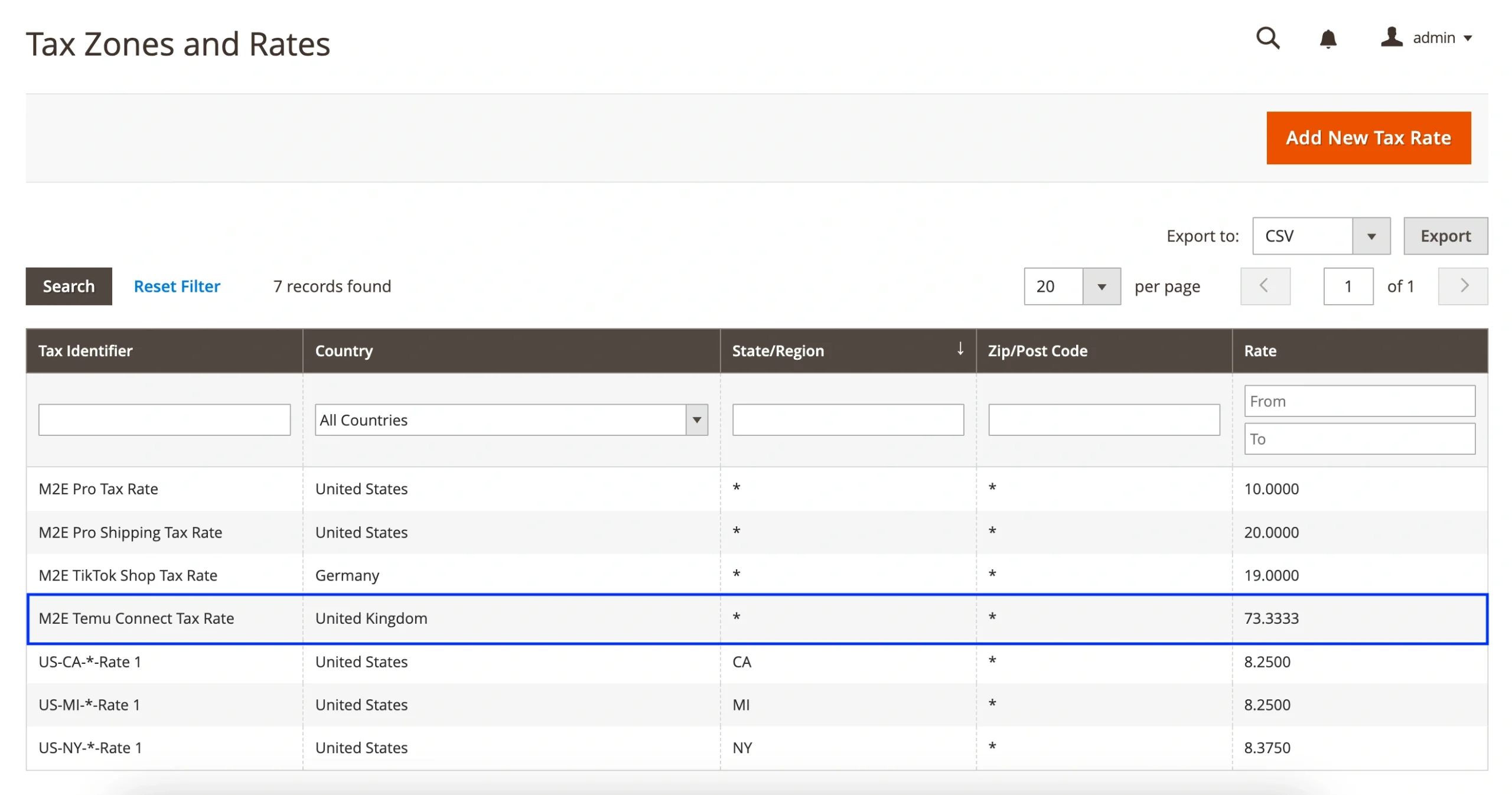
When M2E Connect imports Temu orders into your Adobe Commerce (Magento) store, the way tax is calculated and displayed depends on three key configuration areas:
- Adobe Commerce (Magento) Tax Settings
- Temu Tax Settings
- M2E Connect Tax Settings
Let’s take a closer look at how each of these settings affects your order tax calculations.
Adobe Commerce (Magento) Tax Settings #
Magento calculates tax using a rule-based system that combines three elements: Tax Classes, Tax Zones & Rates, and Tax Rules. Together, these settings determine how much tax should be applied based on the product, the type of customer, and their shipping location.
Tax Classes #
There are three tax classes in Magento:
- Product Tax Class – Applied to each product.
- Customer Tax Class – Applied to customer groups.
- Shipping Tax Class – Applied to shipping charges.
You can view and adjust these under Stores > Settings > Configuration > Sales > Tax:
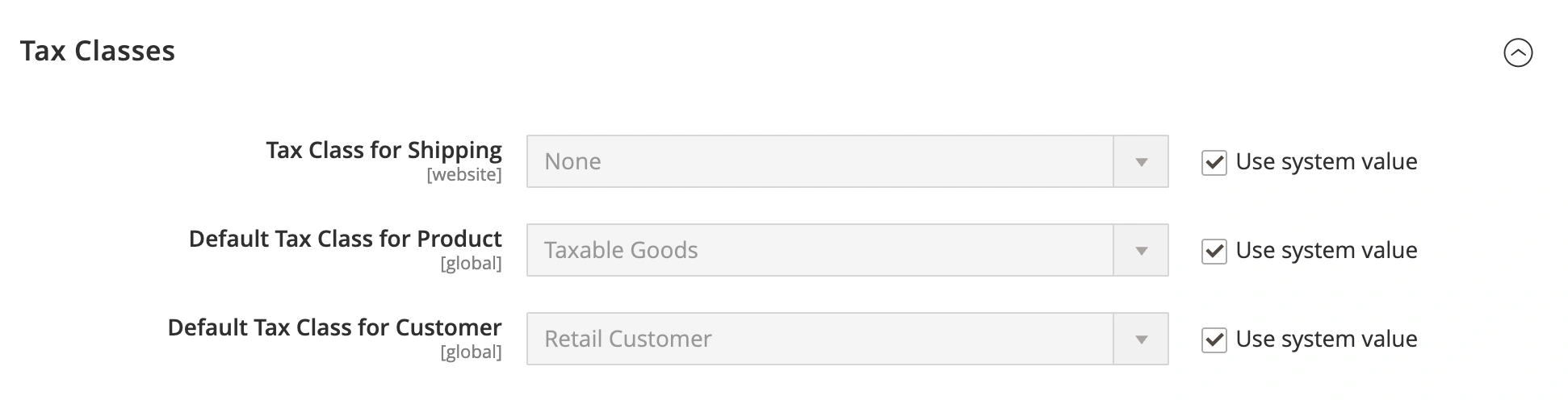
By default, each product and customer group is assigned a class, but you can override it manually as needed.
You can change the Product Tax Class via the Magento product’s settings:
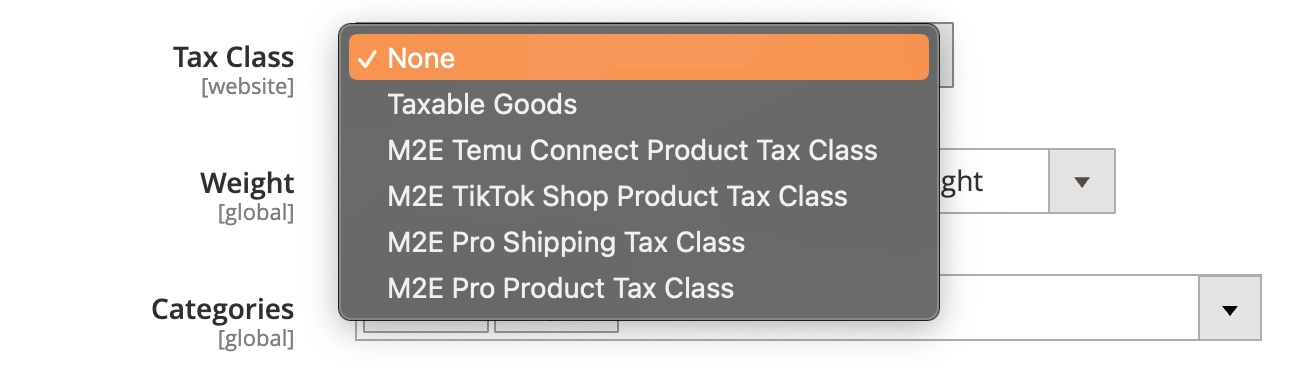
Or assign a different customer tax class under Customers > Customer Groups:

Tax Zones & Rates #
Magento applies tax based on the buyer’s location. This is managed through tax zones and rates, which define tax percentages based on country, state, ZIP/postcode, etc.
Navigate to Stores > Taxes > Tax Zones and Rates. From there, you can set up or modify regional tax rates to match your business requirements.

Tax Rules #
A tax rule links all three components, such as Product Tax Class, Customer Tax Class, and Tax Zone, to define when and how tax should be applied.
Without a tax rule in place, Magento will not calculate tax, even if all other tax data is configured.
To create a rule, go to Stores > Taxes > Tax Rules.
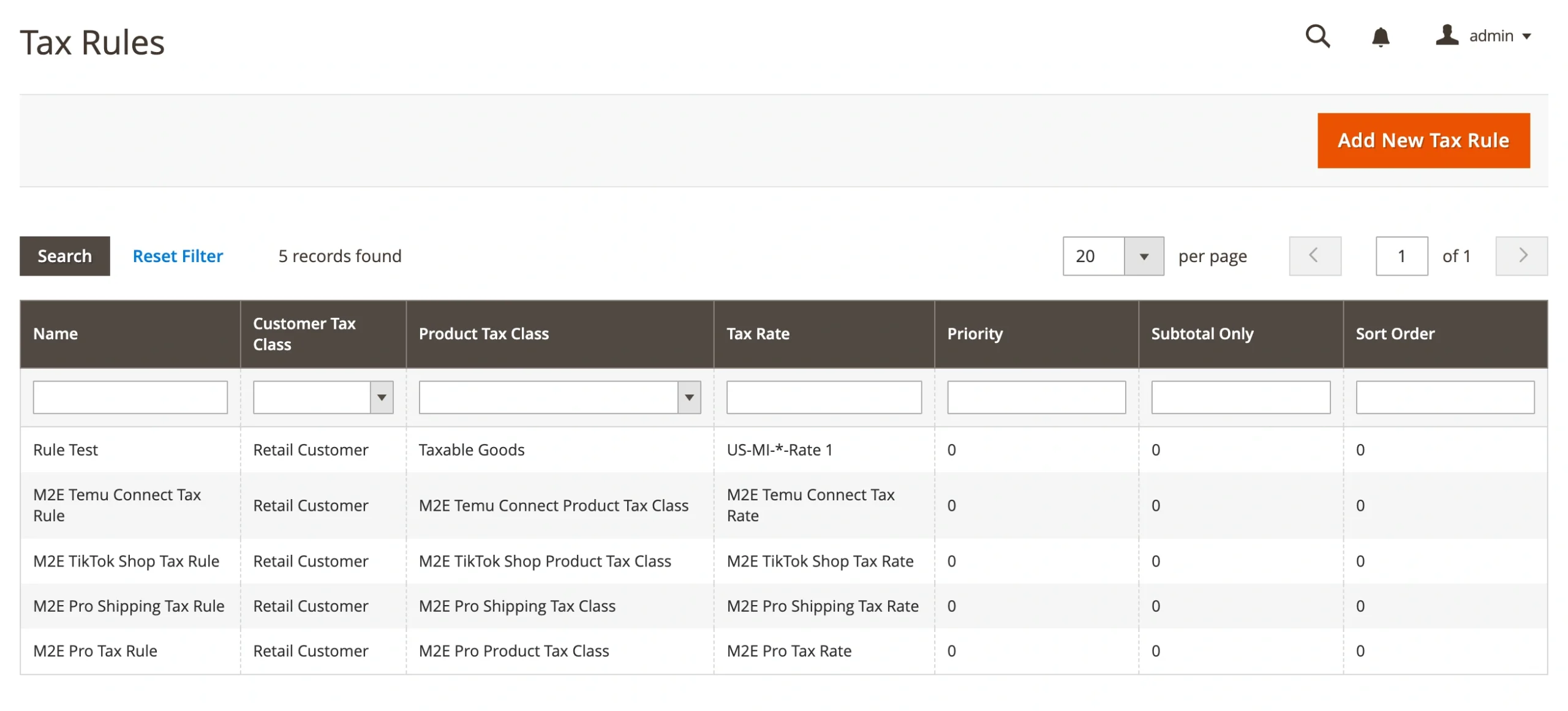
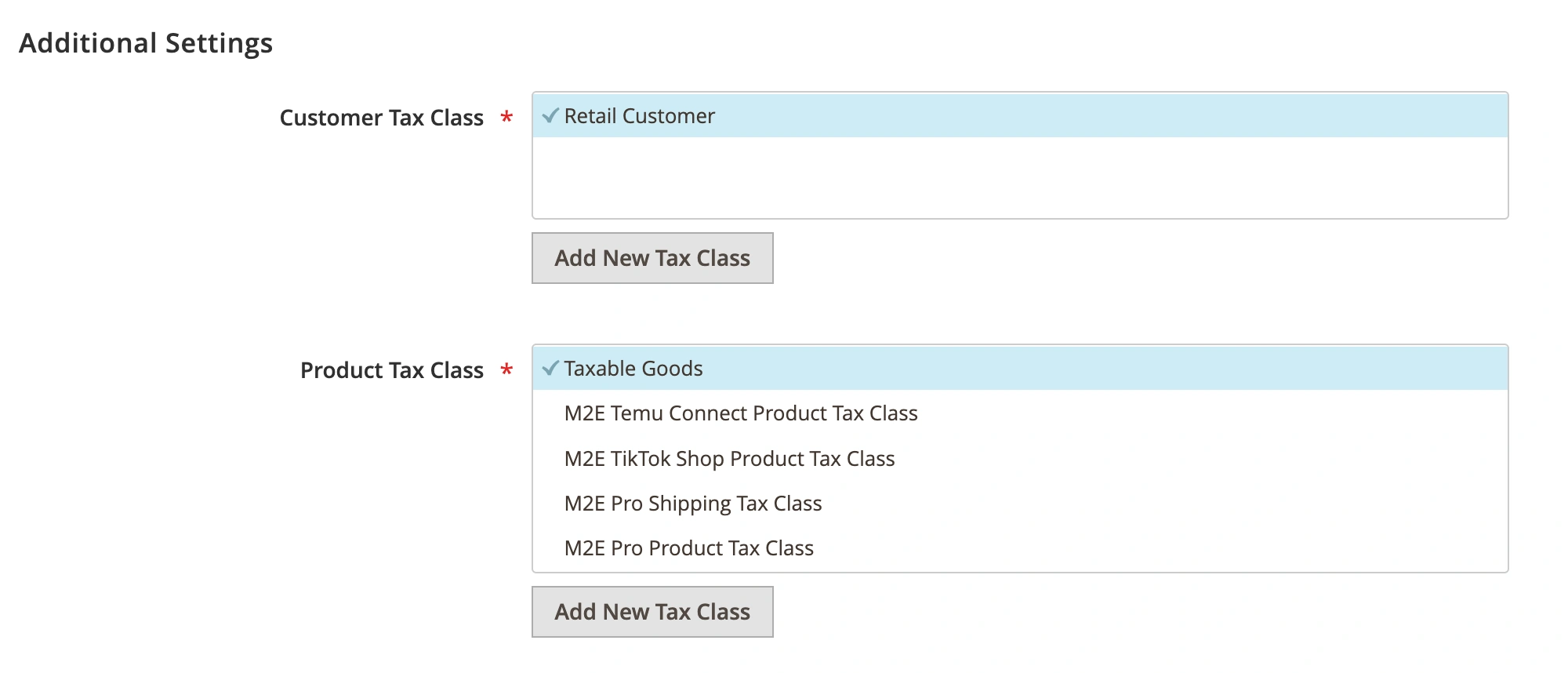
Magento will use your default tax classes for new rules, but you can override them in the Additional Settings section.
Tax Calculation Example #
Let’s walk through an example to see how Magento calculates tax when a Tax Rule is in place:
- The product belongs to the Taxable Goods class
- The customer is in the General group
- The shipping address is in France
If you create a Tax Rule assigning a 10% rate for these conditions, Magento will apply that rate to the order. If even one part doesn’t match, such as a different customer group or shipping region, tax won’t be applied.
System-Wide Tax Settings #
Magento’s global tax behavior can be managed under Stores > Settings > Configuration > Sales > Tax. These settings allow you to control how prices and taxes are presented to your customers:
- Catalog Prices – Set whether product prices include tax.
- Shipping Prices – Choose to show shipping with or without tax.

- Display Settings – Control tax visibility in orders, invoices, credit memos, and totals.
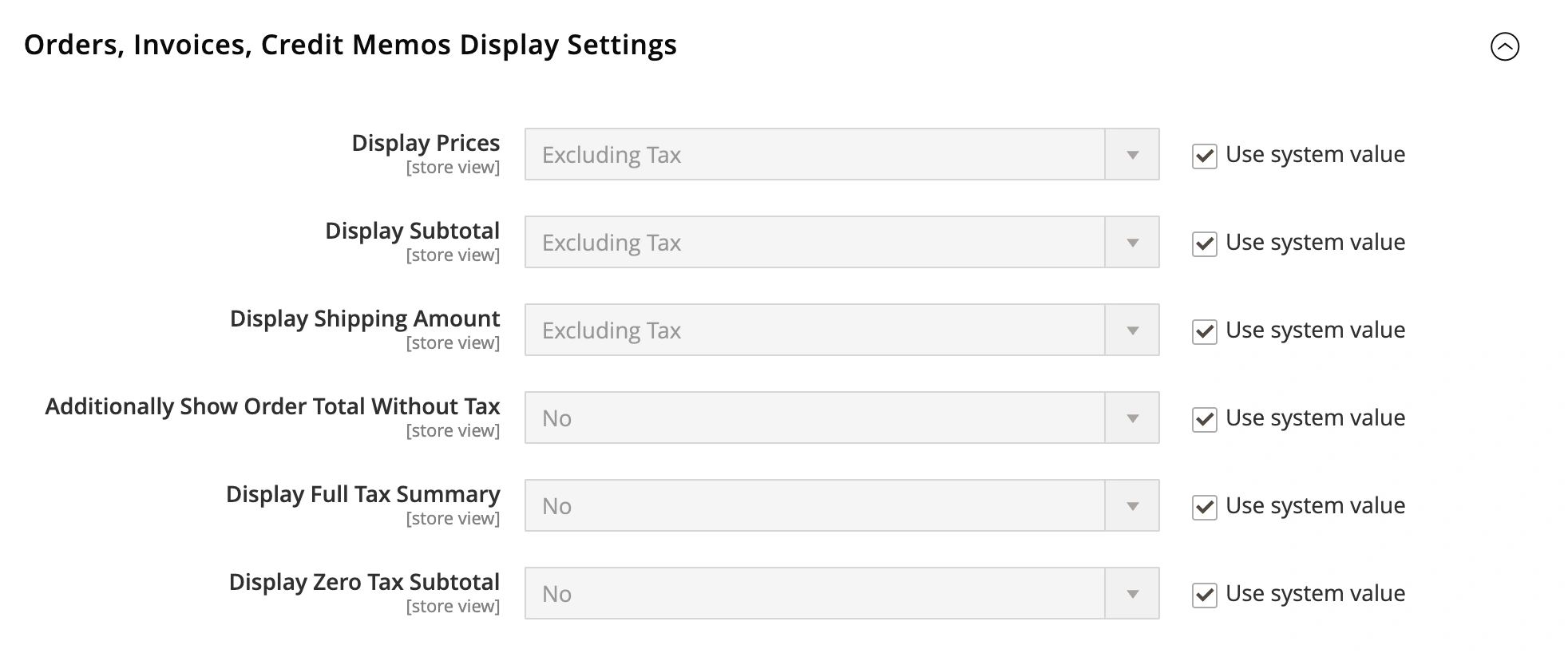
✅ Review these settings to confirm they support your pricing strategy and meet local tax compliance requirements. If your store operates across multiple regions, you can configure them separately for each Website or Store View.
Temu Tax Settings #
You must provide accurate business and tax information when registering your seller account. These details determine whether Temu will collect and remit tax on your behalf, and which compliance documents you may be required to submit.
Depending on where your business is located, different tax rules and obligations apply. Below is a breakdown by region:
United States #
Temu is obligated to calculate, collect, remit and refund US sales tax on behalf of sellers on the applicable transactions made through Temu. No manual tax collection is required by the seller.
ℹ️ Sellers must ensure their tax information (e.g., EIN or SSN) is accurate and up to date in Temu Seller Center.
European Union (EU) #
Temu calculates and includes Value Added Tax (VAT) in EU order totals to help sellers remain compliant with European tax regulations.
Your business is based in the EU and holds a valid VAT number, and you use either the One-Stop Shop (OSS) scheme or have local VAT registration in the customer’s country. In this case, Temu will apply the VAT rate based on the marketplace’s country, rather than the customer's or seller’s country.
You are also required to submit your VAT registration number in Temu Seller Center if:
- You are legally obligated to register for VAT, or
- You have voluntarily registered for VAT in the EU
Temu’s system uses this information to ensure VAT is correctly calculated and reported, in line with government requirements.
ℹ️ Certain special VAT schemes may not be subject to the general rules above.
United Kingdom (UK) #
Temu calculates and includes Value Added Tax (VAT) in UK order totals to support sellers in complying with UK tax regulations. However, if you are established in the UK and sell goods domestically, you remain solely responsible for your own tax obligations. It is your duty to ensure that all tax liabilities are accurately assessed, properly reported, and fully discharged in accordance with applicable laws and regulations.
You are also required to submit your VAT registration number in Temu Seller Center if:
- You are legally obligated to register for VAT, or
- You have voluntarily registered for VAT in the UK
Temu’s system uses this information to ensure VAT is correctly calculated and reported, in line with government requirements.
M2E Connect Tax Settings #
M2E Connect offers flexible options to manage how tax is calculated and displayed in your Magento orders imported from Temu. They include configuring the Item Tax Code in your Selling Policy and defining the Order Tax Source in your Temu account settings.
Item Tax Code #
In your Selling Policy, you can specify which Magento attribute stores the Temu Item Tax Code (ITC). This code determines the correct VAT rate for the product category.

ℹ️ If no ITC is provided, Temu will automatically assign the default GEN_STANDARD code, which applies the standard VAT rate.
Order Tax Source #
To choose how tax should be handled in Magento orders, go to Temu > Configuration > Accounts > Orders > Order Tax Settings. Then select your preferred tax source:

- None – No tax will be applied to the Magento order.
- Temu – Tax values will be taken from the Temu order.
- Magento – Magento will calculate tax based on its tax rules and configurations.
- Temu & Magento – M2E Connect will use the tax from the Temu order. If no tax is provided, Magento’s tax settings will be used.
M2E Temu Connect Tax Rate #
If you select Temu or Temu & Magento as your tax source, M2E Connect will automatically generate a corresponding tax rate in Magento’s Tax Zones and Rates. This ensures the tax amount from Temu is properly reflected in the Magento order summary.