
⚠️ The migration process can be performed from the latest M2E Pro versions on Magento 1 and Magento 2.
Start the migration only after you have installed both required Module versions. Once you confirm the migration is running, your Module on Magento 1 will be put under maintenance, and the process cannot be stopped.During the migration, all M2E Pro data will be saved, including your Channel Sales, Product and Order logs, Scheduled and In Progress actions, etc. Read more here.
Some features may work differently or be temporarily unavailable in M2E Pro Magento 2. More details can be found in our Migration Notes.
If you want to test how M2E Pro works on Magento 2, here is an article with instructions.
This article describes the overall preparation and execution of the data migration from Magento 1 to Magento 2. Please note that the process requires technical skills. You can consult your developers if you need it.
✅ Watch a detailed video tutorial on how to perform M2E Pro data migration from Magento 1 to Magento 2.
Preliminary requirements #
1. Install the latest Module versions available for the data migration:
ℹ️ The latest M2E Pro version is fully compatible with the Adobe Commerce (Magento) version 2.4.8.
2. Transfer your Magento database from v1 to v2.
⚠️ If you use the Magento Data Migration Tool to migrate your Magento database, you must ignore all M2E Pro tables (the table names contain prefix 'm2epro_') navigating by the pattern:
%magento2_installation_directory%/vendor/magento/data-migration-tool/etc/%from_edition%_to_%to_edition%/%source_magento_version%/map.xml .
Please find the example below:
<map xmlns:xs="http://www.w3.org/2001/XMLSchema-instance" xs:noNamespaceSchemaLocation="../../map.xsd">
<source>
<document_rules>
<ignore>
<document>m2epro_account</document>
</ignore>
...
</document_rules>
...
</source>
<destination>
<document_rules>
<ignore>
<document>m2epro_account</document>
</ignore>
...
</document_rules>
...
</destination>
The full list of ignoring tags for both <source> and <destination> you can download from the links below:
Once it is done, you can start migrating your M2E Pro database. Read the details below.
Steps to proceed #
M2E Pro Migration Tool will help you to transfer your Module database. Follow the Migration Wizard hints to complete the process.
Step 1. Disable Modules #
To start the process, navigate to your Magento 2: Stores > Settings > Configuration > M2E Pro > Advanced Settings > Migration from Magento 1 and click Proceed. You will be redirected to Step 1 of the Migration Wizard.

In Magento 1, go to System > Configuration > M2E Pro > Migration to Magento 2 and click Proceed. It can take up to 15 minutes to stop the dynamic Cron tasks, put M2E Pro under maintenance, and prepare its database for migration. Wait until the process is completed, then get back to your Magento 2 installation.
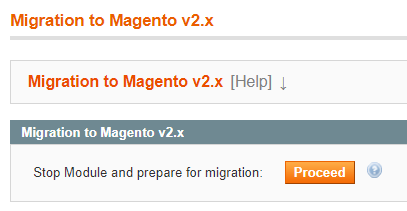
✅ Before clicking Proceed, it is recommended to create a backup of M2E Pro data in case you need to restore it in Magento 1. Once you confirm the migration is running, the process cannot be stopped.
In Magento 2, click Continue at Wizard Step 1. It will stop the dynamic Cron tasks, put M2E Pro under maintenance, and clear its database before the migration. Once the process is completed, you will be redirected to the next step.
Step 2. Database Migration #
At Wizard Step 2, you need to transfer M2E Pro data from Magento 1 to Magento 2. To do it, complete the following actions:
- In Magento 1, create a dump of all the tables with prefix 'm2epro_' including both the structure and data. You can use the mysqldump utility or phpMyAdmin options.
⚠️ All the existing M2E Pro table names must not be changed. If you've added custom prefixes to M2E Pro table names in the Magento 1 database, e.g. 'myprefix_m2epro_ ', preserve them during the dump creation.
- Import the created dump into the MySQL database of Magento 2.
- Go back to the Migration Wizard following Stores > Settings > Configuration > M2E Pro > Advanced Settings > Migration from Magento 1 and click Continue. The imported data will be adapted to the Magento 2 environment. Once the process is completed, you will be redirected to the next step.
Step 3. Congratulations #
That's it! Your M2E Pro is ready to work on Magento 2. Enable automatic synchronization to start syncing your Magento inventory and sales with Channels.
Click Complete to exit the Wizard.
⚠️ If the Domain/IP of your Magento is changed after the migration, you should get a new M2E Pro License Key to ensure correct data synchronization.


