
When selling on different Marketplaces, you may need to use different currencies. This guide will walk you through the steps to correctly configure the appropriate settings for using multiple currencies.
Magento and M2E Pro settings #
1. Go to Stores > Settings > Configuration > General > Currency Setup.
- Ensure that Allowed Currencies are specified under the Currency Options block in your Magento. Hold Ctrl for multi-select.
- Check if currency rate service is available. To do so, enter the API Key and Connection Timeout in Seconds for one of three options.
- Set Scheduled Import Settings so that currency rates are updated regularly.

ℹ️ For more information, please refer to the official Magento documentation.
2. Go to Stores > Currency > Currency Rates.
- Select the chosen currency rate service for Import Service and click the Import button. The currency rate should be displayed in the table below.

ℹ️ For more information, please refer to the official Magento documentation.
3. Conversion for standard Magento Price attributes is automatic.
If you use a custom Magento Attribute, remember to go to Stores > Settings > Configuration >M2E Pro > Interface & Magento Inventory, and enable the Convert Magento Price Attribute option under Quantity & Price.
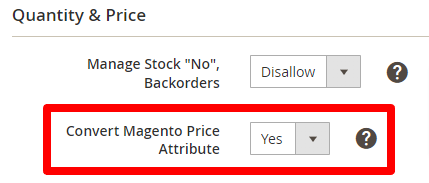
💡 M2E Pro converts values from Magento Attributes with Price input type only.
4. Automatic Price conversion on Channels shall affect the values stated below:
| Policy/Integration | eBay | Amazon | Walmart |
| Selling Policy | Price Strike-Through Price Minimum Advertised Price | Price Sale Price Minimum Advertised Price List Price Attribute | Price Minimum Advertised Price Promotion Price Comparison Price Shipping Cost (Overrides) |
| Description Policy | - | List Price (old versions) | MSRP / RRP |
| Product Type | - | List Price (new versions) | - |
| Shipping Policy | Cost Additional Cost | - | - |
That's it; you are set to go. From now on, your multi-currency transactions will be correctly calculated and displayed in M2E Pro.
Practical Cases #
1. If the order currency isn`t enabled under Allowed Currencies or the Currency Rate is not specified, the following note will be displayed in the Magento order Notes.
Attention! The Order Prices are incorrect. Conversion was not performed as "GBP" Currency is not enabled. Default Currency "EUR" was used instead. Please enable Currency in System > Configuration > Currency Setup.
Also, you will see the following notification in Channel order in M2E Pro.

2. If the Price source is a custom Magento attribute, please ensure it has a Price input type.
Otherwise, M2E Pro doesn`t convert price values.
3. If the currency conversion is not set in your Magento for Store View that is used in the M2E listing, you will see a message like this under M2E Listing > Edit Settings > Selling > Policies.
"Currency is not allowed in Currency Setup for Store View of your Magento. Currency conversion will not be performed".

In this case, the value from the price attribute will be sent to Amazon without conversion.
If the currency conversion is appropriately set, you will see a message like this.

4. Note that on Amazon, the Currency always depends on the Marketplace’s local Currency.
This means you cannot sell, for example, in Euro on Amazon Sweden. The prices on Amazon Sweden will be displayed in the Swedish krona.


