
M2E Temu Connect makes it easy to list your Adobe Commerce (Magento) products on Temu while ensuring seamless inventory and order synchronization between both platforms.
Basic requirements #
Before getting started, make sure you have:
1) Installed the M2E Temu Connect extension in your Adobe Commerce store.
2) Registered an account on Temu and completed your seller profile setup.
Step 1. Set up your M2E account #
If you're new to M2E, sign up by providing your contact details at M2E Accounts.
Step 2. Link your Temu account #
Choose the Temu account to connect with the extension, then approve access permissions. This step allows M2E to manage and sync your listings.
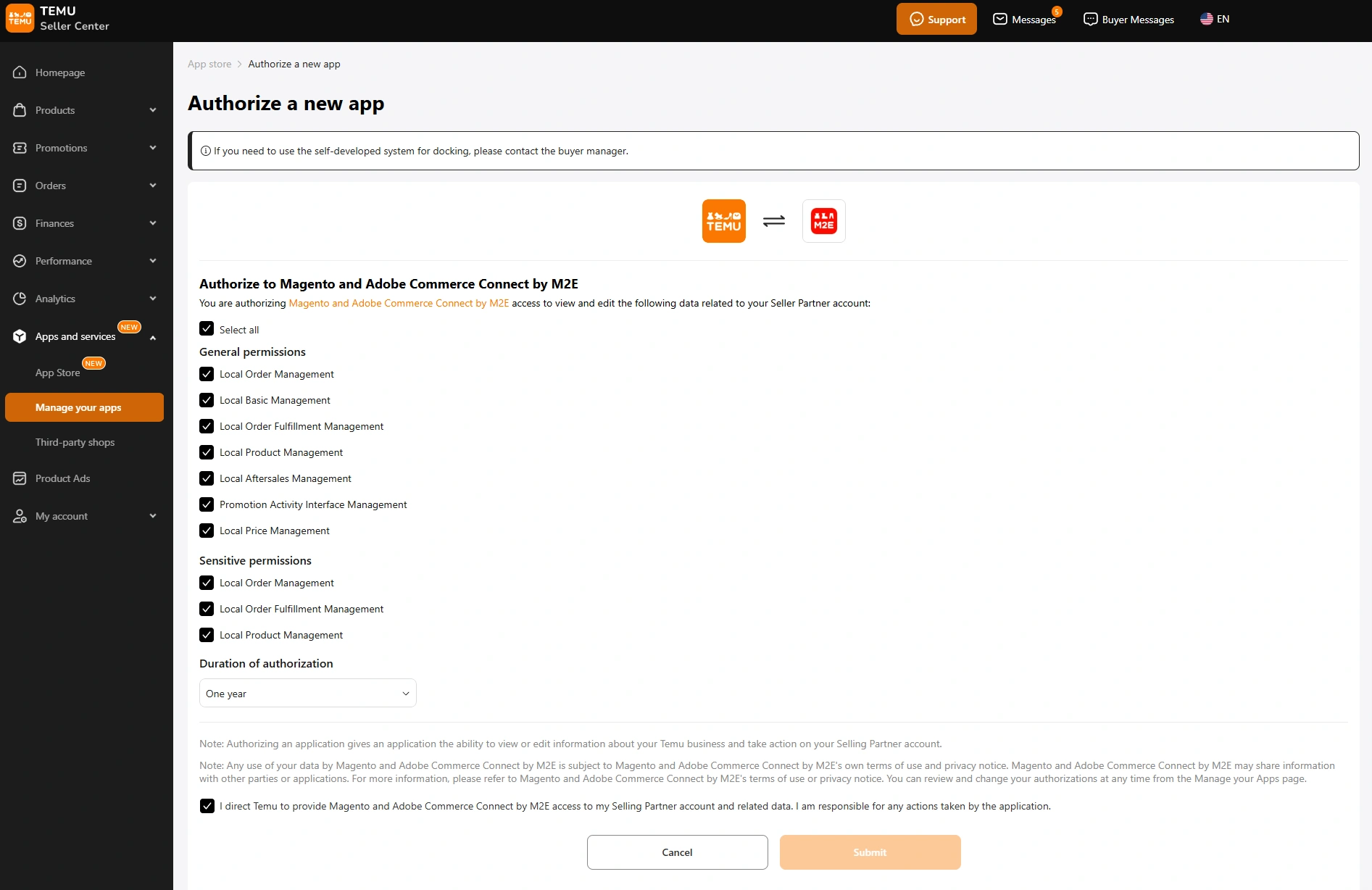
ℹ️ If you don’t have a Temu seller account yet, follow the registration link depending on your region:
- UK/EU: Register here- USA: Register here
- Mexico: Register here
- Japan: Register here
- Korea: Register here
Step 3. Configure basic settings #
Set up key parameters like pricing, inventory sync, and shipping options for your Temu listings.
Step 4. Create an M2E Temu Listing #
An M2E Temu Listing organizes products under a unified set of settings for easier management. Here's how you can create an M2E Temu Listing.
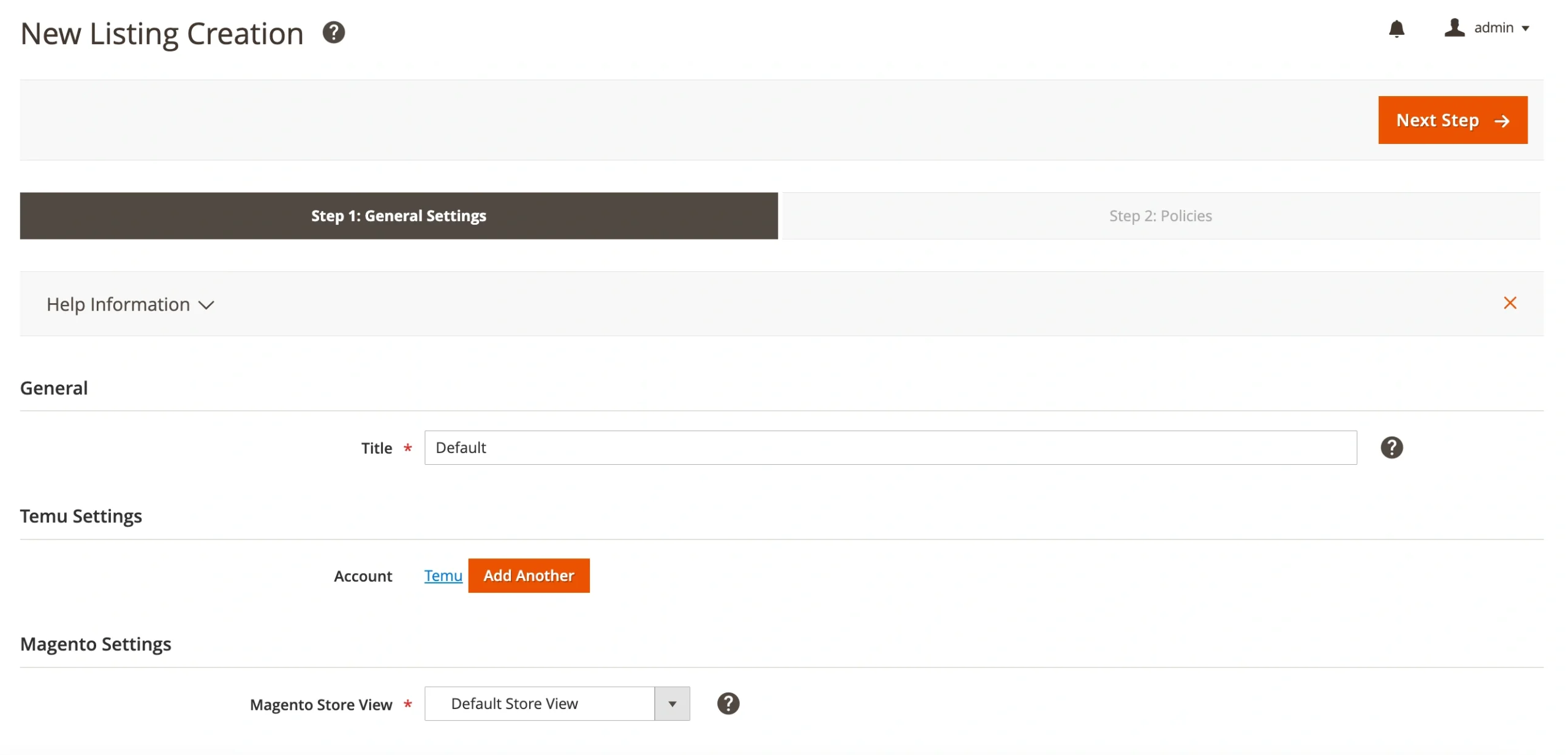
- Enter a Listing title – Provide a clear name for easy identification.
- Select an account – Choose the Temu account for this Listing.
- Pick a Magento Store View – To ensure accurate details appear on Temu, select a Store View as the source for your product data.
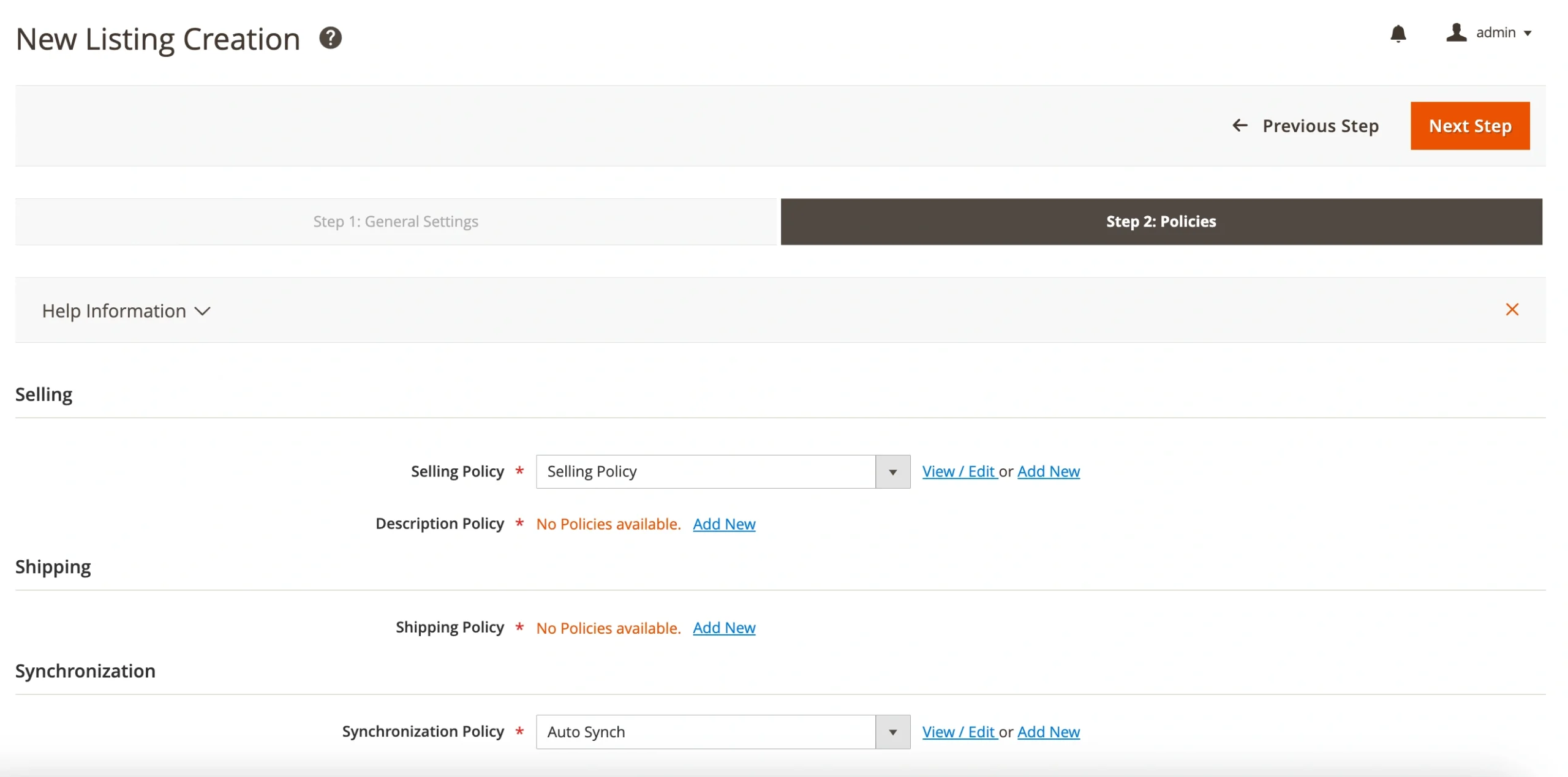
- Set Policies – Define essential settings for product listing on Temu and how the extension will synchronize and manage Temu inventory with your Magento store.
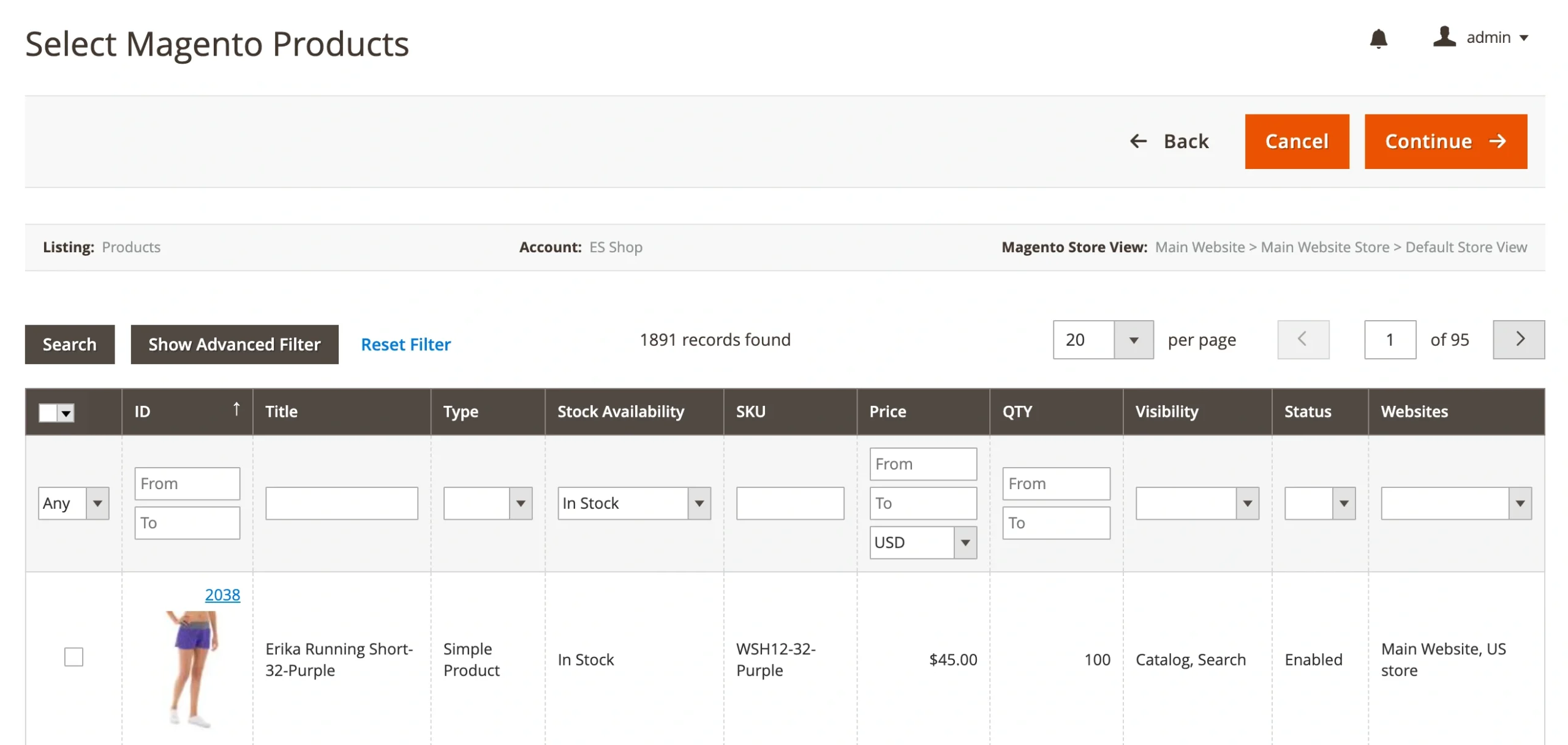
Step 5. Add products to the Listing #
Browse your Adobe Commerce (Magento) catalog and select the products you want to list on the Temu marketplace. These products will be managed through the extension and synchronized with Temu.
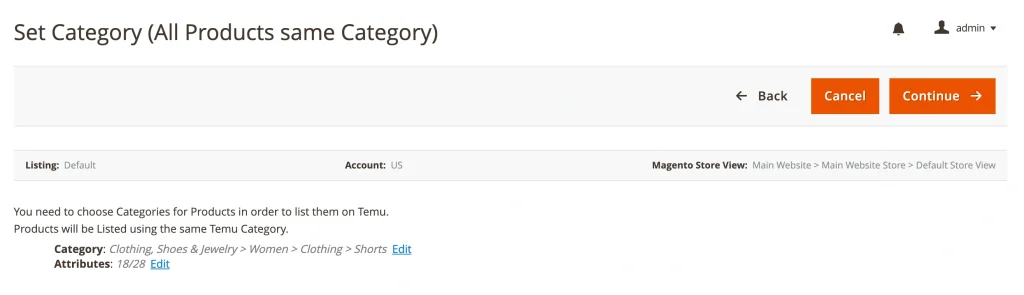
Step 6. Specify the product category and attributes #
Choose a relevant Temu category for your products. To set the category, click Edit. You can choose from recently used categories or browse a category list.
Once you confirm the category choice, define product attributes, which include such details as brand, size, color, style, etc.
Step 7. List Products on Temu #
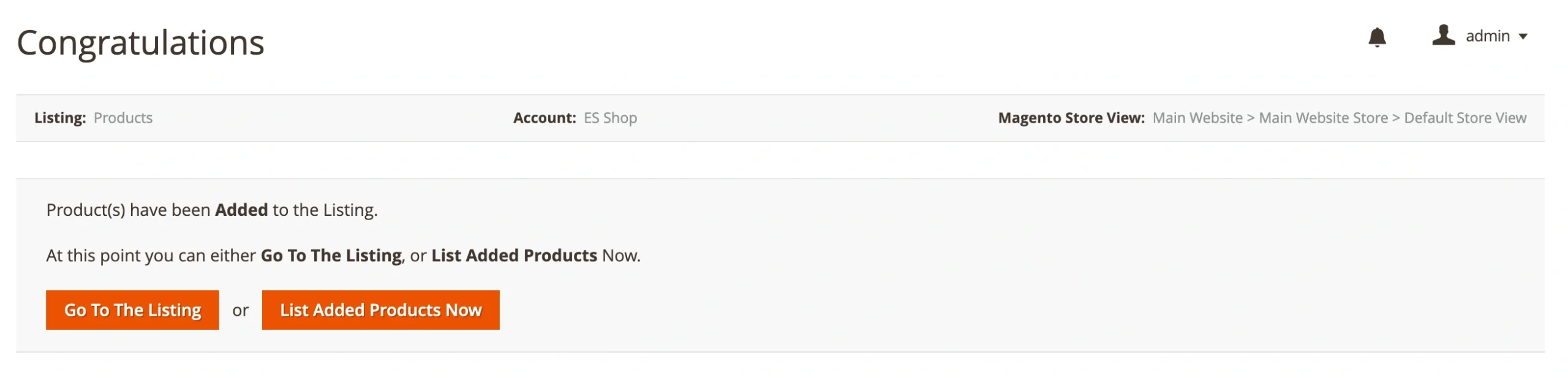
Click List Added Products Now to make your items live on Temu. The extension will keep stock and order details updated automatically.
Alternatively, you can Go To The Listing and publish your products later when ready.
By following these steps, you're equipped to successfully sell your Adobe Commerce (Magento) products on Temu using the M2E Connect extension.


