
M2E Shein Connect lets you publish products from your Adobe Commerce (Magento) store to Shein and keeps your inventory and orders aligned in real time across both platforms.
Basic requirements #
Before moving forward, check that your setup is ready:
1) You’ve installed the M2E Shein Connect extension in your Adobe Commerce store.
2) You’ve signed up for a Shein Seller account and completed your profile.
ℹ️ Register on Shein and get a 30-day free trial of M2E Shein Integration and 0% commission on Shein for 30 days. Choose your region.
Step 1. Approve permissions #
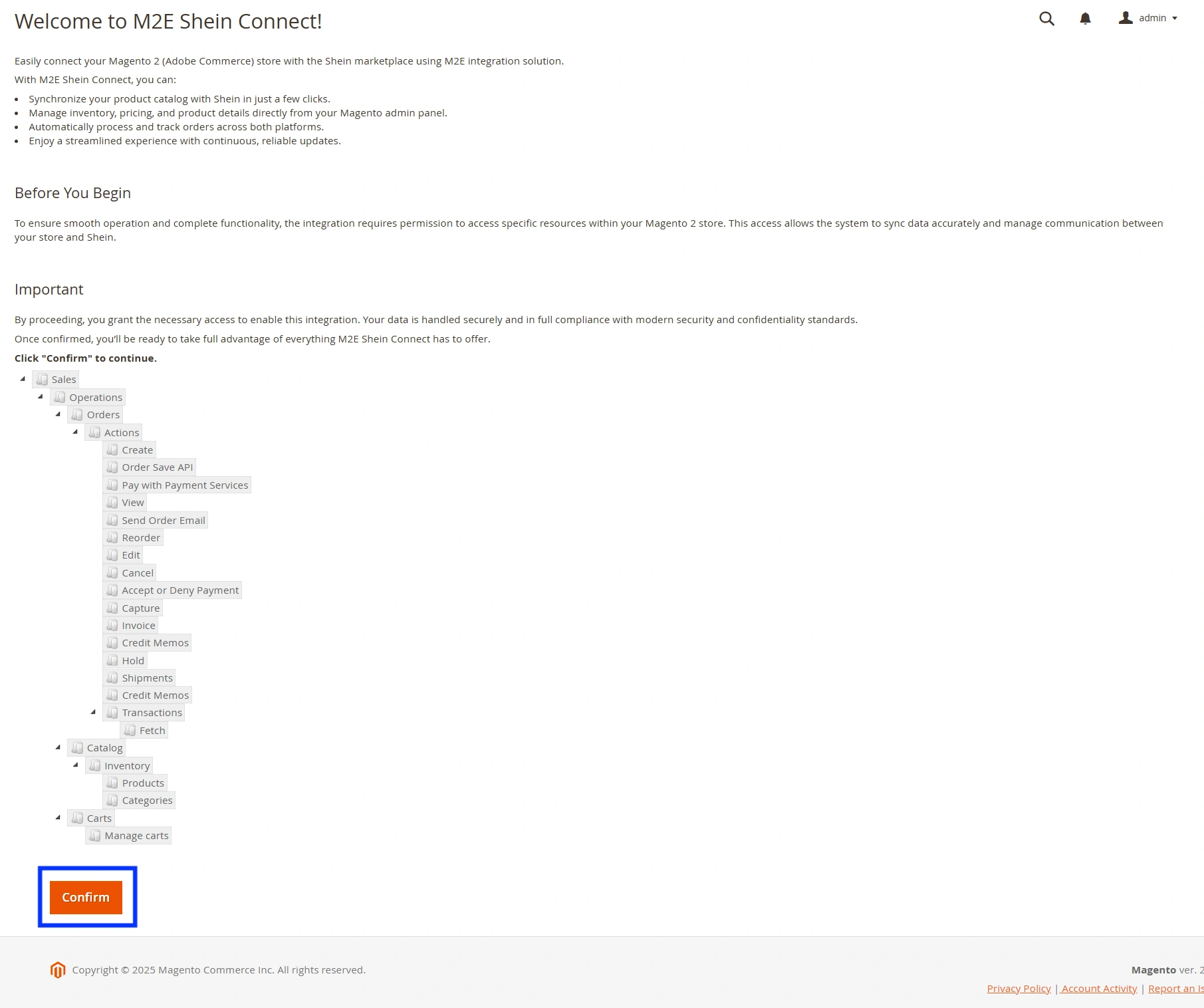
After installing the extension, confirm access permissions in your Magento 2 store. This step allows M2E to exchange product, stock, and order data securely between your store and Shein.
Step 2. Create or log in to your M2E account #
If you’re new to M2E, register through M2E Accounts using your business contact details.
Already have an M2E account? Then log in with your existing credentials.

Step 3. Connect your Shein seller account #
In the Dashboard tab, click Connect Marketplace Account. Authorize access to your Shein seller profile when prompted.
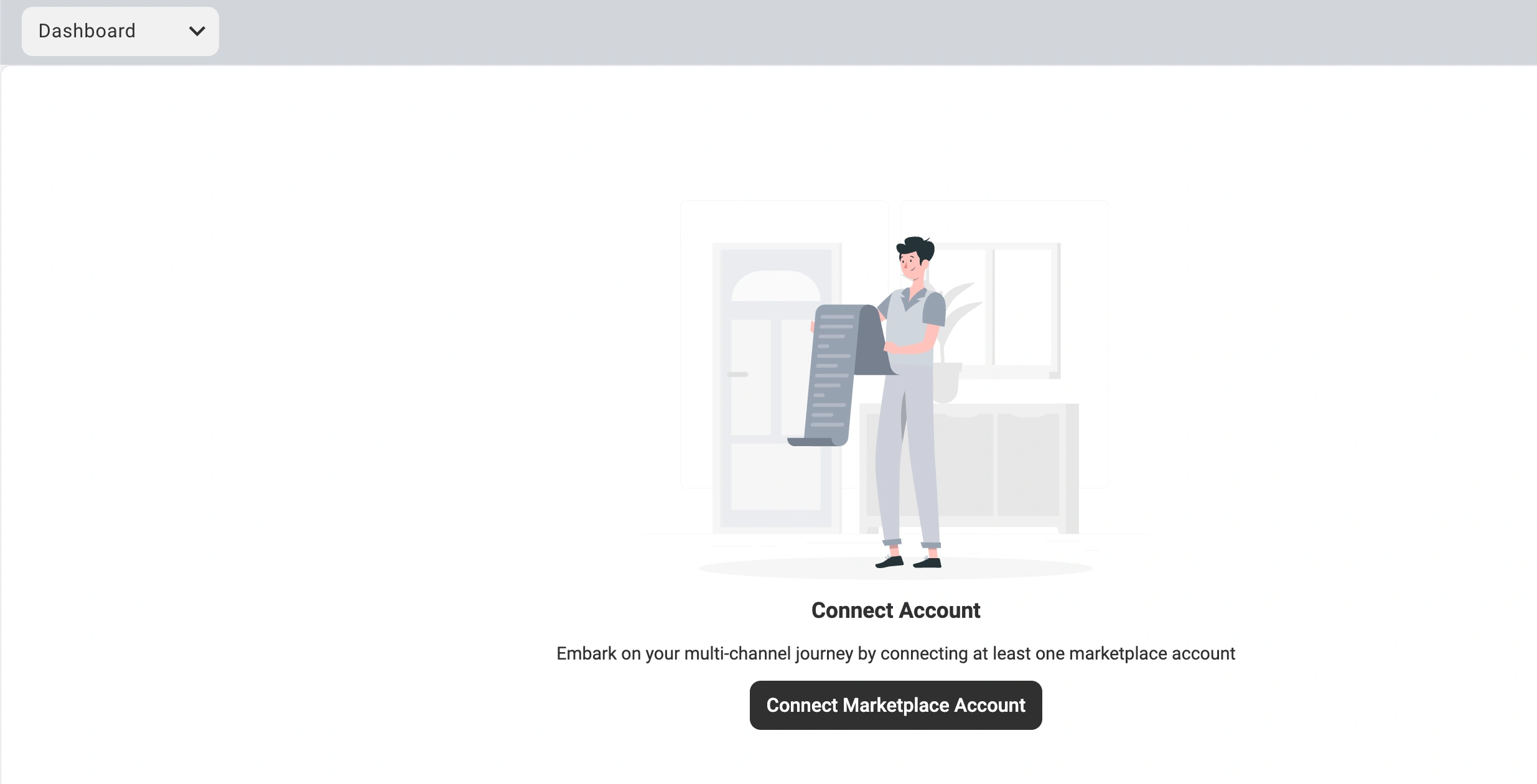
Once connected, you’ll see a Setup Guide checklist with the steps you need to finish setting up your M2E Shein integration.
Step 4. Link your Magento products to Shein listings #
If your products are already available on Shein, M2E will try to automatically match them to your Magento catalog using SKUs or Product IDs.
If some items remain unmatched:
1) Go to Link Products > View Not Linked Products.

2) You’ll be redirected to the Listings tab.
3) If you only have a few products, link them manually one by one. For larger catalogs, use the bulk import/export (CSV) option.
⚠️ You can enable synchronization only for linked items, so double-check that all relevant products are paired correctly.
💡 For detailed instructions, see the manual linking guide.
Step 5. Turn on inventory synchronization #
With products linked, activate auto-sync to keep stock levels and product details consistent.
1) Go to the Synchronize Inventory step in the Setup Guide.
2) Click View Not Synced Products.
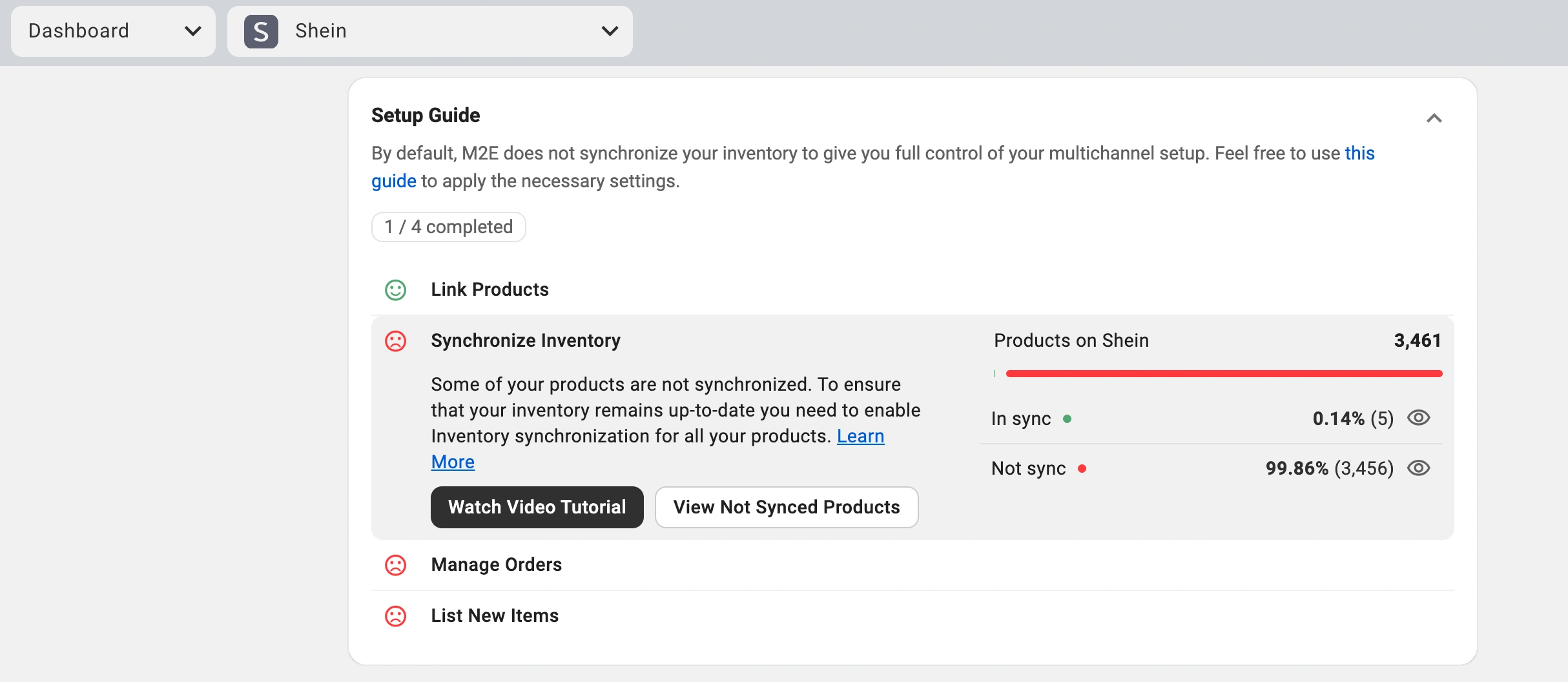
3) Choose items to sync individually or in bulk.
💡 Need a step-by-step tutorial? Check out the inventory sync guide.
Step 6. Configure order management #
Define how Shein orders should be imported into your Magento 2 store.
1) Go to Manage Orders > Order Settings.
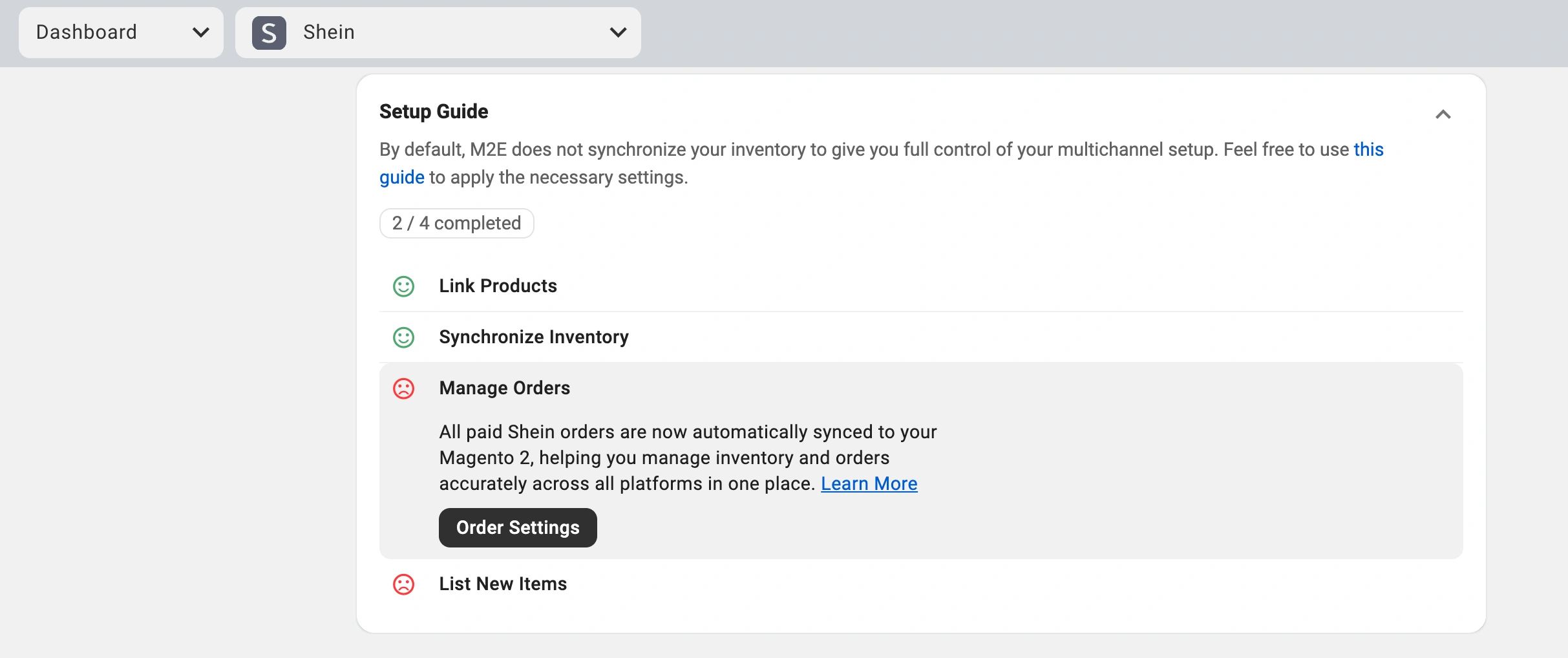
2) Enable the option to Create Shein orders only for Linked items in Magento 2.

With this option on, M2E will import Shein sales for linked items as Magento orders, keeping stock accurate and order management centralized.
⚠️ If you skip this step, Shein orders won’t affect Magento stock, which can cause overselling.
Step 7. List Magento products on Shein #
If your Magento products aren’t listed on Shein yet:
1) Open the List New Items section in the Setup Guide.
2) Click List on Shein.
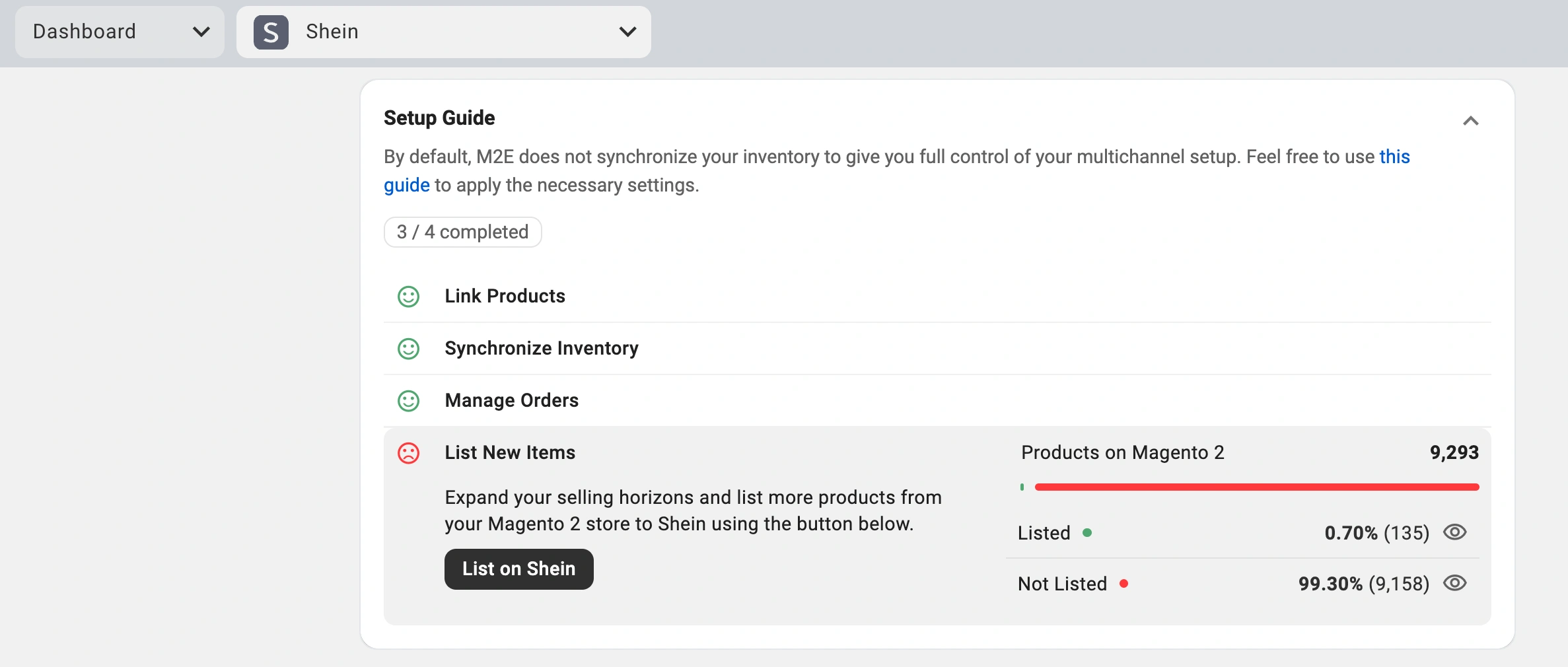
3) Follow the prompts to submit your products.
Your Adobe Commerce store is now connected with Shein. Products are matched, inventory sync is running, and orders flow directly into Magento. M2E Shein Connect manages the background operations so you can focus on growing your brand.


