
If you’re selling on eBay, getting your product details right can make all the difference. One of the most important tools you have at your disposal is item specifics. These are key attributes that define your product, such as brand, size, color, model, type, etc.
These details are much more than just optional extras. Item specifics play a vital role in making your eBay listings discoverable, credible, and buyer-friendly.
Why eBay item specifics matter #
Even though item specifics are only mandatory in some eBay categories, it’s highly recommended to include them in all your listings. Here's why:
- They increase your listing visibility. Accurate item specifics help your products show up in eBay search results and filters. Think of them as keywords that not only improve eBay search rankings but also help Google users find your listings.
- They act as a mini product description. For buyers who browse quickly, item specifics provide an instant overview without needing to scroll through lengthy text blocks.
- They keep your listings future-proof. eBay frequently updates which specifics are required in certain categories. If your listings already include them, you're less likely to run into errors later on.
- They’re based on real buyer behavior. eBay continuously tracks how buyers search and updates item specifics accordingly to help sellers reach more shoppers.
✅ You can always check the latest requirements for item specifics in eBay’s official guidelines.
Updating item specifics via M2E Pro #
M2E Pro makes it easy to manage your item specifics, whether you’re editing a single eBay product or updating settings in bulk.
For individual products #
1) Go to your M2E Pro Listing (eBay > Listings > Items) and switch to the Settings View Mode.
2) Select Categories & Specifics from the Actions menu next to the item you want to edit.
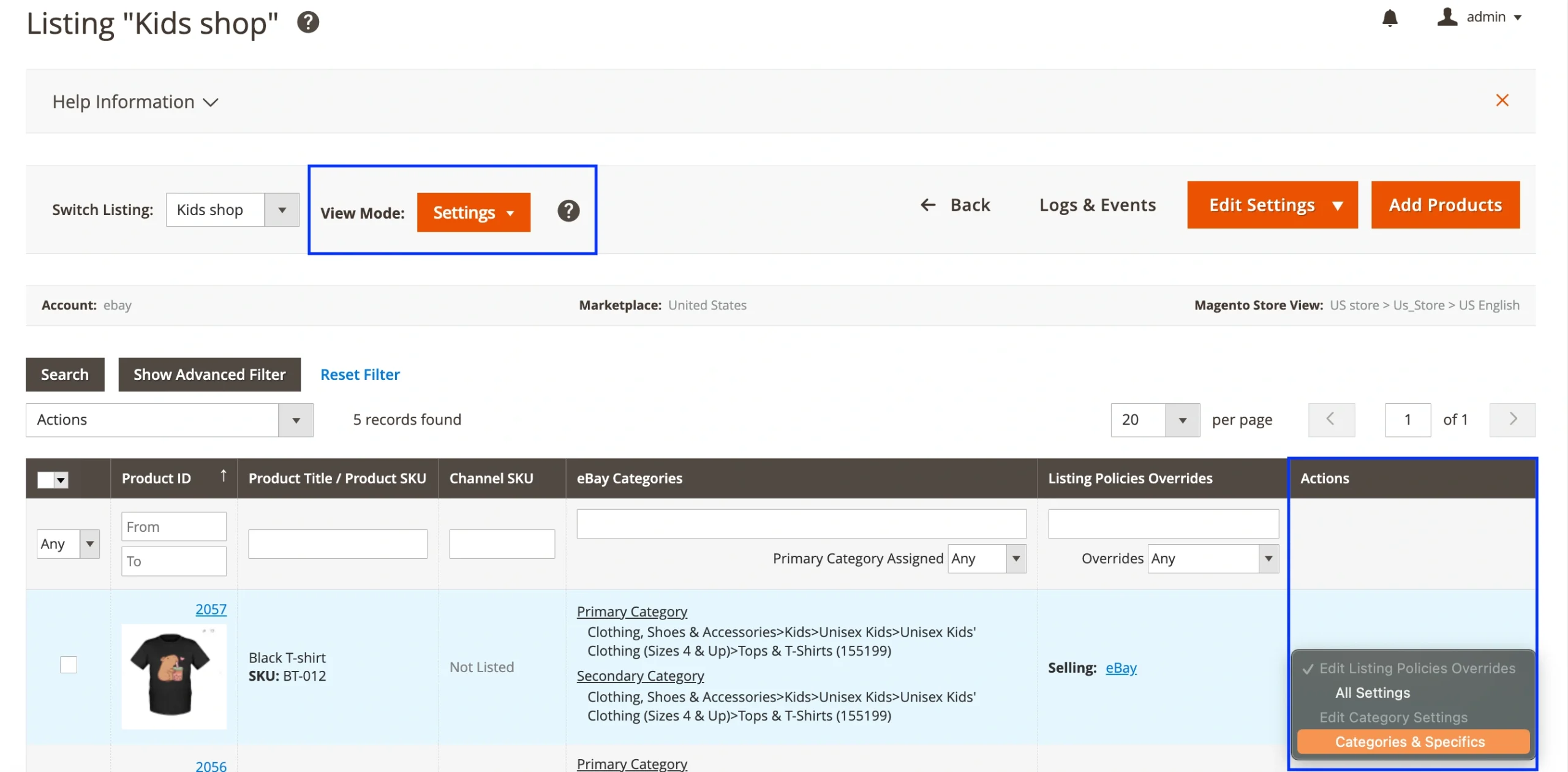
3) Click Edit next to Item Specifics and make the necessary changes. Once done, click Save.
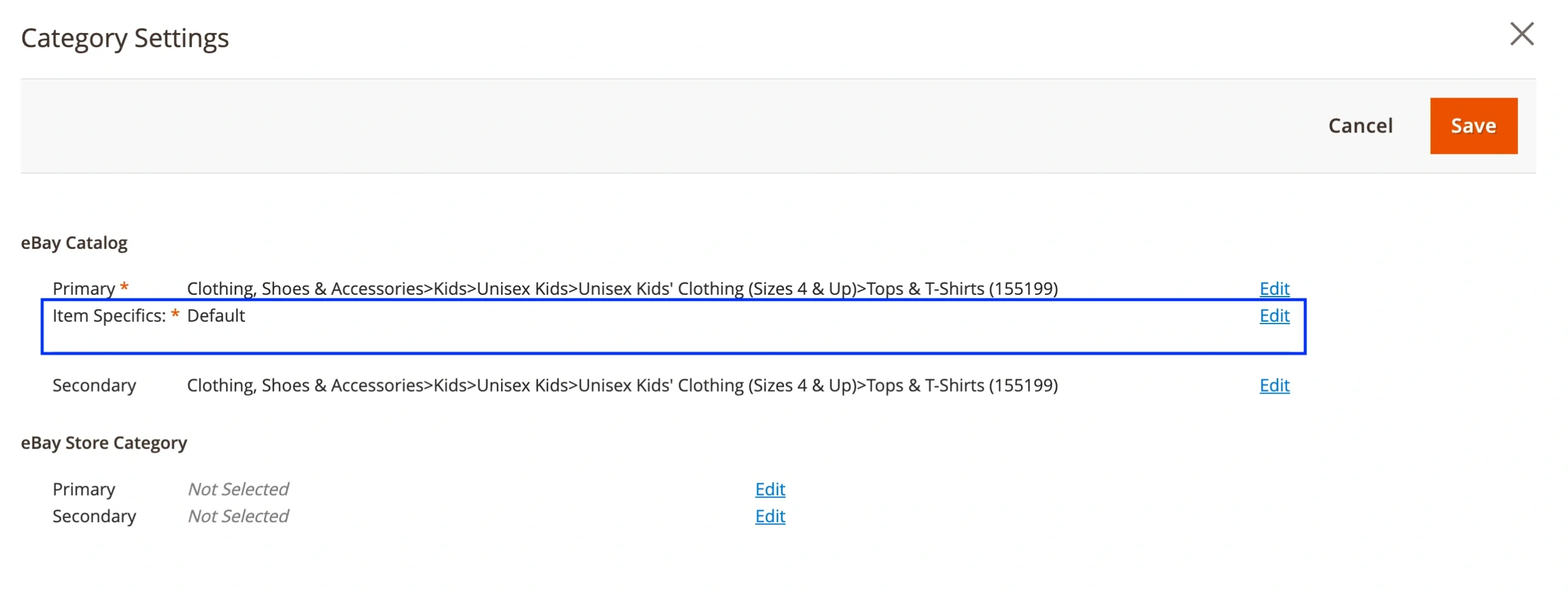
⚠️ It’s important to define all the required specifics. Otherwise, your products may not be listed on eBay.
Required specifics are marked with an asterisk, so you can easily identify them.
For a group of products #
1) Navigate to eBay > Configuration > Categories.
2) Click View next to the relevant category.
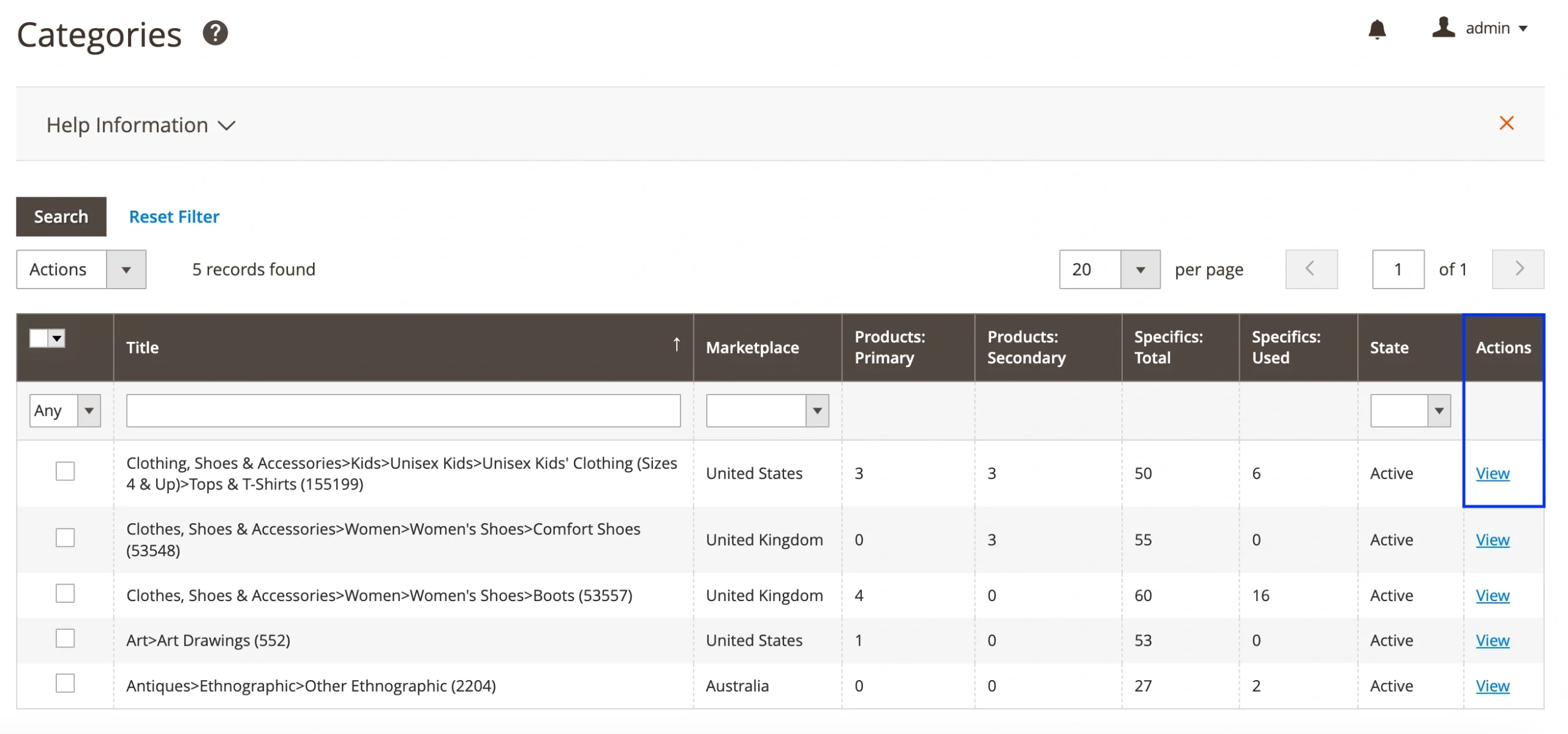
3) Update the item specifics for that category and save the changes.

ℹ️ The changes will apply to all eBay products using this category in your M2E Pro Listings.
To add/change item specifics, you need to choose a mode and value for them:
- eBay Recommended – Select values from a list suggested by eBay based on your category.
- Custom Value – Enter your own values manually.
- Custom Attribute – Use values from Magento attributes.
⚠️ eBay limits item specific values to 65 characters max.
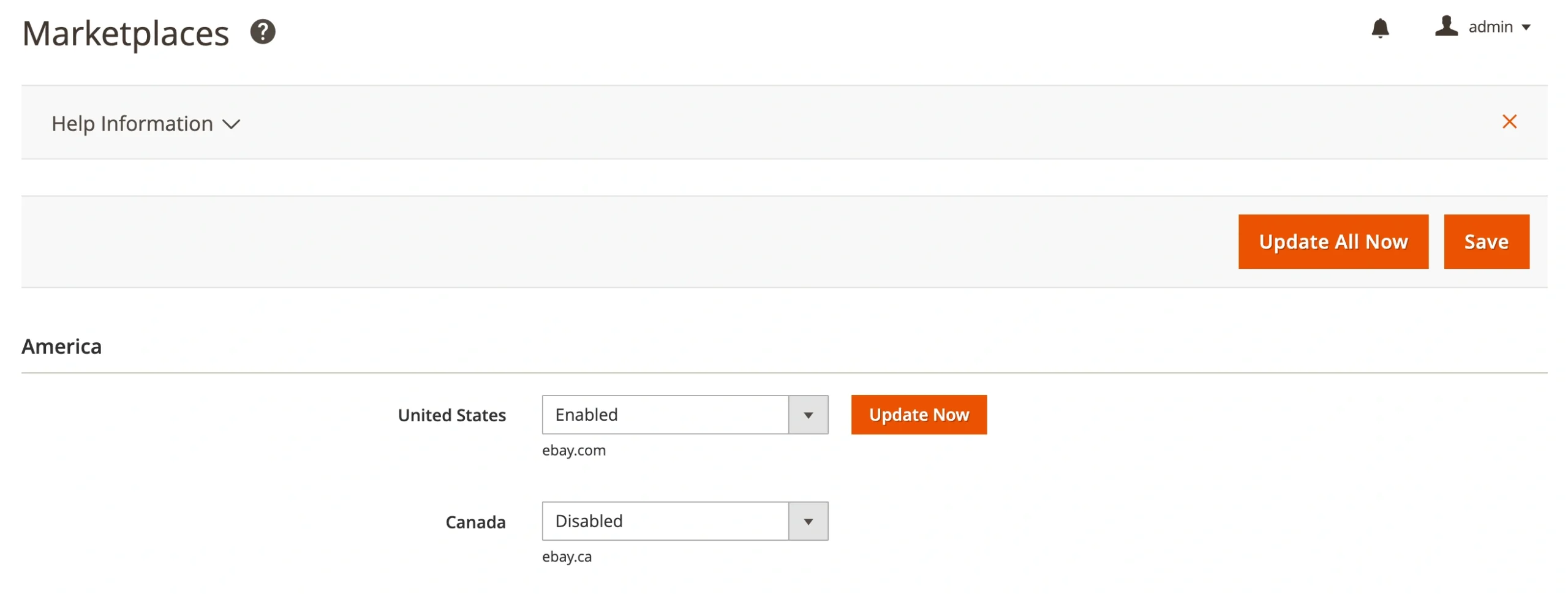
M2E Pro keeps up with eBay’s changing category data, including which specifics are required. To make sure you’re always using the latest information, go to eBay > Configuration > Marketplaces and click Update All Now or Update Now for a particular marketplace:
Preventing item specifics' errors with M2E Pro #
M2E Pro helps you stay ahead of common listing issues by automatically checking your item specifics setup:
- Clear indicators. Required item specifics are marked with an asterisk. A category cannot be saved unless all mandatory fields are completed.
- Smart validation. If a required specific is left empty or linked to an empty Magento attribute, you’ll see a validation warning before the product can be listed.
- Automatic tagging. Products missing required specifics are automatically tagged and removed from auto-sync. This prevents listing errors and unnecessary retries.
- Issue tracking: Keep tabs on affected items through the Dashboard or the Items by Issue section to quickly resolve problems related to item specifics.
Well-structured item specifics not only help your eBay listings get discovered but also build trust with buyers by giving them the details they need at a glance. With M2E Pro, you can easily keep your eBay specifics up-to-date and error-free.


