
There are three elements that influence the tax calculation process in M2E Pro:
- Magento Tax Settings
- Amazon Tax Settings
- M2E Pro Tax Settings
To understand how the tax is calculated, see a detailed description of each of these elements below.
Magento Tax Settings #
They include the setup of Tax Classes, Tax Rules, as well as Magento system tax configurations.
Tax Classes #
Magento has three Tax Classes based on which tax will be calculated:
- Tax Zones & Rates
- Product Tax Class
- Customer Tax Class
Tax Zones & Rates #
Tax Zones & Rates define the tax applicable depending on the customer’s location (determined by the customer’s shipping or billing address). You will find them under Stores > Taxes > Tax Zones & Rates:

By clicking on the Tax Rate, you can edit its Country, State, ZIP/Post Range/Code, and Rate Percent at any time:

Product and Customer Tax Classes #
Product and Customer Tax Classes define the tax applicable to a particular Magento Product or a particular customer accordingly.
All Products and Customer Groups in Magento have a default Product/Customer Tax Class assigned to them automatically. You can check these settings under Stores > Settings > Configuration > Sales > Tax:

There, you can also choose another default Tax Class for your Products and Customer Groups.
Besides, it is possible to override the default Tax Class for a particular Magento Product or Customer Group.
To assign a non-default Product Tax Class to a Magento Product, use the Tax Class option in Magento Product settings:

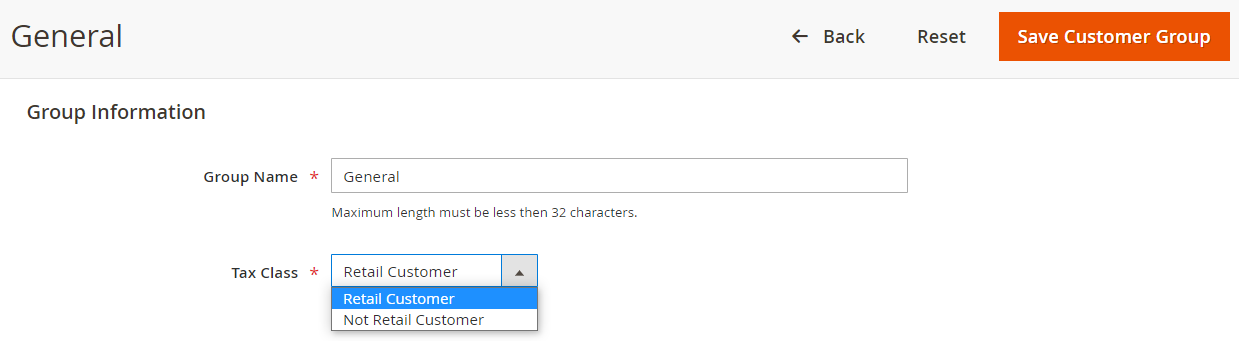
To assign a non-default Customer Tax Class to a Customer Group, go to Customers > Customer Groups > Tax Class:
You can manage Product and Customer Tax Classes at the step of adding new Tax Rules or editing existing ones (Stores > Tax Rules > Add New Tax Rule > Additional Settings):

Tax Rules #
Tax Rules combine Product Tax Class, Customer Tax Class, and Tax Zone & Rate. These rules define the final tax amount applicable to a particular Magento Product that was bought by a particular Customer from a particular Location.
⚠️ Setting up Tax Rules is essential. Otherwise, tax rates will not be applied to the Magento order.
To add a Tax Rule, navigate to Stores > Taxes > Tax Rules:

When configuring a new Tax Rule, Magento will automatically use the default Product and Customer Tax Classes specified under Stores > Settings > Configuration > Sales > Tax for a particular Website/Store View.
Under the Additional Settings section, you can indicate another Product/Customer Tax Class for your Tax Rule, if necessary:
Let’s see how a tax rate is calculated for Magento order based on the configured Tax Rule.
Tax Rules Example
Your Magento Product is set up to use the Tax Class Taxable Goods.

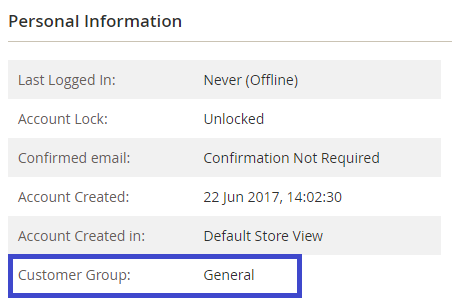
A customer who placed an order is related to the Customer Group General.
The ordered item should be shipped to California.
You have set up a Tax Rule that adds a tax percent of 15% to a Magento Product belonging to Taxable Goods, purchased by a buyer from the General Customer Group who lives in California.

Thus, the tax rate specified in your Magento Order will be 15%.
⚠️ If one of the Tax Rule components (Product Tax Class, Customer Tax Class, or Tax Zone) is different from the data in Magento Order, the tax rate will not be applied.
Magento System Tax configurations #
Apart from Tax Rules, there are general Magento tax settings that determine the final tax amount in the order. These settings are located under Stores > Settings > Configuration > Sales > Tax:

⚠️ The settings in this section can be configured for a particular Website/Store View of your Magento.
Tax Class for Shipping #
If your store charges a shipping rate, you can specify a separate Product Tax Class that will be used for shipping by default:

⚠️ A shipping rate will be applied if the selected Tax Class for Shipping is included in a Tax Rule.
Calculation Settings #
Catalog Prices
Determines whether the final Product Price should include tax or not.

ℹ️ If the Product Price is set to exclude tax, the tax rate will be added to the final price.
For example, the Magento Product Price is $100, the tax percent is 5.25%. The final product price will be $105.25.

ℹ️ If the Product Price is set to include tax, the tax rate will be calculated into the final price.
For example, the Product Price in Magento Catalog is $100, which already includes the tax amount of 5.25% ($4.99).

The Product Price displayed to customers will be $95.01:

Shipping Prices
Determines whether the Shipping Price should include tax or not.
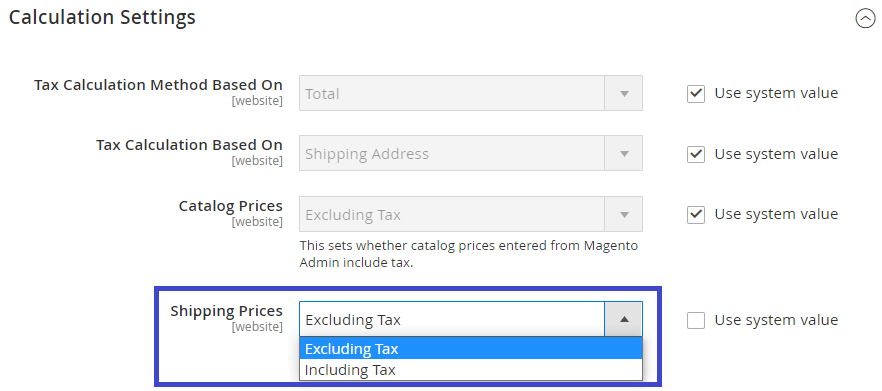
ℹ️ If the Shipping Price is set to exclude tax, the tax rate will be added to the final shipping price.
For example, the Shipping Price is $10, the tax percent is 5%. The final Shipping Price will be $10.50.
ℹ️ If the Shipping Price is set to include tax, the tax rate will be calculated into the final shipping price.
For example, the Shipping Price is $10, which already includes the tax percent of 5%.
⚠️ Shipping Prices depend on the Shipping Methods configured in Magento.
Orders, Invoices, Credit Memos Display Settings #
Determines whether the Product Prices, Shipping Amount, Subtotal, and Grand Total, which are displayed in Magento Orders, should include or exclude tax.

✅ For more information on configuring Magento Tax settings according to your business needs, check out Magento docs.
Amazon Tax Settings #
If you have an Amazon Business account with the activated VAT Calculation Service, this gives you an opportunity to set up VAT invoice automation and VAT-exclusive price displaying for your sales on Amazon European marketplaces.
Automatic VAT invoicing for Amazon orders #
Merchants selling on Amazon EU marketplaces (UK, DE, IT, FR, ES, NL, BE) can configure automatic VAT invoicing for their orders. To do that, you have to opt-in to VAT Calculation Service in your Amazon Seller Central.
M2E Pro supports automatic invoice uploading for all orders managed across Amazon European Marketplaces. Once the VCS is activated in your Amazon Seller Central, you can enable it in the application by navigating to Amazon > Configuration > Accounts > edit Account > Invoices & Shipments > Invoice Uploading to Amazon:
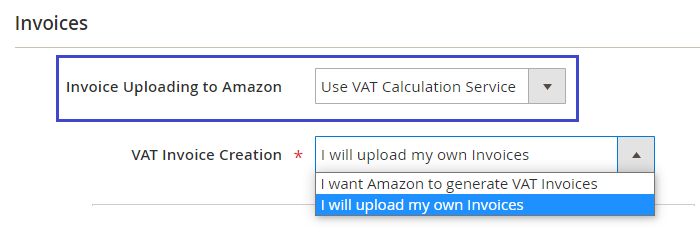
Using the VAT Invoice Creation option, you will be able to select whether M2E Pro or Amazon should generate invoices.
✅ Click here to learn about invoice uploading to Amazon via M2E Pro in more detail.
VAT-exclusive price displaying #
To display VAT-exclusive prices to B2B customers, sellers need to apply Amazon Product Tax Codes. A Product Tax Code (PTC) is used by Amazon’s VAT Calculation Service to determine the proper VAT rate applied to sales and refunds of your products.
In M2E Pro, you can assign PTC to your items using a Product Tax Code Policy (Amazon > Configuration > Policies).
When configuring a Product Tax Code Policy, you should choose the required PTC from the Tax Collection of your Amazon Seller Account.
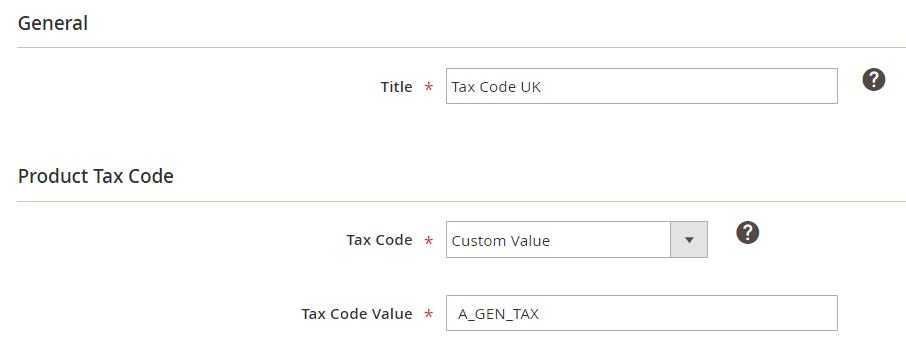
Enter the value in the Tax Code field or select an appropriate Magento Attribute.
⚠️ Before setting up a Product Tax Code Policy, make sure that you are enrolled in Amazon’s VCS and enable the Use VAT Calculation Service option. Find it under Amazon > Configuration > Accounts > edit Account > Invoices & Shipments > Invoice Uploading to Amazon.
For more information, check out a detailed Product Tax Code Policy guide.
M2E Pro Tax Settings #
They include the setup of Order Tax settings under Amazon account configurations.
Order Tax Settings #
Tax Source #
Under the Order Tax Settings section in your Amazon account configurations, you can select which tax source should be applied during Magento order creation:
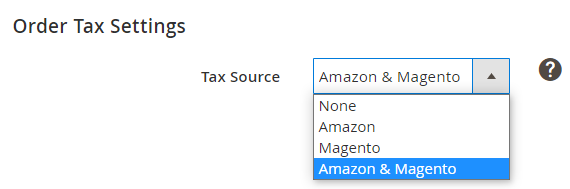
- None – neither Amazon nor Magento tax settings will be used. Magento Order will not contain any tax values.
- Amazon – the tax in Magento Order will be calculated based on Amazon tax settings.
- Magento – the tax in Magento Order will be calculated based on Magento tax settings.
- Amazon & Magento – the tax in Magento Order will be calculated based on the tax amount in the imported Amazon order. If the tax amount is not specified, Magento Tax settings will be applied.
Exclude tax collected by Amazon (the US only) #
ℹ️ This option appears if you set Tax Source to Amazon or Amazon & Magento.
Specify if tax collected by Amazon should be excluded from orders.

By choosing Yes, you can select US states for which tax in Magento orders has to be excluded.
Click Select states to see the states that are pre-selected (based on Amazon data as of 23.09.2020):
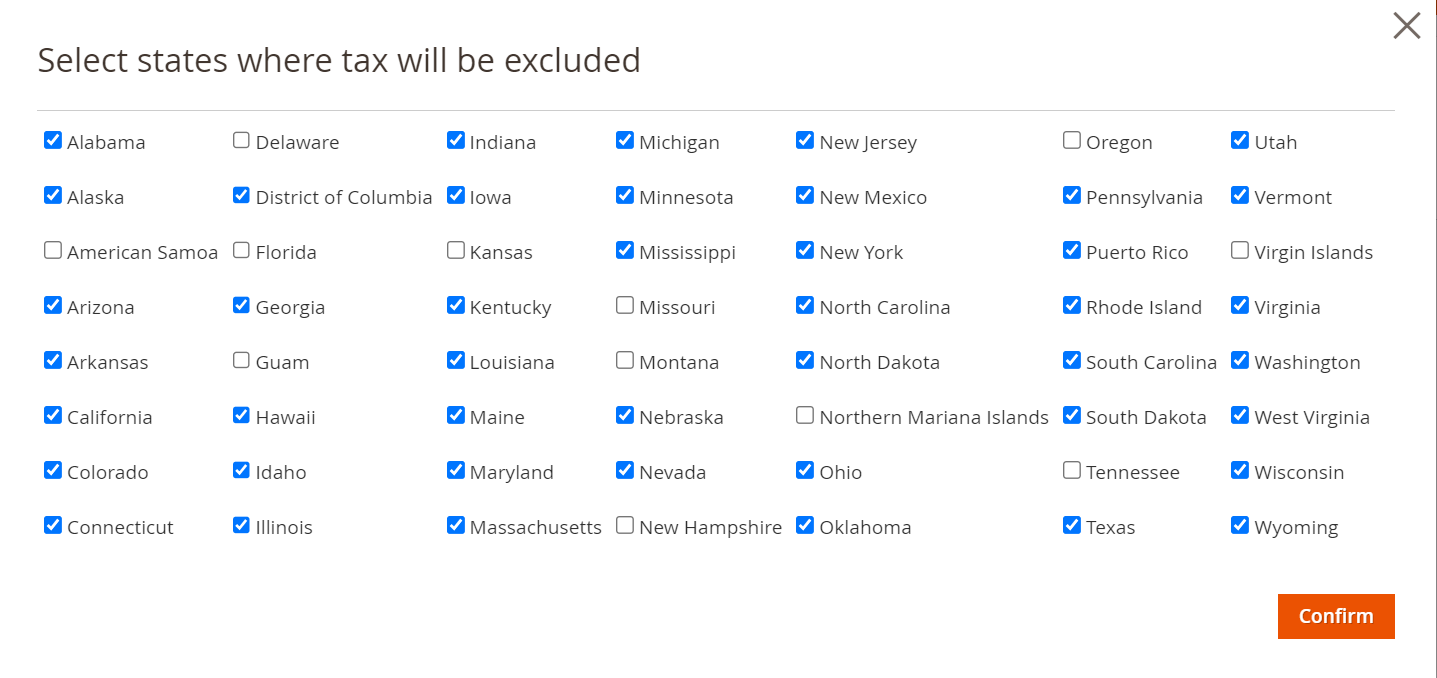
As the number of US states eligible for order tax processing may change, here you can select the states for future use.
✅ Find more information on Amazon Marketplace tax collection here.
Exclude UK VAT collected by Amazon #
ℹ️ This option appears if you set Tax Source to Amazon or Amazon & Magento.
It allows sellers not to include VAT in orders with UK shipment.

- None – the VAT won't be excluded and will be displayed in all orders.
- All orders with UK shipments – M2E Pro will exclude VAT from all orders with UK shipments.
- Orders under 135GBP price – M2E Pro will exclude VAT from orders with a total amount under 135 GBP.
✅ When you choose to exclude VAT for orders under 135GBP, ensure to have GBP currency set in the Magento directory_currency_rate table to avoid synchronization issues.
Exclude EEA VAT collected by Amazon #
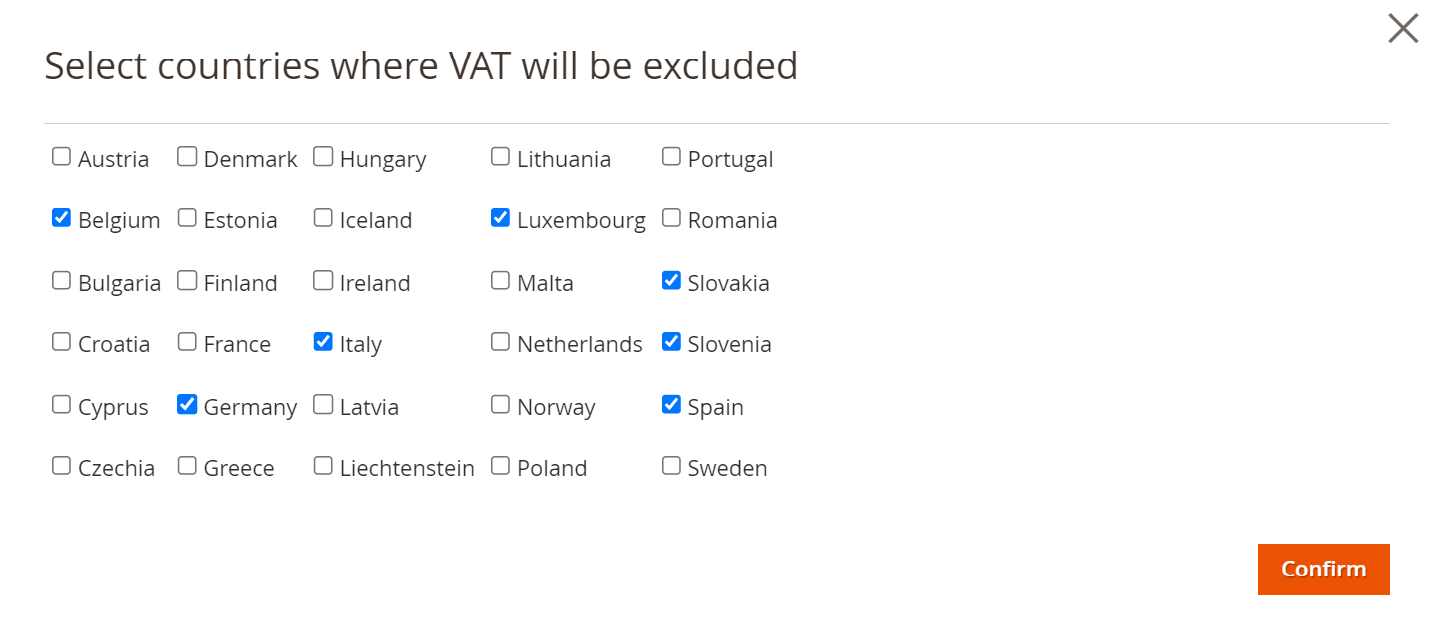
This option allows you not to include VAT in orders with EEA shipment.

If enabled, you can select EEA countries for which VAT has to be excluded.
Tax Rate rounding #
Having the option set to ‘Yes’ will ensure that all the rate values with decimals will be converted to the nearest non-decimal value. For example, 7.63% is going to be rounded up to 8%, while 8.4% will become 8.

⚠️ As rounding off tax rates with decimals can lead to price calculation inaccuracies, it may cause discrepancies in the final price.
So before enabling the option, it’s important to consider requirements for price calculation accuracy and whether the difference between the rounded and the original tax rate is acceptable for your business.
M2E Pro Tax Rate and M2E Pro Shipping Rate #
If you choose Amazon or Amazon&Magento option as a Tax Source, you will find two additional options on your Tax Zones and Rates page in Magento:

M2E Pro uses them to transfer tax value that is returned from Amazon order to Magento order. In other words, M2E Pro Tax Rate and M2E Pro Shipping Tax Rate are used to adjust the Amazon tax into the Tax Rule. This way, Magento can recognize and display tax in Magento order properly.


