
M2E Connect lets you download your Kaufland product data into a CSV file. Whether you’re tracking your catalog or preparing for Magento product export, this file gives you a quick overview of your listings.
What’s included in the file #
The exported CSV includes all key product details to help you review or share your Kaufland listings:
- Magento Product ID
- Product Title
- SKU
- Kaufland Product ID
- QTY
- Price
- Product Status
The CSV file structure is simple and works well with spreadsheets or external tools. It's similar to formats used to export Magento products.
Why export Kaufland data #
Exporting your products in a CSV file helps you:
- Check product data outside M2E
- Share listings with your team
- Identify which products need to be linked or managed
Export options available in M2E #
M2E Connect offers several ways to export your Kaufland product information. Choose the option that best fits your workflow:
1. Export all managed listings
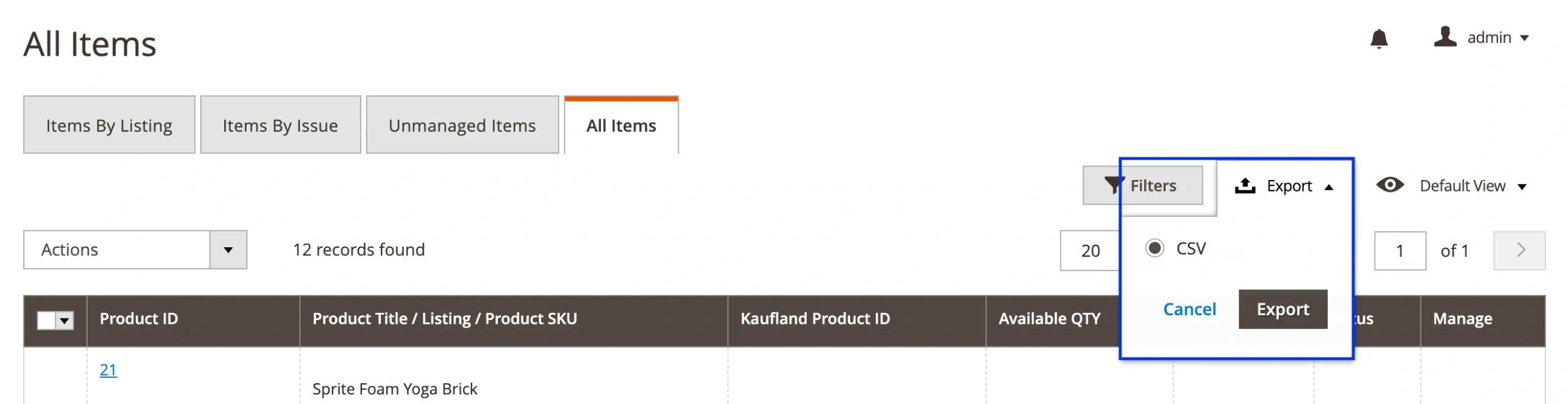
To get a CSV of all listings that are managed by M2E, go to Listings > Items > All Items in M2E Kaufland Connect. Click the Export button on the right side of the grid to download the full product list.
2. Export products from a specific Kaufland Listing
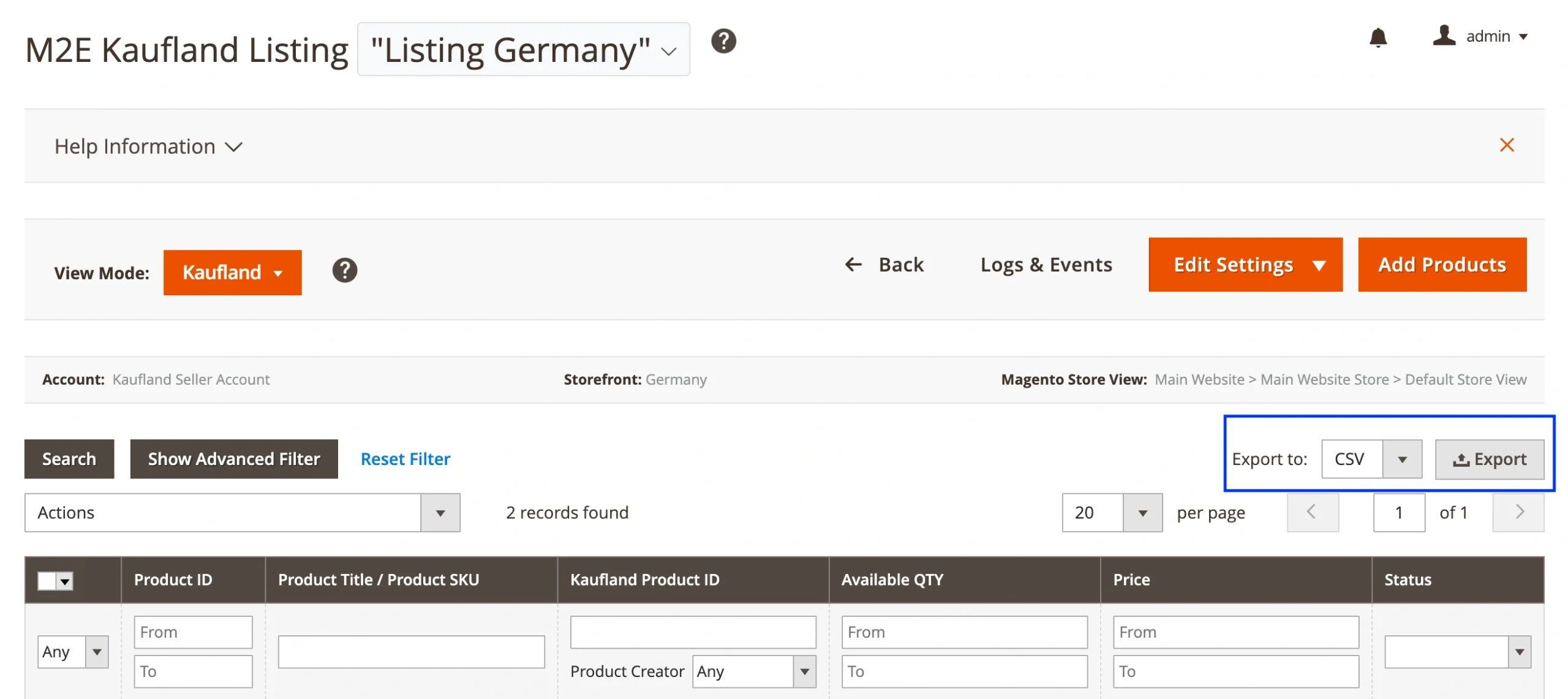
If you want to export products from a particular M2E Kaufland Connect Listing, go to Listings > Items > Items by Listing. Open the listing and click Export on the right side of the grid.
3. Export unmanaged Kaufland products
If you want to view Kaufland items that were imported into M2E but are not yet managed by the extension, go to Listings > Items > Unmanaged Items. From there, click Export to download a CSV of these products. Using this file, you can review unlinked or newly imported products.
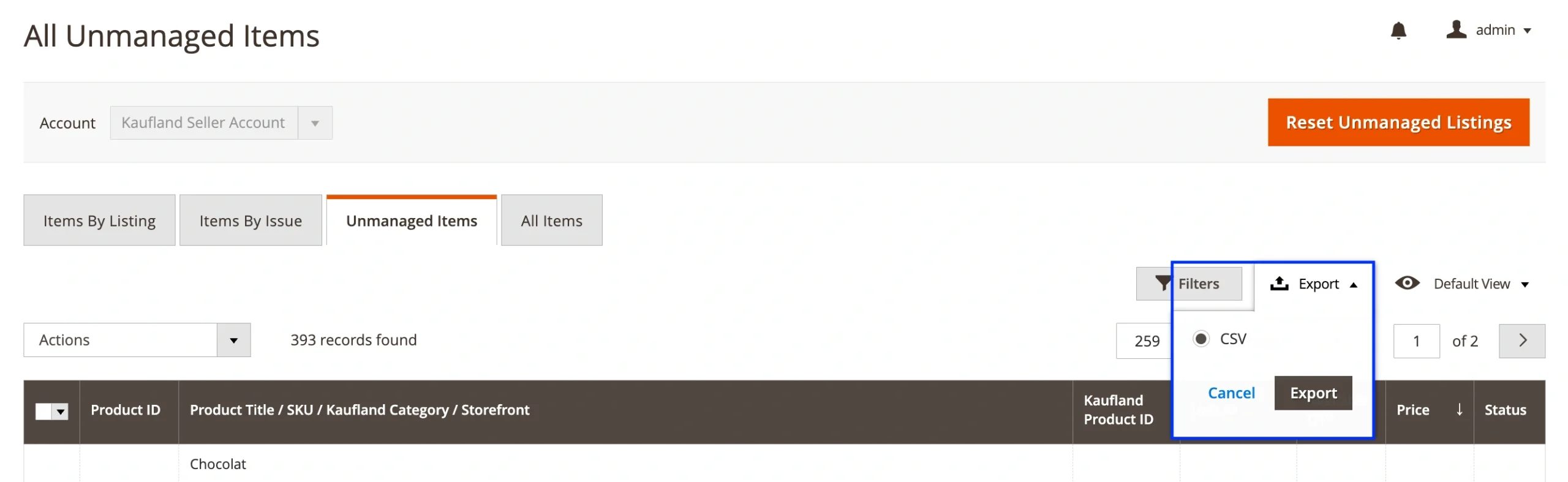
The file with exported Unmanaged Items will feature the following information: Magento Product ID (if the item is linked), SKU, Kaufland Product ID, Unit ID, Available QTY, Price, Status.


