
In this article, you will learn the rules of creating Promotions on the Walmart marketplace and walk through how to do it via M2E Pro.
Step 1: Enable Promotion mode #
Promotions can be set up in M2E Pro Selling Policy. Under the Price section, please enable the Promotions option, then click Add Promotions to open the promo details.

Step 2: Define a promo start/end date #
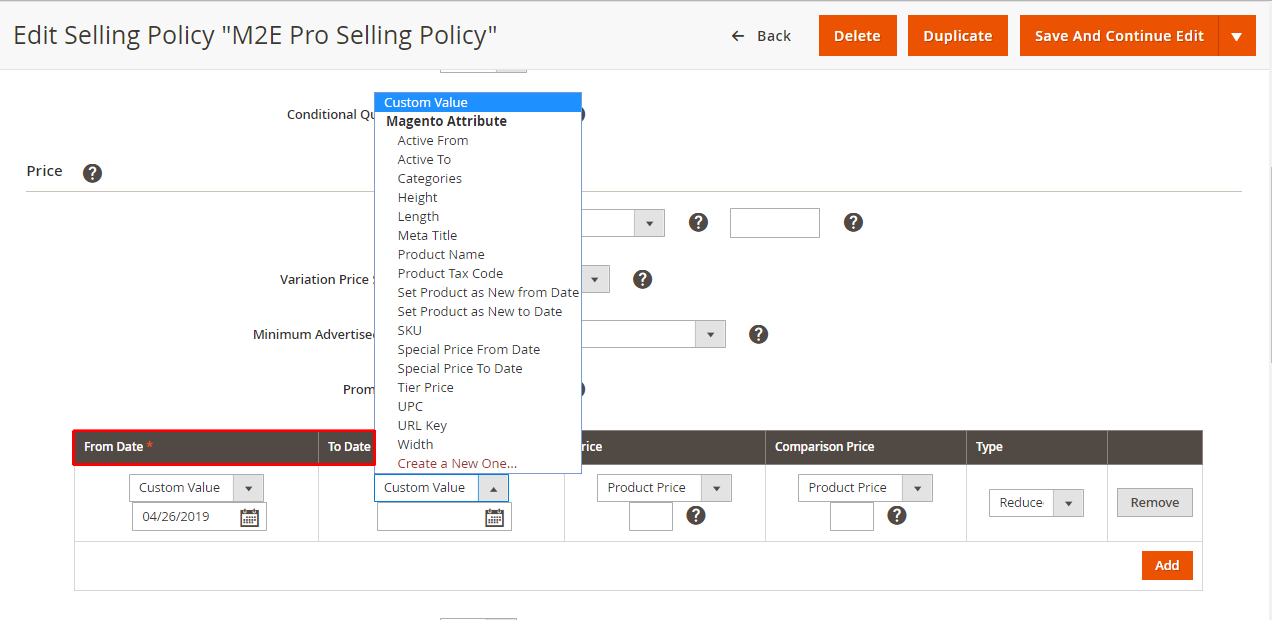
Enter a certain date or select to take a value from Magento Attribute. When specifying the promo dates ensure that:
- The end date of the promotion is within 365 days from the current date and time. Promotions beyond 365 days will be returned with an error.
- The start and end date/time of the promotion is set in the following format: MM/DD/YYYY.
- The promo dates of a given promotion or promo dates of multiple promotions for the same product do not overlap.
⚠️ Start Date and End Date can only be changed for promotions that have not started yet.
Step 3: Specify a promo price #

Select a relevant Magento Attribute to provide a promo price, i.e. discounted price and comparison price. The comparison price will be displayed as a strike-through price on the Walmart Item page.
If you need to adjust the selected Magento Attribute value, you may use the Price Change box.
✅ Promo price can be changed at any time for any promotion, including the active one.
⚠️ If the active promotion ends, the Product Price will be shown until the next promotion starts.
Step 4: Select a promo type #

The Promo type is shown as a specific flag on the Walmart Item page:
- Reduced.
Walmart recommends using this promo type if savings are greater than $5 for items that cost more than $100, or 5% for items less than $100. The promo will be shown if your offer wins the Buy Box on the Walmart Item page.

- Clearance.
This promo type is commonly used when a product price is significantly reduced to clear out the product inventory. The promo will be shown if your offer wins the Buy Box on the Walmart Item page.

✅ Promo type can be changed at any time for any promotion, including the active one.
You may create up to 10 promotions for a product at a time. Any promotion, including the live one, can be deleted if it is no longer needed.
Once you enable the promotion, you will see a special icon in the M2E Pro Listing grid reminding you that this product is available at a discounted price on Walmart.

✅ Please remember that prices in the M2E Pro Listing are displayed without promotions. You can check your promo prices at Walmart Seller Central at any time.
✅ Please note that the promotional price must be at least 10% lower than the "was price" or the list price in order for the strike-through effect to be displayed on Walmart.
ℹ️ Please read more about promotions in Walmart documentation.


