
To create an M2E OnBuy Listing, go to OnBuy > Listings > Items and click Add Listing.
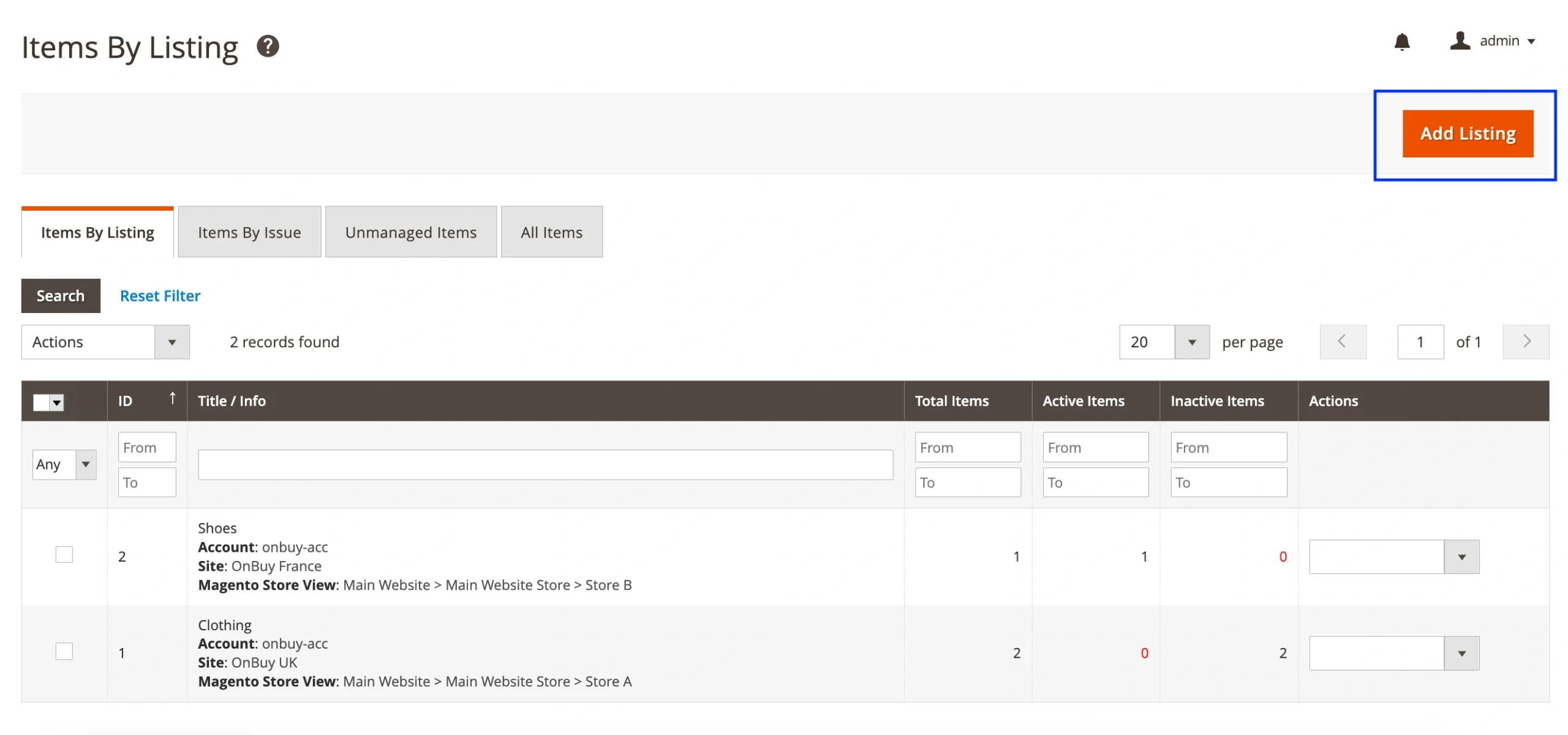
Listing creation takes only two steps.
Step 1. General Settings #
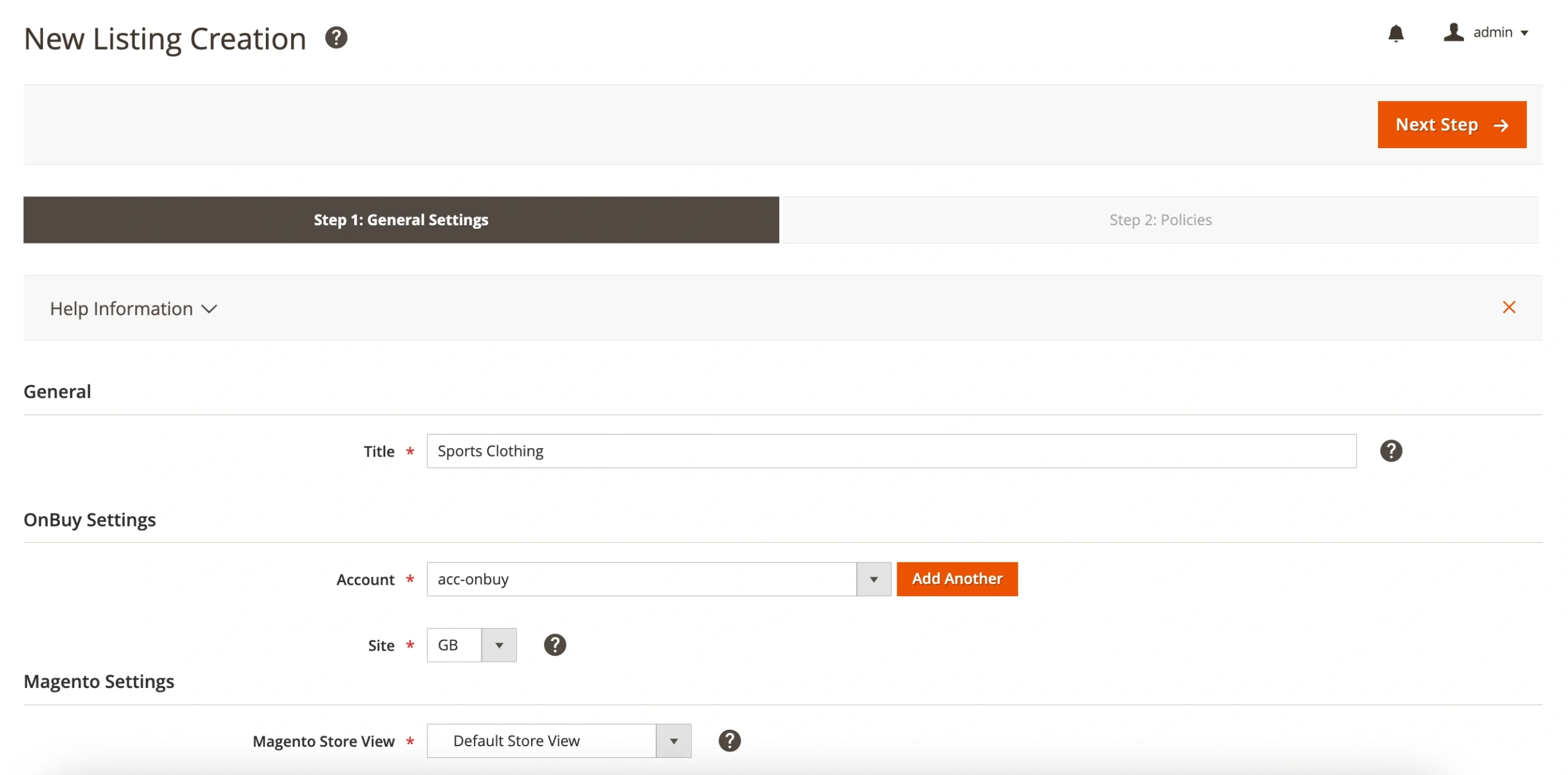
General #
Enter a descriptive and meaningful title for your M2E OnBuy Listing.
ℹ️ This title is for internal use only and will not appear in your OnBuy product listings.
OnBuy Settings #
- Account – if you have multiple OnBuy accounts linked, select the account you want to use for this Listing.
- Site – select the OnBuy site you want to list on using this Listing.
Magento Settings #
Choose a Magento Store View for your M2E OnBuy Listing.
ℹ️ Attribute values from the selected Store View will be used in the Listing.
Step 2. Policies #
In this step, you need to configure Policies for your M2E OnBuy Listing.
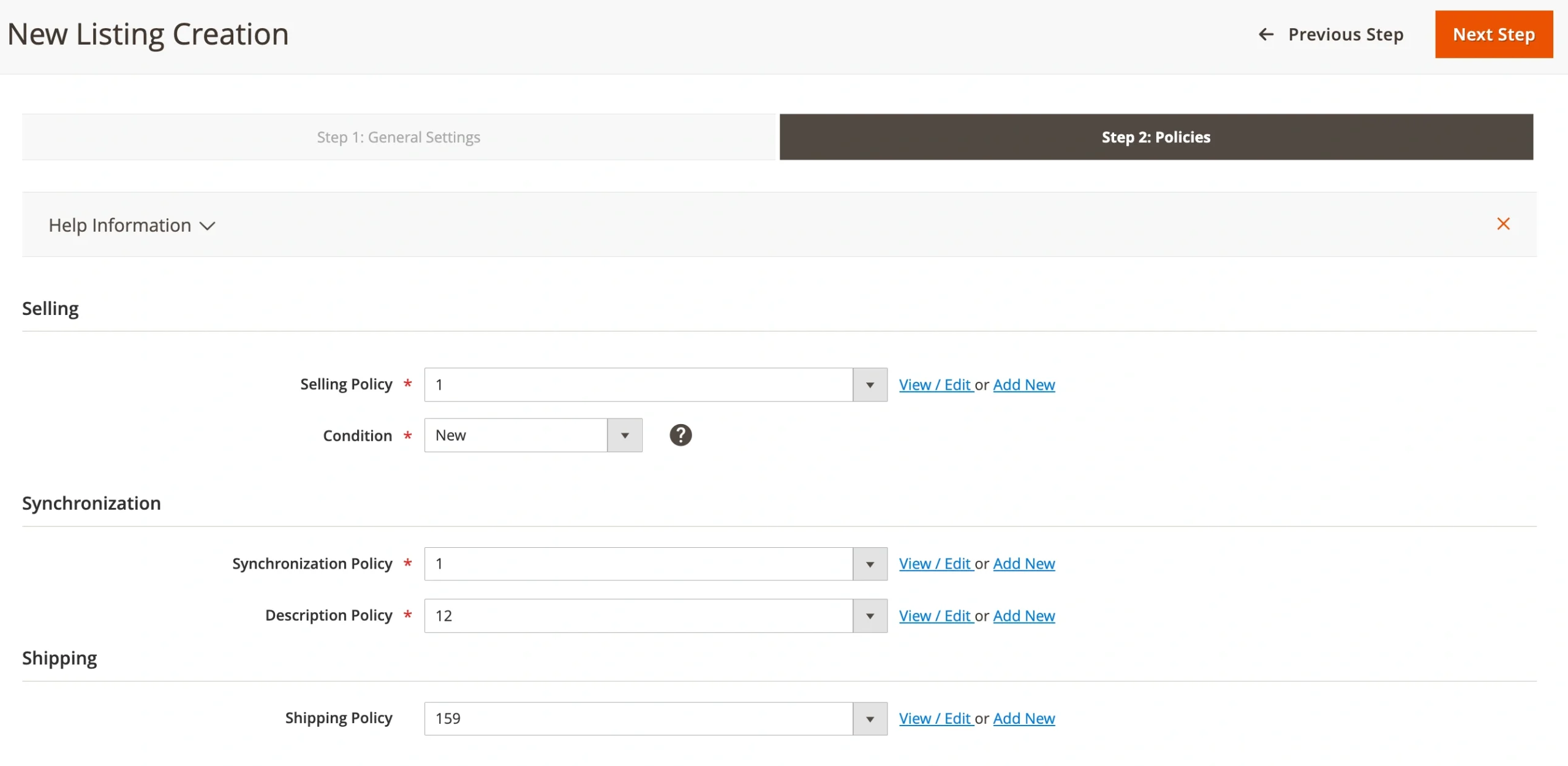
ℹ️ Policies are settings that can be applied across multiple M2E OnBuy Listings.
You can define the following Listing settings:
- Selling Policy – Configure quantity and pricing settings.
- Condition – Specify the condition that best describes the current state of your product.
- Synchronization Policy – Define rules for syncing your items with Magento Catalog data.
- Description Policy – Set titles and detailed descriptions for your OnBuy products to attract more buyers.
- Shipping Policy – Specify shipping settings for your OnBuy orders.
✅ All saved Policies can be modified later in the Configuration section.
Once your M2E OnBuy Listing is created, you need to add your Magento products to it.


