
You can test M2E TikTok Shop Connect with both Live and Sandbox TikTok Shop accounts.
Testing with a Sandbox TikTok Shop account #
To obtain the Sandbox account, go to the TikTok Shop Partner Center, go to Development Kits > Sandbox, and click on "Seller test accounts".
Within the Seller test account section, click "Go to Seller Center" to access the test shop.
After this, you can add this Sandbox account to the M2E TikTok Shop Connect extension by navigating to TikTok Shop > Configuration > Accounts > Add Account.
When adding an account, please log into the Sandbox account instead of the Live one.
💡 You can find a detailed guide on how to add an account to M2E in our documentation.
Once the account is added, you can test the functionality without affecting your live TikTok Shop account.
Testing with a live TikTok Shop account #
To test using your Live account, you need to disable automatic synchronization and proceed with manual actions.
You can disable automatic synchronization under Stores > Configuration > M2E TikTok Shop Connect > Module.
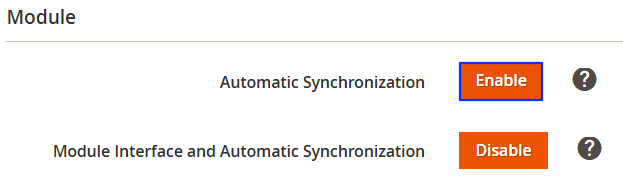
Now you can proceed with your testing.
⚠️ If you have TikTok Shop on both live and test Magento instances, we recommend using different TikTok Shop accounts while testing to avoid double synchronization.
How to test order processing #
Before testing order creation in the M2E TikTok Shop Connect, you need to purchase an item on the TikTok Shop.
Log in to TikTok Shop with another account to place an order or use an existing order.
After the order is placed on TikTok Shop, you can import it manually under TikTok Shop > Sales > Orders.

Once the order is imported, you can view detailed information inside the order, including billing and shipping addresses, logs, etc.
Since automatic order creation is disabled, you can manually initiate Magento order creation by clicking "Create Magento Order."

How to test listing management #
You can create a TikTok Shop Listing and add test products under TikTok Shop > Items > Add Listing.
Once your Listing is ready, you can test manual List, Relist, Revise, and Stop actions on products to see how they update on the TikTok Shop:
- List Item(s): Submit a non-listed product to the TikTok Shop.
- Revise Item(s): Fully update a listed product on the TikTok Shop.
- Relist Item(s): Submit a previously inactive product to the TikTok Shop.
- Stop Item(s) on Channel: Stop a product on the TikTok Shop.
- Remove from TikTok Shop / Remove from Listing: Remove a product on the TikTok Shop and from the M2E TikTok Shop Listing.
After testing: configuring M2E TikTok Shop Connect for use #
Once you've completed your testing and are ready to use the live M2E TikTok Shop, follow these steps to configure the necessary settings:
Step 1: Enable automatic synchronization under Stores > Configuration > M2E TikTok Shop Connect > Module.
Step 2: Ensure automatic Magento order creation is enabled under TikTok Shop > Configuration > Accounts > Orders.
Step 3: Ensure the import of existing TikTok Shop items is enabled under TikTok Shop > Configuration > Accounts > Unmanaged Listings.
Step 4: Ensure Synchronization Policies are correctly configured to manage smooth automatic synchronization.


