
SKU Settings #
Source #
Please select a source of SKU value for your Amazon Items.

- Product ID - Magento Product ID value will be sent to Amazon as an Item SKU.
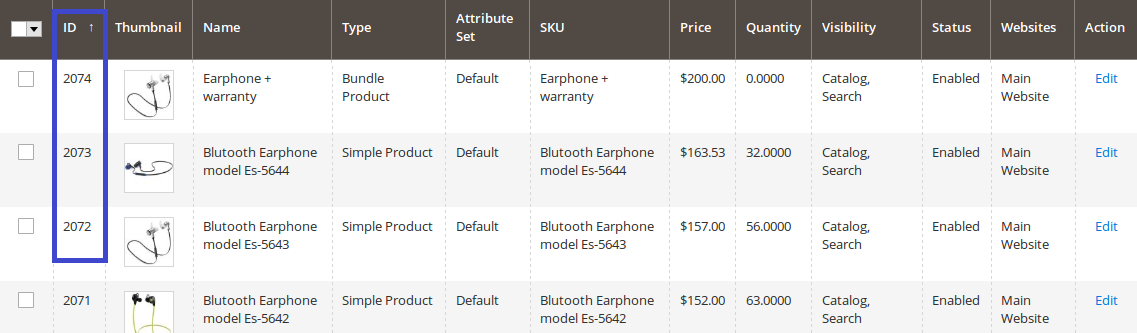
- Product SKU - Magento Product SKU value will be sent to Amazon as an Item SKU.

- Magento Attribute - selected Magento Attribute value will be sent to Amazon as an Item SKU.
Amazon SKU Modification #
You can modify the SKU of Magento Product when listing it on the Channel. This may come in handy in the following cases:
- to list the same Magento Product under different ASIN/ISBN;
- to sell the same Magento Product as MFN and AFN item simultaneously;
to separate Amazon sales and Magento store ones.
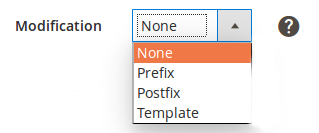
Select how M2E Pro should modify the Item SKU:
- Prefix – a specified value will be added at the beginning of the initial SKU value.
- Postfix – a specified value will be added at the end of the initial SKU value.
- Template – a new SKU value will be generated based on the entered pattern. For example, if the initial product SKU is 123 and your modification template is %value%-567, Amazon Item SKU will be 123-567.
⚠️ M2E Pro generates SKU while attempting to list the item on Amazon. Once the item is listed, the SKU value cannot be updated during the Revise/Relist action.
Generate #

If your Magento Product SKU exceeds the Amazon limit of 40 characters, you can enable the Generate option. M2E Pro will generate a random SKU value for your Channel Item.
Policies #
Selling Policy #
Select the Selling Policy that you want to use for the Listing or click Add New to create a new Selling Policy.

Click View/Edit to check the settings provided in the selected Policy.
Learn how to configure the Selling Policy in this article.
Synchronization Policy #
Select the Synchronization Policy that you want to use for the Listing or click Add New to create a new Synchronization Policy.
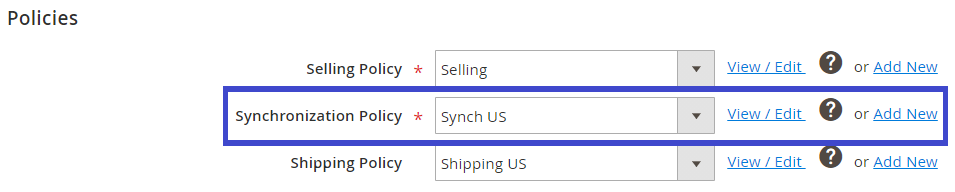
Click View/Edit to check the settings provided in the selected Policy.
Learn how to configure the Synchronization Policy in this article.
Shipping Policy #
Select the Shipping Policy that you want to use for the Listing or click Add New to create a new Shipping Policy.

Using Shipping Policy, you can apply Amazon Shipping Templates to your products in M2E Pro Listings. Click View/Edit to check the settings provided in the selected Policy.
Learn how to configure the Shipping Policy in this article.
Condition Settings #
Condition #
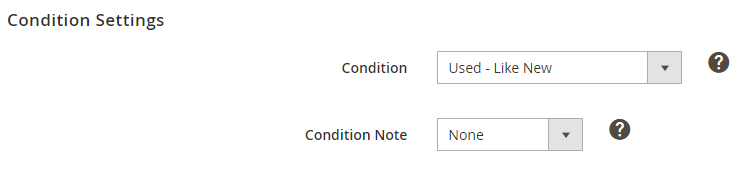
Select the Condition of the item(s) you are going to list on Amazon through this Listing. You have two options:
- Recommended Value – a list of predefined values for Item Condition.
- Magento Attribute – an Attribute that contains an Item Condition value. Make sure to specify the Magento Attribute value in the following format:
| Value | Description |
|---|---|
| new_new | New |
| new_open_box | New - Open Box. |
| new_oem | New - OEM. |
| refurbished_refurbished | Refurbished |
| used_like_new | Used - Like New. |
| used_very_good | Used - Very Good. |
| used_good | Used - Good. |
| used_acceptable | Used - Acceptable. |
| collectible_like_new | Collectible - Like New. |
| collectible_very_good | Collectible - Very Good. |
| collectible_good | Collectible - Good. |
| collectible_acceptable | Collectible - Acceptable. |
| club_club | Club |
Condition Note #
Provide a short description of Item's Condition. Either enter the custom text or insert Magento Attribute that contains the description.

Listing Photos #
Add Listing Photos for Used and Collectible Items that will be submitted to Amazon.

Select a source for the item’s Main Image – either a Product Base Image or a Magento Attribute value.
Then you can upload up to 5 additional images for your Item or take them from a Magento Attribute value.
Listing Photos are available to buyers on Amazon’s listing page.
M2E Pro can automatically revise Listing Photos if the Images option is enabled in Revise Rules of the Synchronization Policy used for this Listing.
ℹ️ If Product Condition is different from Used or Collectible (even if Condition value is taken from selected Magento Attribute), the Listing Photos option will not be used.
Gift Settings #
If you are offering a Gift Wrap or Gift Message feature for your items, you can enable the corresponding options in your Listing Settings:
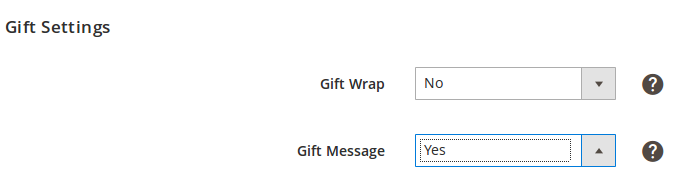
These options are applied only at the Item offer level.
Make sure that you have also enabled and set up Gift Message options in Global Account Settings of your Seller Central (Settings > Gift Options).
✅ Check out this article on how to configure Gift Messages for your Amazon and Magento orders using M2E Pro.
Additional Settings #
Production Time #
Specify the number of days that the seller needs to prepare and ship a product after the order is confirmed.

Either choose one of the recommended values (from 1 day to 30 days) or take the value from the Magento Attribute.
Restock Date #
Specify the date when you will be able to ship any back-ordered items to a buyer.

Either enter a custom value or take the value from the Magento Attribute.
✅ At any time, you can edit the Selling Settings of your Listing. For that, go to Amazon Integration > Listings > M2E Pro and use the individual actions menu next to the Listing. Or click Edit Settings > Selling on top of the individual Listing page.
Product Identifiers #
Specify Product Identifier values for your Amazon items at a Listing level. Amazon uses the indicated Product IDs to associate your item with the existing one from the catalog or to create a new ASIN/ISBN.
⚠️ Note that Product ID settings adjusted at the Listing level will override any previously configured global settings.

- ASIN/ISBN – select a Magento Attribute that contains the ASIN/ISBN value for the products you want to list. The selected attribute will be used during the automatic search for Amazon products.
- UPC/EAN – select a Magento Attribute that contains the UPC/EAN value for the products you want to list. The selected attribute will be used to associate your item with Amazon catalog or create a new ASIN/ISBN.
⚠️ To create an Amazon Product with a new ASIN/ISBN, you should specify a valid UPC/EAN attribute.
If an item with the specified UPC/EAN already exists on Amazon, M2E Pro will link your item to the existing Amazon Product instead of creating a new one at the moment of the “List” action.
ℹ️ If you have selected the Amazon exemption, UPC/EAN is not required, but you can set it up if necessary.
The UPC/EAN value is submitted only when a new ASIN/ISBN is created. If you change the value, it will not be submitted again.


