
Managing product listings across multiple channels can be challenging, especially when errors arise. To help you quickly detect critical listing issues, we have introduced the Items by Issue functionality.
The Items by Issue feature gives you complete visibility into listing errors. It helps you identify, prioritize, and resolve issues before they impact your sales. No more guesswork, no more endless troubleshooting — just a clear, structured way to manage your products.
What is "Items by Issue" #
Every time you update or list a product, marketplaces like eBay, Amazon, Walmart, etc. validate your data. If something is missing or incorrect, their APIs return an error, stopping the product from being listed or preventing updates on existing listings. Instead of searching through logs or guessing what went wrong, M2E automatically detects and categorizes these issues for you.
With Items by Issue, you get:
- A real-time snapshot of all listing errors in one place
- A breakdown of affected products so you know exactly what needs attention
- An impact rate indicator showing the percentage of products facing each issue
- Direct links to error guides, making troubleshooting faster than ever (in progress)
ℹ️ The Items by Issue feature is available for M2E Pro (eBay and Amazon integrations), as well as M2E Connect (TikTok Shop, Kaufland, and OTTO integrations).
How the feature helps #
Apart from giving you the overall health status of your product listings on Channels, the Items by Issue feature also helps you to:
- Eliminate repetitive errors. If a product can’t be listed due to missing data, M2E pauses auto-sync attempts for 24 hours. This prevents unnecessary API calls and excessive error logs while you work on a fix.
- Save time and reduce frustration. Instead of blindly troubleshooting, go straight to the issue, make adjustments, and manually trigger a re-sync when you’re ready.
- Prioritize what matters most. Critical errors like account authorization failures or missing required fields can block sales. With Items by Issue, you immediately see which problems need urgent attention.
How to use "Items by Issue" #
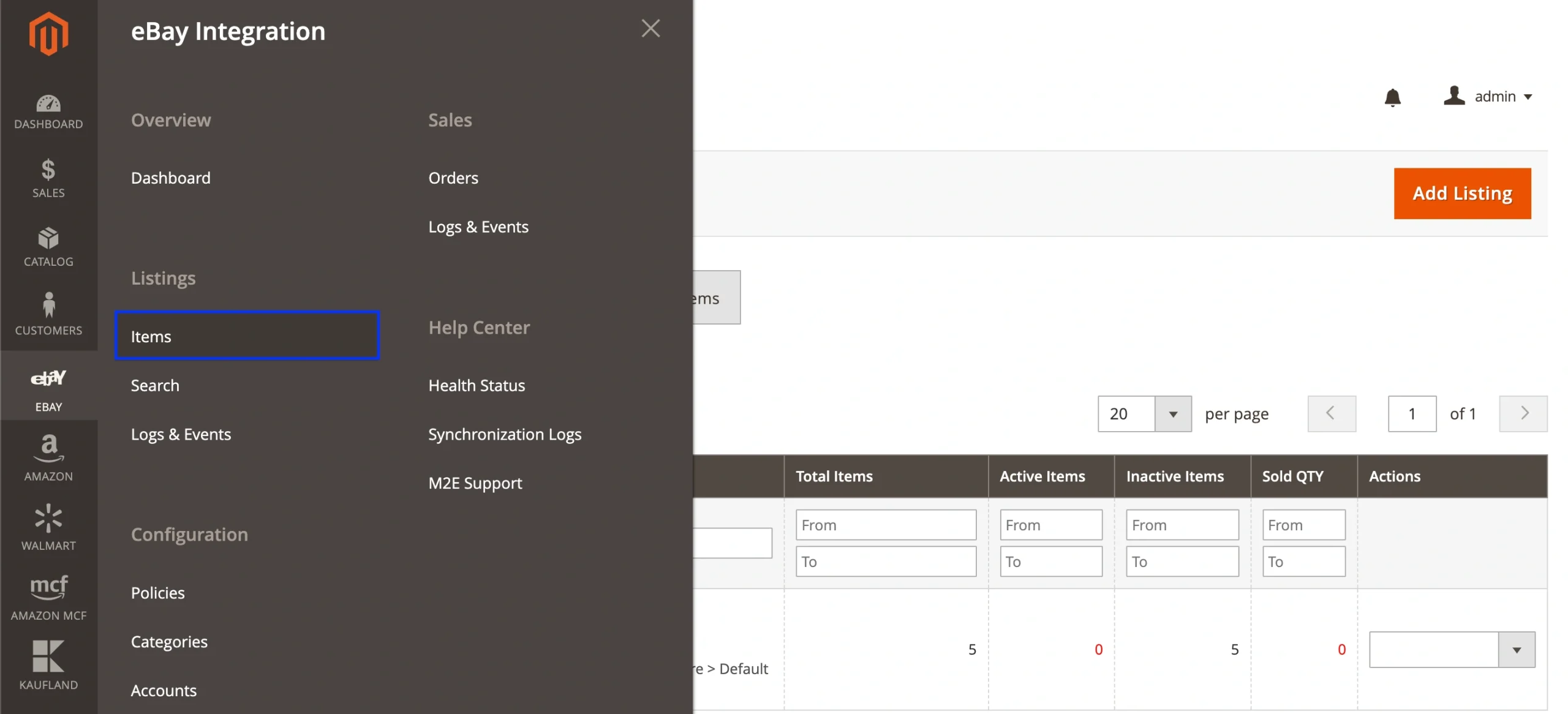
1) In M2E, open the Channel menu and click Listings > Items.
2) Switch to the Items by Issue tab — this is your command center for troubleshooting.
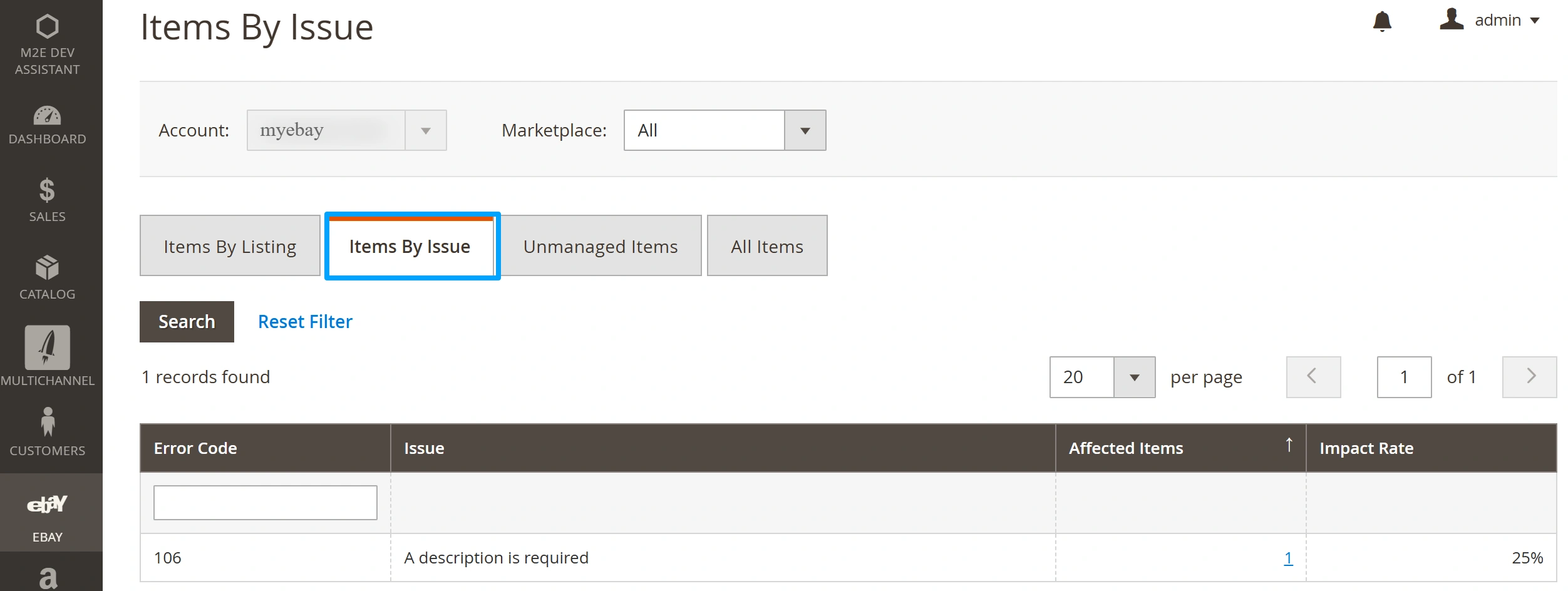
3) Review the error summary, including the issue description, affected products, and impact rate.

4) Click on the number in the Affected Items column to access a complete list of items filtered by this error.
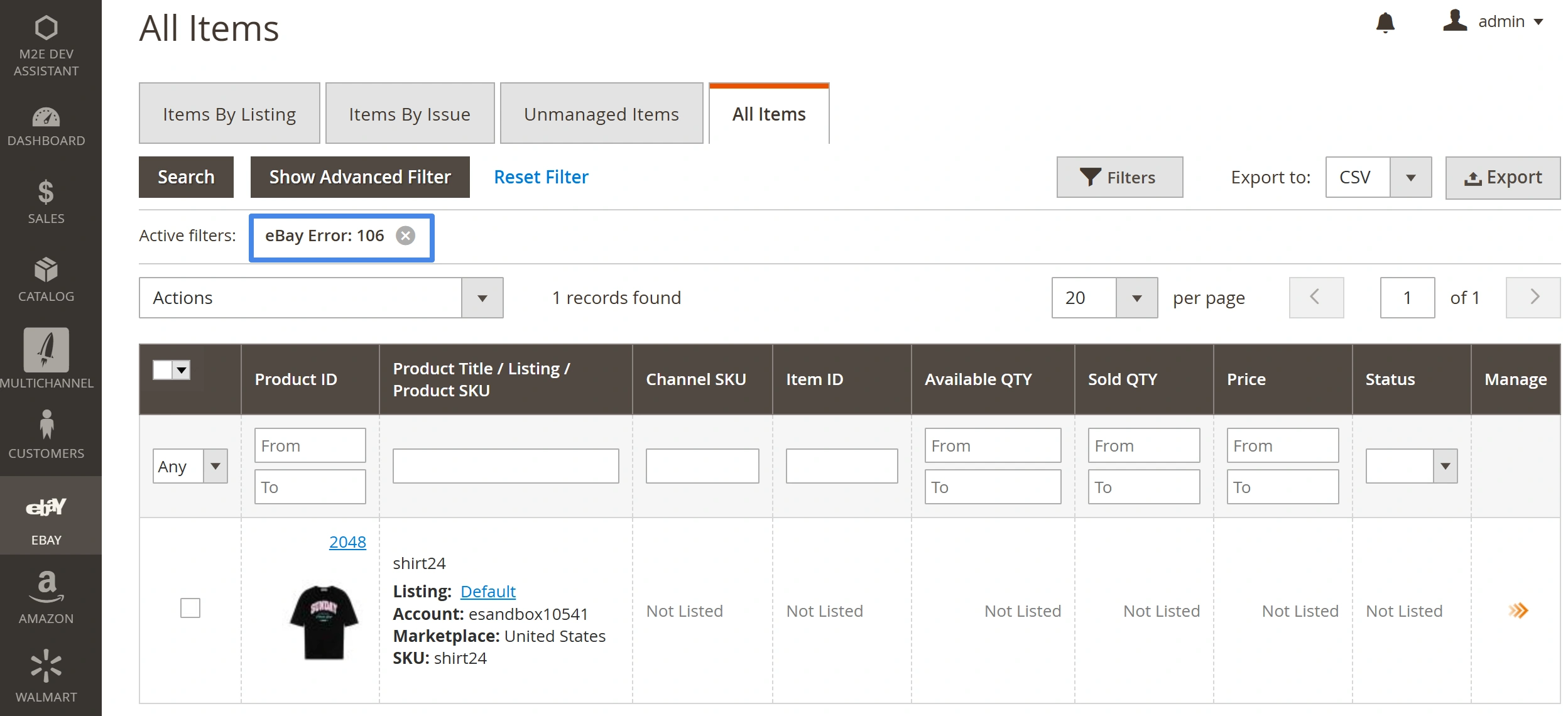
5) Fix the issue (update product data, adjust settings, or reauthorize accounts).
6) Manually re-sync the affected items or wait for the next automatic action.
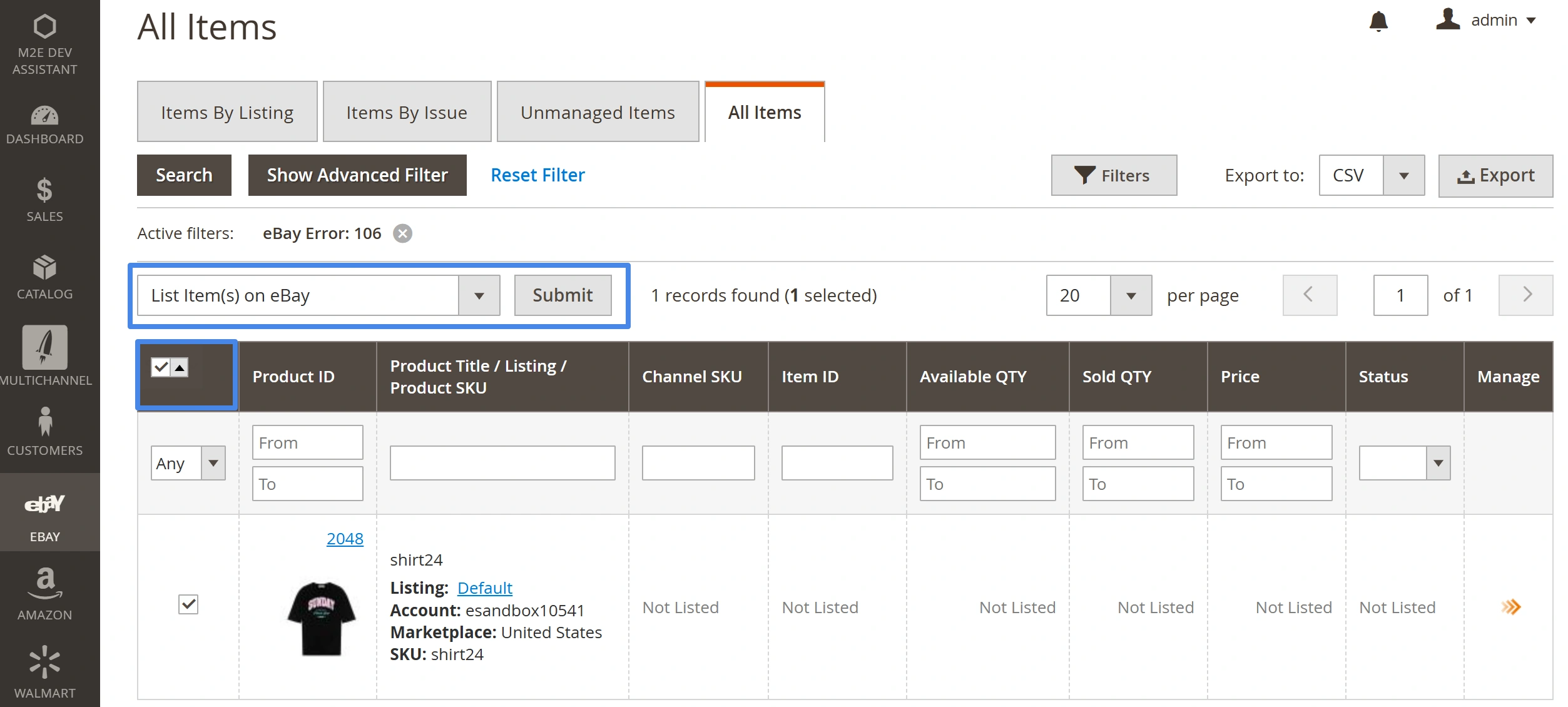
Errors happen, but with Items by Issue, you can resolve them before they impact your sales. Stay proactive, keep your listings healthy, and ensure your products are always ready to sell.


