
✅ You can save the settings as a Policy to apply the same configurations to the different M2E OTTO Listings or override the Listing settings for individual Items.
Quantity #
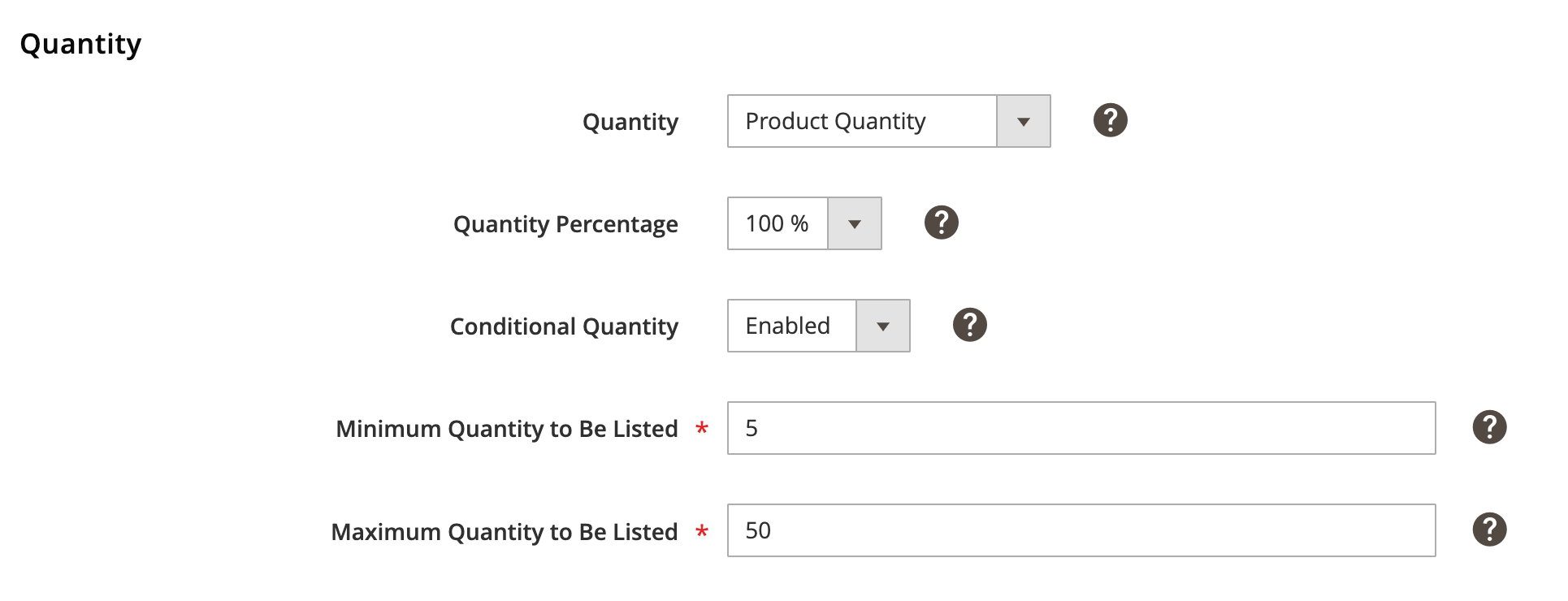
Quantity – the number of items you want to sell on OTTO. There are several options available:
- Product Quantity – the number of items on OTTO will be the same as in the Magento Inventory.
- Custom Value – allows you to provide the Quantity value that should be displayed on OTTO.
- Magento Attribute – takes the Quantity value from the Attribute you set.
Quantity Percentage – allows you to set the percentage for calculating item quantity to be listed on OTTO based on Product Quantity or a value from Magento Attribute.
For example, if the Quantity Percentage is set to 80% and the Product Quantity is 10, the Quantity to be Listed on OTTO will be 8.
Conditional Quantity (only available when the Product Quantity or Magento Attribute is chosen) – allows you to set a maximum and minimum number of items to sell on OTTO.
- Minimum Quantity to Be Listed – e.g., if you have 2 units in stock but set a Min Quantity to be Listed of 5, the item will not be listed on OTTO. Otherwise, the Item will be listed with Quantity according to the settings in Selling Policy.
- Maximum Quantity to Be Listed – e.g., if you have 10 units in stock but want to keep 2 units back, set a Maximum Quantity to Be Listed of 8.
Price #
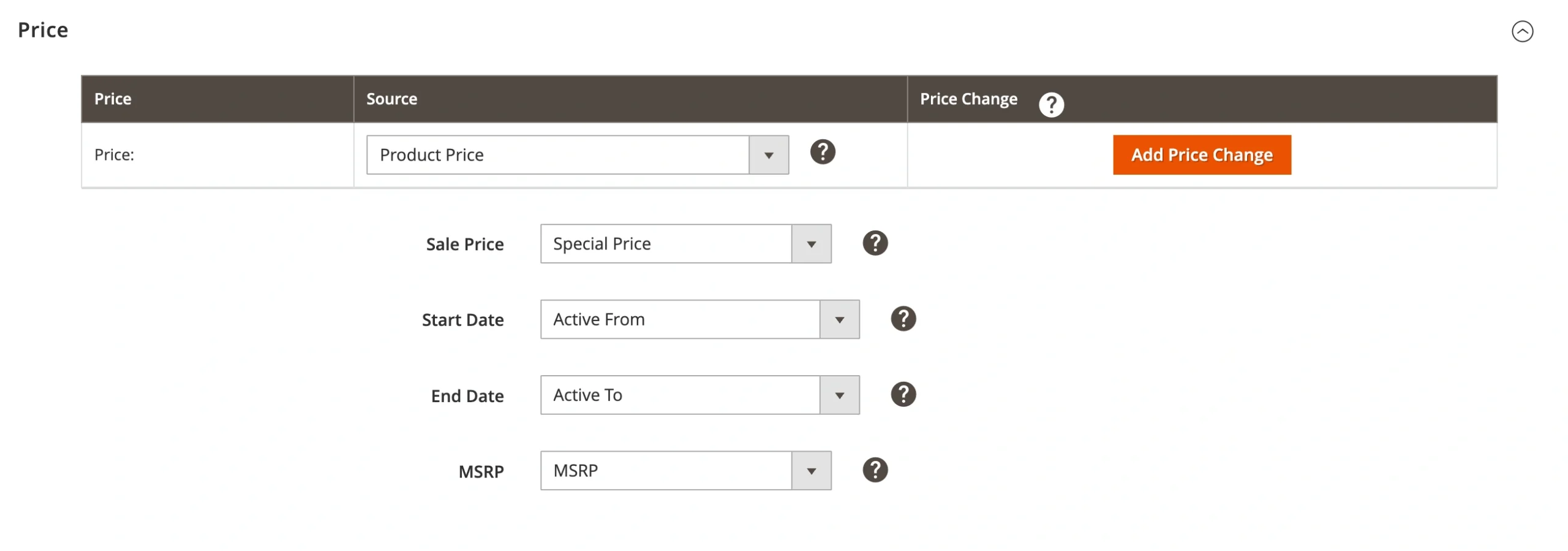
Price – select an item price source:
- Product Price – OTTO item price will be equal to the corresponding Magento Product price.
- Special Price – Special Price of the corresponding Magento Product will be sent to OTTO.
- Magento Attribute – the price value for OTTO item will be taken from the selected Attribute. Magento Attribute must contain a numeric value.
⚠️ If the Special Price attribute is selected from the Magento Attribute group and it does not contain any value, the Product Price will not be used instead. The item will not be listed on OTTO.
If the Special Price attribute is selected as a price source, but it is not defined in Magento Product settings, Product Price will be used instead.
If the End Date of the Special Price attribute has already expired, the extension will revise the product and send the Product Price value to OTTO.
Price Change – adjust Magento Price value that will be submitted to OTTO.
You can add multiple price modifications for your products. For that, click Add Price Change, choose how you want to change the price, and enter the relevant value.
There are four available price modification options:
- Absolute Value increase – increases OTTO item price compared to the corresponding Magento Product price by the specified number of units.
- Absolute Value decrease – reduces OTTO item price compared to the corresponding Magento Product price by the specified number of units.
- Percentage increase (%) – increases OTTO item price compared to the corresponding Magento Product price by the specified percent value.
- Percentage decrease (%) – reduces OTTO item price compared to the corresponding Magento Product price by the specified percent value.
Also, you can opt for Magento Attribute as a source of product price modification.
✅ It is possible to use the Price Change option in order to set a shipping cost that will be included in the product price.
Sale Price – Select the Magento attribute that contains the sale price value.
- Start Date – Choose the date when the sale price becomes active on OTTO.
- End Date – Set the date when the sale price is no longer valid.
MSRP – Select the Magento attribute that contains the Manufacturer's Suggested Retail Price value.


