
When selling on Amazon, you can delegate all the inventory storage and shipping matters to the Channel itself by means of the Fulfillment by Amazon (FBA) service. M2E Pro offers support for FBA as well, allowing sellers to import and manage products and orders fulfilled by Amazon.
💡 Watch this video to learn how to set up Amazon FBA in M2E Pro.
How to manage FBA products #
To set up FBA item management in M2E Pro, first, make sure that your products are added to M2E Pro Listings and already listed on Amazon. By default, items in Listings have the MFN fulfillment type, which means that they are merchant-fulfilled.
In order to start managing your MFN items as FBA ones, you need to switch them to Amazon fulfillment (as in AFN).
⚠️ Before you change the item fulfillment type, keep in mind that:
- Switching to AFN/MFN is available only in case there are no actions currently running for the item.
- Only Simple and Child Products can have their fulfillment type defined.
To switch your items to the Amazon fulfillment, follow these steps:
- Go to your M2E Pro Listing and switch to the Seller Central View Mode on top of the grid.
- Select all the relevant items and submit the Switch to AFN action from the mass actions menu.

ℹ️ If you have an existing Amazon FBA inventory that is not managed via M2E Pro, you can import it using the Unmanaged Listings functionality. The AFN fulfillment type will be preserved, so there is no need to perform switching after the items are moved to the Listing.
Once the item fulfillment type is set to AFN, you can continue managing your item just like any regular product in M2E Pro, including tracking the current quantity of AFN items:

Listing the same Product as FBA and FBM Item at once #
You can provide both FBA and FBM (Fulfillment by Merchant) options for a Magento Product in M2E Pro if necessary. For that, you will have to list the item twice under the same ASIN/ISBN.
✅ Click here for detailed instructions on how to list the same Magento Product under multiple ASIN(s)/ISBN(s).
The best way to do it is to separate your AFN and MFN items into two different Listings. When setting up one of these Listings, make sure to configure your SKU settings accordingly. This is necessary to assign a different SKU to the same Product.
You may choose one of three options for modifying the Product SKU:
- Select a different SKU source (for example, a Product ID or Magento Attribute)
- Modify the SKU by using a specific prefix, postfix, or template
- Generate a new random SKU value
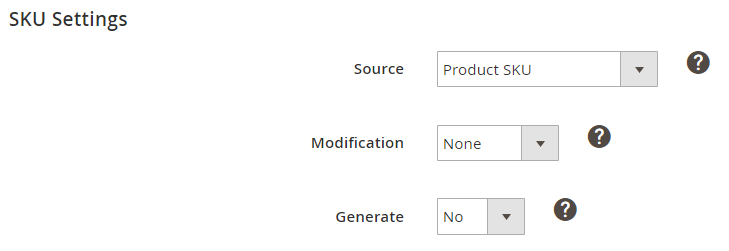
✅ To edit the SKU settings of the existing Listing, click on the Edit Settings > Selling button on top of the Products grid.
As a result, the AFN and MFN versions of your item will be listed with different SKUs, and you will avoid SKU conflicts on Amazon’s side.
Once the items are listed on Amazon, remember to switch the fulfillment option from MFN to AFN for items in your FBA Listing.
How to synchronize FBA stock with Magento #
You can set M2E Pro to automatically update product stock in your Magento Inventory Source based on the quantity of the corresponding Amazon FBA product.
For that, navigate to your Account configurations (Amazon Integration > Configuration > Accounts) and enable the corresponding option in the FBA Inventory tab.

Once the QTY value of an FBA product is reported by Amazon, it gets imported into the predefined Inventory Source. Select the needed inventory source or create a new one by clicking Manage Sources if you don't want the FBA product stock information to have any effect on your Magento inventory.

⚠️ To use the Amazon FBA stock import, the Inventory Management module (formerly MSI) must be enabled for your Adobe Commerce.
How to manage FBA orders #
M2E Pro automatically imports both merchant- and Amazon-fulfilled orders. To simplify the search for your FBA orders, use the Fulfillment filter in the Orders grid (Amazon Integration > Sales > Orders):

Just like with any regular Amazon FBM order, you can view all the necessary information about FBA orders, such as status, shipping details, AFN warehouse, etc. The majority of order management options are also available for Amazon-fulfilled orders.
⚠️ You cannot manage shipments for Amazon-fulfilled orders in Magento or M2E Pro. FBA orders are shipped only via the Amazon Fulfillment Center.
To set up your preferences for handling orders fulfilled by Amazon, navigate to the FBA Orders Settings section under the Orders tab (Amazon Integration > Configuration > Accounts):
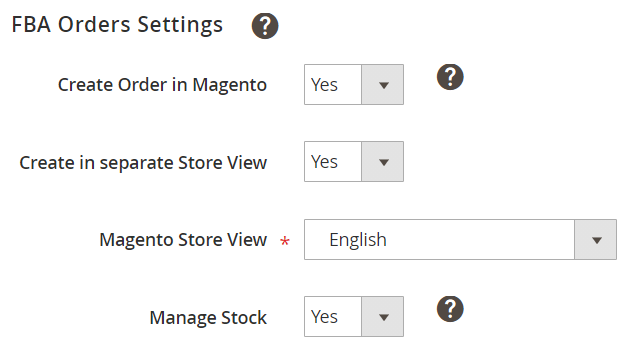
There, you can set M2E Pro to create Magento orders for corresponding FBA ones by enabling a dedicated option. If necessary, select a Store View where M2E Pro should keep Magento Orders created for Amazon-fulfilled ones.
ℹ️ To separate your Amazon FBA orders from Magento ones, you can indicate a certain prefix that will be added to the Magento order number (e.g.amzfba000001400).
Find this option in the Magento Order Number section under the Orders tab (Amazon Integration > Configuration > Accounts).
Depending on your business needs, you may choose whether the stock of FBA sales should be managed in Magento or not.
By enabling the Manage Stock option, the quantity of the Magento Product will be reduced appropriately once the FBA order is created in Magento. If you set this option to “No”, the quantity of the Magento Product will not be affected.
⚠️ Magento does not allow creating orders for out-of-stock Products.
Thus, a Magento order can be created for a corresponding FBA order only if your Magento Product has a sufficient quantity available. This rule applies even if you have disabled stock management for your FBA sales in Magento.


