
Learn how to configure your M2E OTTO Connect extension on a global level. You can manage your Module settings, provide general price and quantity settings, define your interface and log history preferences, update an Extension Key, etc. Let's look at the available options.
Go to Stores > Settings > Configuration > M2E OTTO.
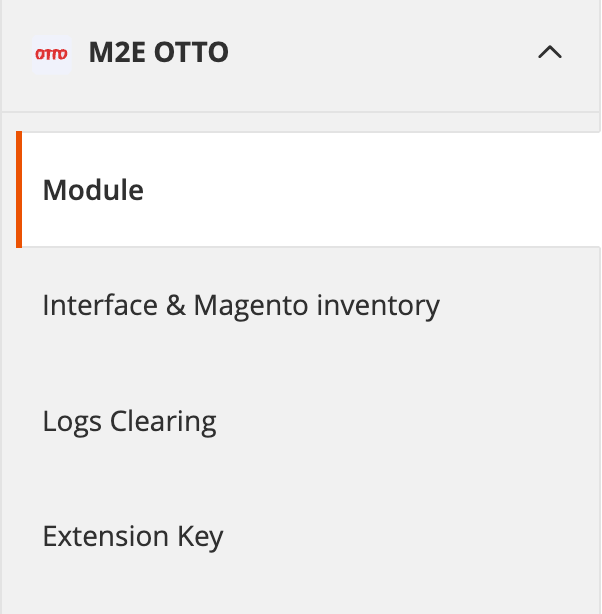
Module #
Here, you can manage the Module and Automatic Synchronization settings.

Automatic Synchronization – if you disable this option, inventory and order synchronization stops. The Module interface remains available.
Module Interface and Automatic Synchronization – inventory and order synchronization stops. The Module interface becomes unavailable.
⚠️ Total sales will be counted through OTTO accounts connected to the M2E OTTO subscription. If you want to stop the service for a certain account, please delete it from your subscription on M2E Accounts.
Interface & Magento Inventory #
Provide global settings for the Module Interface and configurations for Price & Quantity.
Interface #
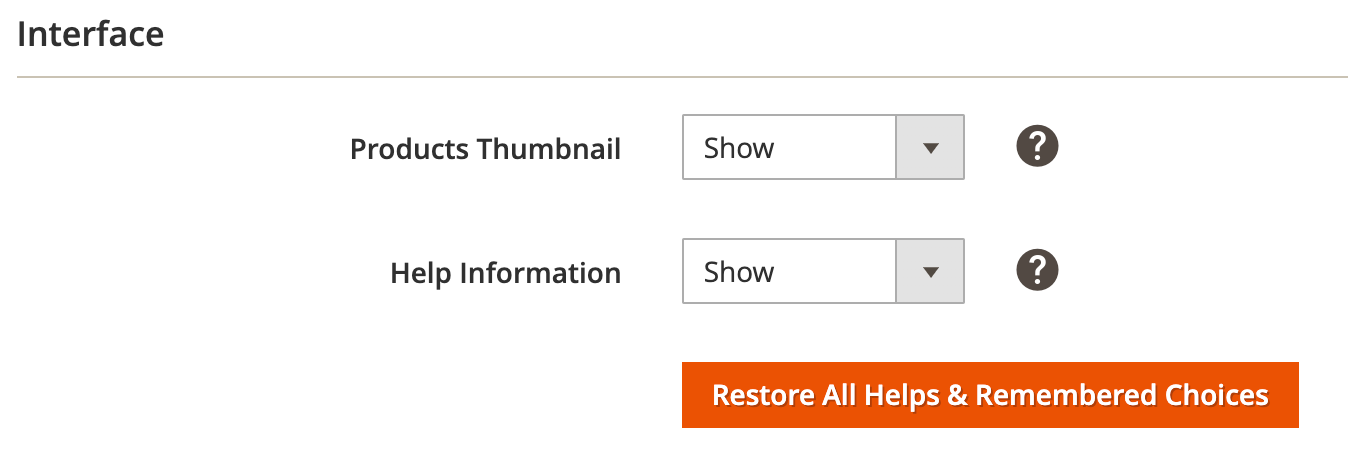
Set the visual interface preferences:
- Products Thumbnails – choose to show/not show product thumbnails.
- Help Information – choose to show/not show Help info.
Quantity & Price #

Specify the general Quantity settings:
- Manage Stock "No", Backorders – enable if you are going to allow backorders for a product or do not manage stock in Magento.
✅ It's important to enable and properly configure Relist Rules when using the Backorders feature. Item will be successfully relisted only if you provide the following setup:
- Product Status > Enabled
- Stock Availability > In Stock
- Quantity > Any
⚠️ Product Stock Availability must be set to In-Stock status when backorders are enabled. Otherwise, the Magento order cannot be created.
- Quantity To Be Listed – set a number that you want to send as available QTY to OTTO. For example, if you have the Manage Stock option set to "No" in Magento Product and set this value to 10, 10 units will be sent as available Quantity to OTTO.
Specify general Price settings:
- Convert Magento Price Attribute — automatic conversion of Magento Price Attribute values.
If you list your product on OTTO Market with different Base Currency and Product Price/Shipping Cost values are set to be taken from Magento Attribute with Price input type, enable the automatic currency conversion first.
⚠️ Automatic conversion will be applied to the value set in Magento Attribute with the Price input type, which you choose from the Magento Attribute group of the drop-down.
✅ The conversion of Product Price and Special Price can be configured through the default Magento Settings.
Direct Database Changes #
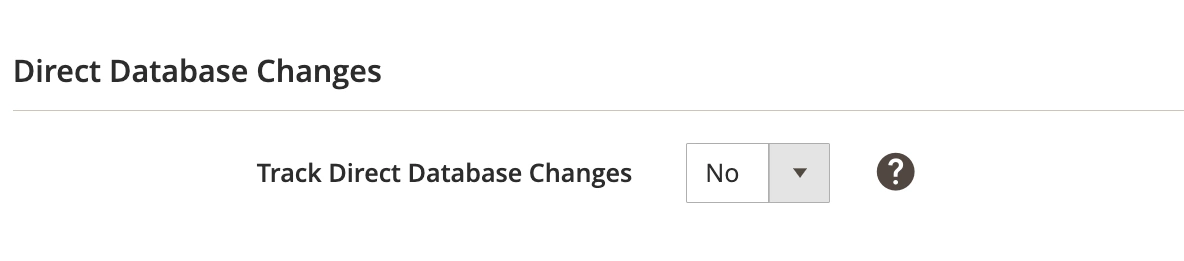
Enable this option to ensure M2E Connect detects changes when Magento Product information is updated in the database directly, not through Magento Core Models.
Logs Clearing #
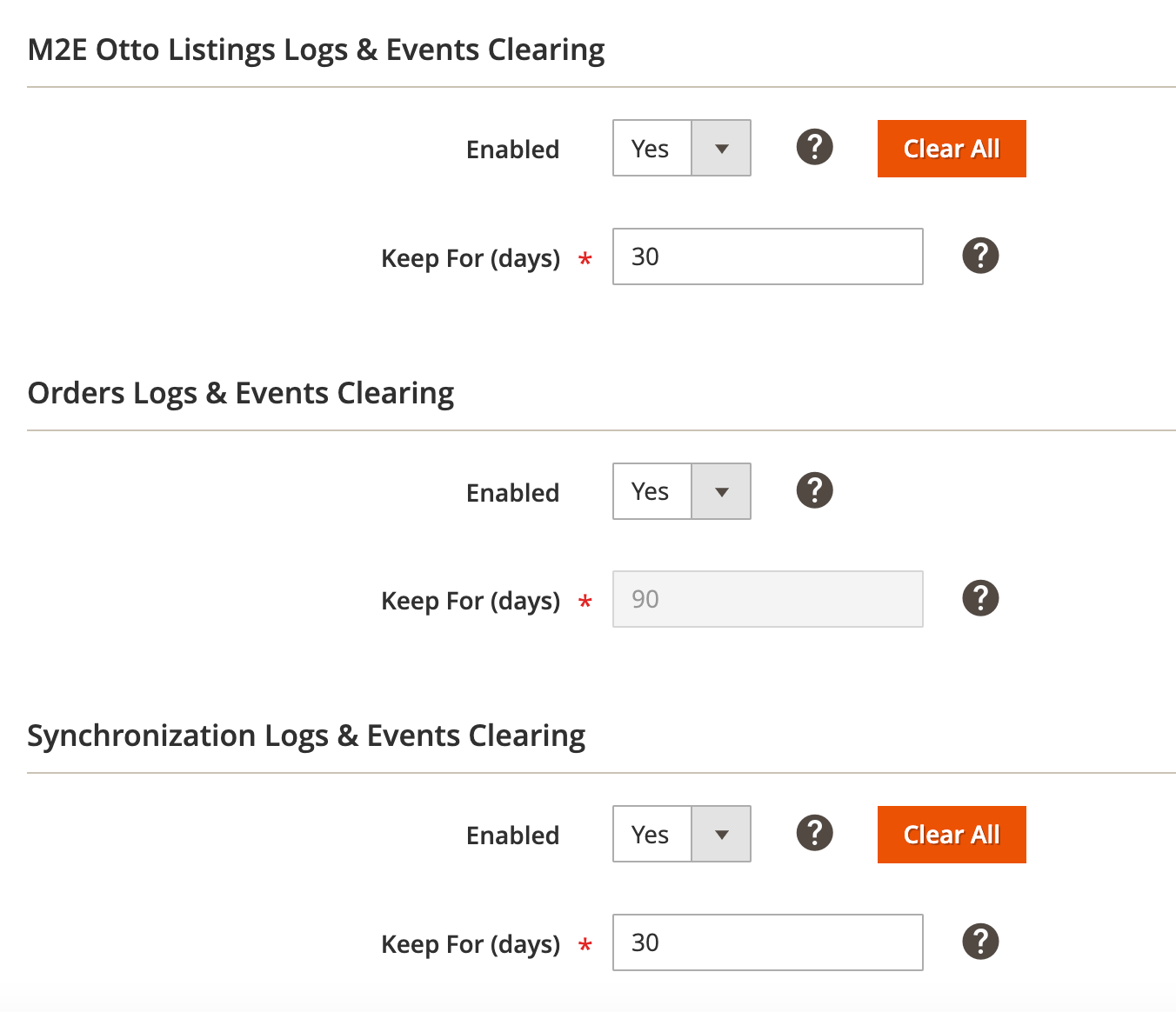
M2E OTTO Connect automatically clears log history based on your preferences.
- Enabled – enable/disable the log-clearing feature.
- Keep For (days) – indicate how long the log records should be stored.
- Run Now – launch the log-clearing task immediately.
- Clear All – clear all available log records.
Extension Key #
License #
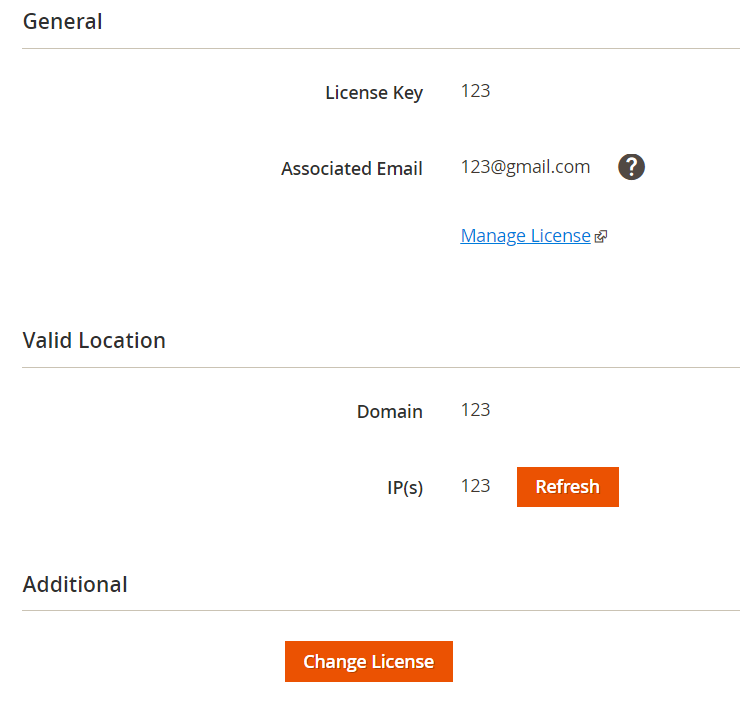
To use M2E OTTO Connect, you need to register on M2E Accounts and generate a License Key.
Your email address used during the initial setup of M2E OTTO Connect automatically registers you on M2E Accounts. After logging in, you can manage your Subscription and Billing information.
License Key is a unique identifier for M2E OTTO Connect instance, generated automatically and strictly associated with your Magento's current IP and Domain.
The same License Key cannot be used for different domains, sub-domains, or IPs. If your Magento Server changes its location, the new License Key must be obtained and provided to M2E OTTO License section.
Click Save Config after the changes are made.


