
This article explains the basics of shipping settings on Walmart marketplace via M2E Pro.
Walmart shipping overview #
Shipping settings are global and must be configured in your Seller Center under Settings > Partner Profile > Shipping.
Depending on the criteria that impact a cost calculation, you may select one of the two shipping models: Tiered Pricing or Item/Weight Pricing. Please be advised that shipping models cannot be combined. The settings saved for one model will override the settings previously specified for another model. You can read more information in Walmart Partner Profile Settings article.
After you select your shipping model, you have to set up shipping methods. Walmart marketplace offers several default shipping methods and requires sellers to support at least one. The available shipping methods vary depending on Walmart marketplace. Please refer to Walmart US and Walmart CA documentation for more details.
Shipping overrides #
⚠️ Override Mode functionality is currently unavailable.
Using M2E Pro Selling Policy, you may create the overrides to your global shipping settings. To do it, please complete the steps below.
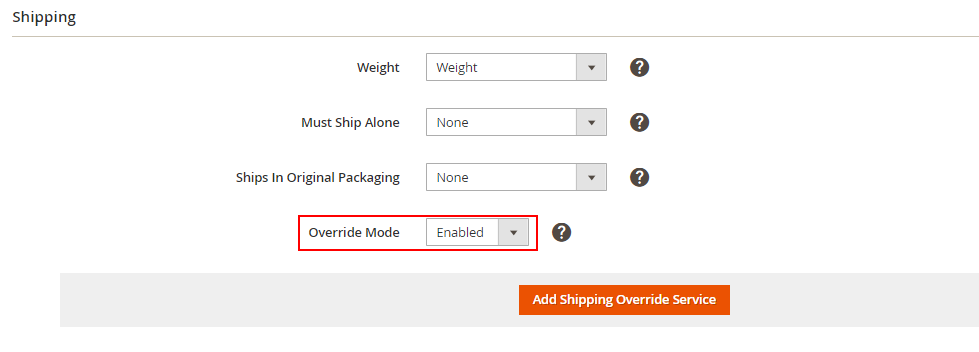
Step 1. Under the Shipping section, enable the Override Mode option, then click Add Shipping Override Service to open the override options:
Step 2. Select a shipping method that you want to override or add to your global shipping settings:

Step 3. Define the region to which you want to apply these settings:

Step 4. Choose an action, i.e. Add/Override or Remove.

Step 5. Set up the mode, i.e. free or paid. The paid mode is offered by two options: a custom value or custom attribute.

Step 6. Provide the shipping cost if you select one of the paid mode options:

The override information will be applied to the relevant products on the Walmart website.
⚠️ Please be advised that:
- When you set an override for one shipping method for the product, the other shipping methods will still be taken from the global shipping settings. For example, if you have enabled the Standard and Expedited shipping in Seller Center, but you set an override for the Standard method for the product, the global settings for Expedited shipping will still apply to this product.
- When you override to enable the Freight method for the product, it will replace all other shipping methods that you configure in the Seller Center for this particular product.


