
You have to set categories and attributes (specifics) for your Magento products when adding them to M2E Kaufland Listing. Products without the category and related attributes can’t be listed on Kaufland.
By providing this information, you can ensure your products are accurately categorized and described. This also helps enhance product visibility and appeal on Kaufland.
ℹ️ Setting category is only available when adding new products to the Kaulfand catalog.
Assign categories #
Once you’ve selected products to be added to your M2E Kaufland Listing, you will need to assign them to the appropriate category. For that, choose the preferred category settings first.
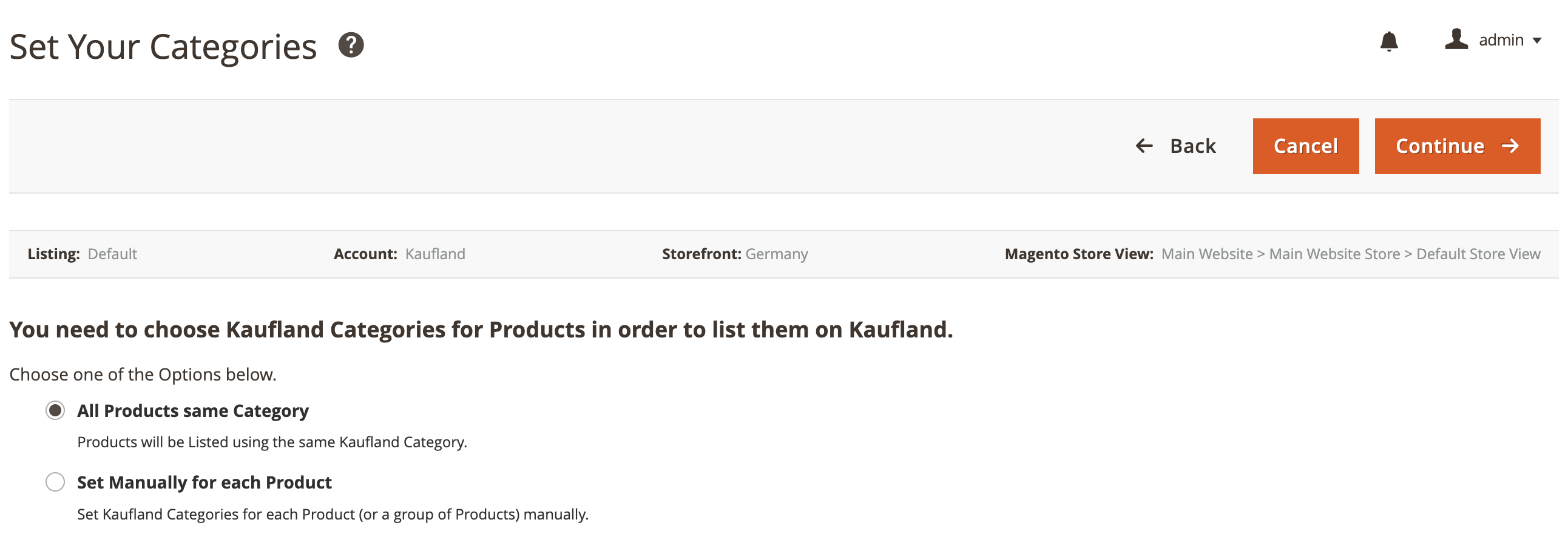
All Products same Category #
The same category settings will be applied to all products in M2E Kaufland Listing. Click the Edit button to start assigning the Kaufland category to your products.

You can choose from the previously saved categories or browse through the category tree to find the most suitable one. Confirm your choice to proceed.

Set Manually for each Product #
Set a relevant Kaufland category manually for each of the selected products.
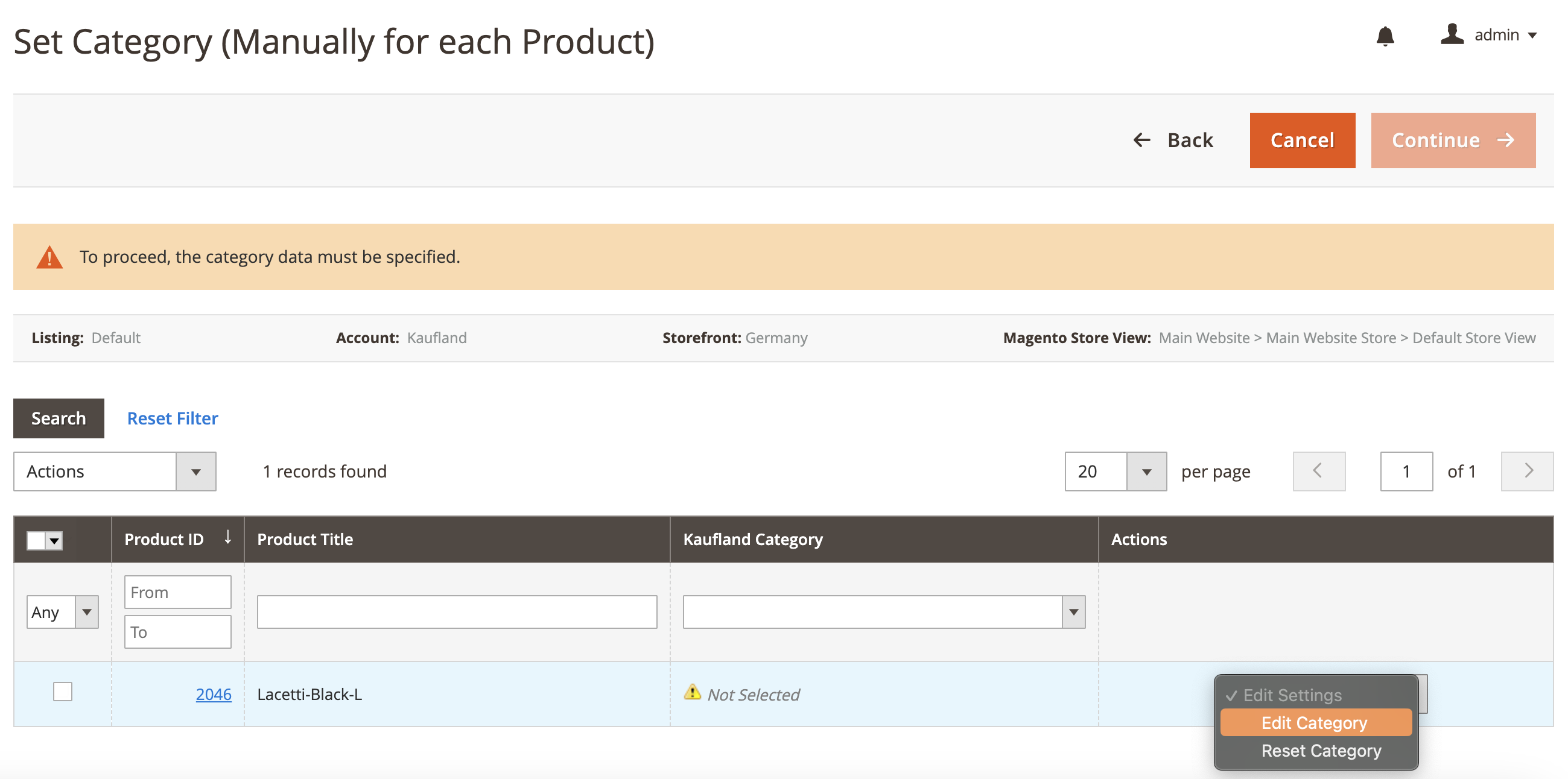
Click Edit Category to assign the corresponding Kaufland category to your product. You can choose from the previously saved categories or browse through the category tree to find the most suitable one. Confirm your choice to proceed.
Assign attributes #
Once the category is set, you should assign product attributes (specifics) per category. Attributes define such product details as size, color, brand, style, etc., and help customers make informed purchasing decisions.
Click Edit to start assigning the attributes.
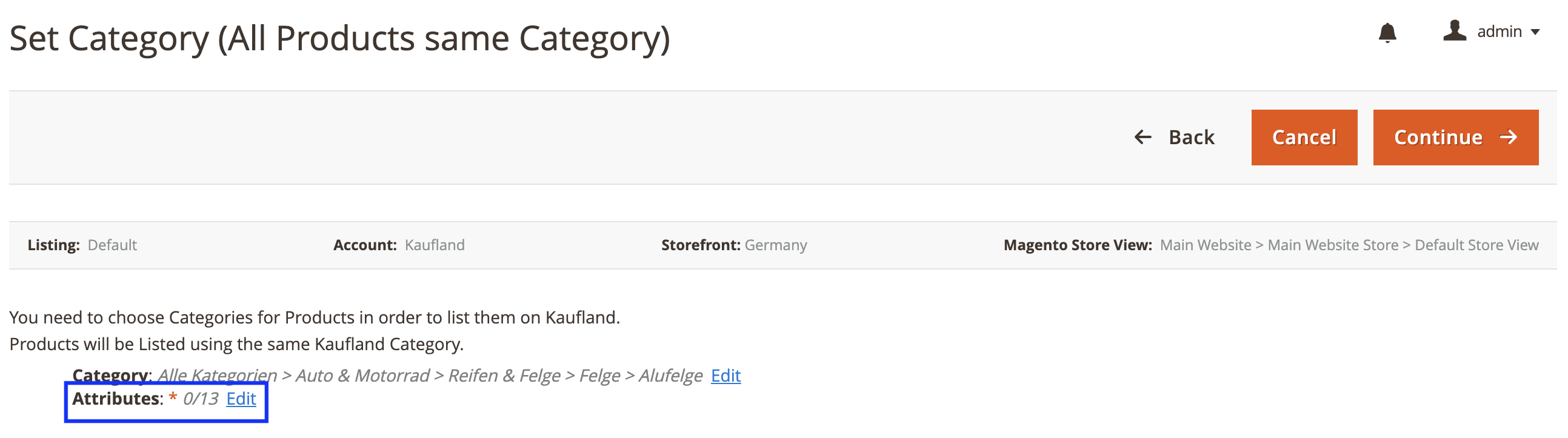
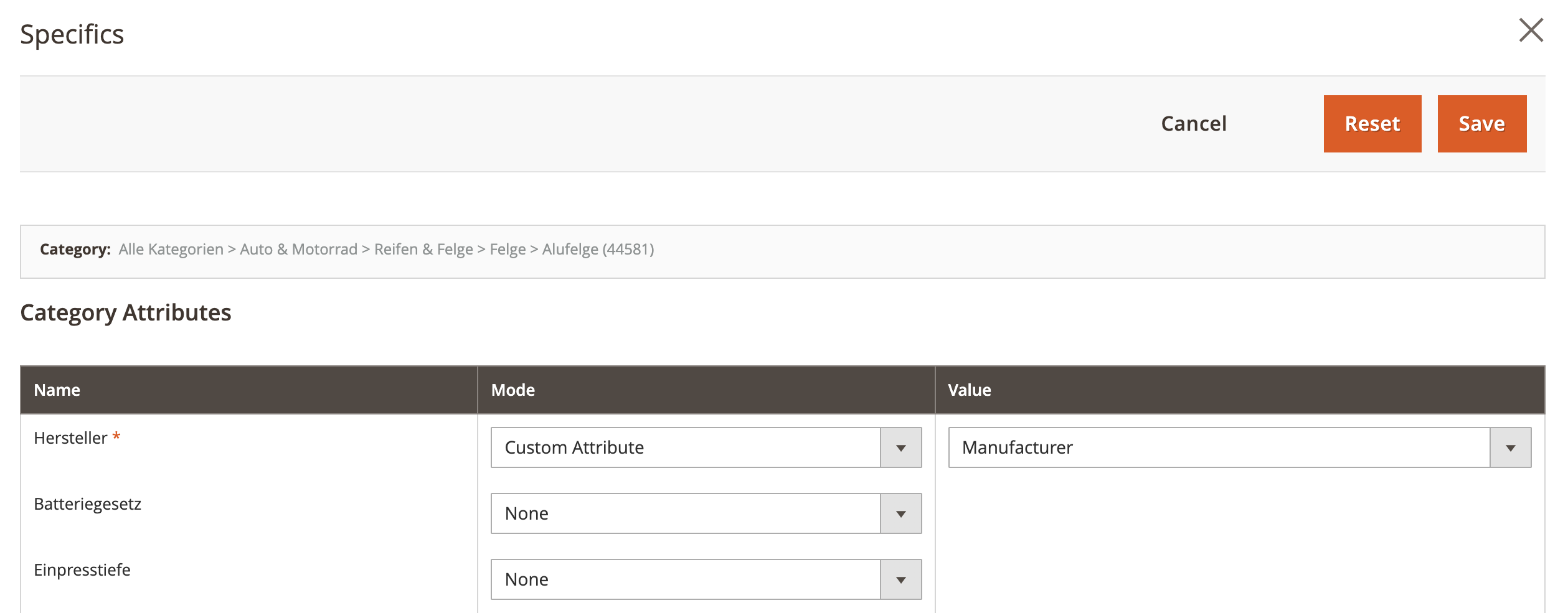
In the Mode section, select one of the available options from the drop-down menu:
- Custom Attribute – select a Magento Attribute that contains an appropriate value.
- Custom Value – manually enter the relevant value for the attribute.
Once selected, save the settings.
Product data validation #
Kaufland assigns specific attributes to each product category, so your product data must match these to ensure proper classification and visibility. M2E Kaufland Connect automatically validates this data whenever you assign or edit a Category for a not listed product in a Listing.
The system checks that Magento attributes mapped to Kaufland fields meet format, data type, and value requirements. For example, if a category requires a specific size, the value must fall within Kaufland’s accepted range. Any validation errors must be fixed by updating or adding the correct attributes.
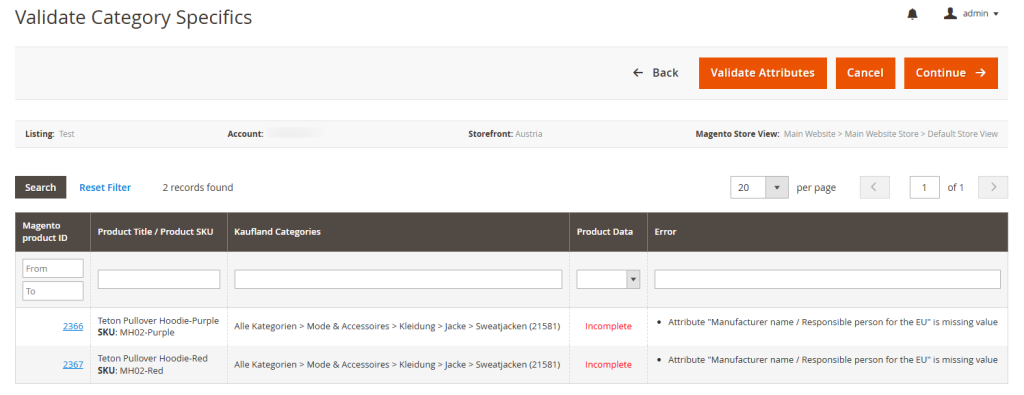
After successful validation, M2E Kaufland Connect submits the data to Kaufland, where it’s reviewed before listing. Additional adjustments may be needed during this review.
Edit categories and specifics #
At any time, you can modify category and attribute settings for your Kaufland products. Navigate to your M2E Kaufland Listing and switch to the Settings View Mode on top of the grid. Select the needed products you want to update and submit the Edit Category Settings > Categories & Specifics action.
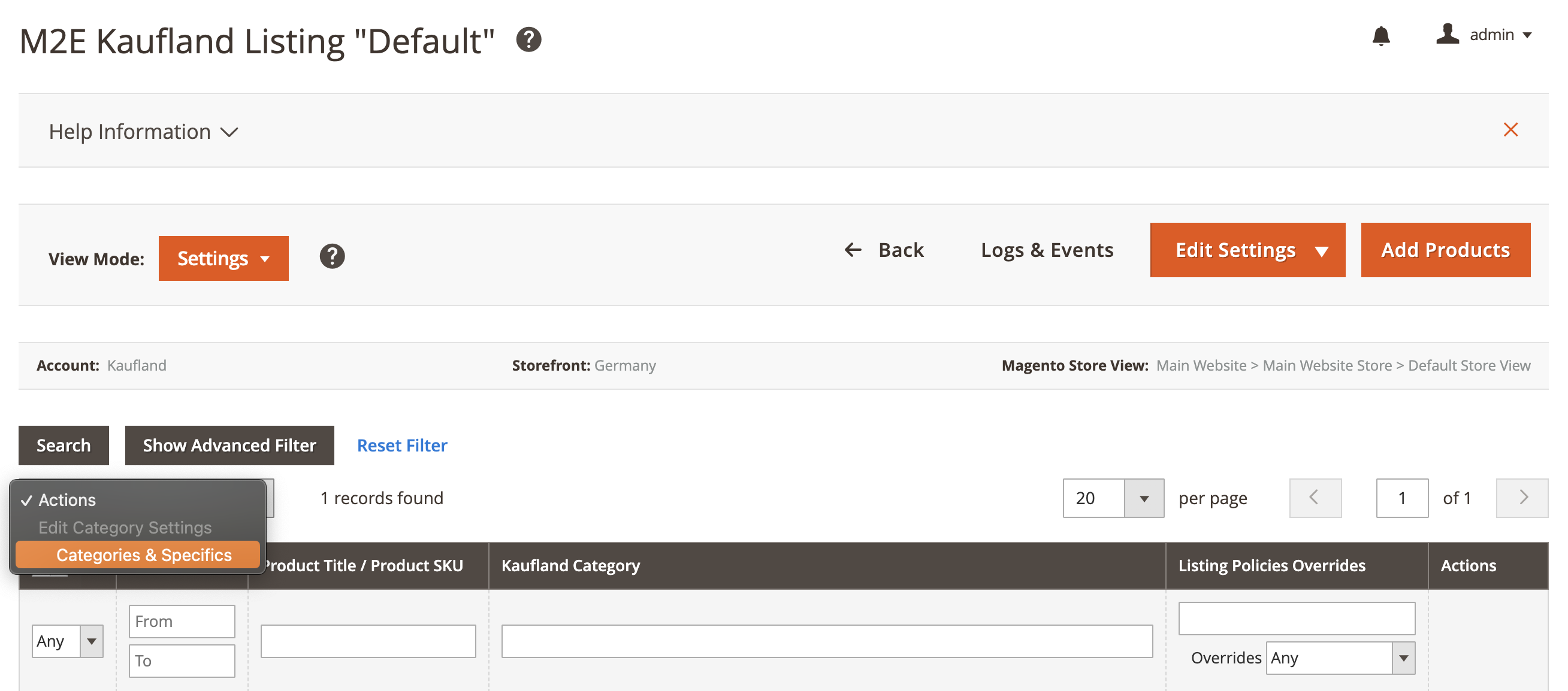
If your products are listed on Kaufland, the extension will send the category and attribute changes to the marketplace based on the Revise Rules in your Synchronization Policy.


