
ℹ️ There is no option to disable the import of Temu orders entirely. However, you can prevent Magento orders from being created for imported Temu orders if needed.
Product is Listed by M2E Temu Connect #
Configure order settings for products listed by M2E Temu Connect:

- Create Order in Magento – Set to “Yes” if you want M2E Connect to automatically create a corresponding Magento order for each Temu order placed for items listed through the integration.
- Magento Store View Source – Choose the Store View from which product data should be pulled when the Magento order is created.
✅ If the initial Magento order creation fails, M2E Connect will retry automatically up to three times at regular intervals.
M2E Connect may also retry order creation if the corresponding Temu order gets updated.
⚠️ The retry system ensures that duplicate Magento orders are not created from a single Temu order.
Product is Listed by Any Other Software #
Configure order settings for products listed outside of M2E Temu Connect:
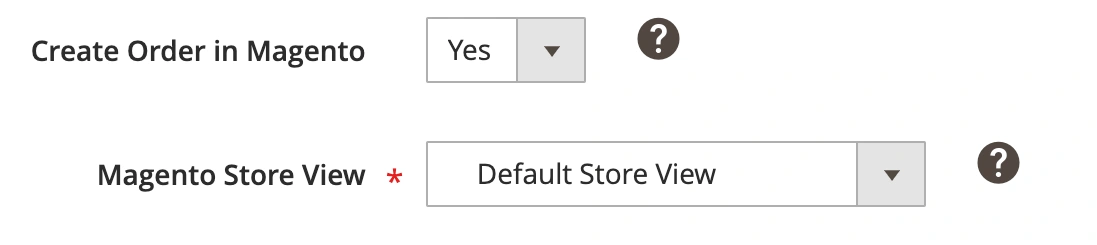
- Create Order in Magento – Set to “Yes” if you want M2E Connect to create a Magento order for Temu orders placed for items listed using another tool or directly on the Channel.
- Magento Store View Source – Choose the appropriate Store View for pulling product data.
If a purchased item is not found in your Magento catalog by SKU, choose how M2E Connect should proceed:
- Do Not Create Order – No Magento order will be created.
- Create Product and Order – A new product and corresponding order will be created in Magento using details from the Temu order. You can also specify the Product Tax Class for the new item.
Magento Order Number #
Customize how Magento order numbers are generated for Temu orders:
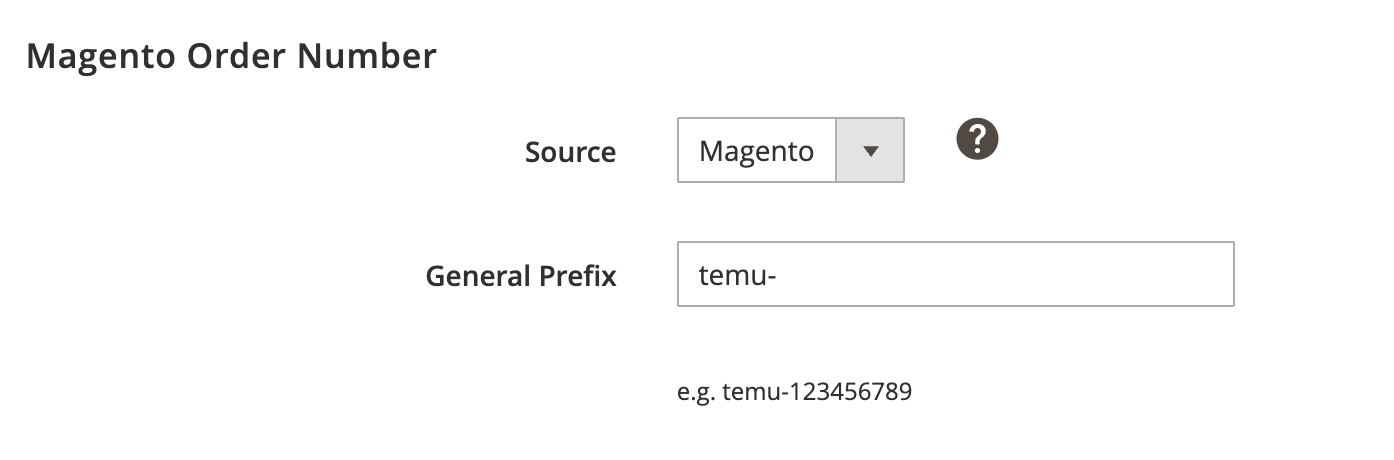
- Source – Choose whether the Magento order number should be based on your Magento settings or use the Temu order number.
- General Prefix – Add a prefix to Magento order numbers if needed.
Shipping Information #
Decide how shipping data from Temu should be imported into Magento orders:

- Import Ship by date to Magento order – Choose whether to import Temu’s ‘Ship By Date’ into the Shipping & Handling section in Magento.
- Override invalid Region/State required value – Set to “Yes” to automatically replace invalid regional values with alternatives.
✅ Keep this option enabled to ensure orders are created even if shipping information is incomplete or contains errors.
Customer Settings #
Specify how M2E Connect should handle Magento customers during order creation:
- Guest Account – Uses Magento's default guest account. Ensure “Allow Guest Checkout” is enabled in Magento under System > Configuration > Sales > Checkout.
- Predefined Customer – Assign all Temu orders to a specific Magento customer account. Magento Customer IDs can be found under Customers > Manage Customers.
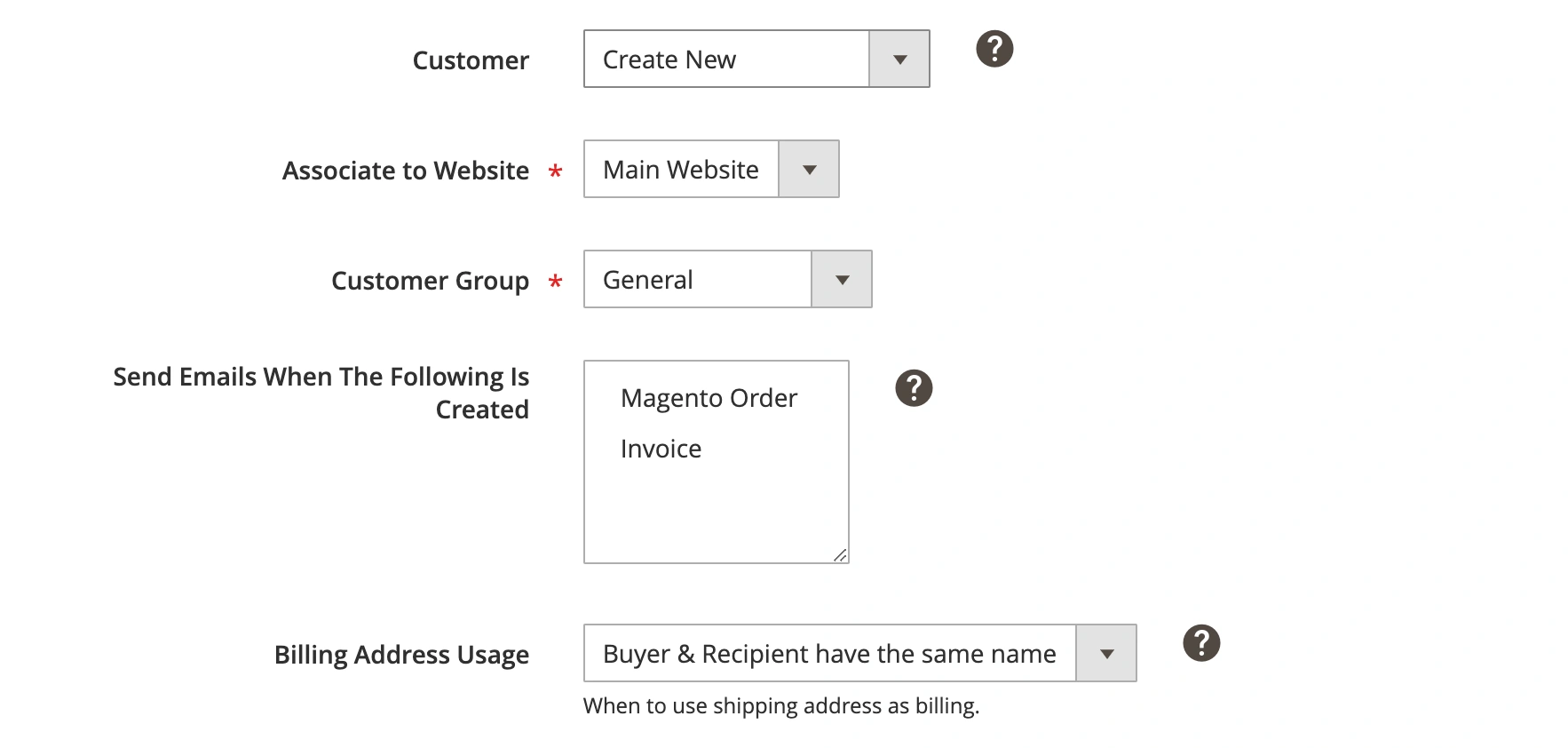
- Create New – A new customer is created based on the buyer’s email in the Temu order. If the email already exists, the order links to the existing customer:
- Associate to Website – Specify which Magento Website the new customer should belong to.
- Customer Group – Select the appropriate Magento customer group.
- Send Emails When The Following Is Created – Choose when Magento should send emails (e.g., on order creation, invoice, shipment). To use this option, the related email type must be enabled in your Magento under System > Configuration > Sales Emails.
- Billing Address Usage – select the option for how M2E Connect should handle the billing address for the imported Customer:
- Always – Use shipping address as billing address.
- Buyer & Recipient have the same name – Use shipping address as a billing one only if the buyer and recipient names match. Otherwise, leave billing fields empty with a note: "Temu does not supply complete billing information."
Order Creation Rules #
Set how Magento product quantities are reserved for Temu orders:

- Reserve Quantity – Choose how long the system should reserve product quantity for a Temu order before the Magento order is created. You can set a reservation period from 1 to 14 days.
Example: If an item is ordered on Temu and the reserve time is 1 day, that quantity is held in Magento until the order is either created or the reservation expires.
ℹ️ Reservations are required if Magento Order creation is enabled. The 1-day reservation period is provided by default.
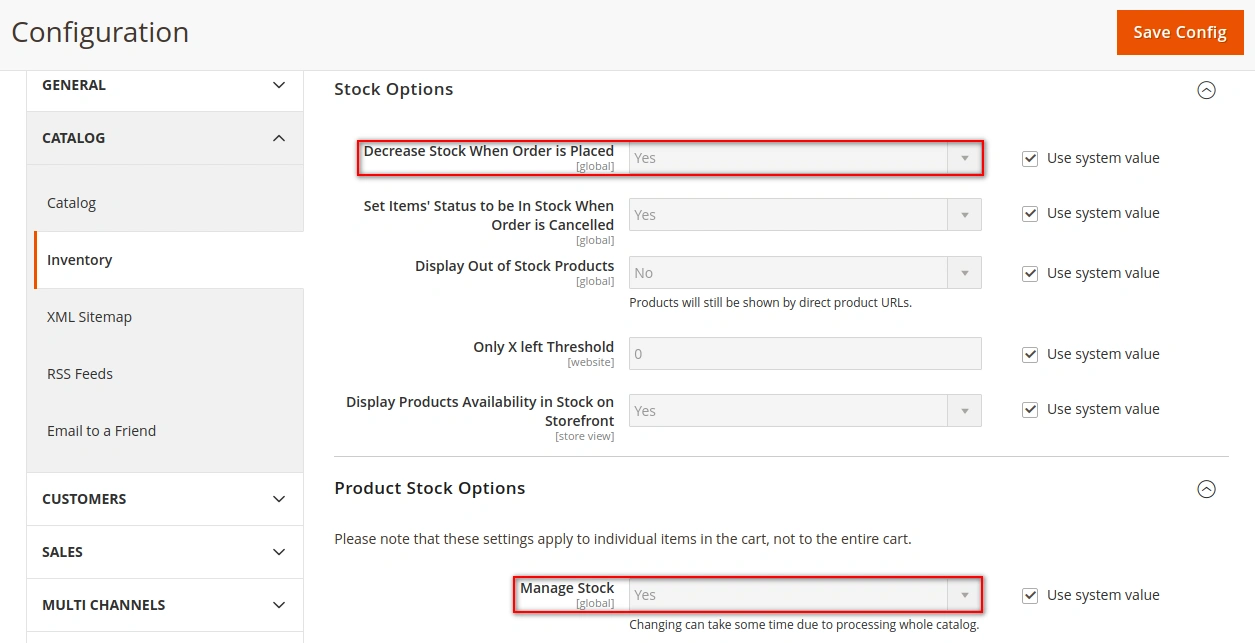
M2E Connect will reserve the Item Quantity only if both Manage Stock and Decrease Stock When Order is Placed options are enabled in your Magento under Stores > Settings > Configuration > Catalog > Inventory:
Cancellation #
Control how cancelled Temu orders are handled in Magento:
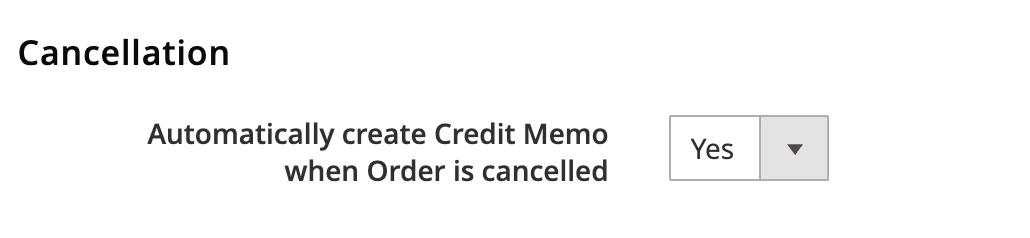
Automatically create Credit Memo when Order is cancelled – Enable if you want M2E Connect to automatically generate a Credit Memo in Magento when a Temu order is cancelled.
Order Tax Settings #
Select which tax settings should be applied to Magento orders:
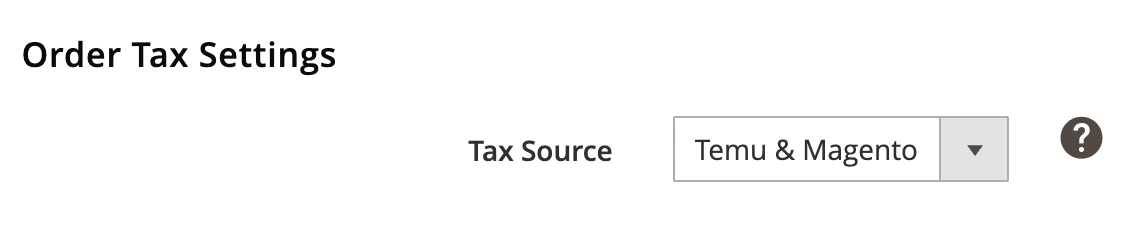
Tax Source – choose where the tax settings for your Magento orders will be taken from:
- Temu – tax settings configured in your Temu Seller Center will be used.
- Magento – tax settings configured in your Magento will be used.
- Temu & Magento – Temu tax settings will be applied if specified. Otherwise, Magento tax settings will be used.
- None – no taxes will be applied.
Order Status Mapping #
Set the correspondence between Temu and Magento order statuses. The status of your Magento order will be updated based on these settings.

You can either use the default order statuses or customize them according to your needs.
If you choose the default option, the Magento order will have a predefined status whenever the order is unshipped/partially or fully shipped on Temu. For example, once the order is “Shipped” on Temu, its status in Magento will change to “Complete”.
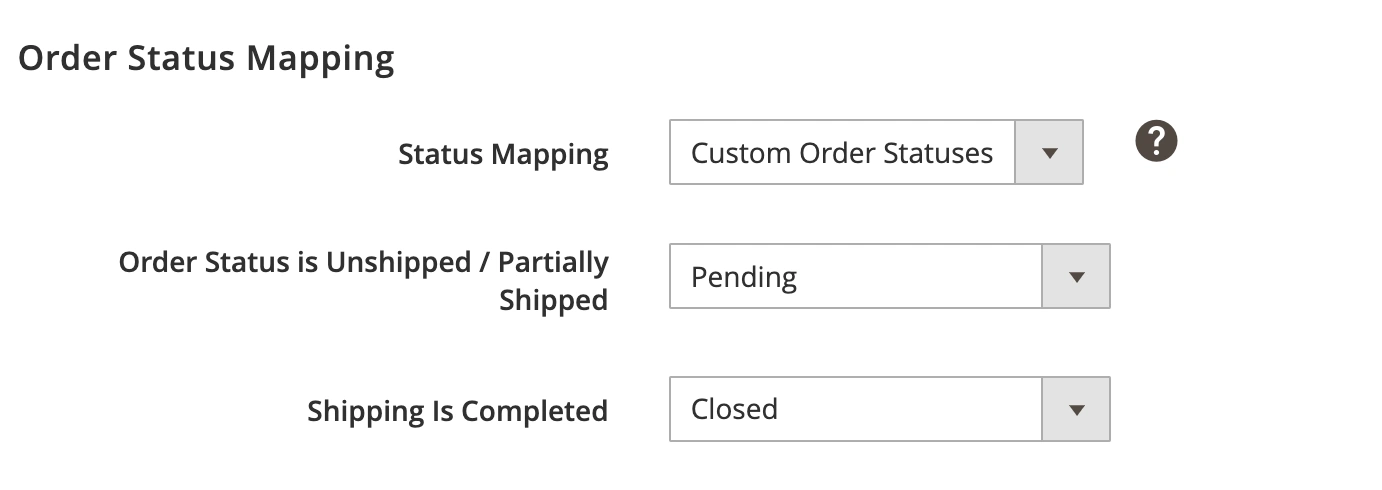
In case you do not want the order statuses on Temu and Magento to be fully consistent for some reason, set custom order status mapping. Depending on the status of your Temu order, you can match it manually to any of the available Magento order statuses from the drop-down menu.


