
Starting December 13, 2024, any seller shipping goods to Europe or Northern Ireland must comply with the General Product Safety Regulation (GPSR). To continue selling on TikTok Shop in these regions, you must submit the Manufacturer and Responsible Person details for your products.
With M2E Connect, you can efficiently manage this process. Follow these steps to ensure your TikTok Shop listings remain compliant.
Step 1. Set Brand in the Categories #
First, you need to fill in the Brand specific in the сategories.
1) Go to TikTok Shop > Configuration > Categories and select a category.
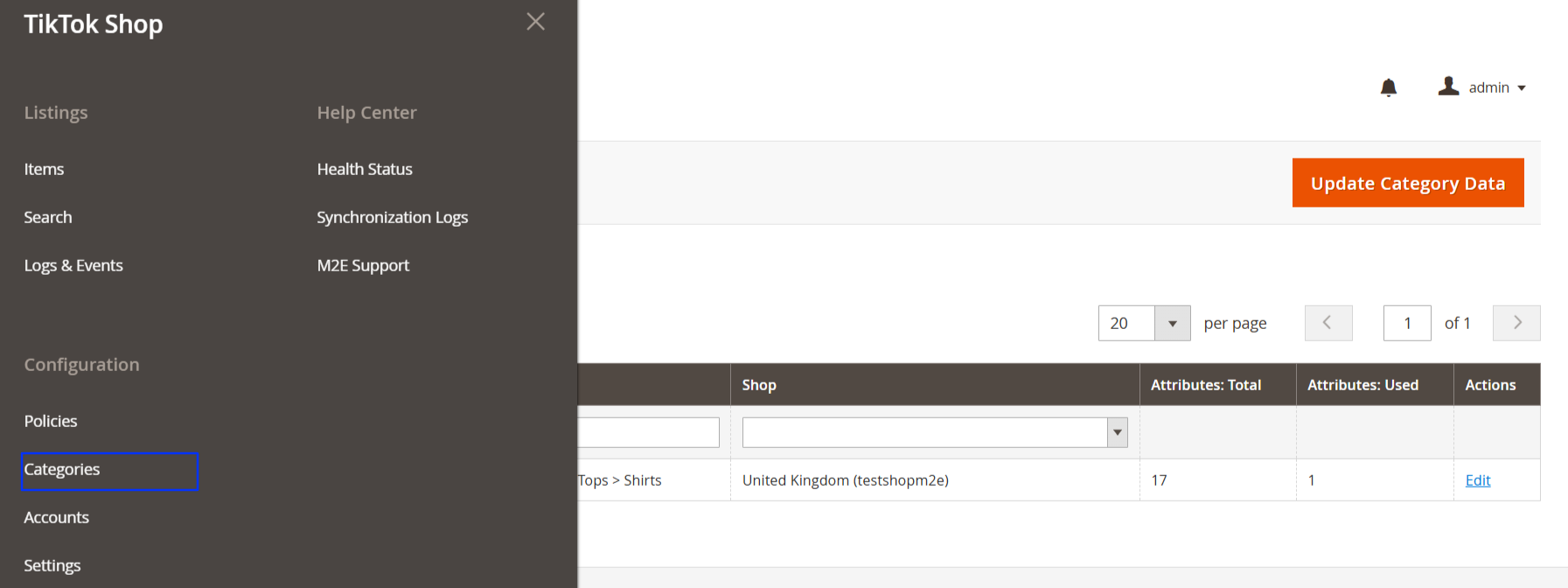
2) Open the category with Edit.
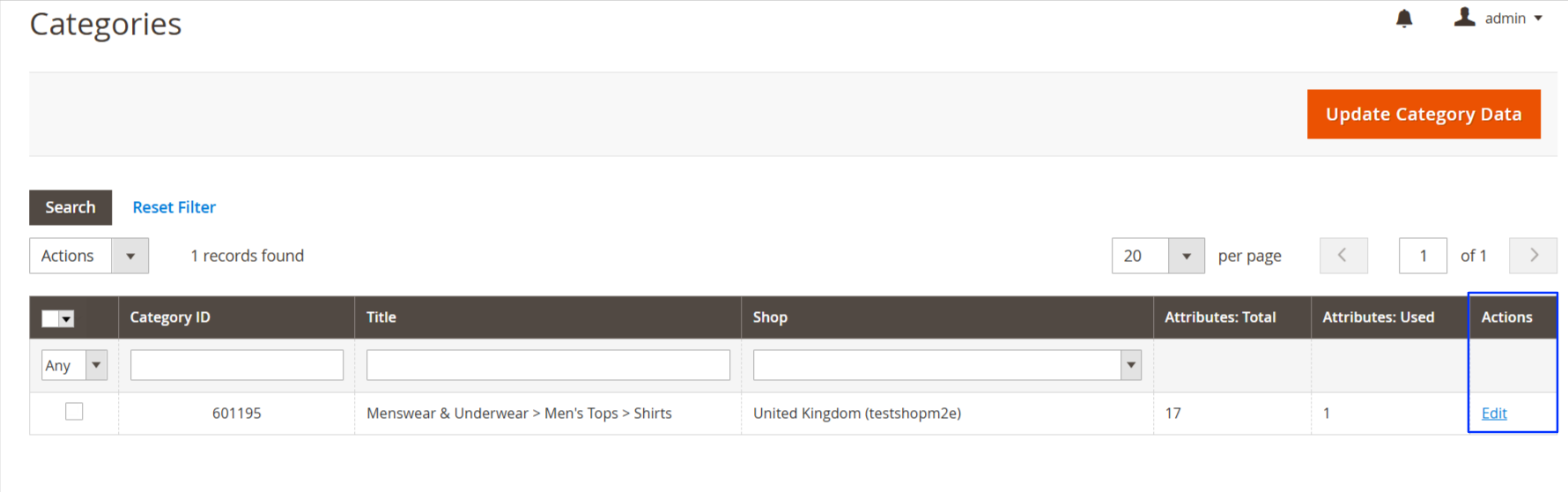
3) Ensure that the Brand specific is filled.

4) Save the changes.
5) Repeat for all categories.
Step 2. Configure TikTok Shop GPSR Settings in M2E Connect #
Once your Brand is set up in the categories, you need to configure GPSR Compliance for the Brands you sell.
How to create a GPSR compliance
1) Navigate to TikTok Shop > Configuration > Settings > GPSR in M2E Connect.

2) Click Add New.
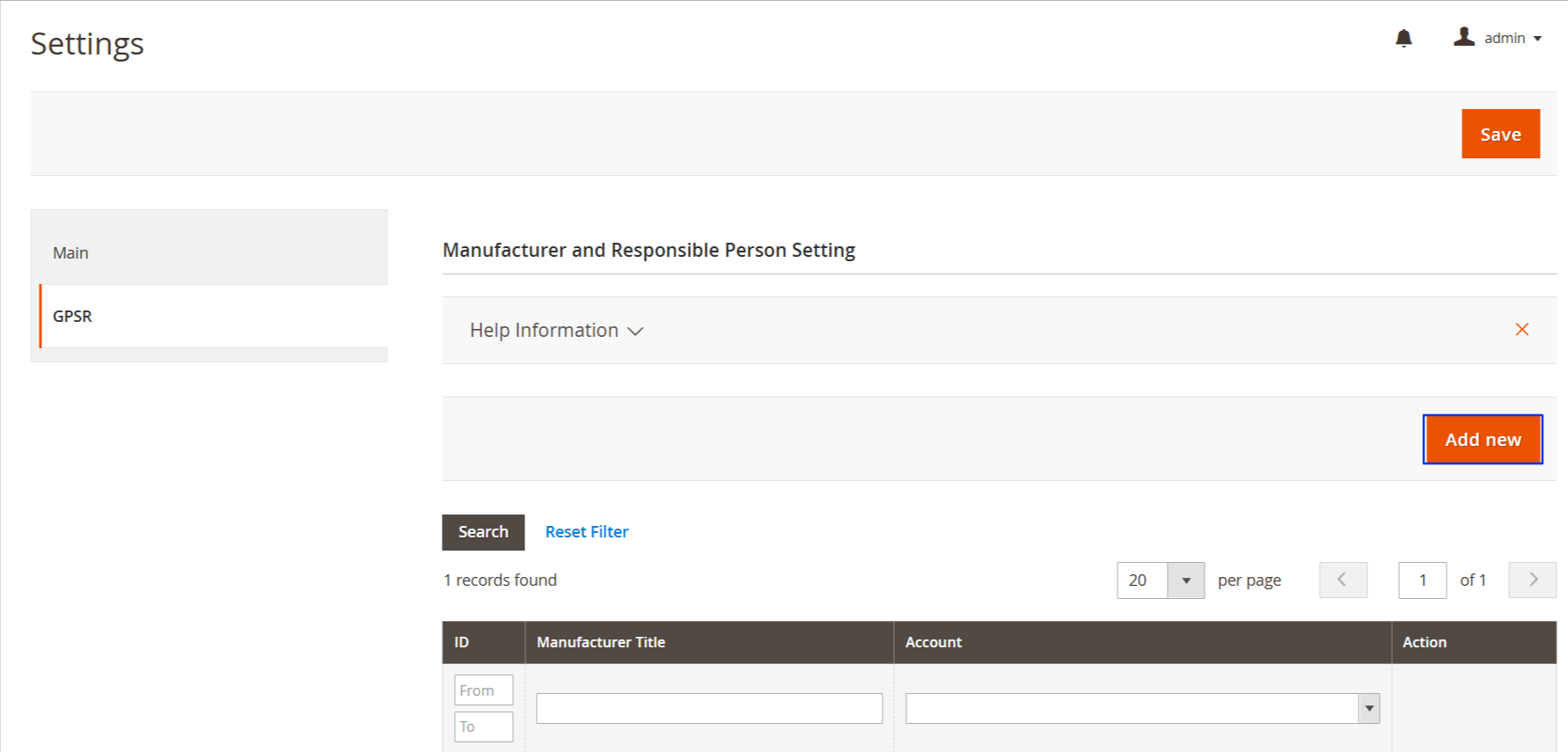
3) Enter a Title that matches one of the Magento product Brands.
4) Select the TikTok Shop account linked to the European marketplace where your products are listed.
Assign the Manufacturer & Responsible Person details
You can either create Manufacturers and Responsible Persons in TikTok Shop Seller Central and download them to M2E Connect or create them directly in M2E.
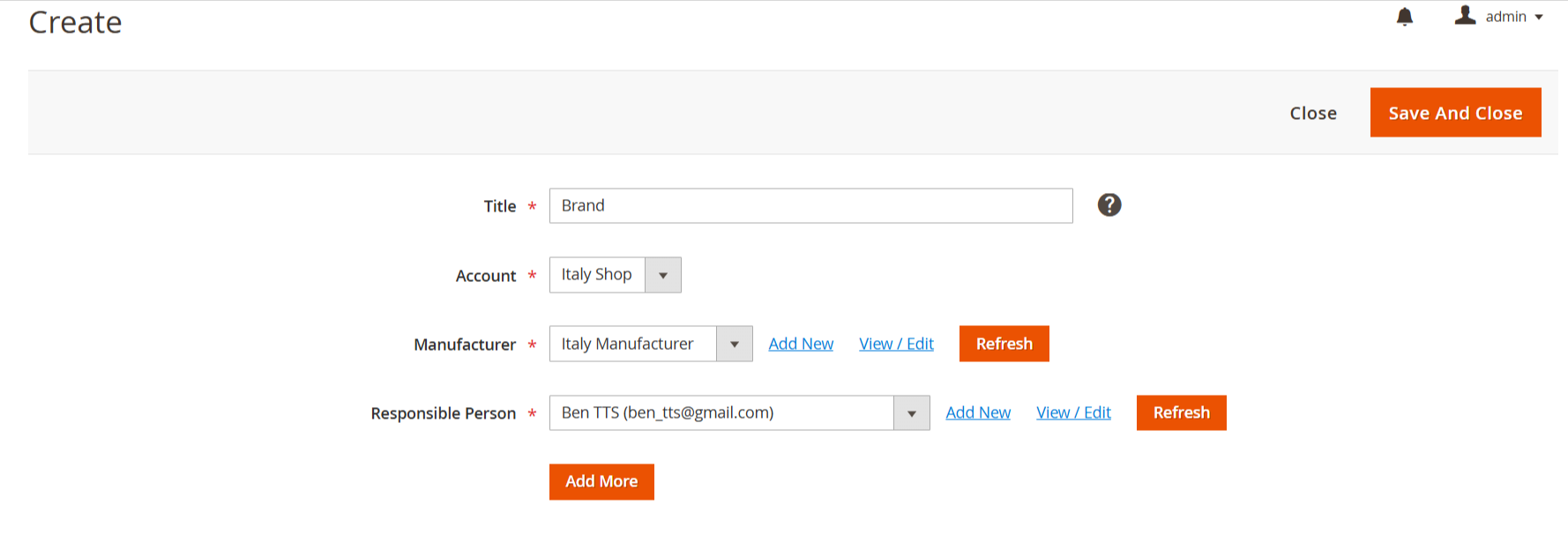
- Manufacturer: Select an existing Manufacturer set up in TikTok Shop from the drop-down menu or click Add New to create one. To review or modify details, click View/Edit.
- Responsible Person (RP): Choose an existing RP set up in TikTok Shop or add a new one by clicking Add New. You can also click View/Edit to make changes. If multiple RPs are required, click Add More to include additional Responsible Persons.
✅ Click Refresh to sync the latest Manufacturer and RP data from TikTok Shop.
Once you have configured all details, click Save and Continue Edit to save your compliance settings.
You can create multiple GPSR Compliance based on Brand, product category, or other criteria.
ℹ️ Please pay attention that the Title of GPSR Compliance and the Brand of the products that are set in the categories should match.
Step 3. Enable synchronization of GPSR information #
To ensure your GPSR compliance data stays up to date, enable synchronization of product compliance information in your Synchronization Policy for TikTok Shop’s European marketplaces:
1) Go to Configuration > Policies.
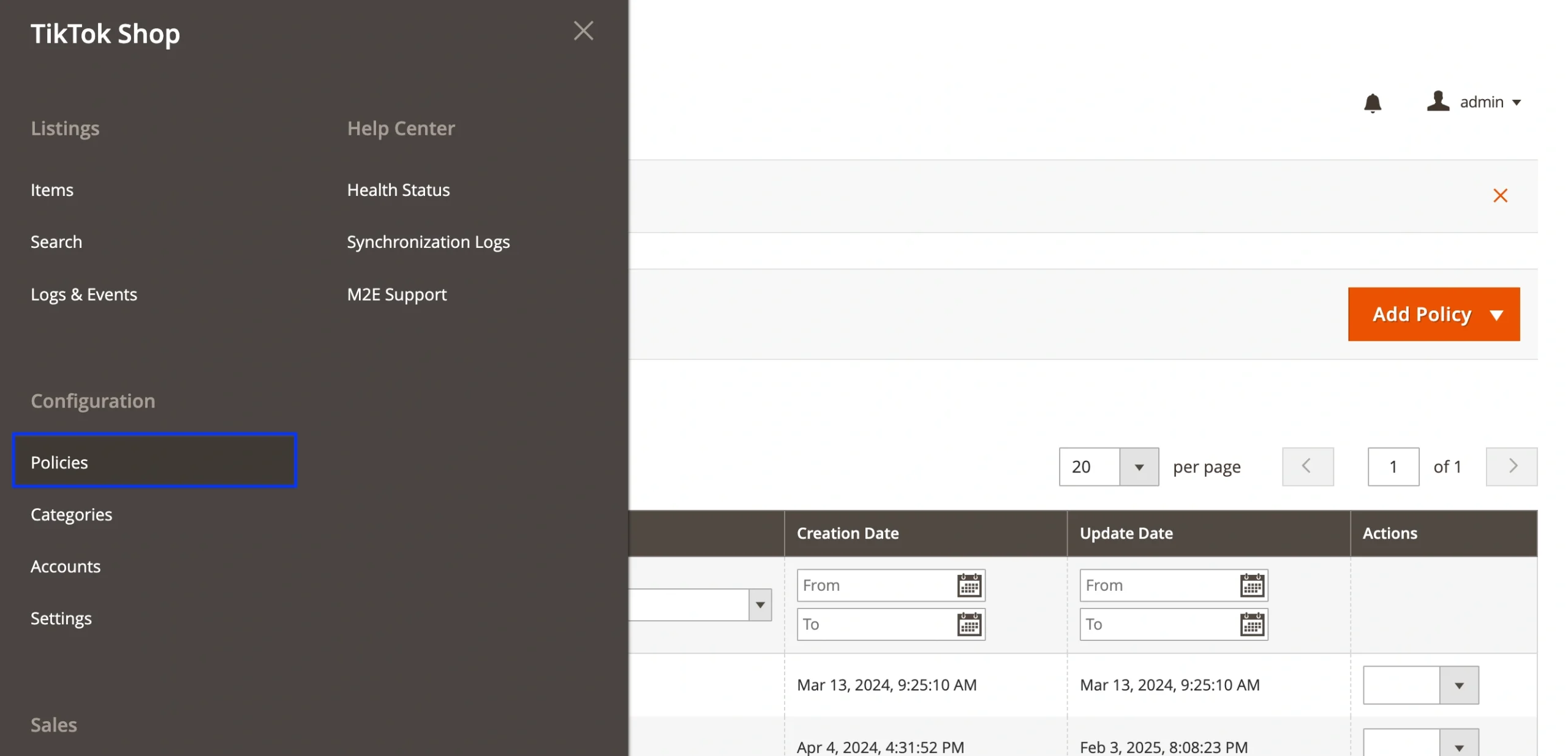
2) Find the Synchronization Policy for your European listings and open it.

3) Navigate to the Revise Rules tab.
4) Set Yes next to the Product Compliance option.

5) Save the changes.
ℹ️ If you have multiple Sync Policies for European listings, repeat this step for each one.
Step 4. Assign GPSR compliance files & certificates #
To meet GPSR requirements, you need to provide the necessary certificates, images, and compliance files for your TikTok Shop listings using category attributes.
ℹ️ The required compliance files and certificates vary by TikTok Shop category.
Provide compliance files in category settings (bulk update) #
If your products share the same compliance files or certificates, you can assign them directly in the Category Settings:
1) Go to Configuration > Categories.
2) Click Edit next to the category you want to update.

3) Locate the GPSR compliance fields (e.g., product certificates, safety images).
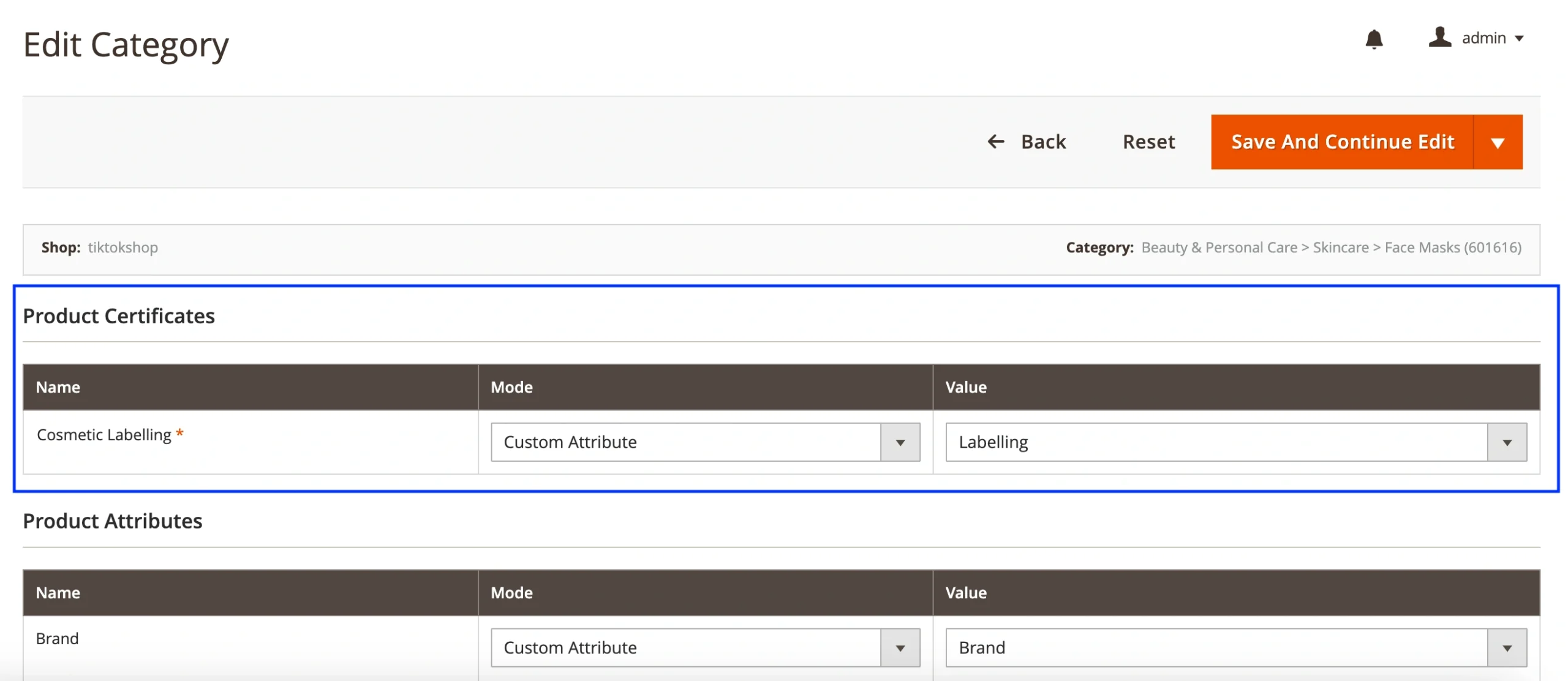
4) Assign a Magento attribute to pull data dynamically or enter a custom value with a direct link to the image or certificate. You can add multiple values if needed.
5) Save the changes.
ℹ️ After saving your changes, M2E Connect will automatically update the information in your TikTok Shop listings as long as the Categories/Attributes option is enabled under Synchronization Policy > Revise Rules.
By following these steps, you’ll ensure that your TikTok Shop listings remain GPSR-compliant, preventing disruptions to your sales in Europe and Northern Ireland. If you need further assistance, don’t hesitate to contact our support team.


