
If you need a quick way to review your Walmart listings outside M2E Pro, you can download your product data into a CSV file.
By exporting your Walmart listings to CSV, you can check key product information, share it with your team, or use the data when preparing for Magento product export workflows.
Available export options #
You can export Walmart listing data in several ways, depending on what you need to work with:
1. Export all managed Walmart items
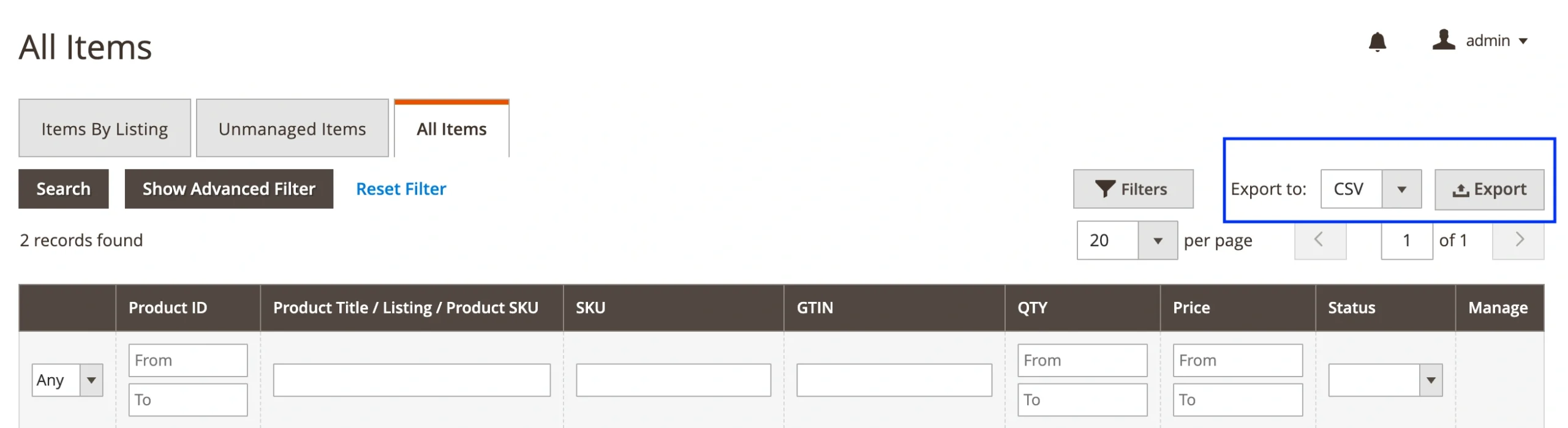
To get a full list of Walmart listings currently managed via M2E Pro, go to Listings > Items > All Items. Click the Export button to download a CSV file.
2. Export items from a specific Walmart Listing
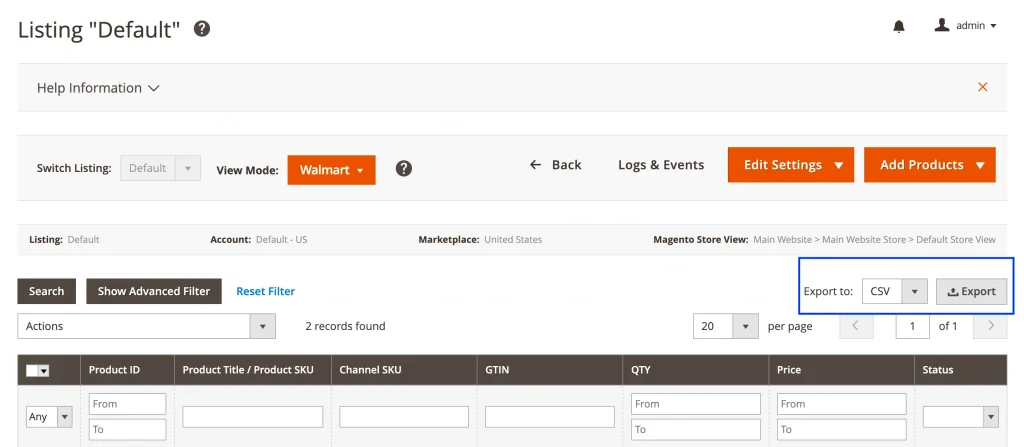
If you only want to export products from a particular M2E Pro Listing, go to Listings > Items > Items by Listing. Select the listing you need and click the Export button in the top-right corner of the grid.
3. Export unmanaged Walmart listings
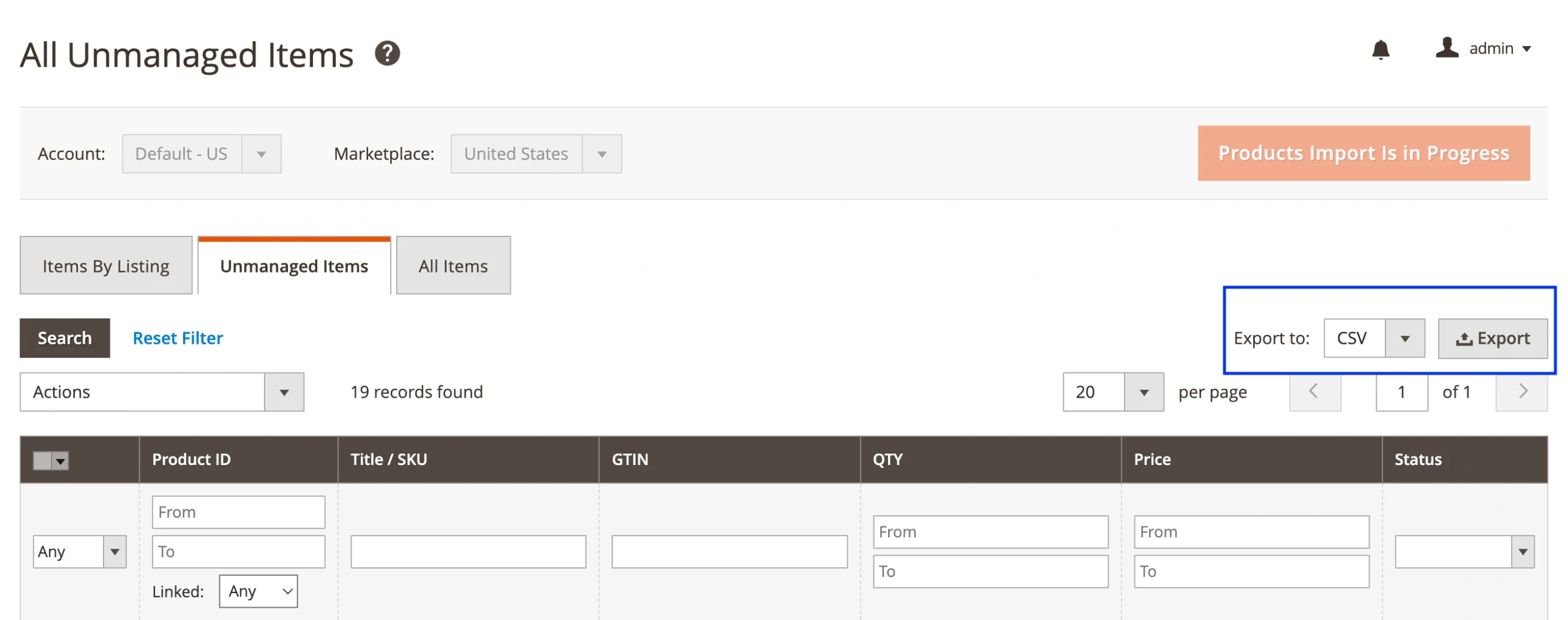
M2E Pro imports Walmart items that exist in your Walmart account but haven’t yet been linked to Magento catalog data. You can find them under Listings > Items > Unmanaged Items. Use the Export option there to download the items in a CSV File. It will help identify which items should be moved to M2E Pro Listings for ongoing management and synchronization with Magento.
What's included in the exported file #
The CSV file includes all the essential product details you might need, such as Magento Product ID, Product Title, SKU, Walmart GTIN, QTY, Price, and Status.
You can open this file through spreadsheet tools like Excel or Google Sheets. The format is simple and mirrors what's commonly used in Magento product export files.


