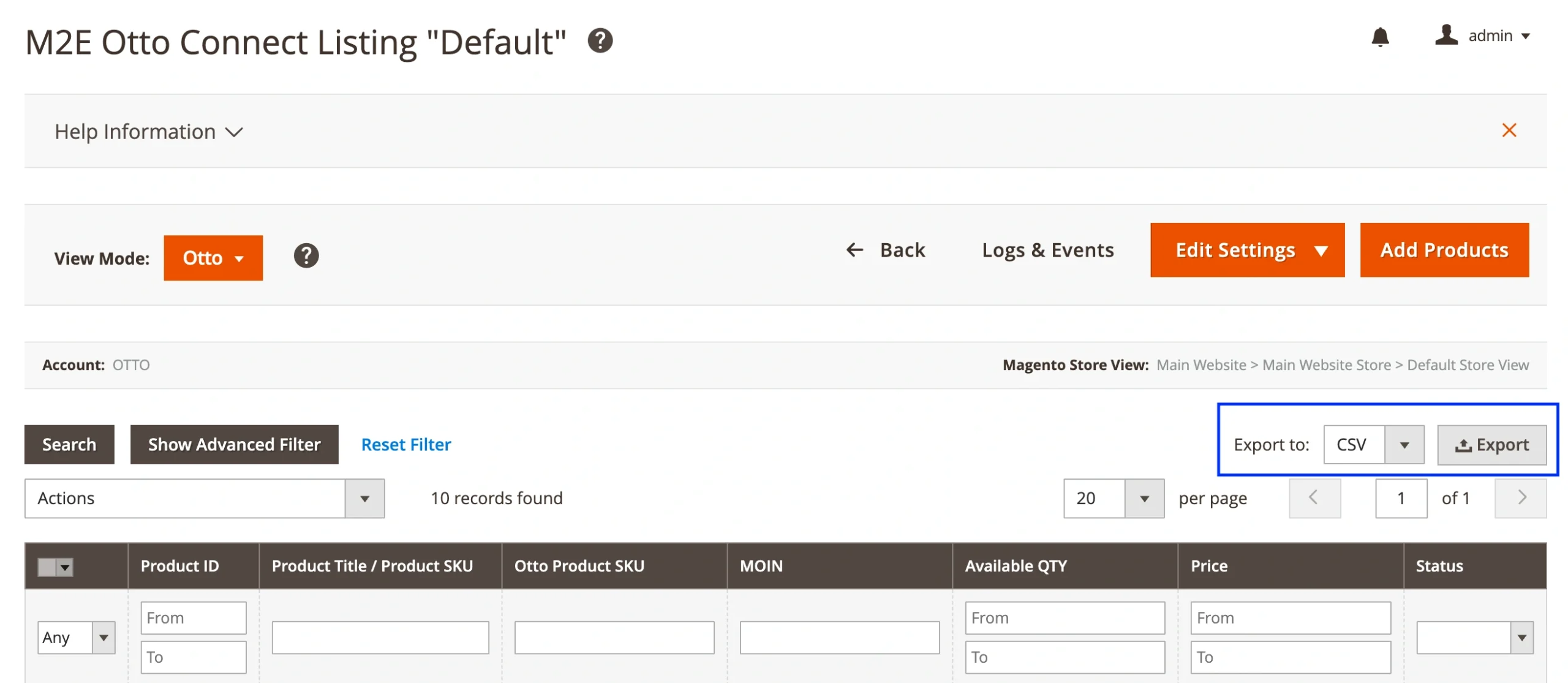
If you're managing your OTTO listings through M2E Connect, you can download your product data in a CSV format. It’s a practical way to review your items outside the app, keep a copy for internal use, or prepare for future catalog tasks like Magento product export.
What’s inside the exported file #
When you export your OTTO products, M2E Connect generates a file with key details about your listings.
The CSV file contains the Magento Product ID, Product Title, Product SKU, Channel SKU, MOIN, QTY, Price, and Product Status.
This format is clean and straightforward, similar to what’s used to export Magento products. It’s easy to understand and reuse in your workflows. You can open the CSV file in Excel or Google Sheets or import it into other tools if needed.
Ways to export OTTO listings from M2E #
You have two export options, depending on how much data you need:
Download the full product list #
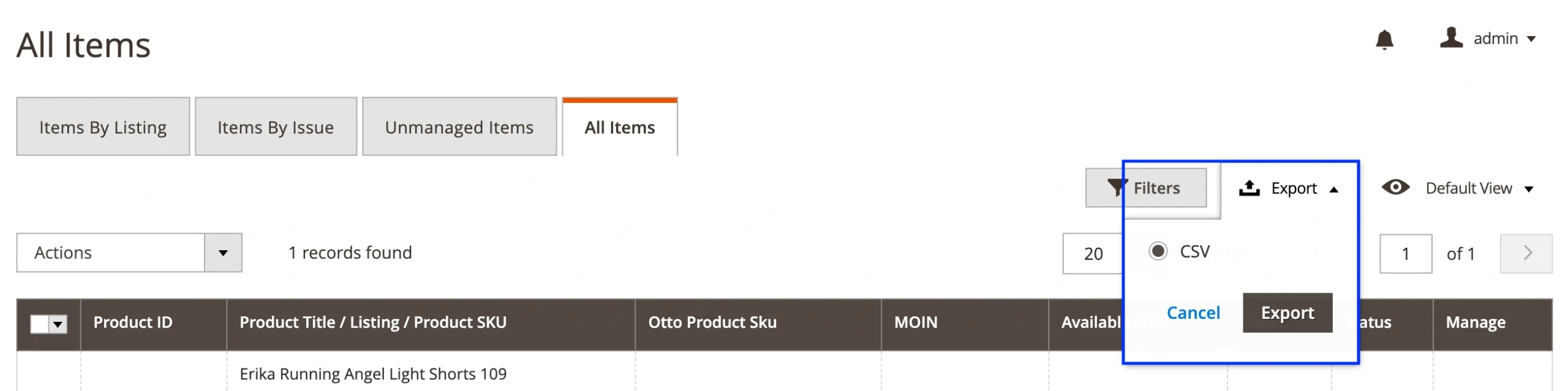
Go to Listings > Items > All Items in your M2E OTTO Connect panel. Click the Export button on the right side of the grid. This will generate a CSV with all the OTTO products you manage through M2E.
Export items from individual Listings #
If you only need to save products from a specific M2E OTTO Connect Listing, go to Listings > Items > Items by Listing. Choose the listing you want and click the Export button on the right side.