
If you are an existing Walmart seller and want to manage your Channel inventory based on Magento data, you can use the Unmanaged Listings functionality.
This article will guide you step-by-step on how to transfer your Unmanaged Items into M2E Pro Listing.
Step 1: Enable the Unmanaged import #
To import your existing Walmart inventory into M2E Pro, you should enable this feature in your Account configurations: Walmart > Configuration > Accounts > edit Account > Unmanaged Listings.
⚠️ It can take up to 24 hours to import all existing Unmanaged Listings.
✅ You can enable/disable the option for each M2E Pro Walmart account individually.
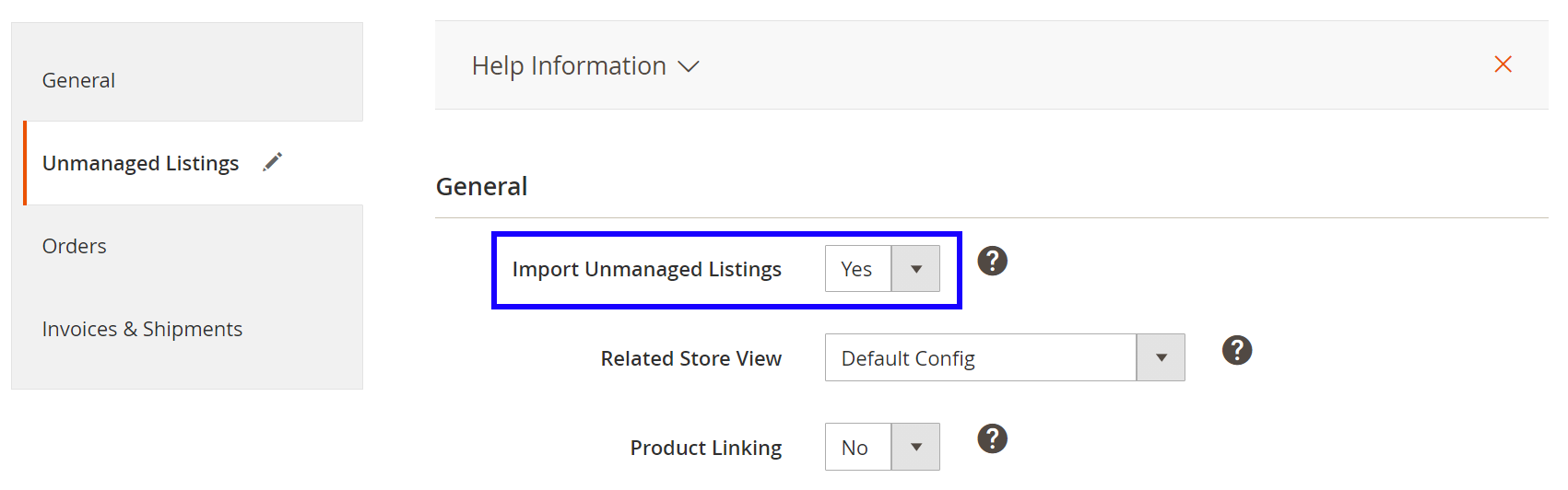
While you are importing Unmanaged items to your M2E Pro, you will see a relevant message. The Reset Unmanaged Listings button will be inaccessible until the Unmanaged items are done importing.

Step 2: Open the Unmanaged Listing #
The imported Unmanaged Items can be found under Walmart > Listings > Items > Unmanaged Items. The Unmanaged Items from the different Walmart accounts will be stored in separate Listings.
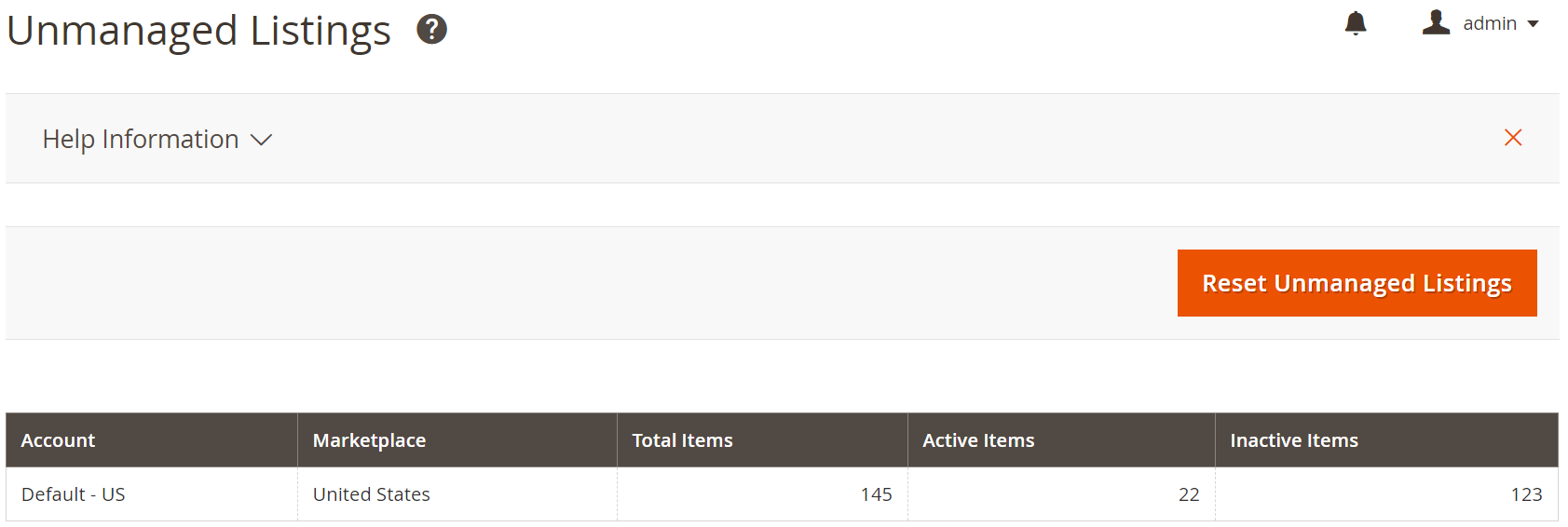
Open the desired Listing to review the items: their title, SKU, product identifier, current quantity, price, and status on the Channel.

✅ You can export all Unmanaged Walmart items and their data to a CSV file. For that, click Export in the top right corner of the grid.
Step 3: Link the Unmanaged Item to Magento Product #
Automatic linking #
During the initial Unmanaged Item import, the items can be linked to Magento Products automatically based on the linking settings, e.g. SKU, UPC, GTIN, etc. values, defined in your Account configurations.
To apply these settings to the selected Unmanaged Items, submit the Link Item(s) Automatically action in the Listing grid:

Manual linking #
You can match the Unmanaged Items with Magento Products using the manual Link option. To start with, please search for an item that you want to associate with Magento Product, then click Link:

In the opened pop-up, select a corresponding Magento Product and click Link To This Product:

Once the linking is completed, the related Magento Product ID will appear next to the Unmanaged Item:

After moving the Item to the M2E Pro Listing, you will be able to change the Magento Product it is linked to. To relink your Item, go to Walmart Integration > Listings > M2E Pro and apply the Link to another Magento Product action in the Settings View Mode.

✅ Link to another Magento Product action is available only for Items moved from the Unmanaged Listings.
Step 4: Move the Unmanaged Item to M2E Pro Listing #
After the Unmanaged Item is linked, it can be moved to M2E Pro Listing. To do it, please click Move next to the item:
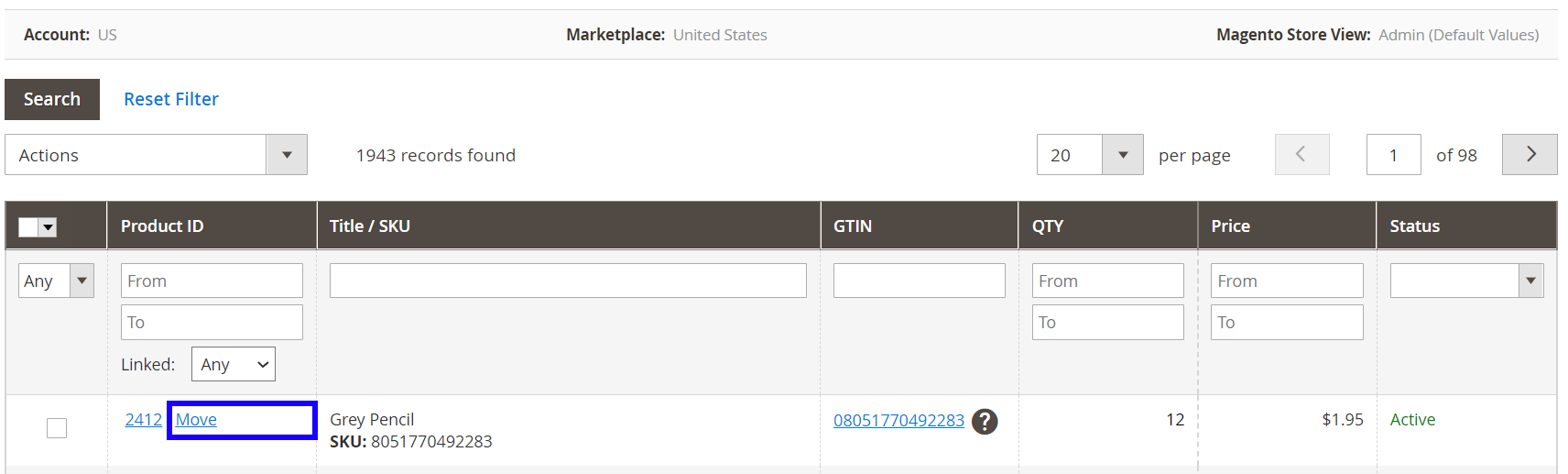
Submit the Move Item(s) to Listing action from the Actions menu to move the items in bulk:
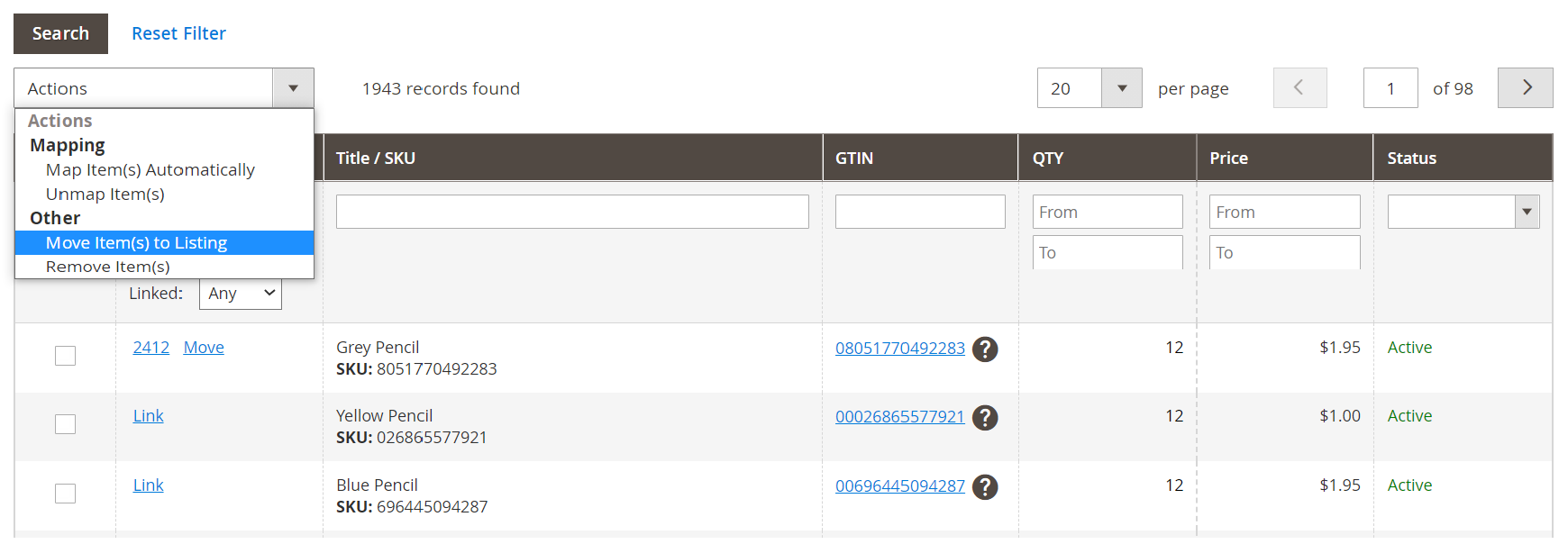
In the opened pop-up, select a relevant M2E Pro Listing. Then click Move To This Listing:

✅ If none of the existing Listings suit you, click Add New Listing to create a new M2E Pro Listing on the fly.
Step 5: Assign Walmart Product Type #
It is important to assign a Walmart Product Type to an item before it is placed into M2E Pro Listing. Please check this article to find the detailed instructions.
✅ M2E Pro will automatically schedule synchronization of Unmanaged Item with Magento data right after the item is placed into M2E Pro Listing.
ℹ️ You can observe all Products from M2E Pro Listings or Unmanaged Listings under Walmart Integration > Listings > Search Products.


