
General #
If you are an existing TikTok Shop seller and want to manage your inventory based on Magento data, you can use the Unmanaged Listing functionality. To import Unmanaged Items to M2E TikTok Shop (TTS), enable the corresponding option in your Account configurations (TikTok Shop > Configuration > Accounts > Unmanaged Listings):
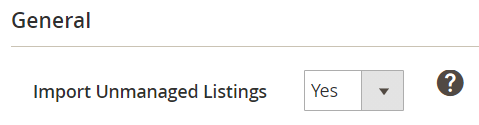
⚠️ It can take up to 24 hours to import all existing Unmanaged Listings, depending on the size of your inventory.
Only active TikTok Shop products will be imported.
All imported Unmanaged Items can be found under TikTok Shop > Listings > Items > Unmanaged Items.

You can Reset items from your Unmanaged Listings. It will take up to 24 hours to import them anew.
⚠️ While you are importing Unmanaged items to your M2E TTS, you will see a relevant message. The Reset Unmanaged Listings button will be inaccessible until the Unmanaged items are done importing.
You can manage imported items in bulk using the mass Actions menu. Simply select the items, then apply the required action:
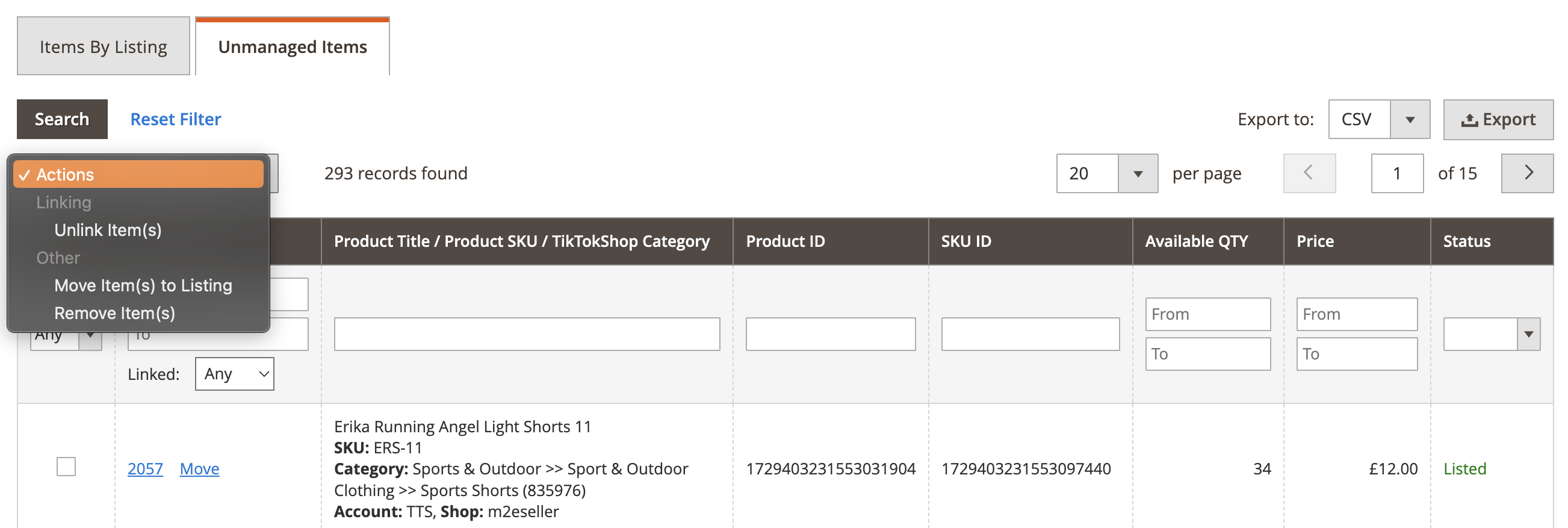
- Unlink Item(s) - allows unlinking selected Items from Magento Products.
- Move Item(s) to Listing - allows moving selected linked Items to M2E TTS Listing.
- Remove Item(s) - allows removing selected Items from the Unmanaged Listings.
Before M2E TTS starts managing your Unmanaged Items, you need to link them to the relevant Magento Products, then move them to M2E TTS Listing. Find the detailed instructions below.
Linking to Magento Product #
For correct synchronization of item data between TikTok Shop and Magento, you need to link the item to Magento Product. Make sure that the selected Magento Product fully corresponds to your TikTok Shop item.
You can manually link your TikTok Shop item to a relevant Magento Product. To do it, complete the following steps:
- Click Link next to the item:
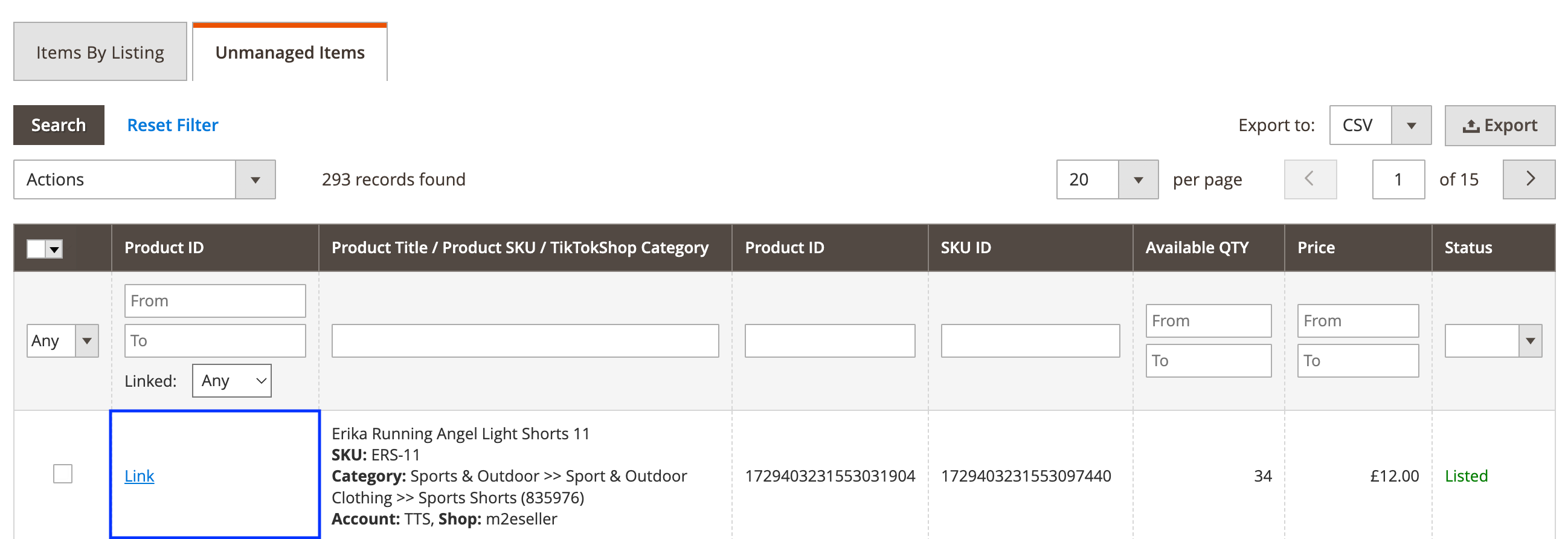
⚠️ Make sure that the products you are going to link have the same SKU values.
- In the opened window, click Link to this Product next to the relevant Magento Product:

ℹ️ You can export all Unmanaged TikTok Shop items and their data to a CSV file. For that, click Export in the top right corner of the grid.
Moving to M2E TTS Listing #
After you link the Items, they can be moved to M2E TTS Listing. You can apply the Move action to each item individually or manage items in bulk.
If you need to move a single item to M2E TTS Listing, please complete the following steps:
1) Click Move next to the item:

2) In the opened window, click Move To This Listing next to the required M2E TTS Listing or create a new one by clicking Add New Listing:

To move several TikTok Shop items at once, you need to:
1) Filter out the linked Items.
2) Select all filtered Items.

3) Apply the Move Item(s) to Listing action.
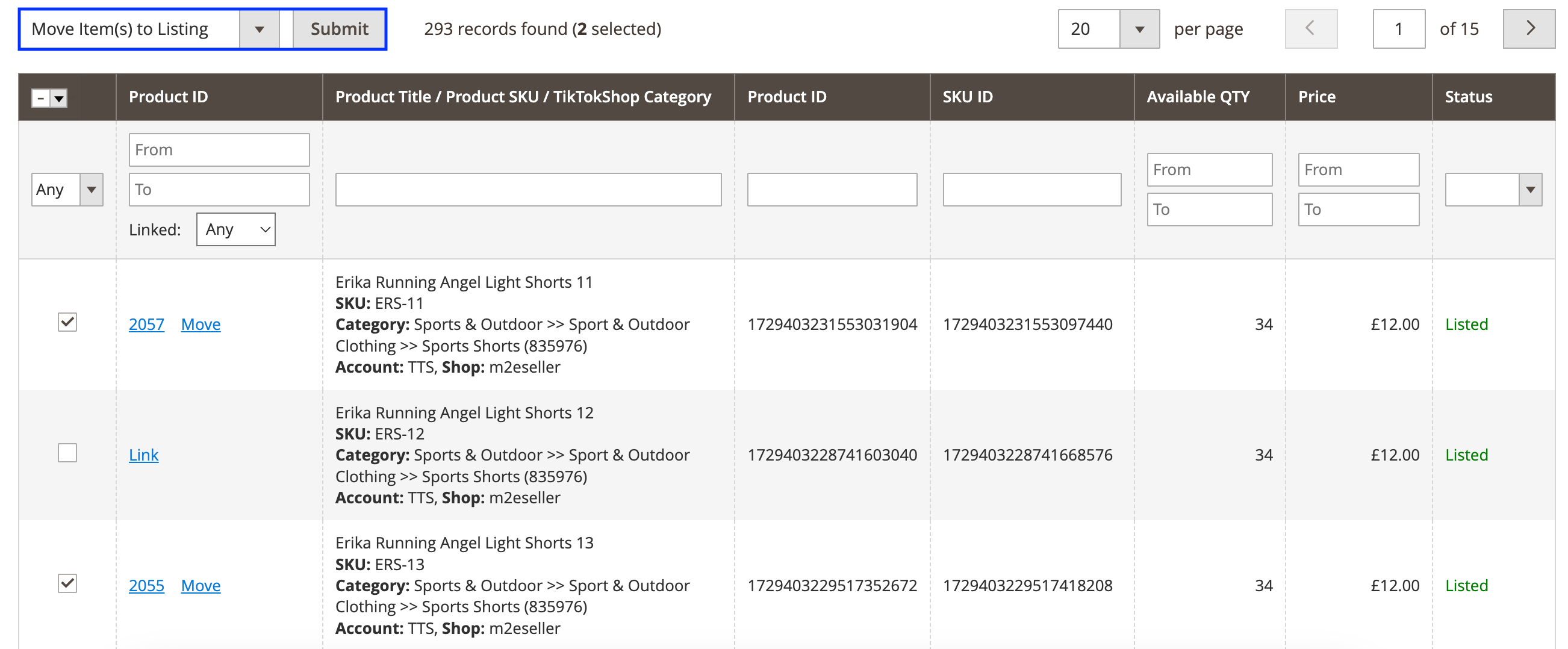
4) In the opened window, click Move To This Listing next to the required M2E TTS Listing. You can create a new Listing on the fly by clicking Add New Listing.
✅ The extension will automatically schedule the synchronization of Unmanaged items with Magento data right after the items are placed into M2E TTS Listing.


